Kollus MCP
This document is a machine-translated draft and is currently undergoing review. Some content may be inaccurate or differ from the original Korean version. For the most precise information, refer to the Korean documentation.
The official Kollus MCP server does not support Live lookup and JWT verification. If you need these features, please use the Kollus MCP beta server (mcp-beta.kollus.com).
- See also: Kollus MCP Beta Server Guide
What is the Kollus MCP server?
The Kollus MCP server is a remote MCP (Model Context Protocol) server that lets generative AI such as Claude and ChatGPT query and use the official Kollus guides, API specifications, sample code, and VOD data in your workspace through natural language. Once the integration is complete, you can search Kollus documentation and call APIs to perform the tasks you need simply by asking questions in the AI chat window.
Kollus MCP server integration information
- Server URL:
https://mcp.kollus.com/mcp - Authentication method: OAuth (Kollus VOD console account authentication)
Prerequisites
During the integration process, the Kollus MCP sign-in screen appears. For a smooth process, check the account information below in advance.
| Item | Input value | Where to find |
|---|---|---|
| ID | Kollus VOD console sign-in email | - |
| Password | Kollus VOD console sign-in password | - |
| Region | Korea (KR) / Japan (JP) / Global (EN) | Select the region you use to access the Kollus VOD console |
| Service account key | Key for identifying the workspace | Kollus VOD console > [Workspace settings] > [Service information] > [Service account key] |
Integration methods by AI service
- Claude
- ChatGPT
Connect via Web or App
- Go to the Connect mcp.kollus.com Connector page, then click [Connect to Claude].
Community Label Notice
This label is assigned by default to third-party connectors registered in the directory.
mcp.kollus.comis an official connector directly operated by Kollus. - When the Kollus MCP login window opens, enter your prepared account credentials and log in. (Refer to the [Prerequisites] section above)
- After logging in, verify that the status has changed to 'Connected'.

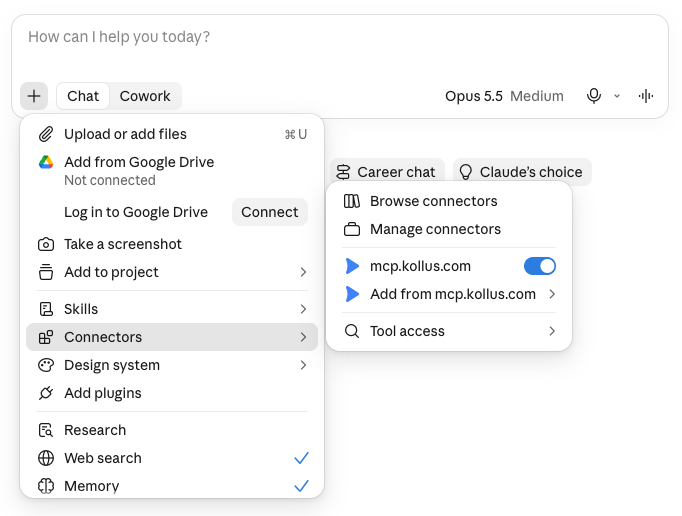
- In the chat input box, check the [+] > [Connectors] menu to ensure that the
mcp.kollus.comtoggle is enabled.
Connect via Terminal
claude mcp add --transport http kollus https://mcp.kollus.com/mcp
Connect via Web or App
- Go to the Install Kollus Plugin page, then click [Install plugin].
- When the Kollus MCP login window opens, enter your prepared account credentials and log in. (Refer to the [Prerequisites] section above)
- After logging in, click [Try in chat] to start a conversation.

Connect via Terminal
codex mcp add kollus --url https://mcp.kollus.com/mcp
Prompt examples
After the connection is complete, try entering questions in natural language in the chat window, as in the examples below.
-
Check encoding status
"Show me the list of videos with an encoding error status" → Instantly retrieves the list of videos that match the condition.
-
Analyze metadata
"Tell me the transcoding status and whether encryption is applied for the video with
upload_file_key=xxx" → Checks the detailed metadata and status values of a specific video. -
Generate a statistics report
"Show me the top 10 videos by views from last month" → Shows the VOD viewing ranking based on statistics data.
-
Search developer guides
"Tell me the response fields for kind 1 of the DRM download callback" → Searches the official developer guide documents and provides the exact specifications.
Key features
- Document search: Search official guides, API specifications, sample code, error codes, and anti-patterns, and retrieve document content
- VOD queries: Retrieve video lists and metadata, categories, channels, and encoding profiles
- Statistics queries: Retrieve daily data transfer, traffic, storage, transcoding, and visitor statistics, as well as video viewing rankings
- Technical support: Submit Kollus technical support inquiry tickets
Usage notes
- Restricted accounts: The accounts below can be integrated and can sign in, but, for security and policy reasons, VOD and statistics query features are restricted. (Document search and technical support inquiries remain available as usual.)
- Starter and Basic plans and Trial accounts
- Operator-permission accounts (See: User role system)
- Accounts for which no VOD API token has been issued (See: API access token)
- Connection duration: For security reasons, if there is no activity for 7 days after the last use, the connection will be automatically disconnected, and you will need to log in again (re-authenticate).
Security and data protection
- The account password entered at sign-in is used only for one-time authentication verification and is not stored separately on the server.
- The VOD API access permission issued after authentication is stored encrypted on the server, and only an unidentifiable random token is passed to the AI services (Claude and ChatGPT), so it is safe.
- Since the integration is fixed to the region (KR/JP/EN) selected at login, you must set up a separate connection with the corresponding account to view data from a different region.
Technical support
For inquiries related to using Kollus MCP, please contact us at the email below.
- Email: tech_support@catenoid.net