Workspace Settings
This document is a machine-translated draft and is currently undergoing review. Some content may be inaccurate or differ from the original Korean version. For the most precise information, refer to the Korean documentation.
What is a workspace?
A workspace is a business operation unit that independently manages and controls all media resources (content, channels, settings, etc.) in Kollus VOD. After creating a Kollus VOD console account, you must obtain a workspace through one of the following two methods to use the actual service.
- Create directly: An administrator creates a new workspace directly for a new business purpose.
- Invite users: Receive an invitation to an existing workspace created by another user, granting shared operation permissions.
Key features
A workspace provides the following key features to support efficient service operation and team collaboration.
- Role-based access control (RBAC): You can grant granular access permissions, such as operator or administrator, according to job scope.
- Multi-management structure: You can freely switch between and manage multiple workspaces with a single account.
- Unique identification information (Enterprise plan only): Unique identifier values used for FTP paths, API authentication, callback settings, etc., are provided on a per-workspace basis.
View and edit service information
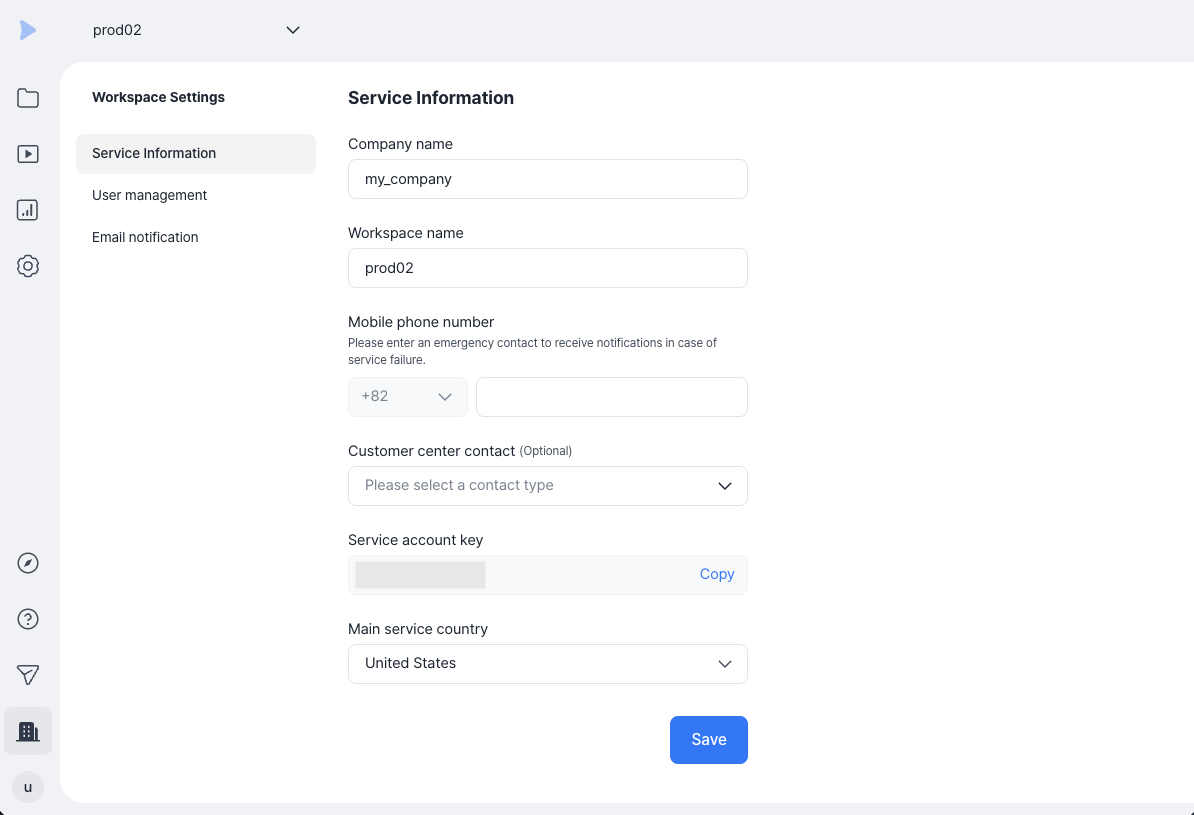
In the [Workspace Settings] menu of the Kollus VOD console, you can check or edit the following service information items.
| Item | Description |
|---|---|
| Company name | The name of your affiliated company. (Emojis, <, and > cannot be entered.) |
| Workspace name | The unique name of the workspace displayed in the console. |
| Mobile phone number | The contact number of the person who will receive emergency notifications in case of a service outage. |
| Customer center contact | The type and contact information of the customer center for the service you operate. |
| Service account key | The unique identifier of the workspace used for upload paths, FTP addresses, etc. (Cannot be changed.) |
| Main service country | The primary country where the service is provided. |
User management
Within the same workspace, you can strengthen security by assigning user roles according to job scope.
- Settings path: [Workspace Settings] > [User management]
User role system
- Super administrator: Can perform all feature settings and user permission management for the workspace.
- Administrator: Can configure major menus such as Library and Channel. (However, some menus are read-only.)
- Operator: Can upload content and perform basic management, but permissions for data deletion and system settings are restricted.
- [Library] menu: Cannot edit categories, delete content, or download content lists and original files
- [Channel] menu: Cannot edit channel information, delete content, download content lists and original files, or configure callback and referrer settings
- [Workspace Settings] menu: No access to the entire menu
View permissions by user role
Permissions by user role
| Menu | Feature | Operator | Administrator | Super Administrator |
|---|---|---|---|---|
| Library | Content upload | ◯ | ◯ | ◯ |
| View/edit content | ◯ | ◯ | ◯ | |
| Delete content | ✕ | ◯ | ◯ | |
| Delete original files/transcoding files | ✕ | ◯ | ◯ | |
| Add/delete category | ◯ | ◯ | ◯ | |
| Edit category | ✕ | ◯ | ◯ | |
| Move category | ◯ | ◯ | ◯ | |
| Copy category key | ◯ | ◯ | ◯ | |
| Download content list | ✕ | ◯ | ◯ | |
| Download original file | ✕ | ✕ | ◯ | |
| Channel | View/edit content | ◯ | ◯ | ◯ |
| Delete content | ✕ | ◯ | ◯ | |
| Replace with another content | ◯ | ◯ | ◯ | |
| Delete original files/transcoding files | ✕ | ◯ | ◯ | |
| Move category | ◯ | ◯ | ◯ | |
| Add/edit/disable/delete channel | ✕ | ◯ | ◯ | |
| Copy channel key | ◯ | ◯ | ◯ | |
| Configure callback | ✕ | ◯ | ◯ | |
| Configure referrer | ✕ | ◯ | ◯ | |
| Configure country access settings | ✕ | ◯ | ◯ | |
| Block external display output | ✕ | ◯ | ◯ | |
| Player settings | ✕ | ◯ | ◯ | |
| Analysis | View report/statistics/insight | ✕ | ◯ | ◯ |
| Settings | Concurrent playback prevention | △ (Read-only) | △ (Read-only) | ◯ |
| Screen capture prevention | △ (Read-only) | △ (Read-only) | ◯ | |
| Save original files | △ (Read-only) | △ (Read-only) | ◯ | |
| Poster | ✕ | ✕ | ◯ | |
| Encoding profile | △ (Read-only) | ◯ | ◯ | |
| Player | △ (Read-only) | ◯ | ◯ | |
| API | ✕ | ◯ | ◯ | |
| FTP | ✕ | ◯ | ◯ | |
| Custom key | ✕ | ◯ | ◯ | |
| Callback | ✕ | ✕ | ◯ | |
| Uploader download | ✕ | ◯ | ◯ | |
| Getting Started Guide | ◯ | ◯ | ◯ | |
| Service Guide | ◯ | ◯ | ◯ | |
| Customer Feedback | ◯ | ◯ | ◯ | |
| Workspace Settings | Service information | ✕ | ◯ | ◯ |
| User management | ✕ | ◯ | ◯ | |
| Email notification | ✕ | ◯ | ◯ | |
| Payment management (Starter, Basic plans only) | ✕ | △ (Read-only) | ◯ | |
| Account | My settings | ◯ | ◯ | ◯ |
| Two-step verification | ◯ | ◯ | ◯ | |
| Change password | ◯ | ◯ | ◯ | |
| Delete account | ◯ | ◯ | ◯ | |
Invite users
You can invite new users to grant them access to the Kollus VOD console workspace.
- Go to the [Workspace Settings] > [User management] menu in the Kollus VOD console.
- Click [Invite user] in the upper right corner of the screen.
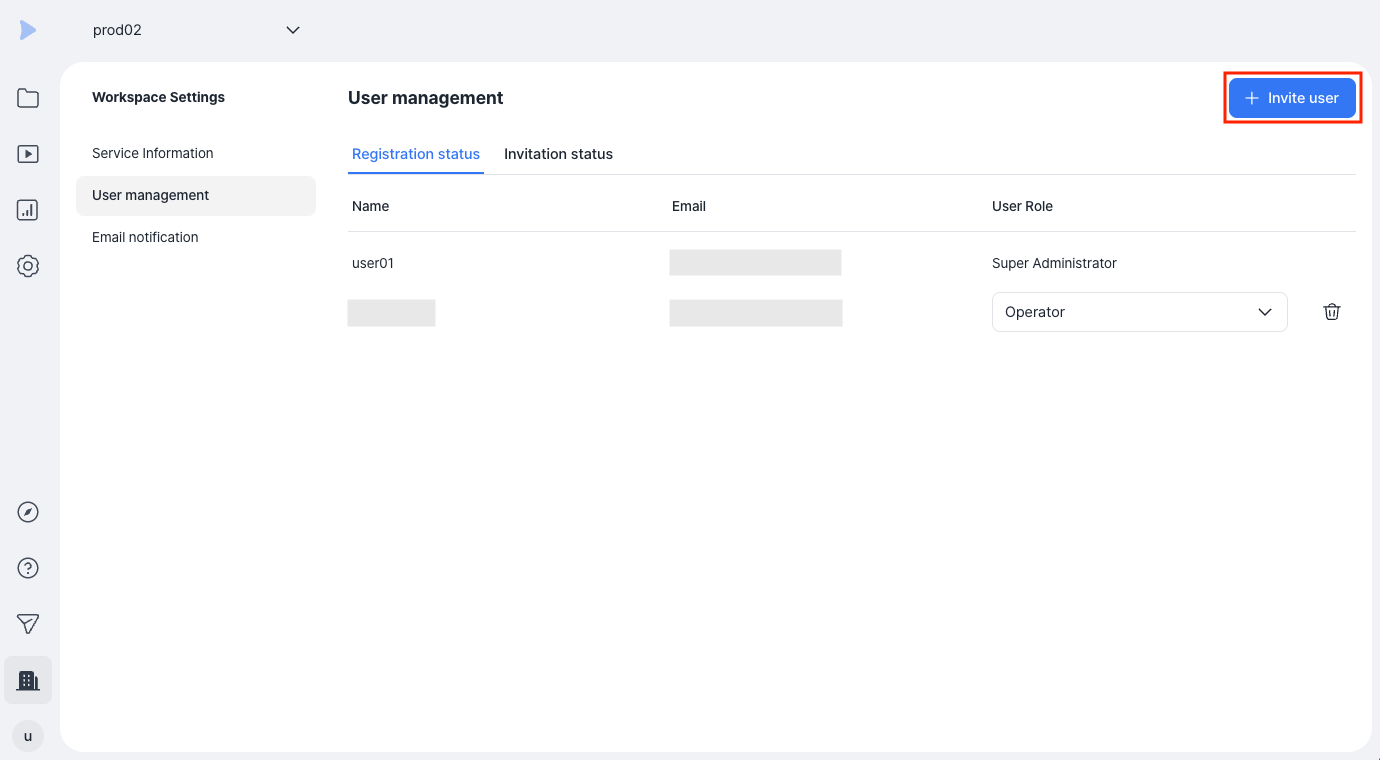
- Enter the invitee's information, then click [Invite].
Item Description Name Enter the invitee's name. Email Enter the invitee's account(email address). Existing members are registered immediately upon accepting the invitation, while non-members are registered after completing the sign-up process via the invitation email. User role Select the permission level(Super administrator, Administrator, Operator) to be granted to the invitee.
Email notification settings
You can receive real-time notifications by email when major events occur within the workspace.
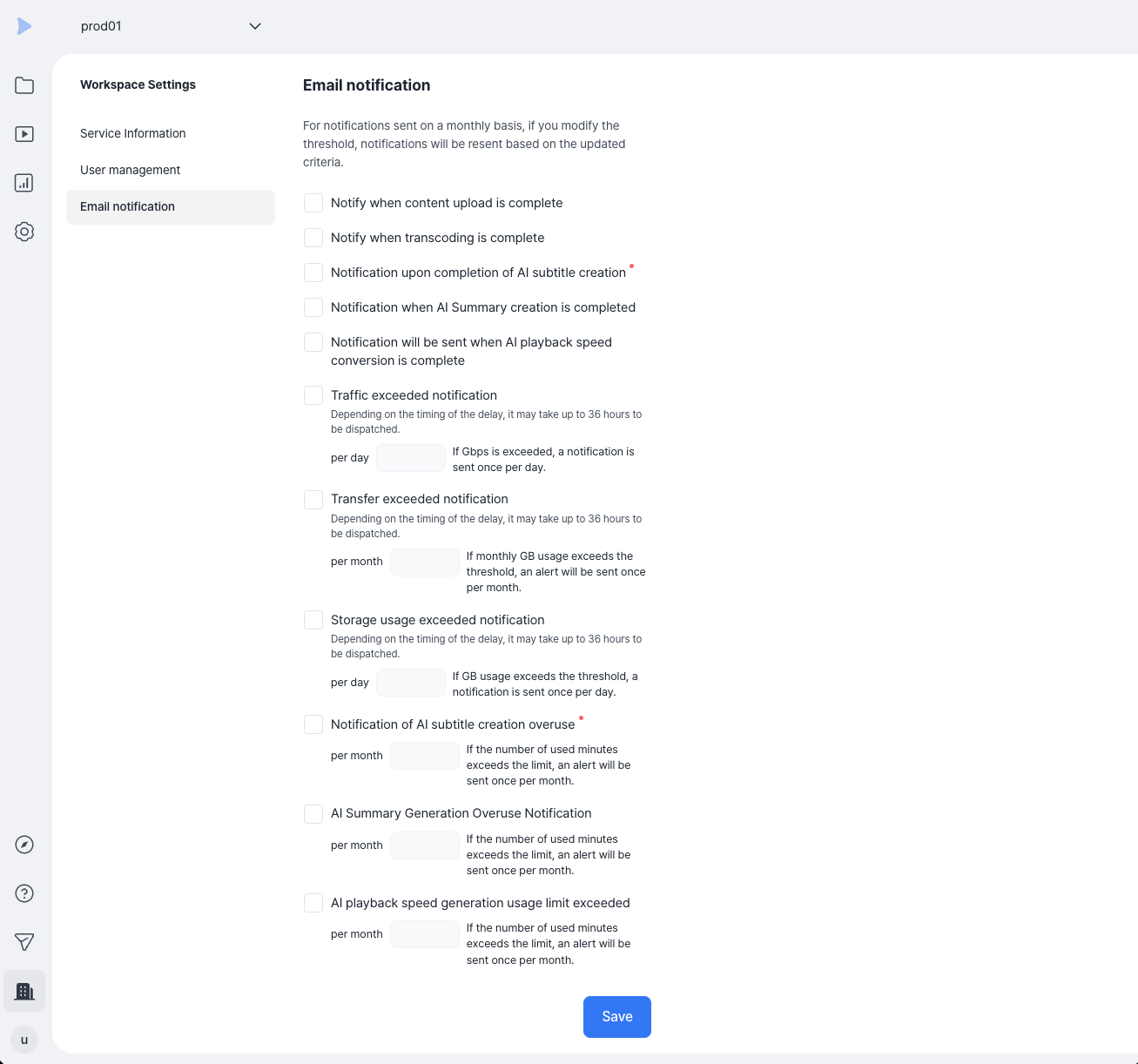
In the [Workspace Settings] > [Email notification] menu of the Kollus VOD console, select the items you want to receive notifications for, then click [Save] to activate notifications.
Key notification items
- Content processing: Notifications are sent upon completion of content upload, transcoding, and AI service (subtitle, summary and chapter, speed) tasks.
- Resource exceeded: Notifications are sent when traffic, data transfer, storage, or AI service usage exceeds 80% or 100% of the set limit. Due to the nature of the data aggregation system, resource exceeded notifications may be delayed by up to 36 hours from the actual time the limit was exceeded.