Encoding Profiles
This document is a machine-translated draft and is currently undergoing review. Some content may be inaccurate or differ from the original Korean version. For the most precise information, refer to the Korean documentation.
- PlanStarterBasicEnterprise
※ Availability varies by plan. Unless otherwise noted, all plans support this feature.
What is an encoding profile?
An encoding profile is a set of configuration values used for transcoding tasks. Original files uploaded to Kollus VOD are automatically converted into formats optimized for various viewing environments, based on the resolution, bitrate, audio settings, and other parameters defined in the encoding profile.
Why is transcoding necessary?
To play a single video file seamlessly across various devices (PC, mobile, tablet, etc.) and network conditions, multiple quality versions optimized for each environment must be created. This process is called transcoding, which involves decoding the original file and then re-compressing(Encoding) it with settings suited to the viewing environment.
With proper profile settings, you can build an adaptive bitrate streaming environment where video quality automatically adjusts according to network speed, minimizing buffering.
List of supported encoding profiles
This is the full list of encoding profiles provided by Kollus VOD. Check whether each is supported based on your workspace plan.
Audio profile
| Codec | Quality | Bitrate | Sample rate | Supported plan |
|---|---|---|---|---|
| MP3 | Normal | 192 Kbps | 44.1 kHz | Enterprise |
Video profile
For detailed descriptions of each property, refer to the Edit an Encoding profile section.
| Device | Codec | Aspect ratio | Quality | Resolution | Bitrate | Frame rate | Supported plan |
|---|---|---|---|---|---|---|---|
| TV | H.264/MPEG-4 AVC | 16:9 | HD | 1920×1080 | 6 Mbps | 60 fps | Basic Enterprise |
| TV | H.264/MPEG-4 AVC | 16:9 | High | 1280×720 | 2.7 Mbps | 30 fps | Enterprise |
| TV | H.264/MPEG-4 AVC | 16:9 | Normal | 960×540 | 1.2 Mbps | 30 fps | Enterprise |
| PC | H.264/MPEG-4 AVC | 16:9 | HD | 1280×720 | 2 Mbps | 30 fps | Starter Basic Enterprise |
| PC | H.264/MPEG-4 AVC | 16:9 | High | 960×540 | 1.5 Mbps | 30 fps | Enterprise |
| PC | H.264/MPEG-4 AVC | 16:9 | Normal | 640×360 | 800 Kbps | 30 fps | Enterprise |
| PC | H.264/MPEG-4 AVC | 4:3 | HD | 1280×960 | 2 Mbps | 30 fps | Enterprise |
| PC | H.264/MPEG-4 AVC | 4:3 | High | 960×720 | 1.5 Mbps | 30 fps | Enterprise |
| PC | H.264/MPEG-4 AVC | 4:3 | Normal | 640×480 | 800 Kbps | 30 fps | Enterprise |
| TABLET | H.264/MPEG-4 AVC | 16:9 | HD | 960×540 | 1.5 Mbps | 30 fps | Enterprise |
| TABLET | H.264/MPEG-4 AVC | 16:9 | High | 1920×1080 | 1.2 Mbps | 30 fps | Enterprise |
| TABLET | H.264/MPEG-4 AVC | 16:9 | Normal | 428×240 | 600 Kbps | 30 fps | Enterprise |
| TABLET | H.264/MPEG-4 AVC | 16:10 | HD | 1152×720 | 1.5 Mbps | 30 fps | Enterprise |
| TABLET | H.264/MPEG-4 AVC | 16:10 | High | 864×540 | 800 Kbps | 30 fps | Enterprise |
| TABLET | H.264/MPEG-4 AVC | 16:10 | Normal | 576×360 | 600 Kbps | 30 fps | Enterprise |
| TABLET | H.264/MPEG-4 AVC | 4:3 | HD | 960×720 | 1.5 Mbps | 30 fps | Enterprise |
| TABLET | H.264/MPEG-4 AVC | 4:3 | High | 720×540 | 800 Kbps | 30 fps | Enterprise |
| TABLET | H.264/MPEG-4 AVC | 4:3 | Normal | 480×360 | 600 Kbps | 30 fps | Enterprise |
| MOBILE | H.264/MPEG-4 AVC | 4:3 | HD | 720×540 | 1 Mbps | 30 fps | Enterprise |
| MOBILE | H.264/MPEG-4 AVC | 4:3 | Normal | 480×360 | 600 Kbps | 24 fps | Enterprise |
| MOBILE | H.264/MPEG-4 AVC | 4:3 | Low | 240×180 | 300 Kbps | 15 fps | Enterprise |
| MOBILE | H.264/MPEG-4 AVC | 16:9 | HD | 960×540 | 1 Mbps | 30 fps | Enterprise |
| MOBILE | H.264/MPEG-4 AVC | 16:9 | Normal | 480×270 | 600 Kbps | 24 fps | Enterprise |
| MOBILE | H.264/MPEG-4 AVC | 16:9 | Low | 240×136 | 300 Kbps | 24 fps | Enterprise |
Recommended settings for video content
These are recommended values considering typical internet streaming environments for customers.
| Property | Recommended value |
|---|---|
| File format | MP4 |
| Codec | H.264/MPEG-4 AVC |
| Profile | Main@L3.0 |
| Bitrate |
|
| Frame rate | 30 fps |
| Video size |
|
| Audio codec | AAC |
View encoding profiles
View the list of encoding profiles from the [Settings] > [Encoding profile] menu in the Kollus VOD console.
The main configuration items of each encoding profile are as follows.
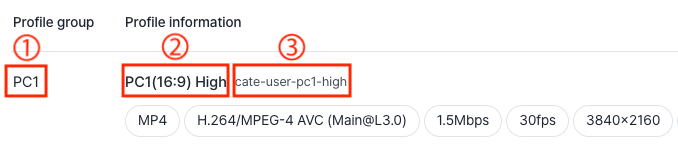
| Item | Description |
|---|---|
| Profile group (①) | The group name classified based on the playback device type and aspect ratio. |
| Profile name (②) | A name automatically generated by combining the playback device, aspect ratio, and quality information. |
| Profile key (③) | A unique identifier for the profile. It is used as a reference value for FTP passthrough uploads or category linking. |
Profile group classification
Profile group classification
| Group name | Device and aspect ratio |
|---|---|
| Audio | - |
| TV | - |
| PC1 | PC 16:9 |
| PC2 | PC 4:3 |
| PC3 | PC 21:9 |
| TABLET1 | TABLET 16:9 |
| TABLET2 | TABLET 4:3 |
| TABLET3 | TABLET 16:10 |
| MOBILE1 | MOBILE 16:9 |
| MOBILE2 | MOBILE 4:3 |
Add a new encoding profile
- PlanEnterprise
- Permission guide: Only super administrator and administrator level users of a workspace using the Enterprise plan can add encoding profiles.
- Not applied retroactively: Newly added encoding profiles apply only to content uploaded after the configuration is completed.
Add a new encoding profile when you need a specific resolution or bitrate setting in addition to the default profiles.
- Go to the [Settings] > [Encoding profile] menu in the Kollus VOD console.
- Click [Add profile] in the upper right corner of the screen.
- Click [Add (+)] to the right of the profile item you want to add. For detailed descriptions of each property, refer to the Edit an Encoding profile section.
- After the setup is complete, the encoding profile is automatically applied and transcoded for newly uploaded videos.
Edit an Encoding profile
- PlanEnterprise
- Permission guide: Only super administrator and administrator level users of a workspace using the Enterprise plan can edit encoding profiles.
- Items that cannot be edited: The profile key is a unique identifier and cannot be changed.
- Not applied retroactively: Changes are not applied retroactively to existing content that has already completed transcoding before the setting was modified. For stable operation, it is recommended to add a new profile rather than editing an existing one.
Edit the properties of an existing encoding profile. For recommended values for each property, refer to Recommended settings for video content.
- Go to the [Settings] > [Encoding profile] menu in the Kollus VOD console.
- Click the edit icon to the right of the profile item you want to edit.
- Edit the detailed properties. Refer to the table below for a description of each item.
Common settings
| Item | Description |
|---|---|
| Profile name | The name used to identify the profile. (Up to 50 characters including spaces; emoji not allowed) |
| File format | The container format of the content to be used in the service. You can select MP4 for video and MP3 for audio. |
| Bitrate mode | The processing method for the amount of data transmitted per second (bitrate).
|
Video settings
| Item | Description |
|---|---|
| Codec | The video compression format.
|
| Profile | Defines the compression level and technical specifications of the video codec.
|
| Bitrate(Kbps) | The amount of data processed per second. (0–100,000 Kbps) |
| Frame rate(fps) | The number of frames displayed per second. (10–60 fps) |
| Video size | After selecting the aspect ratio, enter the width value and the height value will be calculated automatically. (Custom settings available) |
Audio settings
| Item | Description |
|---|---|
| Audio codec | The audio compression format. AAC offers better sound quality and compression efficiency than MP3, but some devices may not support AAC.
|
| Bitrate(Kbps) | The amount of data processed per second. (48–320 Kbps) |
| Sample rate(Hz) | The number of samples per second used to convert analog audio signals into digital signals. (11025, 22050, 44100, 48000 Hz) |
| Use additional profile | Enabling this option allows you to link the profile to a specific category for automatic transcoding, or to perform additional transcoding on individual content. |
The additional transcoding feature can only be applied to content with saved original files. It applies only to new files uploaded after the setting is completed in the [Settings] > [Save original files] menu of the Kollus VOD console.
Category-profile auto linking
- PlanEnterprise
- Permission guide: Only super administrator and administrator level users of a workspace using the Enterprise plan can configure this.
- Not applied retroactively: Applies only to content newly uploaded after the configuration is completed.
Automatically applies a pre-designated encoding profile to content uploaded to a specific category.
- Referring to the Edit an Encoding profile section, enable the [Use additional profile] option for the target profile.
- Click [Link (+)], which appears below the profile item.
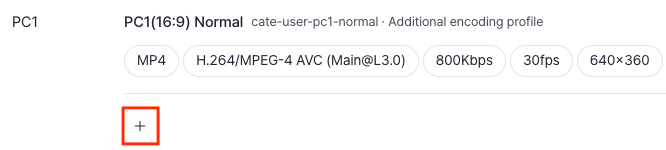
- Select the category to link, then click [Select this category].
- Once the setup is complete, all videos uploaded to that category are automatically converted using the default profile together with the linked additional profile.
Disable an encoding profile
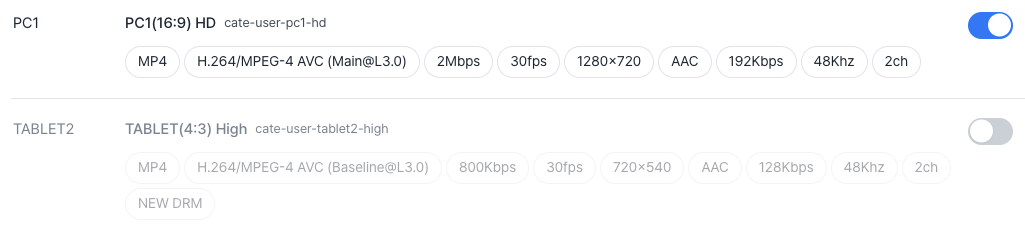
Change the active status of each profile using the toggle switch in the [Settings] > [Encoding profile] menu of the Kollus VOD console.
To ensure normal content upload and transcoding processing by the system, at least one encoding profile must always remain active.