Account Management
This document is a machine-translated draft and is currently undergoing review. Some content may be inaccurate or differ from the original Korean version. For the most precise information, refer to the Korean documentation.
Create a sign-in account
- Access the Kollus VOD console.
- Click [Sign up] at the bottom of the sign-in screen.
- Enter the email address to use as your sign-in ID, then click [Continue with Email].
- Click the link in the sign-up verification email sent to the email address you entered to access the console.
- Enter your registration information to complete the sign-up process.
- Please check your spam folder or blocked email list.
- If the email is delayed, click [Resend Verification Email].
View and edit account information
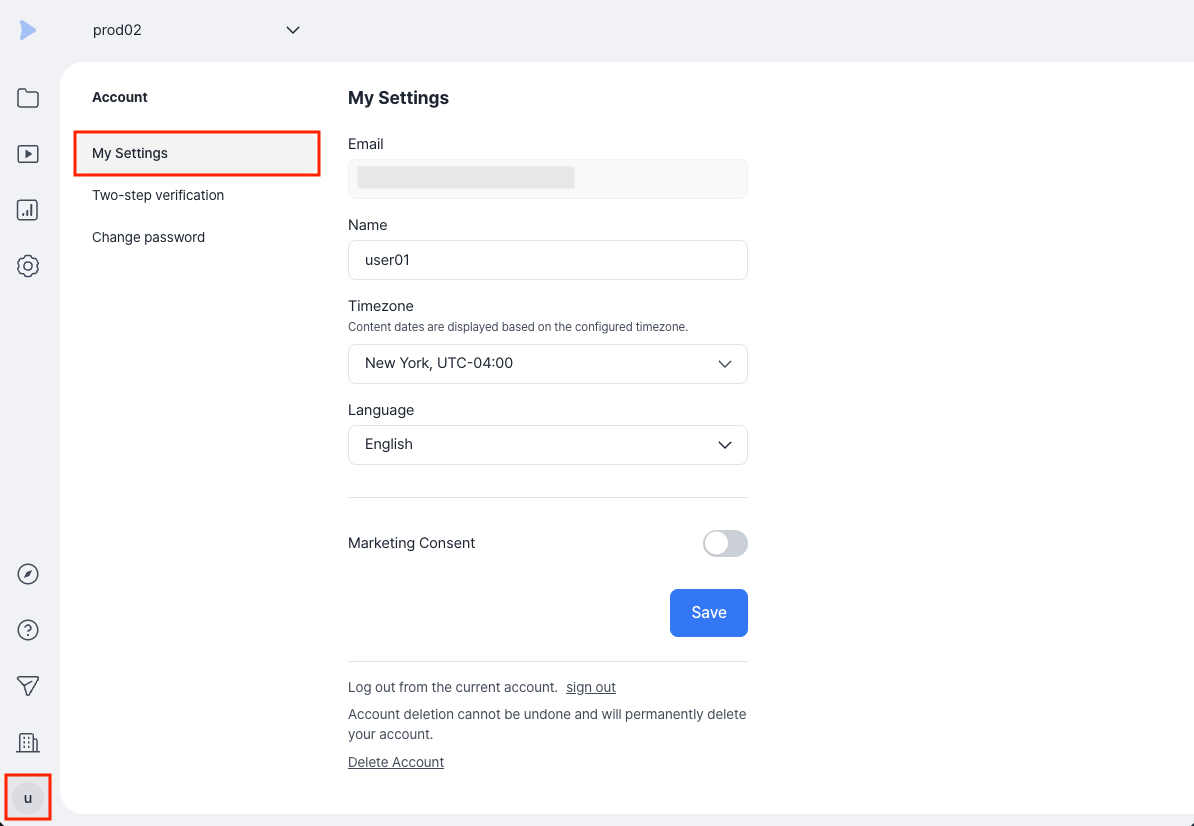
In the [Account] > [My Settings] menu of the Kollus VOD console, you can view or edit the following account information items.
| Item | Description |
|---|---|
| Unique identification information used as your sign-in ID. (cannot be changed) | |
| Name | The username displayed in the console. (emojis, <, and > cannot be entered) |
| Time zone | The reference time zone applied to time displays in the console, such as content registration dates. |
| Language | The default language applied to the console UI (user interface) and system notification messages. |
| Marketing consent | Sets whether to receive marketing emails related to Kollus VOD services, such as new feature announcements and promotional schedules. |
Set up two-step verification (OTP)
To enhance account security, we recommend setting up two-step verification using Google OTP.
- Install the app: Install the Google OTP app on your smartphone.
- Enable the feature: In the [Account] > [Two-step verification] menu of the Kollus VOD console, enable the [Activate two-step verification] toggle.
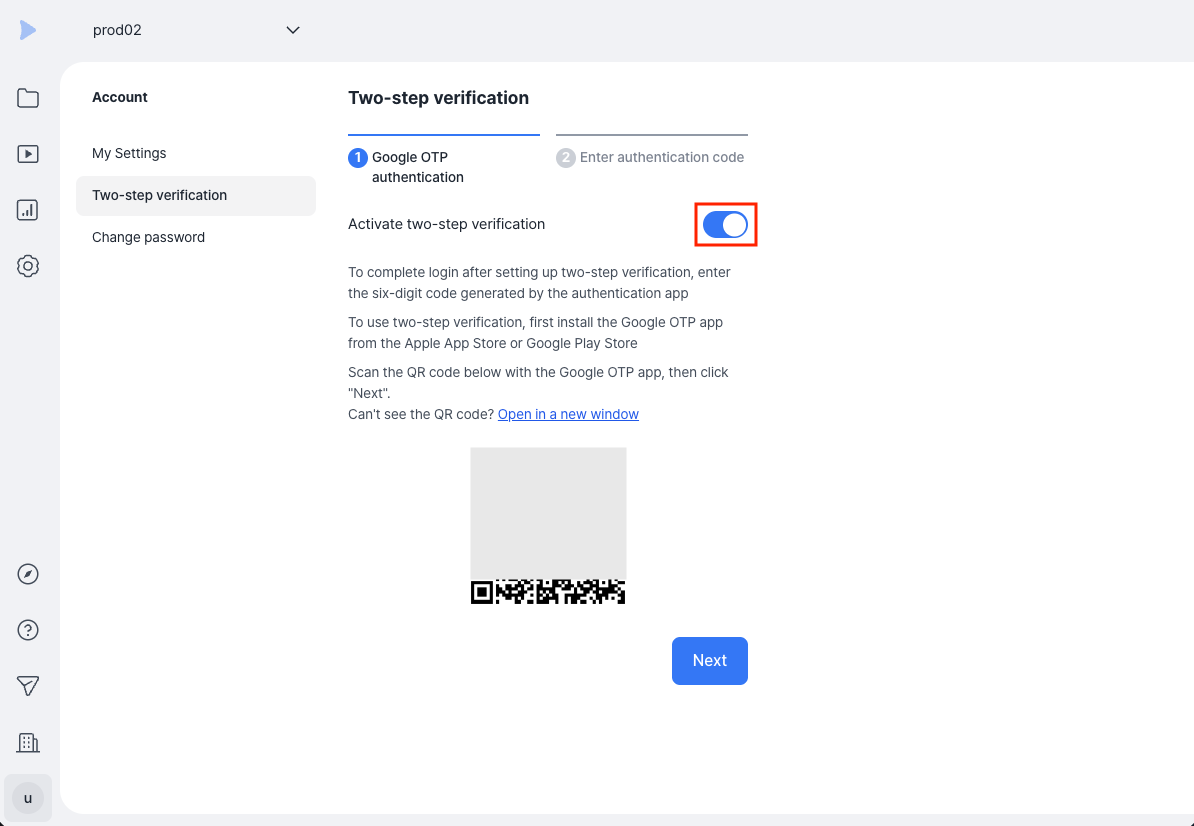
- Scan the QR code: In the Google OTP app, scan the QR code shown on the Kollus VOD console screen, then click [Next].
- Enter the code: Enter the 6-digit code generated in the Google OTP app into input fields 1 and 2 on the console screen in order to complete the connection.
Change password
To enhance account security, we recommend changing your password regularly.
You can change it directly in the [Account] > [Change password] menu of the Kollus VOD console.
Password settings policy
- Duplication restriction: You cannot change your password to the same password you are currently using.
- Character count: Must be set to 8 to 64 characters.
- Combination rule: Can be set using a combination of letters, numbers, and special characters.
Sign-out and delete account
Sign-out
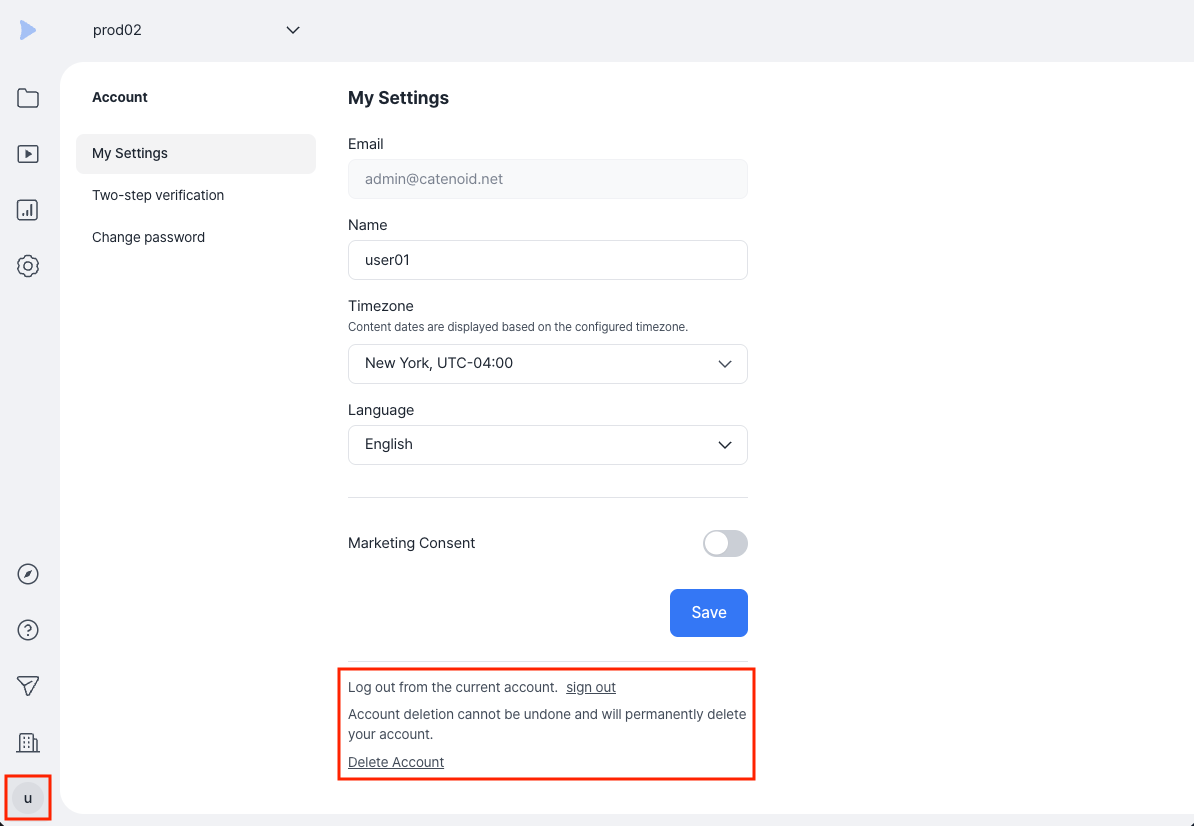
Click [Account] > [My Settings] > [Sign-out] at the bottom of the screen in the Kollus VOD console to end your current session.
Delete account
Click [Account] > [My Settings] > [Delete account] at the bottom of the screen in the Kollus VOD console to permanently delete your account information.
- Re-registration restriction: You cannot sign up again using the email address used at the time of deletion.
- Permanent data deletion: All workspaces you own (created) and all uploaded content data will be deleted immediately and cannot be recovered. (However, if another super administrator is assigned to the workspace, the workspace will be retained.)
- Access revocation: If you were invited to a workspace created by another person, the workspace will be retained, but your access permissions will be revoked immediately.