AI Subtitle
This document is a machine-translated draft and is currently undergoing review. Some content may be inaccurate or differ from the original Korean version. For the most precise information, refer to the Korean documentation.
- PlanStarterBasicEnterprise
AI Subtitle is a feature that leverages advanced AI-based speech recognition (Speech-to-Text, STT) technology to analyze the audio data in your content in real time and automatically convert it into a subtitle file.
Key benefits of adopting AI Subtitle
By using AI Subtitle, you can reduce the significant time and cost required for manual subtitle production and quickly roll out subtitle services across large video libraries.
- Cost and time savings: Since the AI analyzes the audio to generate subtitles, production time is dramatically reduced.
- Precise auto-sync: The system automatically detects the start and end points of speech to determine the subtitle display timestamp, eliminating the need for manual syncing.
- Enhanced operational efficiency: Subtitles can be applied instantly to large VOD libraries, boosting competitiveness for global service delivery.
- Easy post-editing: Auto-generated subtitles can be immediately revised and refined using the subtitle editor.
⚠️ Prerequisites
AI Subtitle can only be generated for content that meets all of the following technical conditions.
- Security policy: Content without Multi-DRM applied
- AI Subtitle can be generated for standard(unencrypted) content and Kollus DRM content.
- Audio quality: Content whose transcoded file has an audio sample rate of 16kHz or higher
- Duplicate generation prevention: Only one AI Subtitle can be generated per piece of content. If an AI Subtitle already exists, you can delete it and regenerate a new one.
Generate AI Subtitle
Automatic generation when uploading new content
If you enable the AI Subtitle option during the content upload process, the subtitle is automatically generated once transcoding is complete.
- In the [Library] menu of the Kollus VOD console, click [Content upload] in the upper-right corner.
- Among the upload options, select [AI Subtitle].
- After completing the subtitle settings, click [Confirm].
Item Description Language Select the language to be used as the basis for speech analysis. Korean and English are currently supported. Subtitle type The way the subtitle is displayed. - Main subtitle: Used to convey the main dialogue and is displayed at the bottom of the player in a standard size.
- Sub subtitle: A supplementary subtitle displayed in a smaller size below the main subtitle.
Subtitle visibility Select whether the subtitle is visible. - Public: Displayed in the player's subtitle menu, allowing users to select it.
- Private: Saved on the server but not displayed in the player.
- Drag and drop the file into the upload area, or click [Select file] to select the file.
- File name emoji restriction: Files with emojis in their file name cannot be uploaded.
- Supported file extensions: Only files with the following extensions can be uploaded. Unsupported file formats are automatically excluded from the upload list or fail to upload.
- Video:
.3gp,.asf,.avi,.dv,.flv,.webm,.m4v,.mov,.mp4,.mpeg,.mpg,.wmv,.3g2,.3gpp,.f4v,.m2v,.ogm,.ogv,.wm - Audio:
.aac,.flac,.m4a,.mp3,.ogg,.wav,.amr,.wma
- Video:
- Maximum number of uploads: You can select up to 20 files at once.
- Once the upload and transcoding are complete, the system automatically generates the subtitle.
- When the generation is complete, an 'AI Subtitle' tag is displayed below the content title.
Generate for existing content
You can also generate AI Subtitle for content that has already been uploaded.
Method 1: Generate from the content list
- In the [Library] or [Channel] menu of the Kollus VOD console, select the checkbox to the left of the target content.
- In the toolbar at the bottom of the screen, click [Create AI Subtitle] > [Create AI Subtitle].
- After completing the subtitle settings, click [Confirm].
Item Description Language Select the language to be used as the basis for speech analysis. Subtitle type The way the subtitle is displayed. - Main subtitle: Used to convey the main dialogue and is displayed at the bottom of the player in a standard size.
- Sub subtitle: A supplementary subtitle displayed in a smaller size below the main subtitle.
Subtitle visibility Select whether the subtitle is visible. - Public: Displayed in the player's subtitle menu, allowing users to select it.
- Private: Saved on the server but not displayed in the player.
- For content where AI Subtitle generation is complete, an 'AI Subtitle' tag is displayed below the title.
Method 2: Generate from the details panel
- In the [Library] or [Channel] menu of the Kollus VOD console, click [More (⋮)] to the right of the target content > [Subtitle].
- In the [Subtitle] tab, click [Create AI Subtitle].
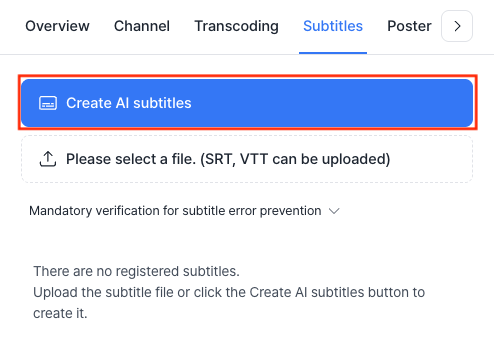
- After completing the subtitle settings, click [Confirm].
Item Description Language Select the language to be used as the basis for speech analysis. Subtitle type The way the subtitle is displayed. - Main subtitle: Used to convey the main dialogue and is displayed at the bottom of the player in a standard size.
- Sub subtitle: A supplementary subtitle displayed in a smaller size below the main subtitle.
Subtitle visibility Select whether the subtitle is visible. - Public: Displayed in the player's subtitle menu, allowing users to select it.
- Private: Saved on the server but not displayed in the player.
- Once AI Subtitle generation is complete, a '(AI) Subtitles' item is added to the list.
Edit AI Subtitle
Editing the text of an AI Subtitle works the same way as editing a regular subtitle. For detailed instructions, refer to the document below.
Modify AI Subtitle settings
- In the [Library] or [Channel] menu of the Kollus VOD console, click the title of the target content.
- In the [Subtitle] tab, click [More (⋮)] > [Modify subject and language] to the right of the subtitle file.
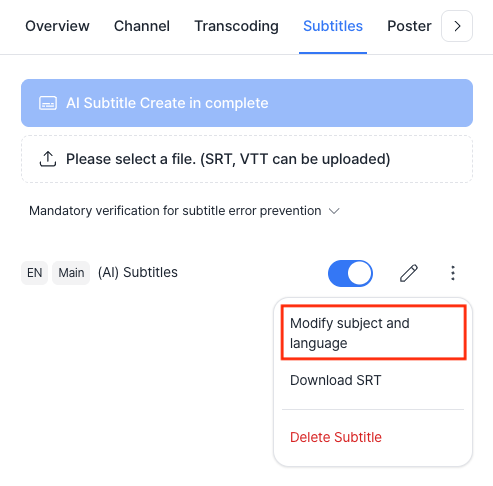
- You can modify the following items.
Item Description Subtitle name The name displayed in the player's subtitle selection menu. Subtitle type The way the subtitle is displayed. - Main subtitle: Used to convey the main dialogue and is displayed at the bottom of the player in a standard size.
- Sub subtitle: A supplementary subtitle displayed in a smaller size below the main subtitle.
- After completing the changes, click [Edit].
Set subtitle to private
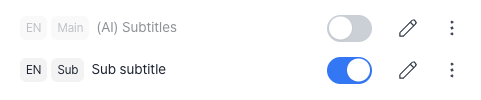
To hide a subtitle from users' screens without deleting it, use the toggle switch on the right side of the list to switch it to private status. (Same as configuring standard subtitles.)
Download AI Subtitle file
Generated AI Subtitle files can be downloaded in the widely compatible SRT format, and all edits made up to the download point are reflected.
- In the [Library] or [Channel] menu of the Kollus VOD console, click the title of the target content.
- In the [Subtitle] tab, click [More (⋮)] > [Download SRT] to the right of the subtitle file.
AI Subtitle display policy
- Subtitle display priority: If a piece of content has both a standard subtitle manually uploaded by an administrator and an AI Subtitle generated by the system, the reviewed standard subtitle is activated with priority.
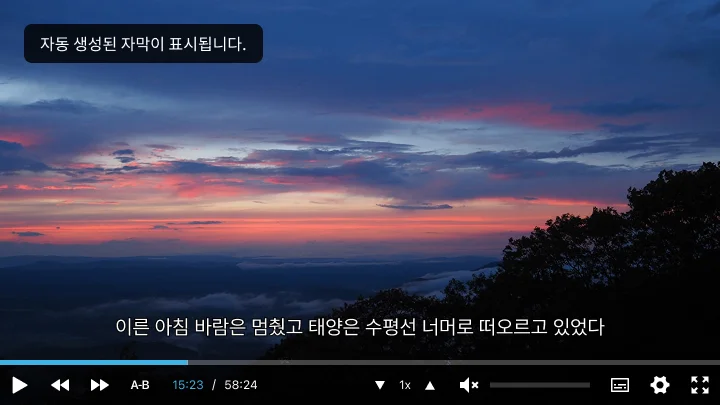
- AI Subtitle notice message: When a user enables AI Subtitle, a notice indicating that the content was automatically generated by AI is displayed for about 3 seconds.
Kollus HTML5 Player
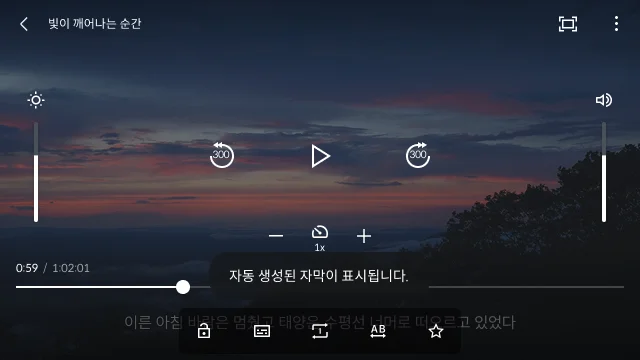
Kollus App Player (iOS/Android)
FAQ
Q. For which content can AI Subtitle be generated?
AI Subtitle can only be generated for content that meets all of the following technical conditions.
- Security policy: Content without Multi-DRM applied (Kollus DRM is supported)
- Audio quality: Content whose transcoded file has an audio sample rate of 16kHz or higher
- Duplicate generation prevention: Only one AI Subtitle can be generated per piece of content. If an AI Subtitle already exists, you can delete it and regenerate a new one.
Q. Is there a limit on content length?
Yes, to ensure stable data processing, there are limits on the content length that can be processed, depending on the language.
- Korean content: Up to 11 hours
- English content: 30 seconds minimum – 2 hours maximum
Extremely short or extremely long content outside these limits may result in a timeout or an error during processing. For long-form videos, it is recommended to split the content into appropriate segments for smoother subtitle generation.
Q. Can AI Subtitle be generated for audio-only content?
Yes. AI Subtitle can also be generated for audio-only content without video (such as MP3 files) by analyzing the audio data.
Q. Can subtitles be generated for DRM content?
This differs depending on the security method.
- Kollus DRM: AI Subtitle can be generated.
- Multi-DRM: Due to the strong security specifications of the content itself, audio extraction is blocked, so AI Subtitle cannot be generated.
Q. How long does it take for AI Subtitle generation to complete?
Generally, it takes about 10 minutes for a 60-minute video. (The actual time may vary depending on the system load.)
Q. Can an in-progress job be canceled midway?
No. Once AI Subtitle generation starts, system resources are allocated immediately, so it cannot be canceled midway. Be sure to check your settings (language, type, etc.) before starting generation.
Q. Why is the speech recognition accuracy lower than expected?
Due to the nature of STT (Speech-to-Text) engines, misrecognition is more likely to occur in the following environments.
- When background noise or music (BGM) is louder than the speech
- When the speaker's pronunciation is unclear
- When multiple speakers' voices overlap
For sections with low accuracy, manual editing using the subtitle editor is recommended.