Subtitles
This document is a machine-translated draft and is currently undergoing review. Some content may be inaccurate or differ from the original Korean version. For the most precise information, refer to the Korean documentation.
- PlanStarterBasicEnterprise
Kollus VOD provides multilingual subtitle features to enhance viewer engagement and expand information accessibility.
Subtitle types
Kollus Player can operate two types of subtitle layers independently. Configure subtitle policies according to the characteristics of each type.
| Subtitle type | Key features | Recommended use | Display constraints |
|---|---|---|---|
| Main subtitle | Displayed in standard size at the bottom center of the player | Delivering primary dialogue | No line limit |
| Sub subtitle | Displayed in a smaller size below the main subtitle | Multilingual translation, terminology explanation | Displayed up to 2 lines maximum |
Subtitle configuration methods
You can configure subtitles in two ways, depending on the nature of your content and the resources you have prepared.
- Manual upload: Directly upload and manage your existing subtitle files (SRT, VTT).
- Automatic AI Subtitle generation: If no subtitle file is available, AI speech recognition technology analyzes the video's audio and automatically generates subtitles. (See AI Subtitle)
Upload subtitle files
Before registering a subtitle, make sure the file extension conforms to the standard format .srt or .vtt. Subtitle uploads can be performed in the panel on the right side of the individual content item.
- In the Kollus VOD console, click the title of the target content from the [Library] or [Channel] menu.
- In the [Subtitle] tab, click [Please select a file] to select the subtitle file.
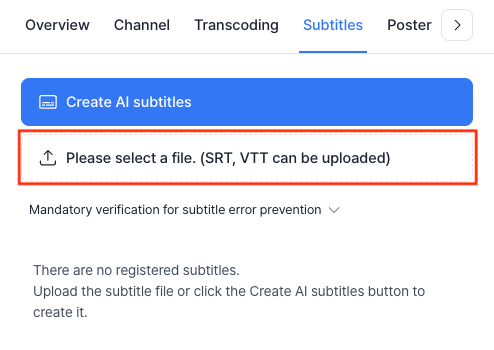
- In the subtitle upload window, configure the following items.
Item Description Subtitle name The name displayed in the subtitle selection menu within the player. Subtitle language Select the language in which the subtitle is written. Subtitle type The way the subtitle is displayed. - Main subtitle: Used to deliver primary dialogue, displayed in standard size at the bottom of the player.
- Sub subtitle: A supplementary subtitle, displayed in a smaller size below the main subtitle.
Subtitle visibility Select whether the subtitle is public. - Public (default): Displayed in the player's subtitle menu, allowing viewers to select it.
- Private: Saved on the server but not displayed in the player.
- After completing all settings, click [Upload subtitle].
Edit subtitles
Kollus VOD provides a dedicated editor that lets you edit subtitle text directly in a web browser without any separate editing software.
The subtitle editor only supports the SRT format, and VTT files cannot be edited. If you need to modify a VTT file, edit it locally and re-upload it.
Even disabled content for which distribution has been stopped can still use the subtitle editing feature normally.
How to use the subtitle editor
- In the Kollus VOD console, click the title of the target content from the [Library] or [Channel] menu.
- In the [Subtitle] tab, click the edit icon to the right of the subtitle you want to edit.
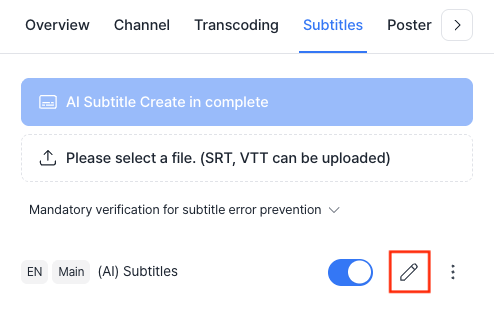
- In the subtitle editor window, revise the subtitle text while checking the preview video. Refer to Subtitle Management - Key features of the subtitle editor for a convenient way to use the subtitle editor.

- Click [Editing completed] to apply the changes to the service.
Key features of the subtitle editor
As the video plays, it automatically scrolls to the corresponding subtitle block, allowing you to instantly compare the dialogue with the text and make edits.
- Note: During editing, subtitles are displayed at the main subtitle position regardless of the configured settings, to improve readability.
You can freely edit the text of each subtitle block.
- Caution: Due to player rendering constraints, sub subtitles are valid for up to 2 lines only, so be careful when adding line breaks.
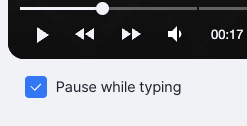
When you click a subtitle block to start typing, the video automatically pauses, enabling precise editing without missing any section. You can control whether this is enabled from the options at the bottom of the player.
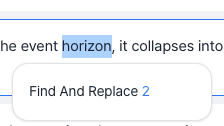
You can correct proper nouns or recurring typos all at once. Use the menu that appears when you drag a specific word to batch-replace that text throughout the entire data set.
Unnecessary blank lines in subtitles can cause player malfunctions. The system has a dual correction mechanism to prevent this.
- Real-time correction: As soon as you leave the input field, blank lines are detected and automatically removed.
- Final correction: When you click [Editing completed], the entire data set is re-verified to prevent potential errors in advance.
- Automatic save every minute: Your editing history is backed up to the server in real time.
- Browser restoration: If the browser closes unexpectedly, data from the last save point is restored.
Separately from auto-save, all changes are only applied to the service once you click [Editing completed].
Modify subtitle settings
This describes how to change the subtitle's name, language setting, or type.
- In the Kollus VOD console, click the title of the target content from the [Library] or [Channel] menu.
- In the [Subtitle] tab, click [More (⋮)] > [Modify subject and language] to the right of the subtitle file.
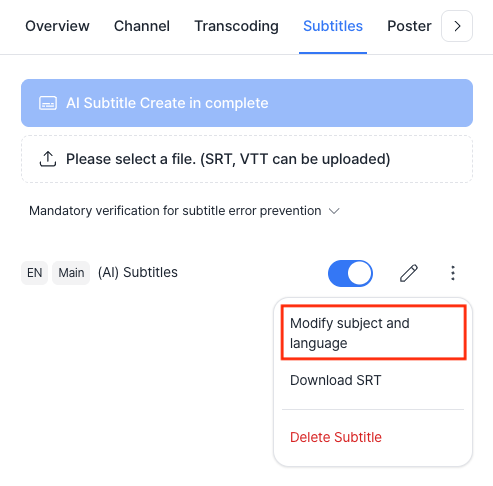
- You can edit the following items.
Item Description Subtitle name The name displayed in the player's subtitle selection menu. Subtitle language Select the language in which the subtitle is written. Subtitle type The way the subtitle is displayed. - Main subtitle: Used to deliver primary dialogue, displayed in standard size at the bottom of the player.
- Sub subtitle: A supplementary subtitle, displayed in a smaller size below the main subtitle.
- After completing the edits, click [Edit].
Set subtitle to private
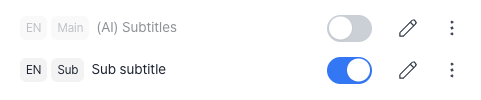
To hide a subtitle from viewers without deleting it, use the toggle switch on the right side of the list to switch it to private.
Download subtitle files
You can save files locally in SRT or VTT format for external distribution or backup.
- In the Kollus VOD console, click the title of the target content from the [Library] or [Channel] menu.
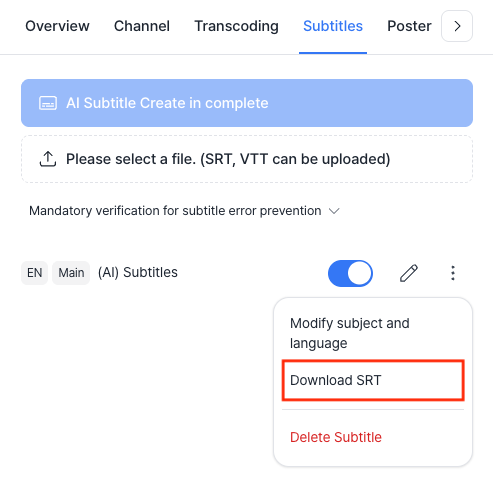
- In the [Subtitle] tab, click [More (⋮)] > [Download SRT] or [Download VTT] to the right of the subtitle file.
Delete subtitles
You can remove unnecessary subtitles. Deleted data cannot be recovered, so please proceed with caution.
- In the Kollus VOD console, click the title of the target content from the [Library] or [Channel] menu.
- In the [Subtitle] tab, click [More (⋮)] > [Delete subtitle] to the right of the subtitle file.
- After reviewing the message in the deletion window, click [Confirm].