Categories
This document is a machine-translated draft and is currently undergoing review. Some content may be inaccurate or differ from the original Korean version. For the most precise information, refer to the Korean documentation.
- PlanStarterBasicEnterprise
※ Availability varies by plan. Unless otherwise noted, all plans support this feature.
A category is a logical unit that classifies the numerous pieces of content stored in the library by topic, purpose, or target audience. By strategically organizing categories, you can go beyond simple asset organization and achieve workflow automation that automatically registers videos to a specific distribution channel as soon as they are uploaded.
Category management overview
A predefined category system is convenient when operating large-scale media assets.
- Tree structure: Supports a tree structure of up to 5 levels, from major classifications to detailed subdivisions, enabling precise classification.
- Automatic channel registration: By linking a category to a channel in advance, content uploaded to that category is immediately registered to the designated channel.
Create a new category
Build a content classification system and apply distribution automation rules.
Create a top-level category
- Go to the [Library] menu in the Kollus VOD console.
- Click [Add category (+)] at the top left of the screen.
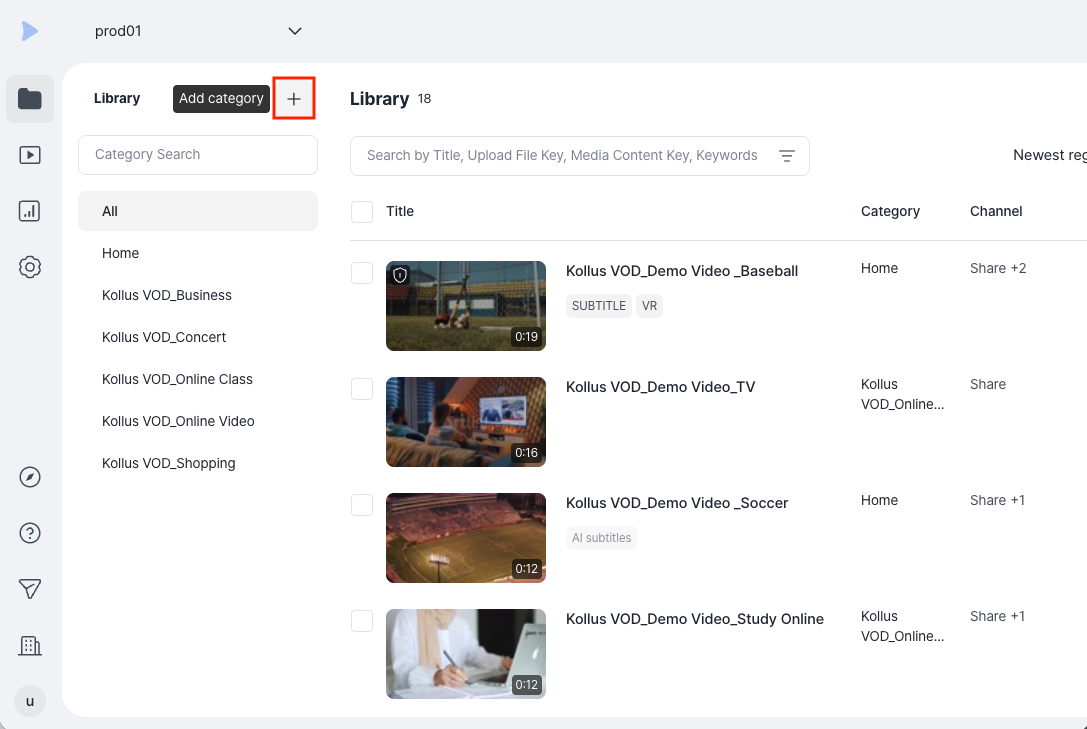
- Enter the name of the category to be created. (e.g., Math Course, Promotional Video, etc.)
- (Optional) Configure automatic distribution Enterprise : To immediately register content uploaded to this category to a designated channel, select the target channel under [Automatically register in the channel when uploading content].
- To use the automatic distribution feature, a channel to distribute content to must already be prepared. If there is no channel in your workspace, refer to Create a new channel to create one.
- After completing all settings, click [Save].
Configure child categories
If more specific classification is needed, you can add a new category under an existing category's lower level.
- Go to the [Library] menu in the Kollus VOD console.
- In the category list on the left of the screen, click [More (⋮)] > [Add subcategory] for the target category.
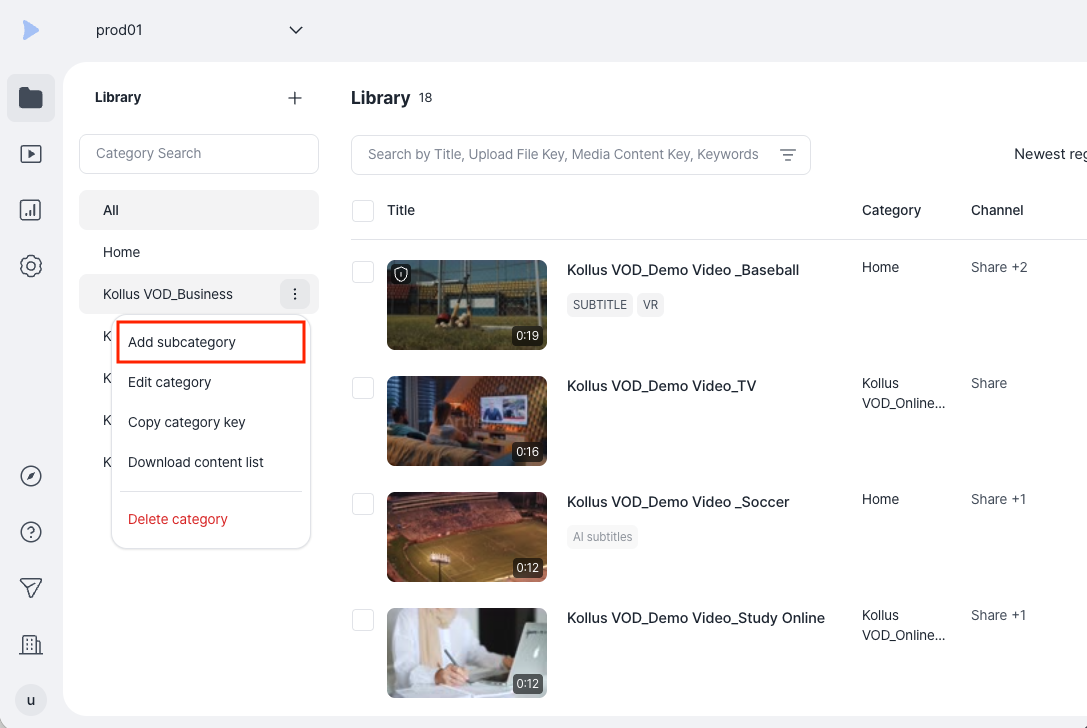
- Enter the name of the subcategory.
- (Optional) Configure automatic distribution Enterprise : To immediately register content uploaded to this category to a designated channel, select the target channel under [Automatically register in the channel when uploading content].
- To use the automatic distribution feature, a channel to distribute content to must already be prepared. If there is no channel in your workspace, refer to Create a new channel to create one.
- After completing all settings, click [Save].
Edit and manage categories
You can change the category name or modify the automatic distribution rules to match your operational needs.
- Go to the [Library] menu in the Kollus VOD console.
- In the category list on the left of the screen, click [More (⋮)] > [Edit category] for the target category.
- In the category edit window, you can manage the following information:
- Change category name
- View and copy category key Enterprise : The category key is a unique identifier for the category used for system integration.
- Change distribution policy Enterprise : You can change or remove the channel that content will be automatically registered to when uploaded.
Delete a category
Categories that are no longer in use can be deleted. When deleting a category, be sure to check the policy below so that the content located there is not lost.
Even if a category is deleted, the actual files are not deleted, and their location is reorganized according to the tree structure as follows.
- When deleting an intermediate level: Content and subcategories that were included in the deleted category move up one level to the parent category.
- When deleting a top level: All content belonging to it is safely moved to the 'Home' category, the system's default folder.
- Go to the [Library] menu in the Kollus VOD console.
- In the category list on the left of the screen, click [More (⋮)] > [Delete category] for the target category.
- After reviewing the confirmation message in the deletion window, click [Delete].