View Content Details
This document is a machine-translated draft and is currently undergoing review. Some content may be inaccurate or differ from the original Korean version. For the most precise information, refer to the Korean documentation.
- PlanStarterBasicEnterprise
※ Availability varies by plan. Unless otherwise noted, all plans support this feature.
Clicking a content title in the [Library] or [Channel] menu of the Kollus VOD Console lets you view detailed technical specifications and distribution status for each content item in the panel displayed on the right side of the screen.
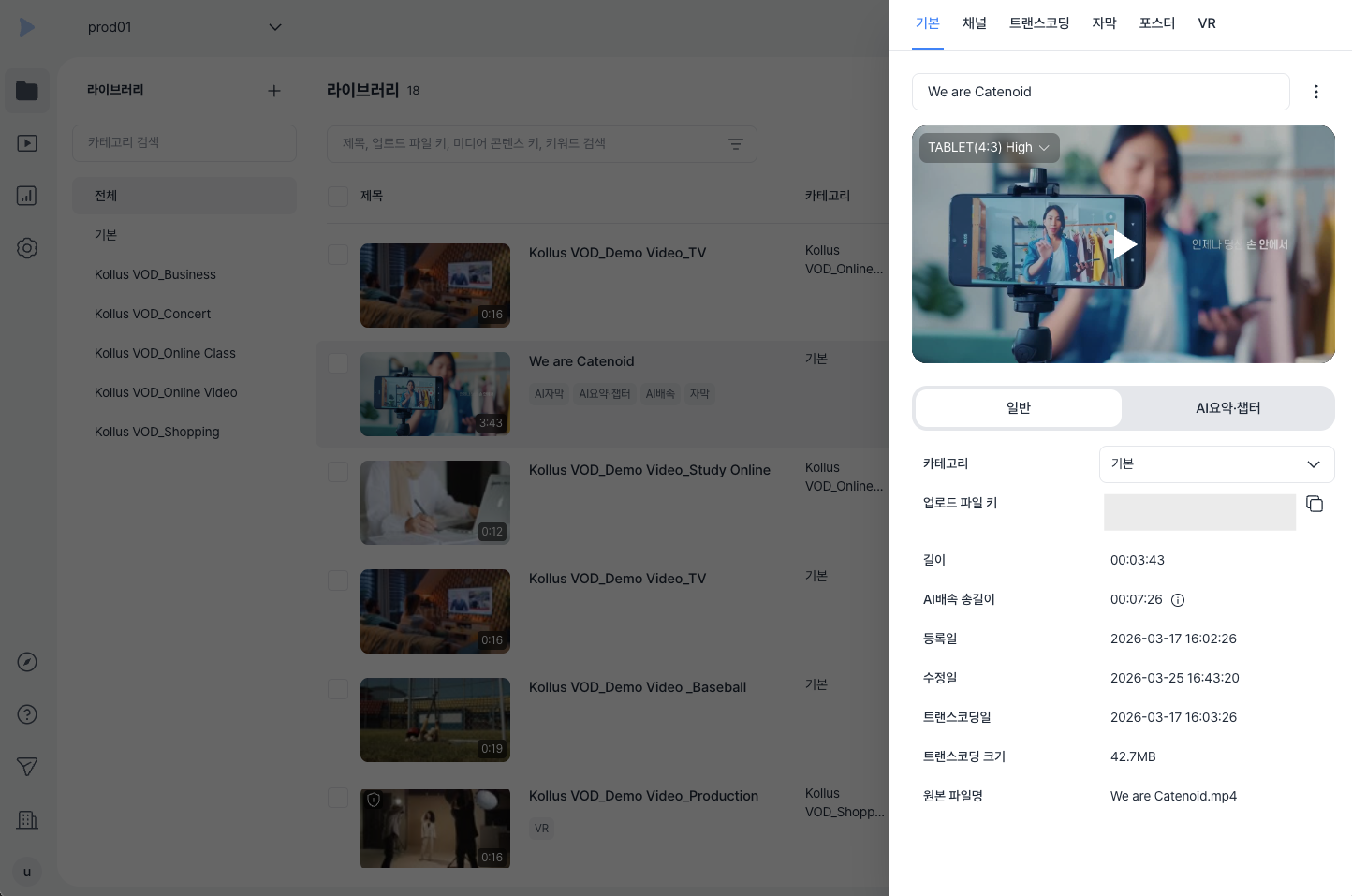
Overview tab
In the Overview tab, you can view the basic information of the content and manage AI Summary data.
| Item | Description |
|---|---|
| Title | The name of the content. Changes take effect after pressing [Enter]. |
| More options | Deactivate, activate, or delete the content.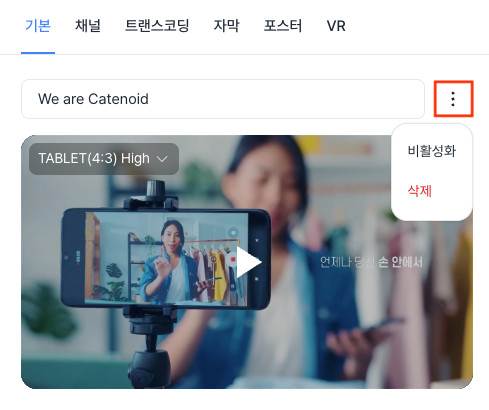 |
| Preview | Review the actual playback screen for each encoding profile.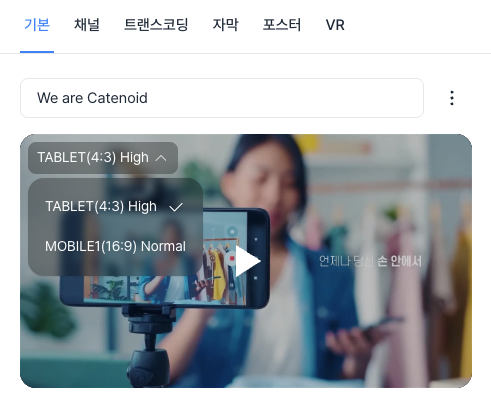 Using the preview player, you can capture a scene to use as a poster or create a bookmark. (Learn more: Bookmark Settings and Poster (Representative Image) Settings) |
| [AI Summary] tab | Generate and manage AI Summary data. (Learn more: AI Summary) |
| Category | The category to which the content belongs. Changes take effect after selecting from the dropdown menu and clicking [Go here]. |
| Upload file key | A unique identifier that distinguishes content within the library. Used for search, API integration, and more. |
| Duration | The total playback duration of the content. |
| AI Speed total duration | The sum of durations across AI Speed profiles. |
| Registration date | The time the content was uploaded. |
| Modified date | The time the content information was last modified. |
| Transcoding date | The time transcoding was completed. |
| Transcoding file size | The total combined size of all converted files. |
| Original file name | The name and size of the uploaded source file. If you uploaded the content after enabling the original file storage feature, the download/delete icon will be displayed. (Learn more: Enable Original File Storage) |
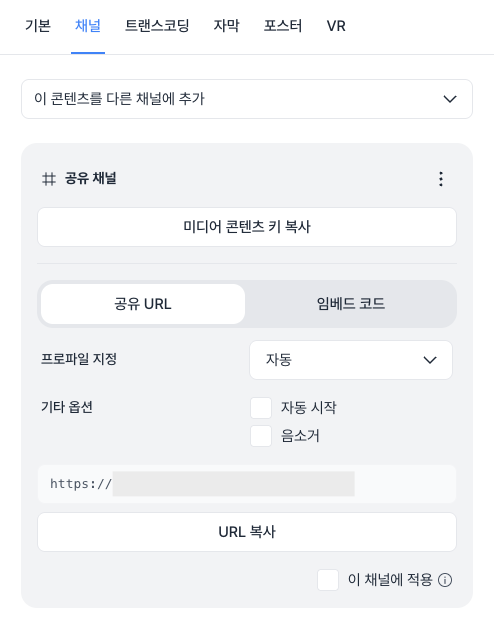
Channel tab
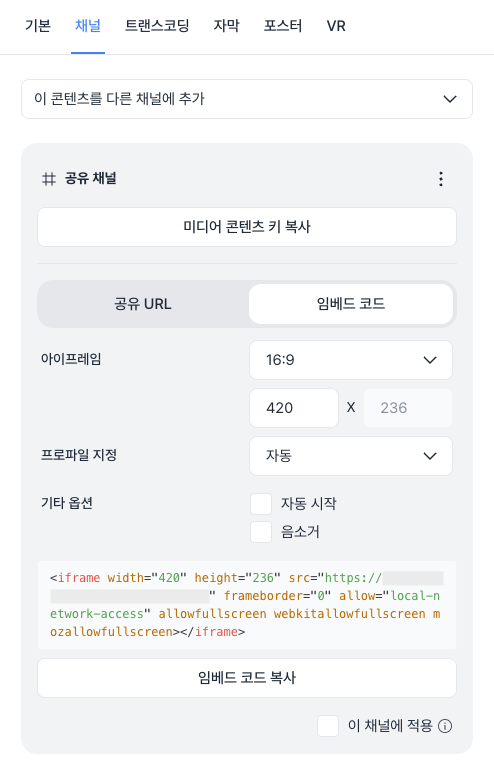
In the Channel tab, you can map content to distribution channels or obtain the Share URL and embed code(iframe) to insert into your service.
If the content is not registered to a channel
- Click [Add] next to the target channel in the [Add this content to the channel] menu.
If the content is registered to a channel
- Copy media content key: A unique content identifier for distribution, issued when the content is registered to a channel. It is a required value when generating playback URLs and integrating with the API.
- Remove from channel: Deletes the content from the corresponding channel. The content is preserved in the library, but the existing media content key expires immediately, invalidating all playback links generated with that key.
- Extract distribution source: Non-shared channels do not provide a distribution source.
Item Detailed features and options Share URL A playback URL that can be entered directly into a browser address bar to access the content. Embed code Source code in iframeformat for embedding the player within a website.Advanced settings options - Specify profile: Force playback at a specific quality (encoding profile).
- Other options: Combine settings such as autoplay and mute as URL parameters.
- [Embed code] tab > iframe: Specify the width and height of the player.
Transcoding tab
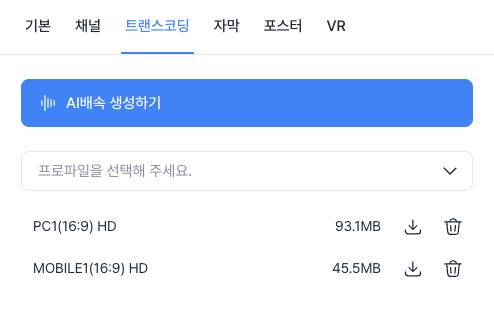
In the Transcoding tab, you can directly manage files for each encoding profile and configure high-quality speed playback features powered by AI technology.
Manage transcoding files
- Status monitoring: View the transcoding progress status and the size of generated files for each profile.
- File cleanup: Delete unnecessary high-quality/low-quality files to free up storage space.
- File download Enterprise : Download individual transcoding files to your local PC.
Additional transcoding guide
- PlanEnterprise
To run additional transcoding, both of the following prerequisites must be met.
- Enable additional profile option: Enable the [Use additional profile] option through Edit an Encoding profile.
- Original file storage: The original file for the content must be stored in the system. (See: Enable Original File Storage)
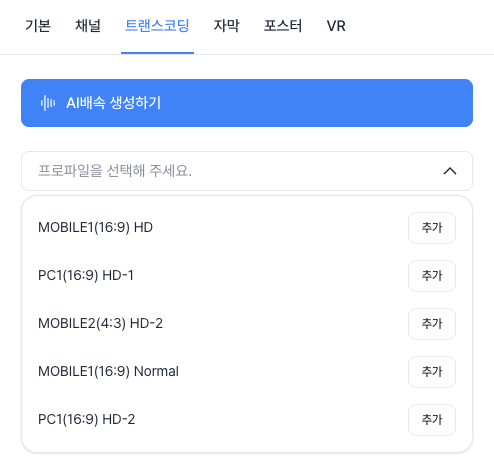
If already uploaded content requires a new quality level or optimized settings for a specific device, you can perform an additional conversion job.
- Go to the [Library] or [Channel] menu in the Kollus VOD console.
- Click the title of the content you want to transcode additionally.
- Go to the [Transcoding] tab.
- Click [Add] next to the target profile in the [Please select a profile] menu.
Generate AI Speed
- PlanEnterprise
The AI Speed feature maintains clear audio quality without pitch distortion, even at 2x speed or faster.
- How to apply: Click [Generate AI Speed] at the top of the screen.
- Learn more: AI Speed
Subtitle tab
In the Subtitle tab, you can generate AI Subtitle, upload subtitle files directly, and use the subtitle editor to edit subtitle content.
- Generate AI subtitle: Automatically converts speech in the video into text using the latest AI speech recognition technology. (See: AI Subtitle)
- Upload subtitle: Upload subtitle files directly.
- Edit subtitle: Use the subtitle editor to modify the content of the subtitle. (See: Edit subtitles)
Poster tab
The poster is the image displayed on the player's standby screen before video playback begins. In addition to the default image extracted by the system, you can register a custom-made image.
If you want to capture a specific point in the video and apply it as the poster, refer to the document below.
VR tab
If you have uploaded VR content, you can configure the projection type and stereo mode to provide an immersive viewing experience. The VR feature currently only works on Kollus Web Player and Kollus HTML5 Player, and rendering specifications differ depending on the projection type.
Kollus Web Player
- Projection Type: Determines how the original video data is unfolded and displayed on the VR screen.
- None (Rectangular): 2D flat video(standard video)
- 360 (Equirectangular): 360° omnidirectional video
- 360 LR: Left-right stereoscopic video
- 360 TB: Top-bottom stereoscopic video
- 360 CUBE: Video mapped in a cube shape to minimize distortion
- 180: Hemispherical video covering only the front 180°
- 180 LR: Left-right stereoscopic hemispherical video
- 180 TB: Top-bottom stereoscopic hemispherical video
- 180 MONO: Standard hemispherical video
- EAC: A high-quality format that resolves the resolution imbalance that occurs with spherical projection
- EAC LR: Left-right stereoscopic EAC video
- Stereo Mode: Determines whether stereo sound is provided based on the viewer's gaze direction.
- Mono: Standard audio without directionality
- Omnitone: Stereo sound for 360° video
Kollus HTML5 Player
- Projection Type: Determines how the original video data is unfolded and displayed on the VR screen.
- Rectangular: 2D flat video(standard video)
- Equirectangular: Latitude and longitude unfolded onto a flat plane(the most common VR projection method)
- Stereo Mode: Determines whether stereo sound is provided based on the viewer's gaze direction.
- Mono: Standard audio without directionality