AI Speed
This document is a machine-translated draft and is currently undergoing review. Some content may be inaccurate or differ from the original Korean version. For the most precise information, refer to the Korean documentation.
- PlanEnterprise
- Feature activation: The AI Speed feature is disabled by default. To activate this feature, please contact your Account Manager.
- Player compatibility: AI Speed content only runs in the Kollus App Player(mobile app) environment.
AI Speed is a feature that leverages state-of-the-art AI algorithms to precisely correct audio waveforms during high-speed playback, maintaining clear audio quality without sound distortion or pitch modulation. When a customer generates AI Speed data for specific content, users can experience the best learning environment through the Kollus App Player(mobile app).
Key benefits of adopting AI Speed
- Ensures audio clarity during high-speed playback: AI analyzes speech segments to maintain dialogue clarity even at increased playback speeds. Optimized for content where clear information delivery is important, such as lectures and conferences.
- Intelligent section optimization: Real-time analysis of silent segments and speech accuracy intelligently adjusts the playback flow. You can reduce total viewing time by up to 50% while experiencing delivery quality equivalent to speeds above 2x.
- Flexible viewing options: Users can freely switch between AI Speed mode and standard playback speed mode through the in-player UI, choosing the viewing method that suits them best.
Comparison of standard playback speed vs AI Speed (1.5x example)

⚠️ Prerequisites
- Dependency on source quality: If the original source has significant audio noise or unstable volume, the quality of the AI-corrected result may be somewhat lower.
- Content characteristics: For content with almost no silent segments, the perceived speed reduction effect compared to standard playback speed may be minimal.
- Additional storage usage: AI Speed data is generated and stored as a separate, independent file from the original. This may result in additional storage usage and data transfer traffic costs.
Generate AI Speed
Automatic generation during new content upload
If you enable the AI Speed option during the content upload step, AI Speed data is generated automatically.
- In the Kollus VOD console, go to the [Library] menu and click [Content upload] in the upper right corner.
- Among the upload options, select [AI Speed].
- Drag and drop the file into the upload area, or click [Select file] to choose the file.
- File name emoji restriction: Files with emojis in the file name cannot be uploaded.
- Supported file extensions: Only files with the following extensions can be uploaded. Unsupported file formats are automatically excluded from the upload list or fail to upload.
- Video:
.3gp,.asf,.avi,.dv,.flv,.webm,.m4v,.mov,.mp4,.mpeg,.mpg,.wmv,.3g2,.3gpp,.f4v,.m2v,.ogm,.ogv,.wm - Audio:
.aac,.flac,.m4a,.mp3,.ogg,.wav,.amr,.wma
- Video:
- Maximum upload count: You can select up to 20 files at a time.
- Once upload and transcoding are complete, the system automatically generates the AI Speed data.
- When generation is complete, an 'AI Speed' tag is displayed below the title.
Generate for existing content
You can also generate AI Speed for content that has already been uploaded.
Method 1: Generate from the content list
- In the Kollus VOD console, go to the [Library] or [Channel] menu and select the checkbox to the left of the target content.
- Click [Generate AI Speed] in the toolbar at the bottom of the screen.
- When generation is complete, an 'AI Speed' tag is displayed below the title.
Method 2: Generate from the details panel
- In the Kollus VOD console, go to the [Library] or [Channel] menu and click the title of the target content.
- In the [Transcoding] tab, click [Generate AI Speed].
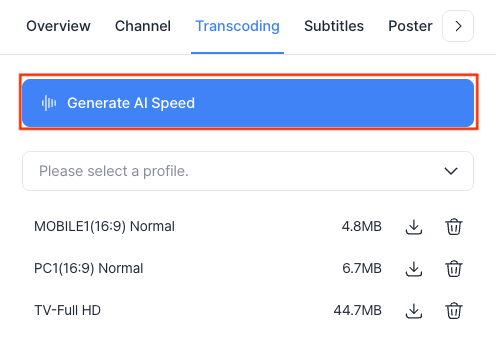
- When generation is complete, an 'AI Speed' tag is displayed below the title.
Player usage guide
Content with generated AI Speed data provides the following visual UI and features within the Kollus App Player(mobile app).
- Speed control: Click [+] at the bottom of the playback screen to select the desired playback speed.
- AI mode toggle: You can turn the AI Speed feature on or off using the AI toggle switch.

FAQ
Q. Can content with AI Speed applied be converted back to standard content?
No. Content with AI Speed applied cannot be converted back (restored) to standard content. However, if you keep the playback speed at 1.0x (standard speed) or disable the AI toggle while watching, you can view content identical to the original.
Q. Can I generate content with AI Speed excluded for a specific encoding profile only?
No. The AI Speed attribute is managed at the content level, not at the encoding profile level. Therefore, if you add a new profile (additional transcoding) to content that has AI Speed applied, the AI Speed feature will be automatically applied to that profile as well.
Q. Can an ongoing task be canceled midway?
No. Once AI Speed generation begins, system resources are immediately allocated, so it cannot be canceled midway.