Original Files
This document is a machine-translated draft and is currently undergoing review. Some content may be inaccurate or differ from the original Korean version. For the most precise information, refer to the Korean documentation.
- PlanStarterBasicEnterprise
The original file refers to the source file that the customer initially uploaded to the Kollus VOD system, before it undergoes transcoding. By default, the original file is automatically deleted after transcoding is completed, in order to optimize storage efficiency.
However, if you enable the original file storage feature, the original source is securely kept along with the converted files. Using this feature, you can respond immediately in the following situations without the hassle of re-uploading content:
- When a playback or quality issue occurs with specific content and the original file needs to be checked
- When additional transcoding must be performed using a newly applied encoding profile
- Cost and storage management: Since both the original file and the transcoded files are stored simultaneously, the total storage usage may increase significantly.
- Re-upload required if a job fails: If a technical error occurs during transcoding and the job fails, the corresponding original file is automatically deleted according to system policy. In this case, you must re-upload the original source file to restart the job.
Enable original file storage
The original file is stored only for content newly uploaded after the setting is completed.
- Go to [Settings] > [Save original file] in the Kollus VOD console.
- In the "Would you like to save the uploaded original file?" item, select [Save original files], then click [Save].
- From then on, for all subsequently uploaded content, the original file will remain on the server even after transcoding is completed.
Search for original files
In the library, you can quickly filter for content whose original file is stored.
- Go to the [Library] menu in the Kollus VOD console.
- Click the filter icon to the right of the search box.
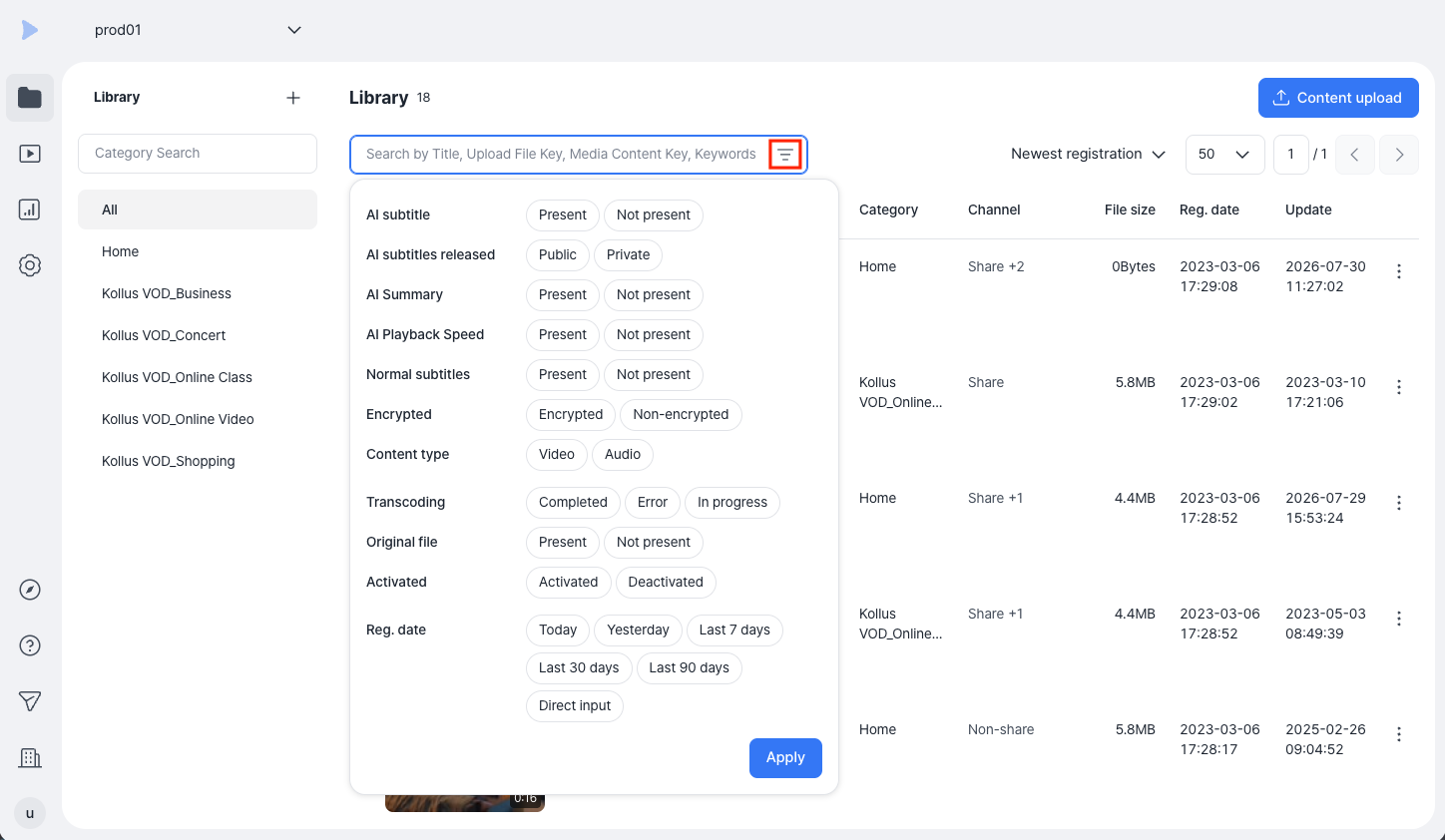
- Among the filter items, select [Present] under [Original File], then click [Apply]. For a more precise search, you can set the [Registration date] item to view files uploaded within a specific period.
Download and delete original files
You can download the stored original files to your local PC, or permanently delete them to manage storage capacity.
- In the Kollus VOD console, go to the [Library] menu and select the target content.
- In the right panel, click the download/delete icon next to [Basic] tab > [Original file name].