Channels
This document is a machine-translated draft and is currently undergoing review. Some content may be inaccurate or differ from the original Korean version. For the most precise information, refer to the Korean documentation.
- PlanStarterBasicEnterprise
※ In Starter and Basic plans, only the channel name and description can be edited.
A channel is a logical unit in Kollus VOD used to expose and distribute content externally. When specific content is registered to a channel, a unique identifier dedicated to that channel—the media content key—is generated. Customers can use the generated key to create playback URLs or integrate with their own systems via the API.
Even if the content is identical, different channels generate different share links. Therefore, you can apply different distribution policies (security, delivery method, etc.) for each channel.
- Automatic default channel creation: One default channel is automatically created upon workspace creation.
- No additional channel creation: New channels cannot be created beyond the default channel.
- No channel deletion: The default channel cannot be deleted.
- Automatic content registration: Uploaded and transcoded content is automatically registered to the default channel.
- No content removal: Content in the library cannot be removed from the default channel.
- Channel editing scope: Only the name and description of the default channel can be edited; other channel settings cannot be modified.
Channel operation policy
You must decide on the channel operation policy based on the security level of the content to be distributed and the business purpose.
Sharing policy
- Shared channel: Provides share link and embed code for external distribution.
- Non-shared channel Enterprise : Share link and embed code for external distribution are not provided; a secure URL based on JWT(JSON Web Token) must be configured.
Security policy
- General channel: The default channel type that allows registration of any content regardless of encryption status.
- Encrypted content-only channel Enterprise : Only content with Kollus DRM applied can be registered. (See also: Content Encryption (DRM))
Create a new channel
-
Go to the [Channel] menu in the Kollus VOD console.
-
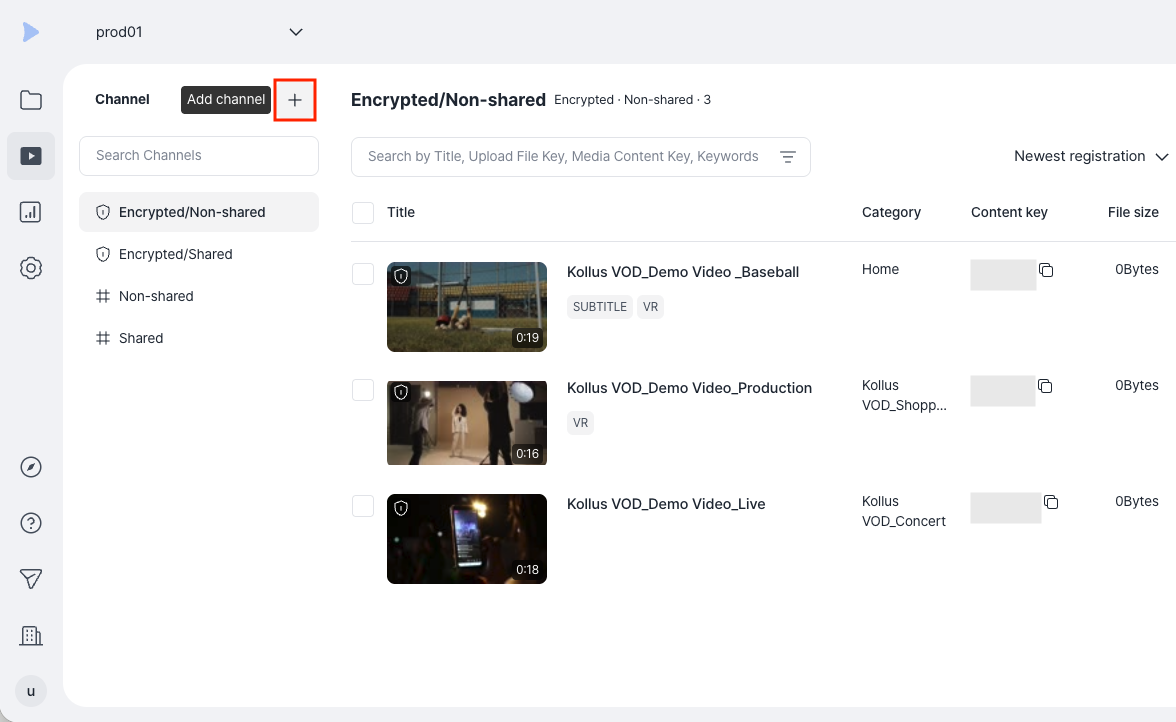
Click [Add channel (+)] at the top of the channel list on the left side of the screen.
-
Configure the items by referring to the descriptions below. The 'Channel settings' items cannot be modified after saving.
Channel settings- [Use as shared channel]: Provides URL and embed code for external distribution
- [Use as encrypted content-only channel] Enterprise : For content with Kollus DRM applied only (See also: Content Encryption (DRM))
Delivery method (⚠️ Encrypted content-only channels support only the Progressive Download method.)
- [Progressive Download] Enterprise : Sequential download method (for low-spec environment)
- [HLS]: Automatically optimizes video quality based on network conditions
- [HLS (AES-128)] Basic Enterprise : Enhanced security (adds AES-128 encryption layer)
- [Block playback when manipulating video watermark] Enterprise : Immediately blocks playback when watermark tampering is detected
-
After completing the settings, click [Save] to create the channel.
Register content to a channel
This step maps content to a specific channel to make it playable. The channels available for registration are limited depending on the content's security status.
| Content security status | Registrable channel types |
|---|---|
| Standard(unencrypted) content | Can be registered in any channel |
| Encrypted content (content with Kollus DRM applied) | Can only be registered in encrypted content-only channels |
Method 1: Register from library
This is the most efficient method when distributing multiple pieces of content scattered across various categories to a single channel at once.
- Go to the [Library] menu in the Kollus VOD console.
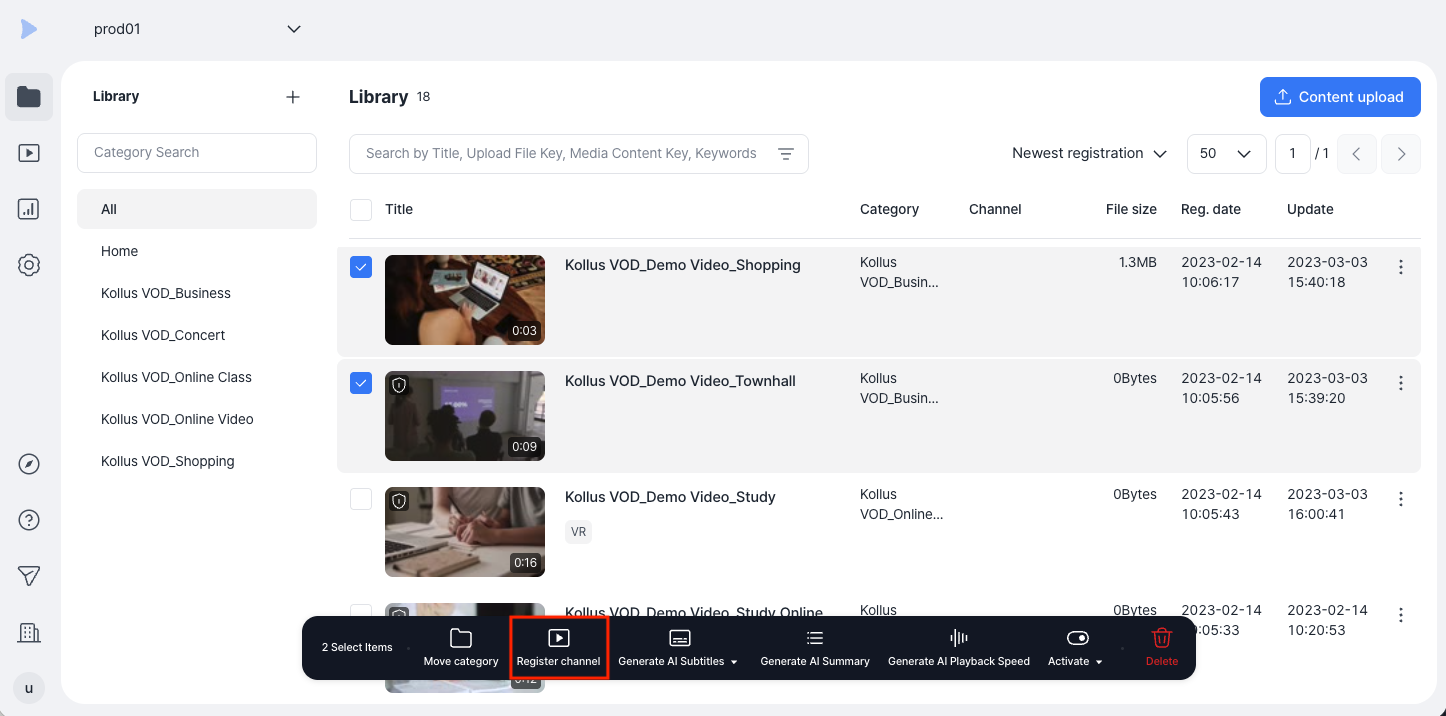
- Click the checkbox to the left of the content to select the content to register. (Multiple selection allowed)
- Click [Register channel] in the toolbar at the bottom of the screen.
- Select the channel, then click [Save].
Method 2: Register from the channel
This method is suitable when you need to search for and select specific content to add from the perspective of a particular channel.
- From the [Channel] menu in the Kollus VOD console, go to the target channel.
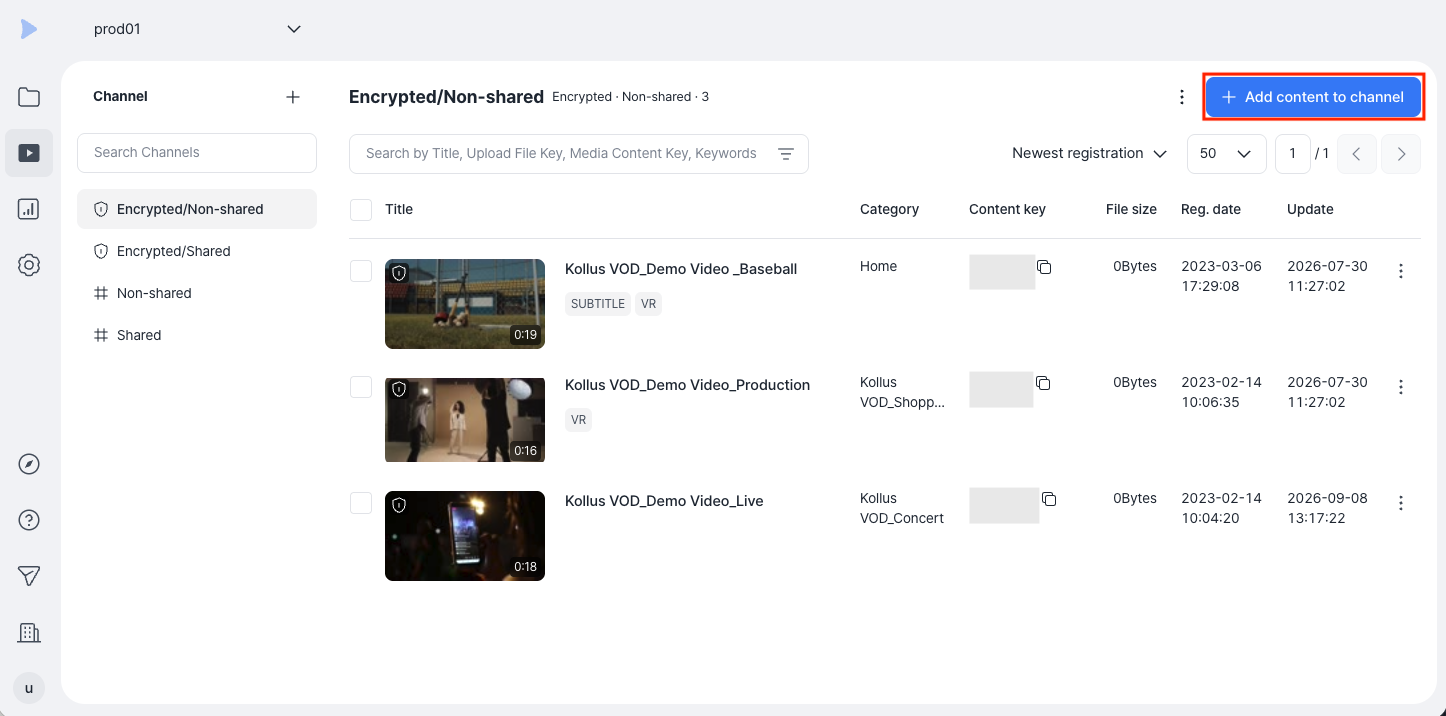
- Click [Add content to channel] at the top right of the screen.
- Click the checkbox to the left of the content to select the content to register. (Multiple selection allowed)
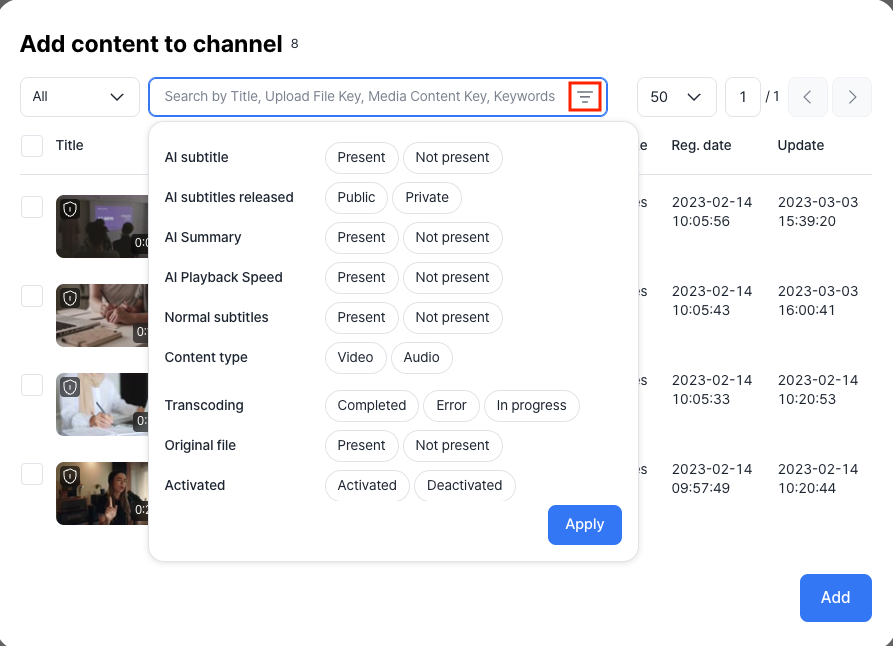
- Precise filtering: Click the filter icon to the right of the search box to filter content based on criteria such as encoding status or encryption status.
- Precise filtering: Click the filter icon to the right of the search box to filter content based on criteria such as encoding status or encryption status.
- After completing the selection, click [Add].
Remove content from a channel
Deletes content from the corresponding channel. The content remains preserved in the library, but the existing media content key expires immediately, invalidating all playback links generated with that key.
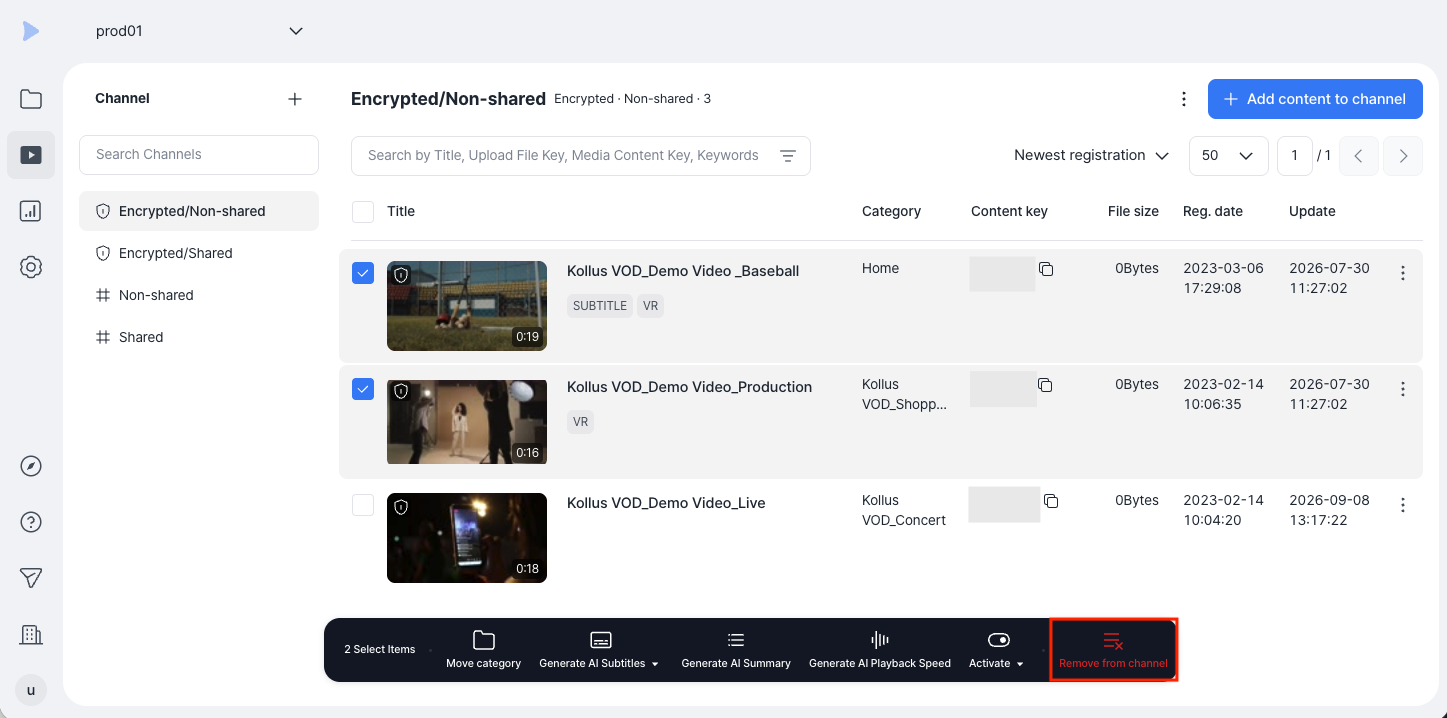
- From the [Channel] menu in the Kollus VOD console, go to the target channel.
- Select the checkbox of the content to remove from the channel. (Multiple selection allowed)
- Click [Remove from channel] in the toolbar at the bottom of the screen.
Edit a channel
The policies configured when creating a channel cannot be modified. For example, it is not possible to convert a general channel currently in operation into an encrypted content-only channel. If a policy change is required, you must create a new channel.
Change the channel name, description, delivery method, and other settings to match operational needs.
- Go to the [Channel] menu in the Kollus VOD console.
- In the channel list on the left side of the screen, click [More (⋮)] > [Edit channel] for the target channel.
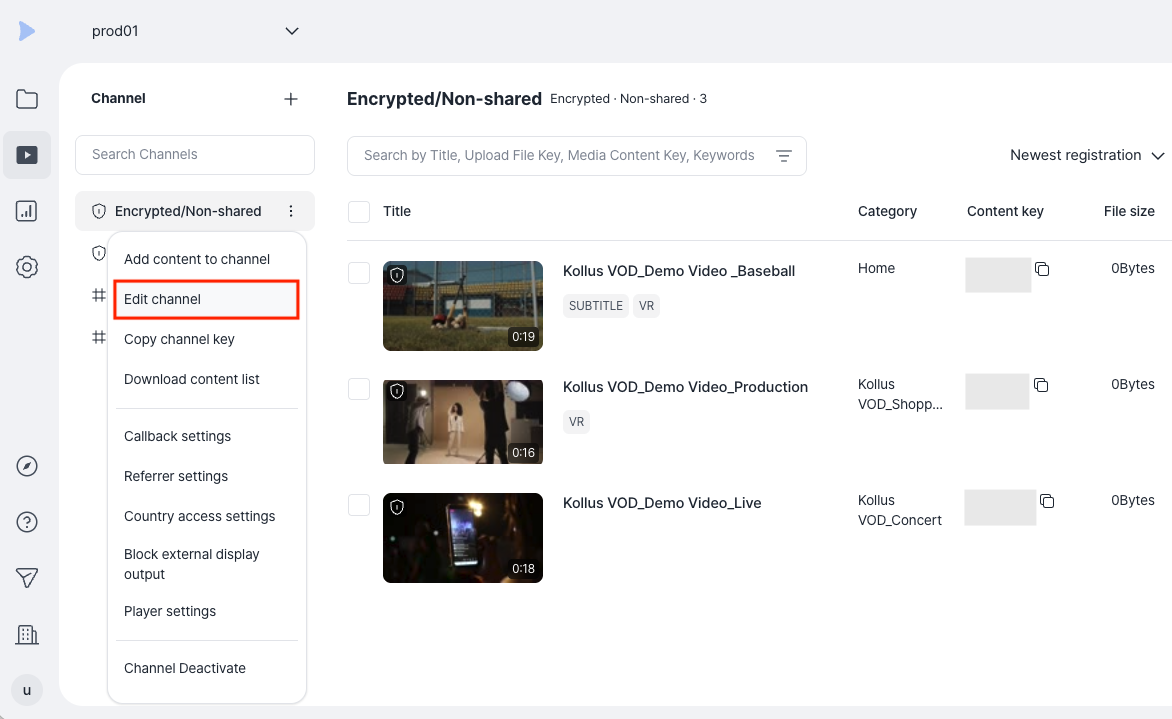
- Modify the necessary items, then click [Save].
- Non-editable items: Channel settings items
Disable a channel
Use this when you want to immediately block viewer access while keeping the content data intact. When a viewer accesses the URL of a disabled channel, the following message is displayed.
Error occurred while loading content. Please apply to your content provider.
- Go to the [Channel] menu in the Kollus VOD console.
- In the channel list on the left side of the screen, click [More (⋮)] > [Channel deactivate] for the target channel.
- Check the message in the disable dialog, then click [Deactivate].
Clicking [More (⋮)] > [Channel activate] for a disabled channel immediately resumes distribution.
Delete a channel
- Content preservation: Deleting a channel does not delete the original content stored in the library.
- Media content key expiration: All media content keys issued through the deleted channel expire immediately. As a result, all playback URLs and API-integrated services generated based on these keys are discontinued.
- Redistribution required: To serve the same content again, you must register it in a new channel to issue a new media content key.
Permanently delete a distribution path that is no longer in use. Be sure to understand the technical impact before deleting a channel.
- Go to the [Channel] menu in the Kollus VOD console.
- In the channel list on the left side of the screen, click [More (⋮)] > [Delete channel] for the target channel.
- Check the message in the delete dialog, then click [Delete].