Export Content List
This document is a machine-translated draft and is currently undergoing review. Some content may be inaccurate or differ from the original Korean version. For the most precise information, refer to the Korean documentation.
- PlanStarterBasicEnterprise
Kollus VOD supports a content list download feature to help customers efficiently organize and analyze large-scale content data under management. You can extract all metadata filtered by a specific category or channel in CSV format to help assess asset status and support system integration.
Key use cases
- Data asset archiving: Back up the unique identifiers and registration history of all stored content to a local file to create a physical management ledger.
- Operational metrics analysis: Use tools such as Excel to analyze internal performance metrics, including upload trends and the proportion of content by category.
- External system integration: Use the data as source material when bulk-registering Kollus media content keys into a customer's database or Learning Management System(LMS).
Download content list in a category
- Go to the [Library] menu in the Kollus VOD console.
- In the category list on the left side of the screen, click [More (⋮)] > [Download content list] next to the target category.
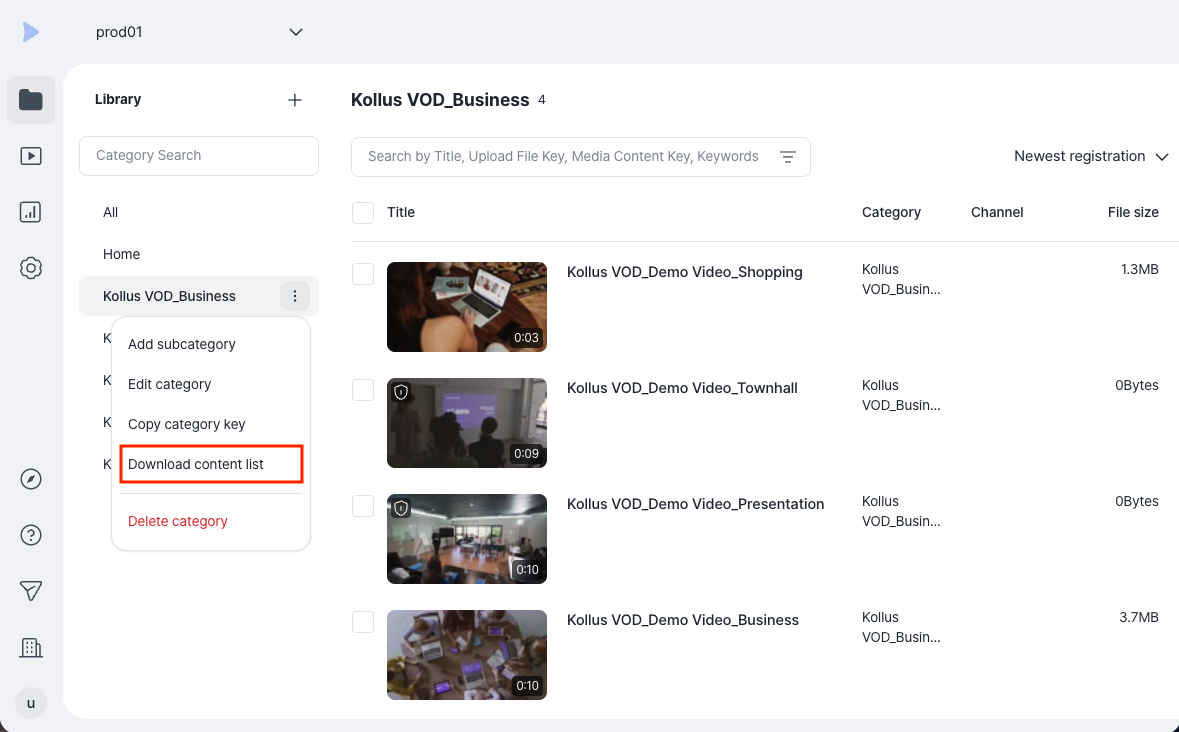
- Specify the extraction period, then click [CSV Download].
- Period setting: You can select only the data uploaded within a specific period. If not set, all data within the category is included.
- [Include sub-category contents]: Check this option to also extract the content list included in sub-categories.
Download content list in a channel
- Go to [Channel] in the Kollus VOD console.
- In the channel list on the left side of the screen, click [More (⋮)] > [Download content list] next to the target channel.
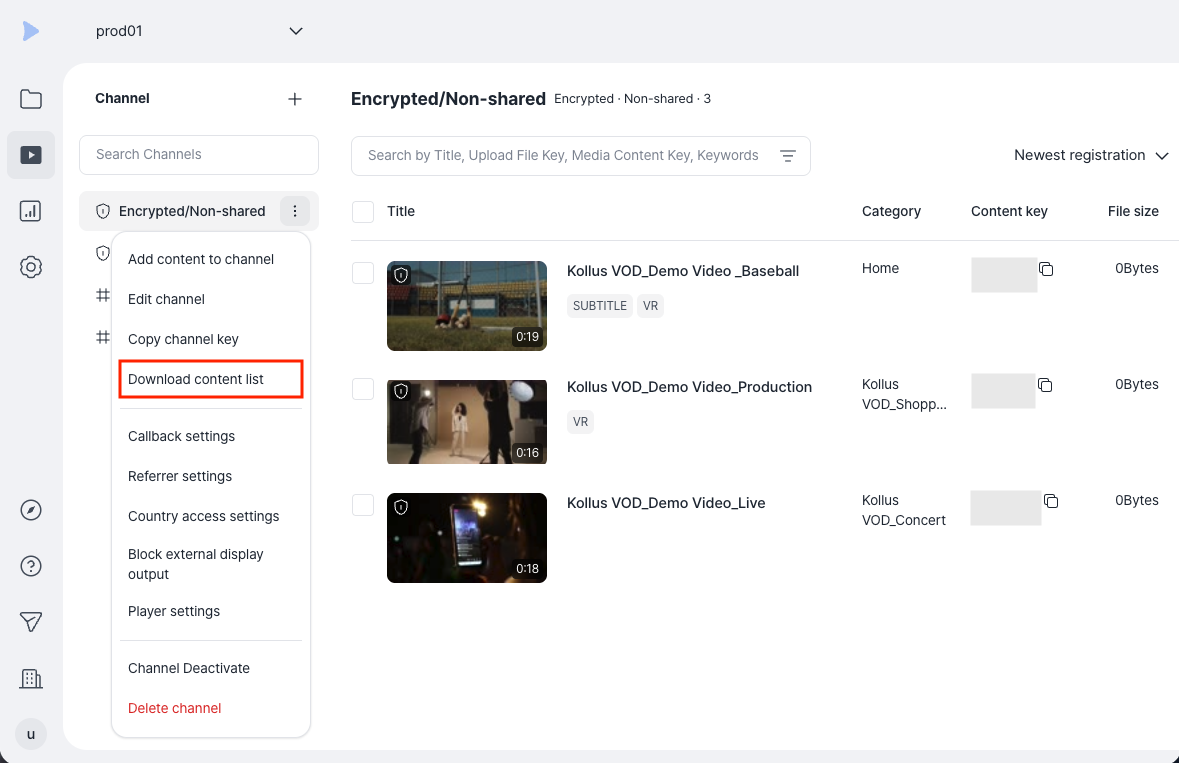
- Specify the extraction period, then click [CSV Download].
- Period setting: You can select only the data uploaded within a specific period. If not set, all data within the channel is included.
CSV file field definitions
The downloaded CSV file consists of the following key metadata fields. Each field serves as an identifier for data analysis and system integration.
| Field | Description |
|---|---|
| Service account key | Unique identifier of the service account to which the content belongs |
| Registration date | The time the content was first uploaded |
| Modification date | The time the content information was last modified |
| Title | The name of the content registered in the console |
| Original file name | The original file name at the time of upload |
| Upload file key | Unique identifier of the content within the library |
| Category | The category in which the content is registered |
| Channel | The channel in which the content is registered |
| Media content key | Unique key for content playback and distribution |
| Duration | The total duration of the content (ms) |
| Profile key | Unique identifier of the encoding profile |
| File size | The total size of the transcoded file |
| AI Speed duration | The total duration (ms) of the AI Speed profile created when AI Speed is applied |
Resolving broken Korean characters
Depending on the encoding settings, Korean content titles may not display correctly in the CSV file.
- Recommended encoding: UTF-8 or UTF-8(BOM)
Opening the file in Excel
- Select the CSV file from the [Data] tab > [Text/CSV] menu, then click [Import].
- Set the [File Origin] item to [65001: Unicode (UTF-8)], then click [Load].