Live LMS Callback
This document is a machine-translated draft and is currently undergoing review. Some content may be inaccurate or differ from the original Korean version. For the most precise information, refer to the Korean documentation.
LMS Callback is a feature that collects viewing data in real time and transmits it to a Learning Management System (LMS) server. This enables advanced education management logic such as course completion processing, learning pattern analysis, and viewing statistics calculation.
Key features
- Asynchronous transmission: The player does not wait for a server response when transmitting data, so the viewing experience is uninterrupted regardless of network conditions.
- Privacy protection: LMS callback data does not include sensitive personal information such as Mac Address or IP Address, ensuring strong security.
Callback configuration
The callback URL can be configured independently for each channel.
- Go to Kollus Live console > [Channel] > [Channel list].
- Select one of the following depending on the situation.
- Configuring during new channel creation: Click [Register channel] in the upper right corner.
- Configuring for an existing channel: Click [Edit] on the right side of the target channel.
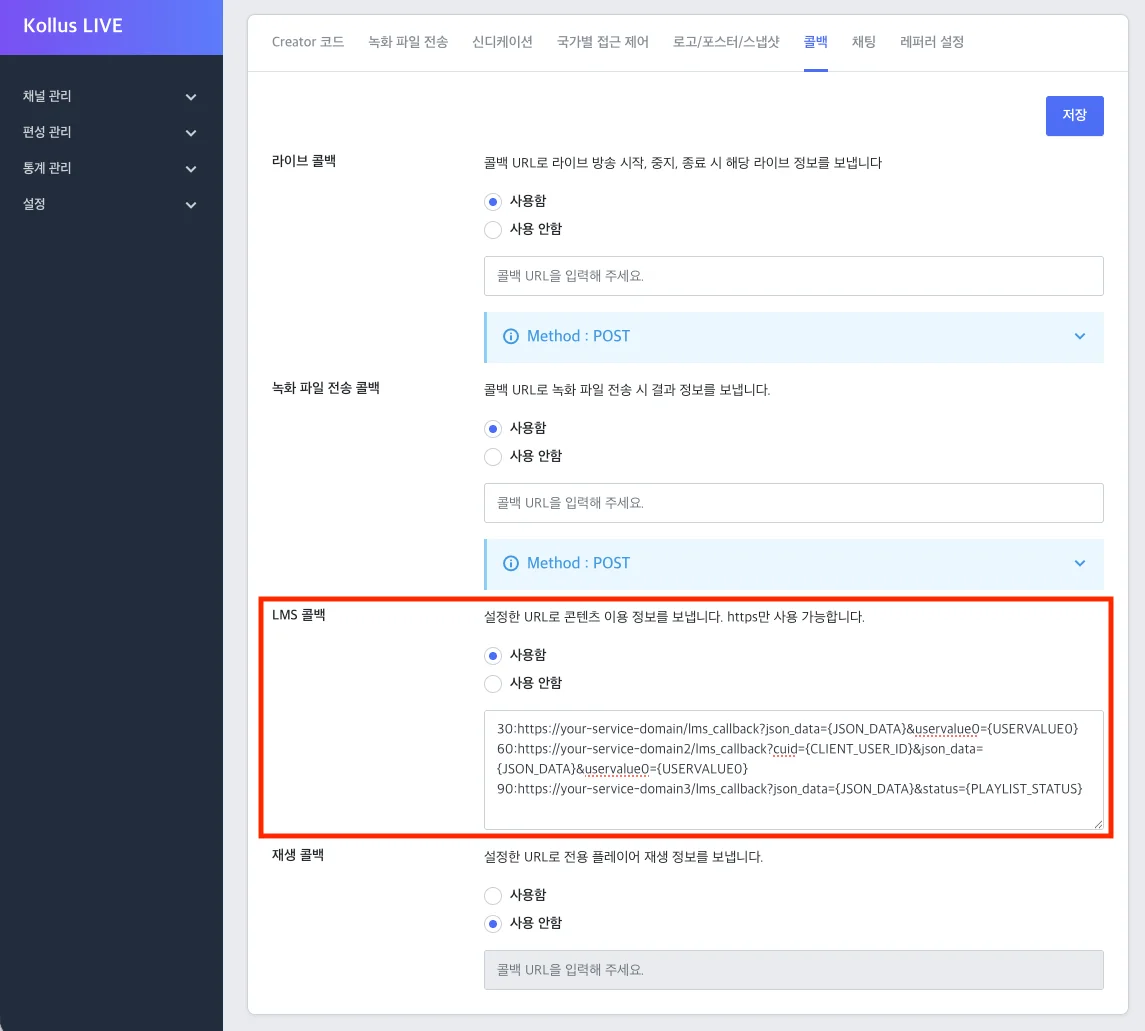
- In the [Callback] tab at the bottom, enter the value in the format 'transfer interval:callback URL' in the [LMS callback] field.
- Delimiter: Colon (
:) - Transfer interval: In seconds (Recommended: 30 to 60 seconds)
- Callback URL: Server address to receive the data (https required)
- Multiple registrations: Multiple URLs can be registered using a line break (
\n) to send data to multiple systems.
- Delimiter: Colon (
- After completing the input, click [Save].
Callback invocation timing
- Periodic invocation: Called repeatedly at each configured transfer interval.
- Event invocation: Called immediately when a user plays, pauses, or stops, regardless of the interval.
- Session identification: The
{START_AT}value changes when the player is refreshed or reconnected, distinguishing it as a new viewing session.
Callback configuration example
To receive detailed viewing data (JSON_DATA) and a custom variable (USERVALUE0) every 30 seconds to a specific server (https://your-service-domain/lms_callback), enter the following in the Kollus Live console.
30:https://your-service-domain/lms_callback?json_data={JSON_DATA}&uservalue0={USERVALUE0}
Request options
These are options that can be added as parameters after the callback URL.
| Parameter | Description |
|---|---|
{JSON_DATA} | JSON object containing all viewing information |
{CLIENT_USER_ID} | User ID (the client_user_id entered when generating the JWT) |
{START_AT} | Transmission request time (Video Gateway call time, Unix timestamp) |
{MEDIA_CONTENT_KEY} | Live broadcast key |
{ENCODING_PROFILE_KEY} | Encoding profile key |
{HOST_NAME} | Domain that requested the live stream link
|
{PLAYER_ID} | Kollus Player unique ID |
{PLAYLIST_STATUS} | (When using Kollus secure player) Viewing status
|
{DEVICE} | Device model name |
{RUN_TIME} | Cumulative watch time including pauses (sec) |
{SHOW_TIME} | Cumulative watch time excluding pauses, including timeshift (sec) |
{USERVALUE0} to {USERVALUE99} | Custom variables (UTF-8 format required)
|
Transmission data(JSON_data) details
JSON_DATA contains all viewing data.
user_info
| Field | Type | Description |
|---|---|---|
content_provider_key | string | Service account key (broadcasting entity) |
client_user_id | string | User ID (the client_user_id entered when generating the JWT) |
player_id | string | Kollus Player unique ID |
hardware_id | string | Hardware ID |
host_name | string | Domain that requested the live stream link |
device | string | Device model name |
content_info
| Field | Type | Description |
|---|---|---|
media_content_key | string | Live broadcast key |
channel_key | string | Channel key |
start_at | integer | Transmission request time (Video Gateway call time, Unix timestamp) |
runtime | integer | Cumulative watch time including pauses (sec) |
showtime | integer | Cumulative watch time excluding pauses, including timeshift (sec) |
serial | integer | LMS sending sequence (starting from 0) |
uservalue0 to uservalue99 | string | Custom variables |
Watch time terminology
Buffering time is not included when calculating watch time.
Viewing scenario example
To aid understanding, assume a user is connected for 40 seconds.
- [13:00:00] Starts watching the broadcast
- [13:00:20] Pauses the broadcast (paused for 20 seconds)
- [13:00:40] Ends watching the broadcast
| Term | Definition | Calculation method | Example result |
|---|---|---|---|
| Run Time | Total dwell time Total time connected to the service | End time - Start time | 40 seconds |
| Show Time | Actual watch time Time the player was actually playing | Run Time - Pause time | 20 seconds |