Generate a HAR File for Troubleshooting
This document is a machine-translated draft and is currently undergoing review. Some content may be inaccurate or differ from the original Korean version. For the most precise information, refer to the Korean documentation.
Kollus Technical Support (tech_support@kollus.com) may request a HAR file or IP information when analyzing video playback issues. Please generate and submit the file by following the instructions below.
Generate a har file
The HAR file must include the network requests captured at the exact moment the issue occurs. If you save the file without reproducing the issue while the developer tools are open, analysis will not be possible.
- Open the Chrome browser and navigate to the page where the issue occurs.
- Click [⋮ (Menu)] > [More tools] > [Developer Tools] in the upper-right corner.
- Select the [Network] tab in the developer tools.
- Check that the record button (red circle) in the upper-left of the tab is red. If it is gray, click it to start recording.
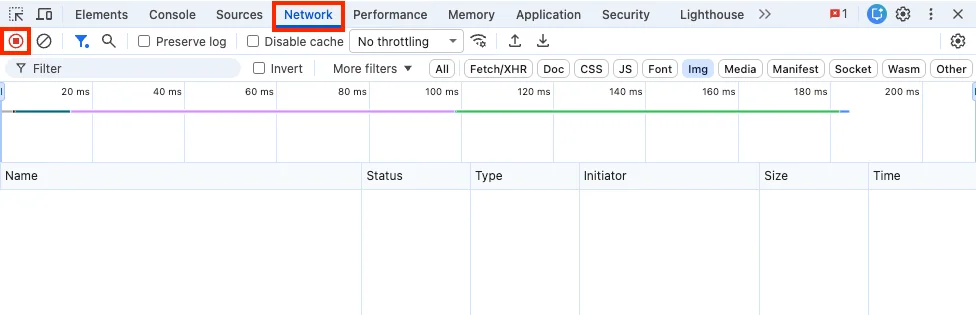
- Select the [Preserve log] checkbox.
- Click the clear (🚫) button to delete existing logs.
- Reproduce the issue. Perform the exact steps that cause the problem, such as playing the video.
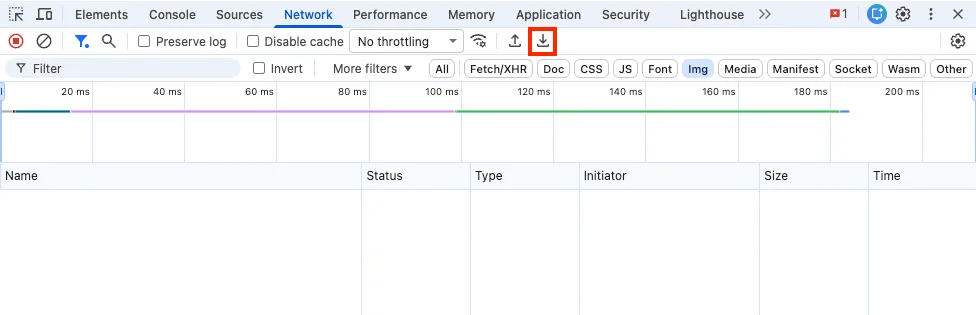
- Once reproduction is complete, click the [Export HAR] (↓) button to save the file.
Check IP information
Visit an IP lookup site (e.g., www.whatismyip.com) to check the public IP address of the device you are currently using.