(Chrome/Edge) Browser Extension Conflict
This document is a machine-translated draft and is currently undergoing review. Some content may be inaccurate or differ from the original Korean version. For the most precise information, refer to the Korean documentation.
Symptoms
A security warning popup appears during video playback, or the screen does not display correctly. Even after closing Chrome and switching to another browser (Edge, Naver Whale, etc.), the same symptoms may recur.
Causes
- Extension security conflict: Occurs when extensions such as ad blockers, screen capture tools, or script runners conflict with the player's security module.
- Residual background process: Occurs when browser processes continue running in the system background even after all Chrome windows are closed, affecting security policies.
Resolution
Identify and remove extensions
- If a program ID is displayed in the error message as shown in the image below, the program is a browser extension. It will not appear in the [Uninstall a program] menu in Control Panel, so you must remove it using the method below.
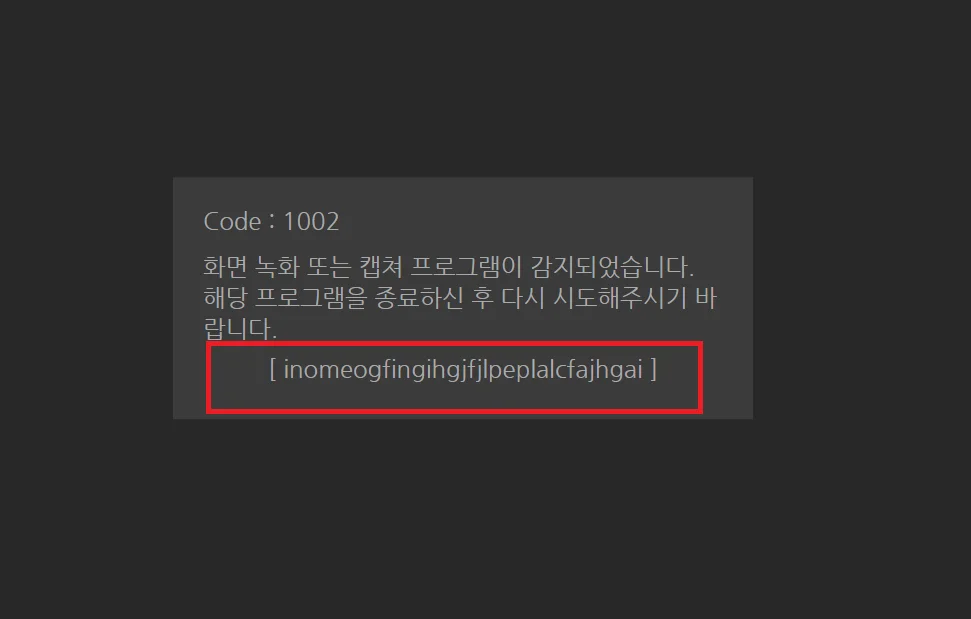 Types of extensions that can block playback
- Ad blocking tools such as AdBlock, AdGuard, and uBlock Origin
- Screen recording/capture tools
- Userscript runners such as Tampermonkey and Greasemonkey
- Video conferencing tools such as the Zoom extension
- Remote control tools such as Chrome Remote Desktop
- Unofficial video downloaders that forcibly extract video URLs
- Enter
chrome://extensionsin the Chrome browser address bar and press [Enter].- Edge browser:
edge://extensions - Naver Whale browser:
whale://extensions
- Edge browser:
- Turn on [Developer mode] in the upper right corner. (Extension IDs will be displayed.)
- Find the extension whose name and ID match those shown in the error message, then click [Remove].
- After removing it, click the [Profile icon] in the upper right corner of the browser to check whether other profiles exist. If other profiles are found, switch to each profile and check for and remove extensions using the same method.
Extensions in use on another PC may affect your current PC through the sync feature.
Clear processes and test with another browser
If the issue persists after the steps above, you must force-terminate processes that remain in system memory.
- Press [Ctrl]+[Shift]+[Esc] on your keyboard to open Task Manager.
- In the [Processes] tab, find any Google Chrome-related processes and click [End task].
- Use a browser other than Chrome, such as Edge or Naver Whale, to do a final check on whether playback works correctly.
If the extension is not visible or the remove button is unavailable (manual removal)
If the extension does not appear in the browser extension list or the remove button is disabled, delete it manually using the method below.
- Press [Windows]+[R] on your keyboard to open the Run dialog, enter 'cmd', and press [Enter].
- In the Command Prompt, enter the following command and press [Enter].
cd / - Search for the file path using the ID shown in the error message. Replace
{EXTENSION_ID}with the ID displayed in the error message.dir/s "{EXTENSION_ID}" - Copy the path shown in the search results, paste it into the File Explorer address bar, and press [Enter].
- Select the folder with the same name as the ID, then press [Shift]+[Delete] to permanently delete it. If multiple paths appear in the search results, delete all of them.
Playback blocked by Chrome extensions on macOS
On macOS, if a Chrome extension with screen recording or sharing capabilities is installed, the Kollus Player detects that extension and blocks playback.
If playback is blocked due to a detected Chrome extension, use a browser other than Chrome (such as Safari or Firefox) to watch the video.
Simply closing the Chrome browser window may not terminate the extension process. You must fully quit Chrome for playback to work correctly in other browsers.