Live Channel Details
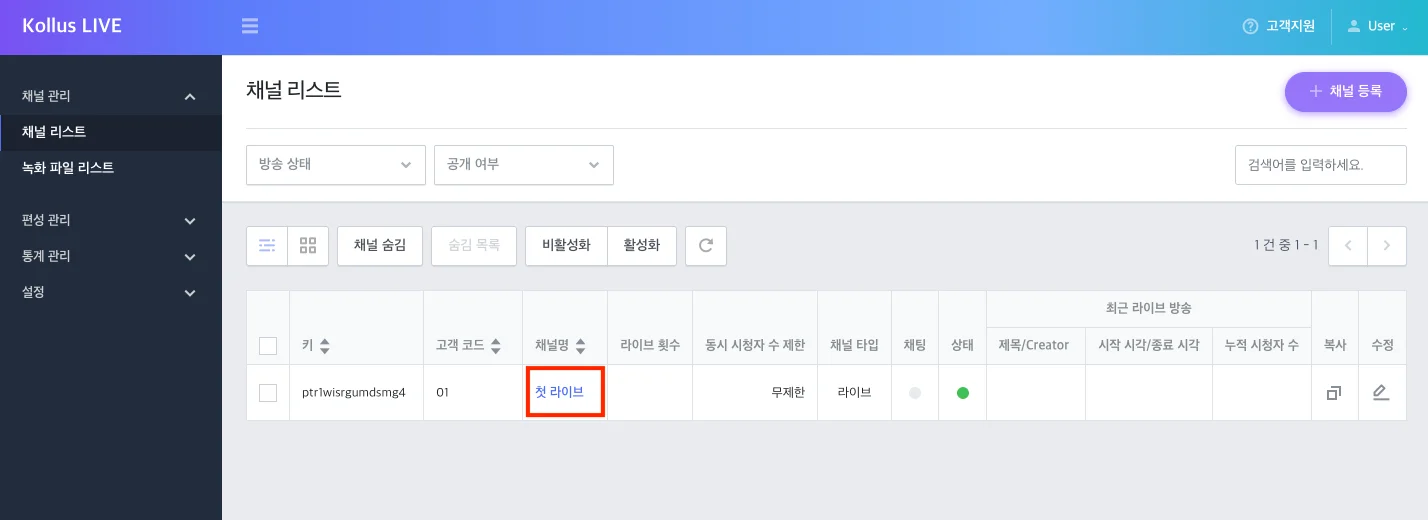
In the Kollus Live console, click a channel name under [Channel] > [Channel list] to view and manage detailed information for that channel.
View live information
In the [Live Information] tab, you can view and edit information required for broadcast operations and player display options.
| Item | Description |
|---|---|
| Metadata title | The title format displayed on the player during a live broadcast. You can compose the format using wildcards, and you can also edit the title of an ongoing broadcast in real time.
|
| Metadata content | The detailed description displayed below the title.
|
| Check live broadcast status | Sets whether to display an idle screen when not broadcasting.
|
| Video Gateway Link | (Public channel only) The broadcast URL used for actual broadcast viewing and posting on websites. |
| Channel key | (Private channel only) A unique channel identifier used to generate secure broadcast URLs, etc. |
| Video Gateway | Selects which metadata items to display on the player screen. |
| Application (streaming path) | The RTMP streaming address used when integrating with external encoders such as OBS or vMix. |
For enhanced security, private channels do not provide a publicly distributed URL. To ensure only authorized users can watch, you must generate and use a JWT (JSON Web Token)-based authentication URL.
- Related guide: Generate Secure Live View URL (JWT)
If you want to embed the player directly on your own website, you can use the iframe code below. Enter the Video Gateway Link or the JWT authentication URL for a private channel in the {URL} field.
<iframe
    width="#"
    height="#"
    src="{URL}">
</iframe>
Configure syndication
In the [Syndication] tab, you can manage settings for simultaneously streaming your live broadcast to external platforms such as YouTube. (Up to 3 registrations allowed)
| Item | Description |
|---|---|
| Title | A name used to identify the syndication. |
| Link | The RTMP stream receiving URL of the external platform. The link must start with rtmp://. |
| Stream key | The broadcast identification key issued by the external platform. |
| Visibility | Selects whether to simultaneously stream to the corresponding platform in real time. |
Configure poster/snapshot
In the [Poster/Snapshot] tab, you can manage the idle screen images displayed on the player.
- Poster: Upload an idle screen image to display on the player before and after the broadcast.
- Snapshot: Provides image links automatically captured at 5-second intervals during the broadcast. (Traffic charges apply based on the volume of image requests.)
View channel information
In the [Channel Information] tab, you can view the following items in real time.
- Channel title
- Number of live broadcasts
- Channel visibility
- List of all Creators and Creators currently broadcasting
- Streaming status information (IP, time, region)
Live chatting
For detailed information on setting up and operating the real-time chat feature, refer to the Live Chatting document.
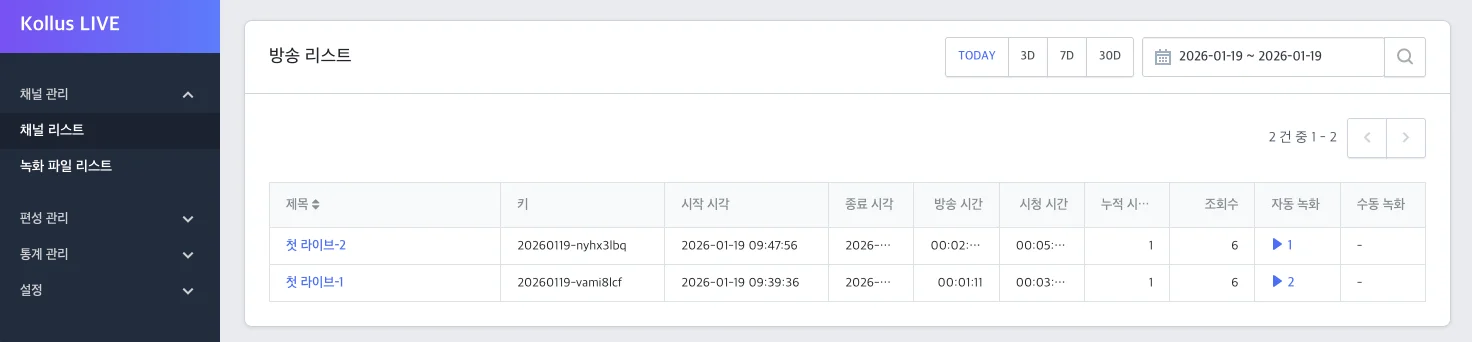
View broadcast list
In the [Broadcast List] section at the bottom of the page, you can view the full broadcast history for the channel and manage related data.
- Check broadcast statistics: Click the title to go to a detailed statistics screen showing the number of viewers, traffic, and more for that episode.
- Download broadcast recording file: Click [Play (▶)] in the [Auto recording] column, then select the download icon on the right to save the file.