Live Channels Settings
In Kollus Live, a channel is the most essential unit for operating and managing live streams. It converts (transcodes) the original video in real time and delivers it in a format optimized for viewers, while providing an environment where multiple Creators can operate broadcasts.
Create a new channel
Creating a channel issues an RTMP address for stream broadcasting and a URL for viewing the broadcast.
Only service accounts assigned the super administrator role can create channels.
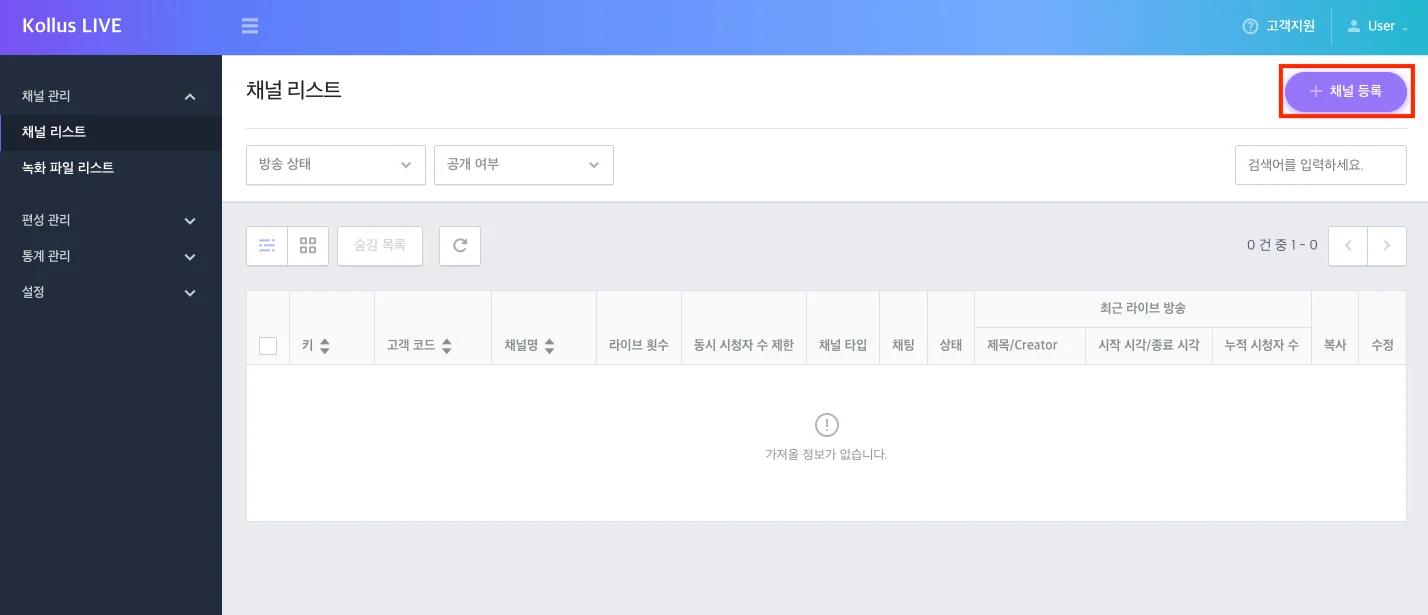
- Click Kollus Live console > [Channel] > [Channel list] > [Register channel] at the top right of the screen.
- Configure each item. (Refer to the Channel detail settings section)
- Configure additional features via the tab menu at the bottom of the screen. (Refer to the Bottom tab settings section)
- After completing the settings, click [Save].
Channel detail settings
| Item | Description |
|---|---|
| Key | The channel's unique identifier used for generating broadcast URLs, etc. (cannot be changed) |
| Channel name | The name of the channel. Used to identify the channel in the channel list or statistics page. |
| Type | Select the live type. (cannot be changed)
|
| Customer code | An identification code for the customer's internal management. |
| Metadata title | Sets the title format displayed in the player during broadcast.
|
| Metadata description | Detailed description displayed below the title. |
| Encoding profile | Sets the orientation (landscape/portrait) of the broadcast screen. (see: Live Encoding Profile Options)
|
| Live stream forwarding | Operates two broadcast paths (RTMP) simultaneously to prepare for encoder and network failures. If an issue occurs on the active path, it automatically switches to the other path to ensure uninterrupted broadcasting. (see: Live Stream Forwarding)
|
| Real-time subtitles | Converts speech into real-time text (STT) and translated subtitles during the live stream, displaying them as an overlay on the player screen. After the broadcast ends, SRT subtitle files can be downloaded for each language. (see: Real-time subtitles)
|
| Translated subtitle language | Selects the translated subtitle language to provide to viewers.
|
| Visibility | Sets the channel's access permissions.
|
| Hold time on disconnect | If broadcasting is interrupted due to a network failure or similar issue, resuming the broadcast within the specified time maintains the existing session, allowing continuous management of recording files and metadata.
|
| Live broadcast status check | Sets whether to display an idle screen when not broadcasting.
|
| Concurrent playback prevention | Restricts simultaneous viewing from multiple devices using the same account. |
| AES-128 | Sets whether to apply AES-128 encryption to the HLS stream.
|
| Multi-DRM | Sets whether to apply Multi-DRM (Widevine, FairPlay, etc.).
|
| Secure player | Sets whether to use the Kollus dedicated secure player. |
| Block external display output | Blocks external display output via HDMI, projectors, etc. |
| Recording/capture prevention | Detects and blocks screen recording/capture programs. When a recording/capture attempt is detected, the screen turns black or playback is stopped. |
| Block playback when manipulating video watermark | Blocks playback if the watermark displayed on the player screen is removed or tampered with. |
| Timeshift | Provides a timeshift feature that allows viewers to pause or rewind to a previous point during a live broadcast.
|
| Recording naming pattern | Sets the naming format for automatically generated recording files.
|
| Recording file saving option | Sets how broadcast video is saved on the server. Provides automatic segmented storage based on file size or time interval, or manual segmented storage. (see: Recording File Management)
|
Bottom tab settings
Each tab at the bottom of the channel detail settings allows you to configure additional features and security policies required for broadcast operation.
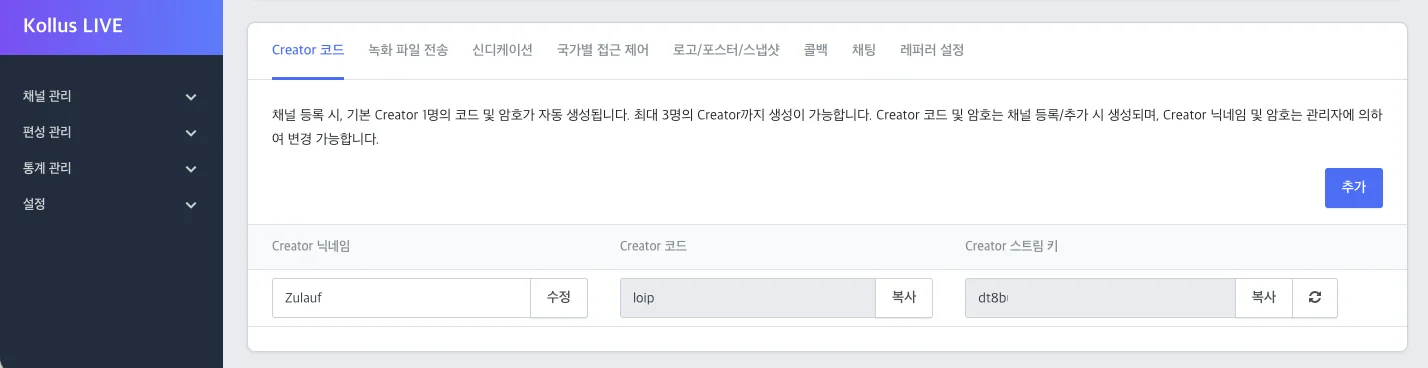
Creator code
Kollus Live separates the roles of channel administrator and the Creator who actually runs the broadcast, improving operational stability.
- Permission scope: Creators can only stream broadcasts and monitor the status of their assigned channel, and cannot access overall service settings.
- Creator account creation: One account is automatically created by default, and up to 3 accounts can be issued per channel by clicking the [Add] button.
- Related guide: Create Creator Account
Recording file transfer
Sets automatic transfer of recording files generated after the live broadcast ends to an external storage location. (Up to 3 can be registered)
- Supported protocols: FTP, SFTP, Amazon S3, Kollus(Kollus VOD)
Syndication
Manages settings for simultaneously streaming the live broadcast to external platforms such as YouTube. (Up to 3 can be registered)
| Item | Description |
|---|---|
| Title | A name used to identify the syndication. |
| Link | The RTMP stream receiving URL of the external platform. The link must start with rtmp://. |
| Stream key | The broadcast identification key issued by the external platform. |
| Visibility | Selects whether to simultaneously stream in real time to the corresponding platform. |
Country access control
Sets whether to allow or block live viewing from specific countries based on the viewer's IP.
Logo/poster/snapshot
Manages the visual elements (logo, idle screen image) displayed on the player.
- Logo: Upload a logo image to be always displayed at the top left of the player.
- Idle screen settings: Select the type of idle screen(poster or snapshot) to display on the player before and after the broadcast.
- Poster: Upload the idle screen image to be displayed on the player before and after the broadcast.
- Snapshot: Provides an image link automatically captured at 5-second intervals during the broadcast. (Traffic charges apply based on image request volume.)
Callback
Sends real-time notifications to external systems when major events occur.
| Callback type | Timing and key content | Developer guide |
|---|---|---|
| Live callback | Notification of broadcast start, stop, and end status | Platform Callback |
| Recording file transfer callback | Delivers the recording file transfer result | Platform Callback |
| LMS callback | Sends viewer learning and viewing history data | Live LMS Callback |
| Playback callback | Delivers viewer and player information | Live Playback Callback |
Chatting
Sets whether to enable the real-time chatting feature within the channel and its detailed policies. Setting [Chatting enabled] to [On] allows you to configure detailed options.
- Related guide: Live Chatting
Referrer settings
Prevents unauthorized embedding by specifying domains to allow or block broadcast playback.
- Input rules: When registering multiple domains, separate them with a comma(
,). Wildcards(#) can be used.- Example:
https://www.catenoid.net, https://#.example.com
- Example:
- Policy options
- Disabled: Allows playback from all domains.
- Allow playback only from specific domains: Allows playback only from specified domains.
- Block playback only from specific domains: Blocks playback access from specified domains.
Copy a channel
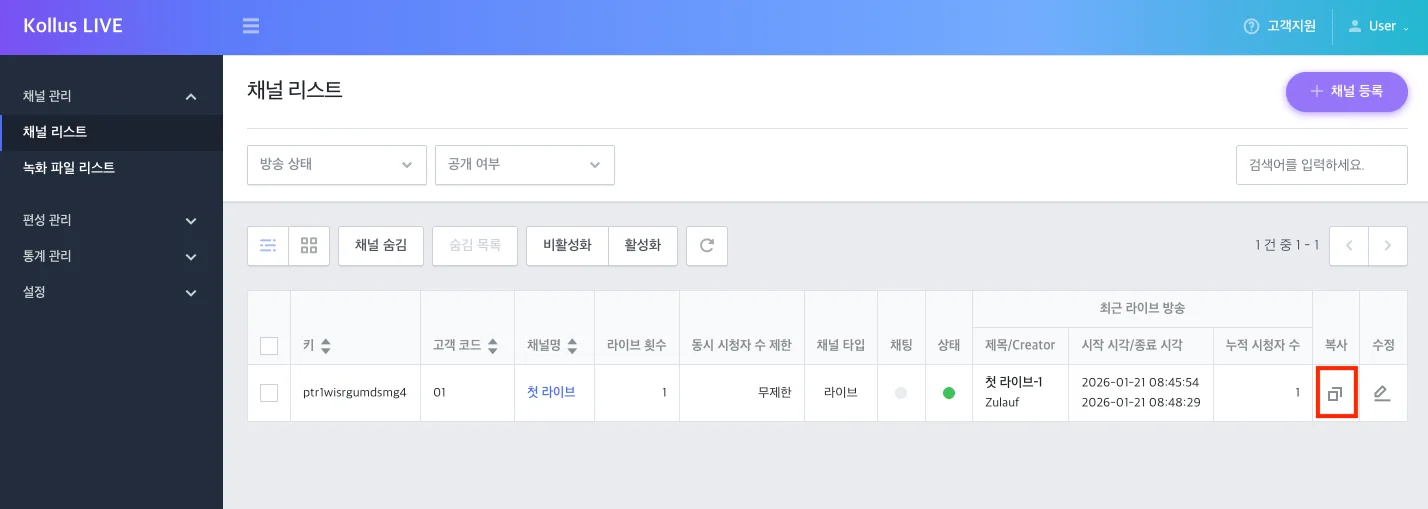
You can quickly create a new channel by duplicating the settings of an existing channel.
- Path: [Channel] > [Channel list] > copy icon on the right of the target channel
Edit a channel
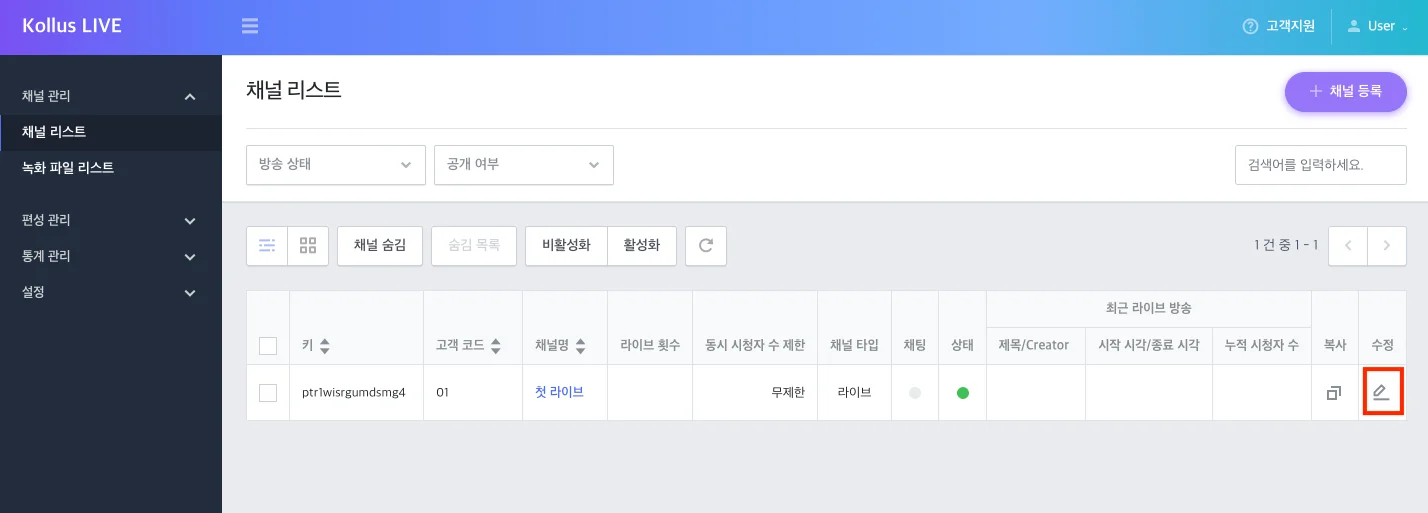
You can change the detailed settings of a channel currently in operation.
- Path: [Channel] > [Channel list] > [Edit] on the right of the target channel
- Note: The channel key and type cannot be changed. For detailed items, refer to Channel detail settings and Bottom tab settings.
Channel operation management (hide/delete/restore)
You can manage channel resources by hiding a channel from the list or permanently deleting it. Note that hiding a channel directly stops any ongoing live broadcast.
Hide a channel
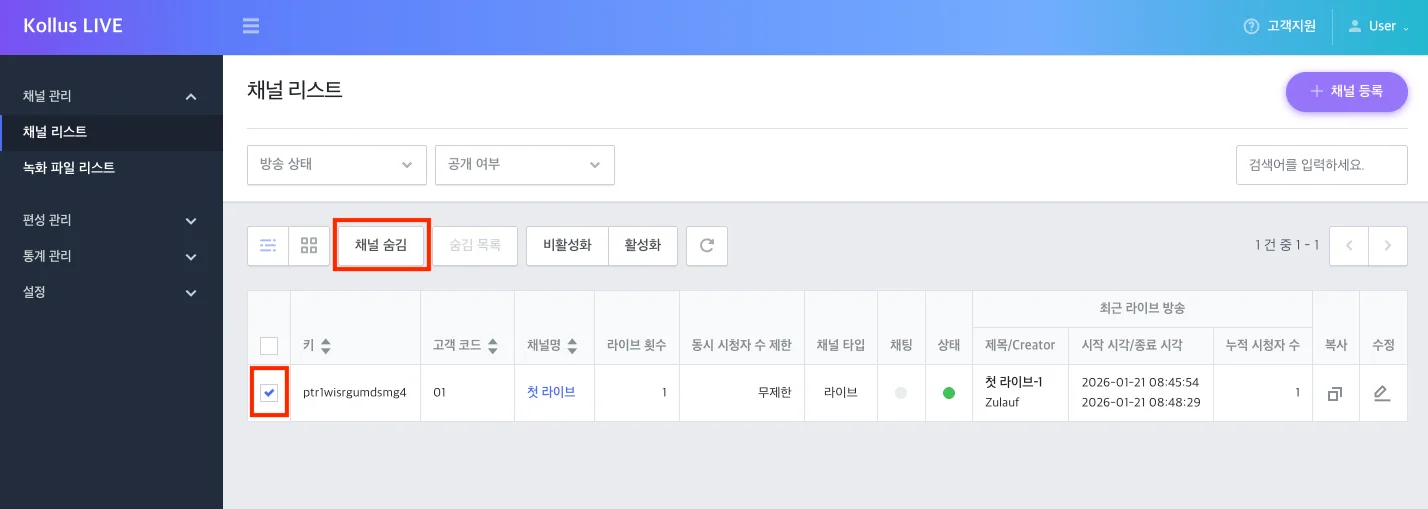
Hiding a channel removes it from the list, and all live broadcasts currently streaming through that channel are immediately stopped.
When a channel is hidden, any live broadcast in progress is forcibly terminated, and no new live broadcasts can be started until the hidden state is released (restored).
- In [Channel] > [Channel list], select the checkbox to the left of the target channel.
- Click [Hide channel].
Delete or restore a channel
You can permanently delete a hidden channel or restore it to a state where broadcasting is possible again.
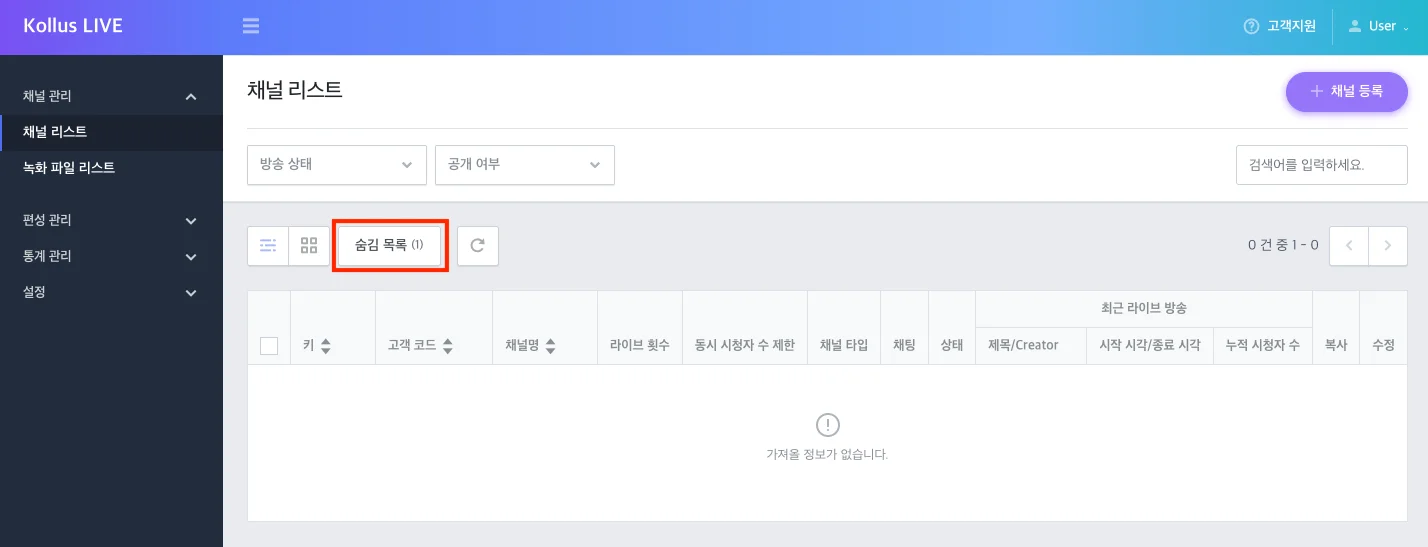
To permanently delete a channel, you must first set the channel to hidden.
- Click [Hidden] at the top of [Channel] > [Channel list].
- Select the checkbox to the left of the target channel.
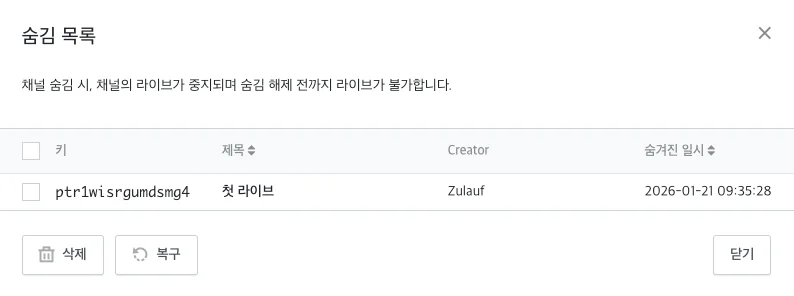
- Click [Delete] or [Restore] at the bottom of the screen.