Stream Forwarding
What is live stream forwarding?
Live stream forwarding is a feature designed to provide viewers with an uninterrupted broadcast even when unexpected network failures or encoder issues occur. Simultaneous streaming is carried out through two different delivery paths (RTMP) using two encoders, and if an issue occurs on the path currently streaming, it is instantly switched over to the other delivery path automatically, ensuring broadcast continuity.
- Automatic switching: The stream from whichever encoder connects to the server first is streamed, and if that connection is lost, it automatically switches to the stream from the other encoder.
- Single viewing environment: Although two encoders are running, only a single player URL is provided to viewers, avoiding any confusion.
- Stream persistence policy: Even if the original encoder reconnects after a path switch, failback does not occur, and streaming continues via the newly switched path.
Even if both encoder connections are lost, the broadcast does not end immediately; instead, an idle screen is displayed for the configured hold time on disconnect (1–5 minutes).
- If recovered within the time limit: The broadcast resumes immediately once even one encoder reconnects.
- If not recovered within the time limit: The broadcast ends permanently, and recording file creation begins.
Prerequisites
Before applying the live stream forwarding feature, review the required conditions and restrictions below.
Requirements
- Supported player: Kollus Web Player
- Supported channel types: standard live or low latency live channels (Scheduled Live is not supported)
- Idle screen image: An idle screen must be configured to be displayed to viewers during delivery path switching (poster upload or auto snapshot)
- Hold time on disconnect setting: A hold time on disconnect of at least 1 minute must be configured (1–5 minutes can be set; 0 minutes is not allowed)
Feature restrictions
- Timeshift / Multi DRM / AES-128: These features cannot be used together with live stream forwarding at this time (support planned for a future release).
- Anonymous chat blocking behavior: Due to the nature of browser-based storage, anonymous chat blocking information may be reset when the player automatically refreshes during a delivery path switch.
- Note: Standard chat blocking based on member ID is stored in the DB, so the blocked status remains intact regardless of delivery path switching.
How to configure live stream forwarding
Redundancy can be configured on a per-channel basis in the Kollus Live console.
Step 1: Configure the channel
The Redundant Streaming feature is supported only on Live and Low-Latency Live channels (not supported for Scheduled Live channels). Since existing channel types cannot be changed, please refer to the Create a new channel documentation to create a new channel with the Live or Low-Latency Live type.
- In the Kollus Live console, go to [Channel] > [Channel list] and click [Edit] next to the target channel.
- Set [Redundant transmission] to [On].
- Set the [Hold time on disconnect] to a value between 1 and 5 minutes. (A default of 3 minutes is recommended; 0 minutes is not allowed)
- Set [Live broadcast status check] to [On], then click [Save].
Step 2: Set up the idle screen image
- Click [Edit] next to the target channel, then go to the [Logo/Poster/Snapshot] tab at the bottom.
- In the [Idle screen settings] section, select your preferred method.
- [Use an already registered poster]: Displays a manually uploaded image (poster).
- [Display the latest live snapshot of the channel]: Displays a screen that is automatically captured in real time during the broadcast.
- If you select [Use an already registered poster], click [Select file] under the [Poster] section to choose an image, then click [Upload].
Step 3: Enter the new delivery paths into the encoders
- In [Channel] > [Channel list], click the target channel name to go to the channel details page.
- Enter Delivery path 1 and Delivery path 2, shown in the [Application] section, into the two encoders respectively.
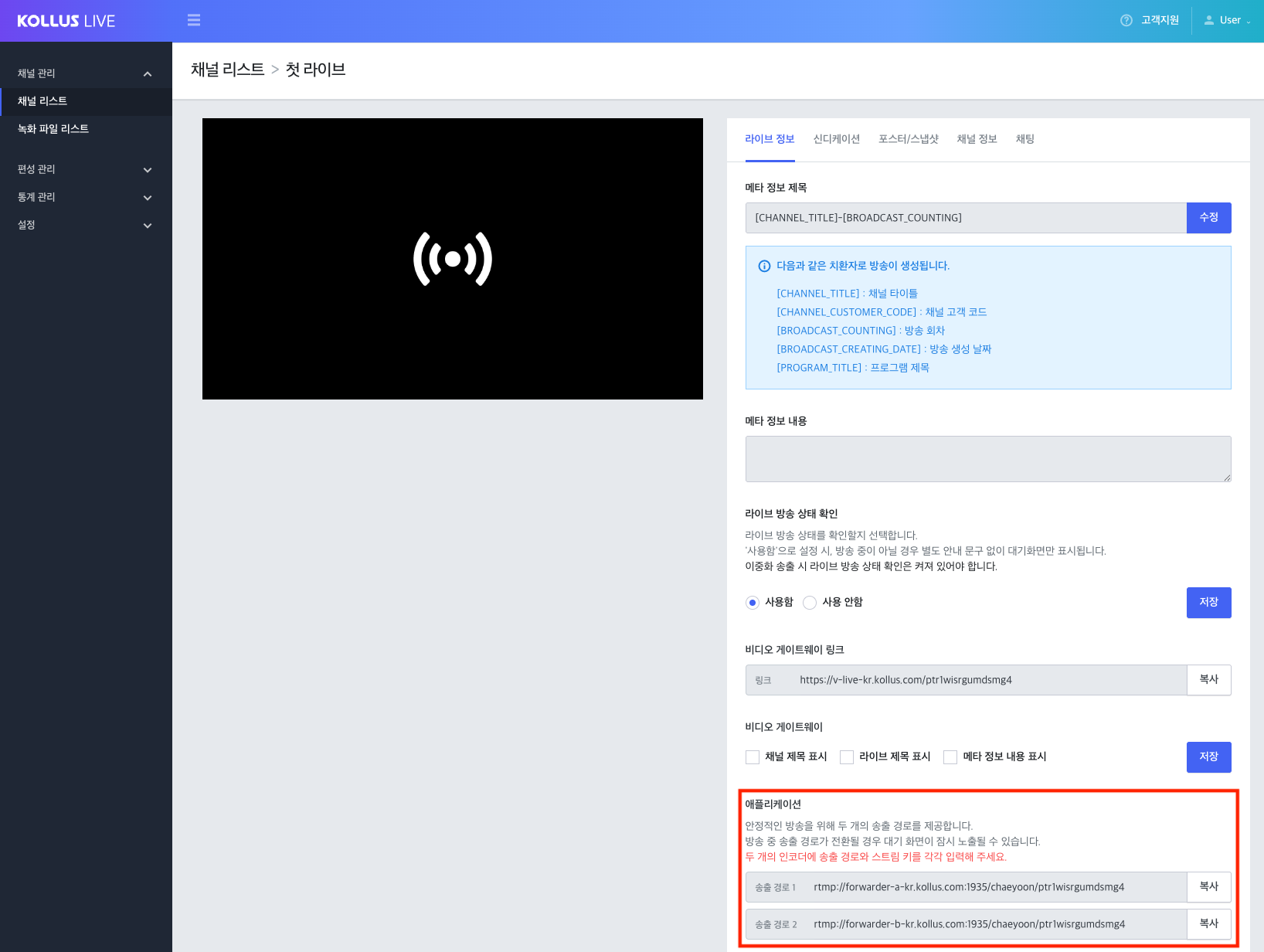
Changing the live stream forwarding setting (on/off) updates the RTMP stream URLs. You must reconfigure your encoders with the updated URLs.
- Enabling Redundancy (off → on): Enter the two newly issued stream URLs into each respective encoder. (Using the existing single URL will prevent the redundancy feature from working properly.)
- Disabling Redundancy (on → off): Enter the newly issued single stream URL into your encoder. (The previous redundant URLs can no longer be used.)
Encoder configuration guide for stable operation
To achieve the intended purpose of redundancy in the event of a failure and to minimize screen mismatches during switching, the following settings are recommended.
- Physically separate the encoders: If both encoders are run on the same PC or the same network (router/line), both streaming lines may fail at the same time in the event of a failure. Be sure to configure encoder 1 and encoder 2 on separate PCs and separate network environments.
- Synchronize encoder output settings: To prevent screen glitches or audio sync issues when switching between encoder paths, the output settings of both encoders must match.
- Required items to synchronize: resolution, bitrate, frame rate (a fixed CFR is recommended), and keyframe interval