Quickstart: Set Up Channel & Stream Live
This document is a machine-translated draft and is currently undergoing review. Some content may be inaccurate or differ from the original Korean version. For the most precise information, refer to the Korean documentation.
This guide is for customers who are new to Kollus Live. It explains step-by-step how to broadcast and monitor a live stream on a public channel.
Step 1: Sign in to the Kollus Live console
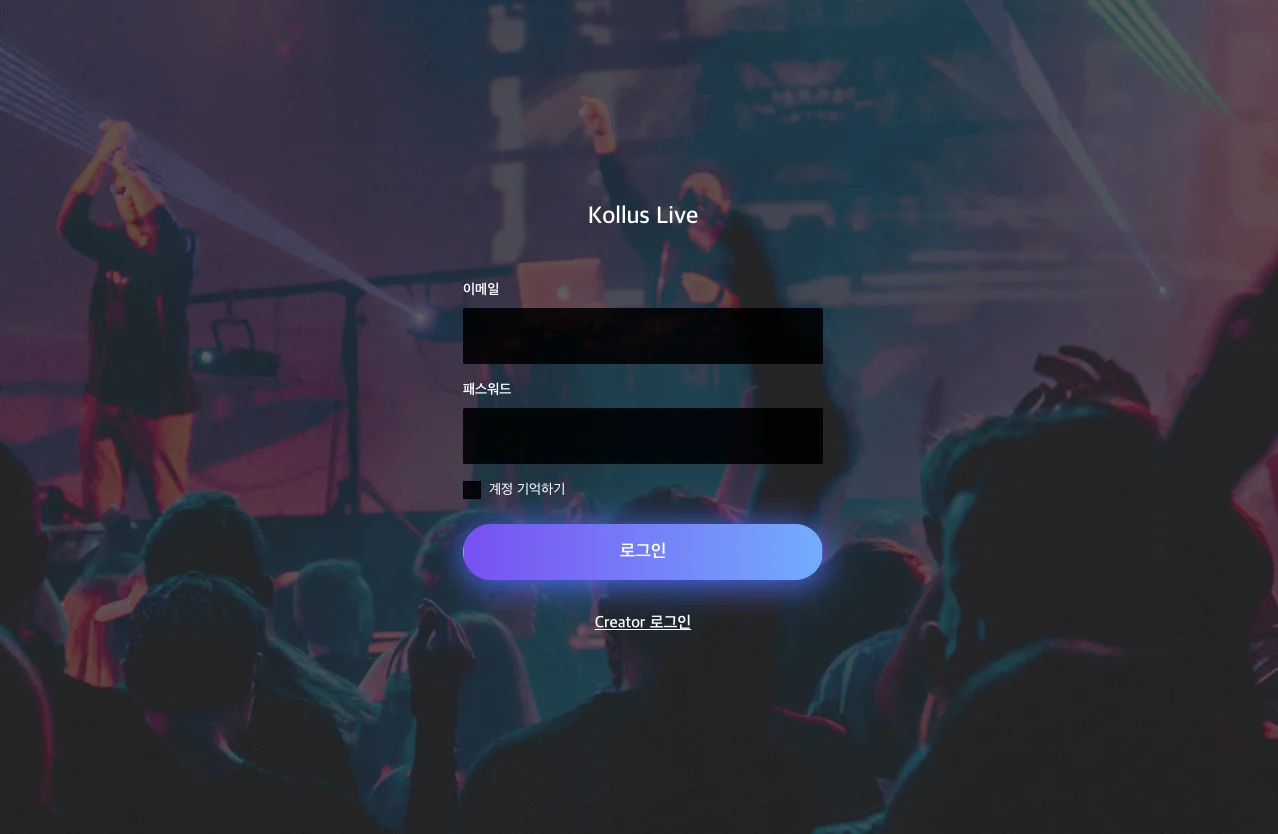
Go to the Kollus Live console and sign in.
- Integrated account: Use the account information provided when signing the service contract. (Can use the same account as Kollus VOD)
- Creator sign-in: This is a dedicated page for the 'host' who handles actual live streaming. It can be used after creating a channel and registering a Creator.
Step 2: Create a live channel
Create a channel, which is the basic unit for live broadcasting. A channel converts the streamed source video in real time (Transcoding) and distributes an optimized stream to users.
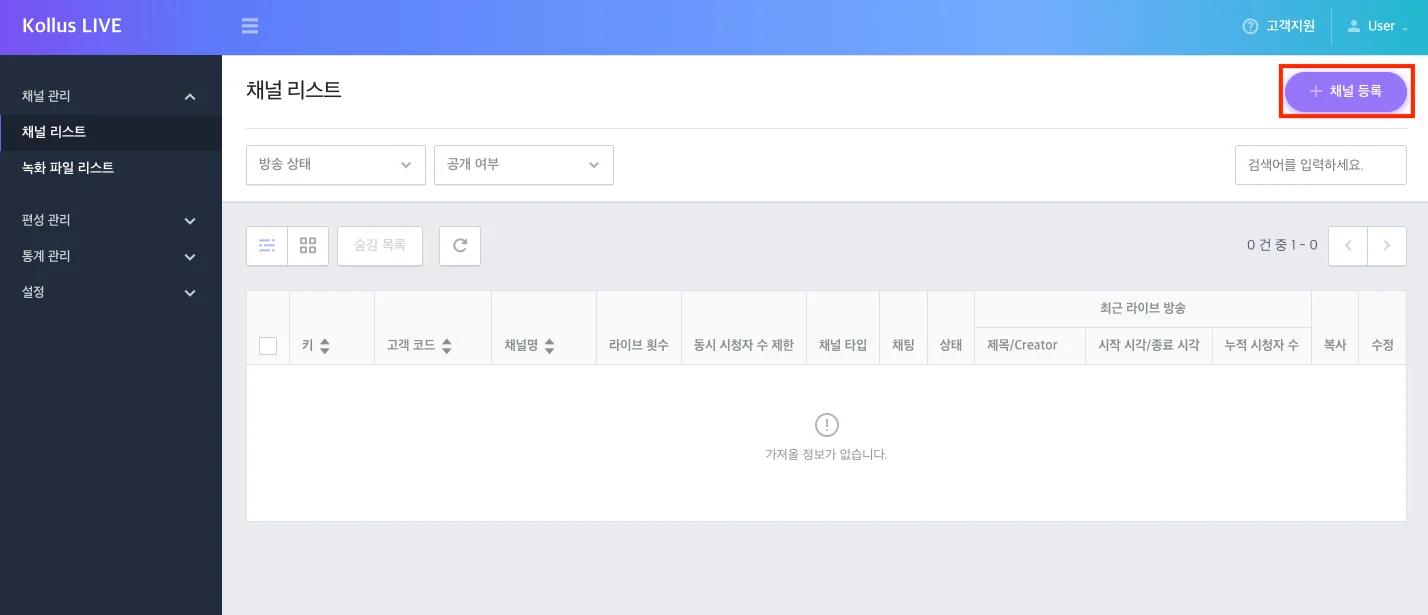
- In [Channel] > [Channel list], click [Register channel] in the upper right corner.
- Configure each item and click [Save]. (Since this guide explains the general live streaming procedure for a public channel, set [Visibility] to [Public] and [Type] to [Live].)
Item Description Key The channel's unique identifier used for generating broadcast URLs, etc. (cannot be changed) Channel name The name of the channel. Used to identify the channel in the channel list or statistics page. Type Select the live type. (cannot be changed) - [Live]: Standard real-time broadcasting
- [Low latency live]: LL-HLS method that minimizes latency (see: Low Latency Live (LL-HLS))
- [Scheduled Live]: Scheduled broadcasting based on prepared VOD files (see: Scheduled Live)
Customer code An identification code for the customer's internal management. Metadata title Sets the title format displayed in the player during broadcast. - Example: If set to
[CHANNEL_TITLE]-[BROADCAST_COUNTING], when the 3rd broadcast is streamed on the 'First Live' channel → displayed as 'First Live-3'
Metadata description Detailed description displayed below the title. Encoding profile Sets the orientation (landscape/portrait) of the broadcast screen. (see: Live Encoding Profile Options) - [Default - landscape]: Landscape orientation
- [Default - portrait]: Portrait orientation
Live stream forwarding Operates two broadcast paths (RTMP) simultaneously to prepare for encoder and network failures. If an issue occurs on the active path, it automatically switches to the other path to ensure uninterrupted broadcasting. (see: Live Stream Forwarding) - Prerequisite: Live broadcast status check enabled
- Restriction: Not supported for Scheduled Live
Real-time subtitles Converts speech into real-time text (STT) and translated subtitles during the live stream, displaying them as an overlay on the player screen. After the broadcast ends, SRT subtitle files can be downloaded for each language. (see: Real-time subtitles) - Restriction: Not supported for Scheduled Live
Translated subtitle language Selects the translated subtitle language to provide to viewers. - Prerequisite: Real-time subtitles enabled
- Restriction: Not supported for Scheduled Live
Visibility Sets the channel's access permissions. - [Public]: A broadcast URL(Video Gateway Link) for external distribution is provided.
- [Private]: For enhanced security, viewing is only possible by generating a JWT(JSON Web Token)-based authentication URL.
Learn moreFor descriptions of detailed settings such as security, beyond the basic items described in the table above, refer to the documents below.
Step 3: Check broadcast information
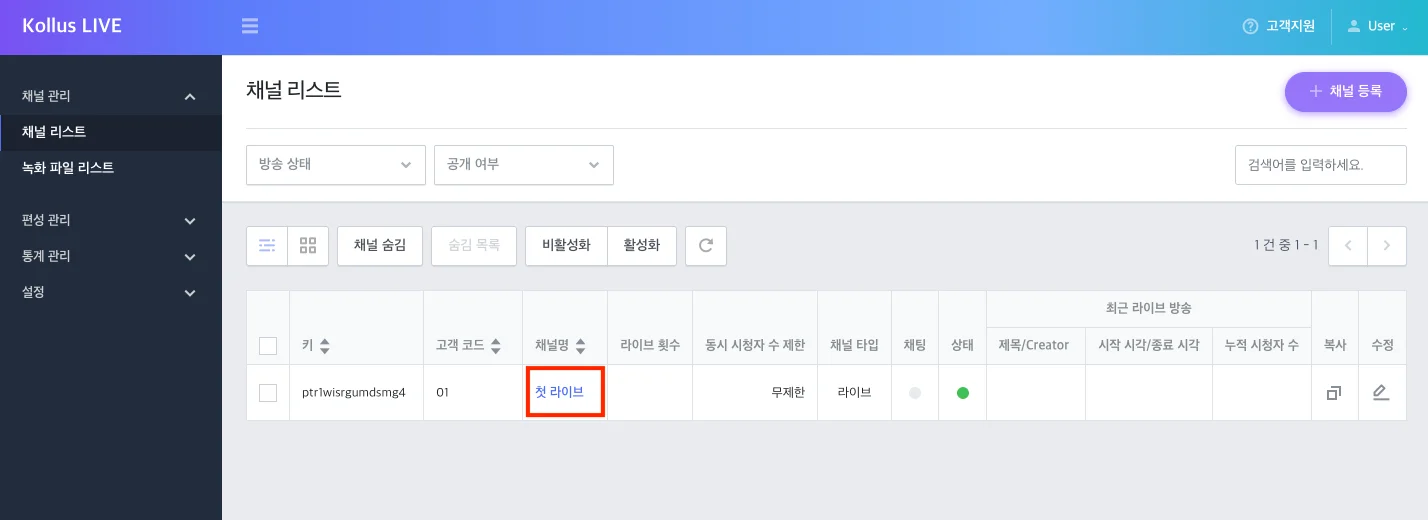
Click the channel name in the list to go to the details page, where you can check information needed for broadcast operations.
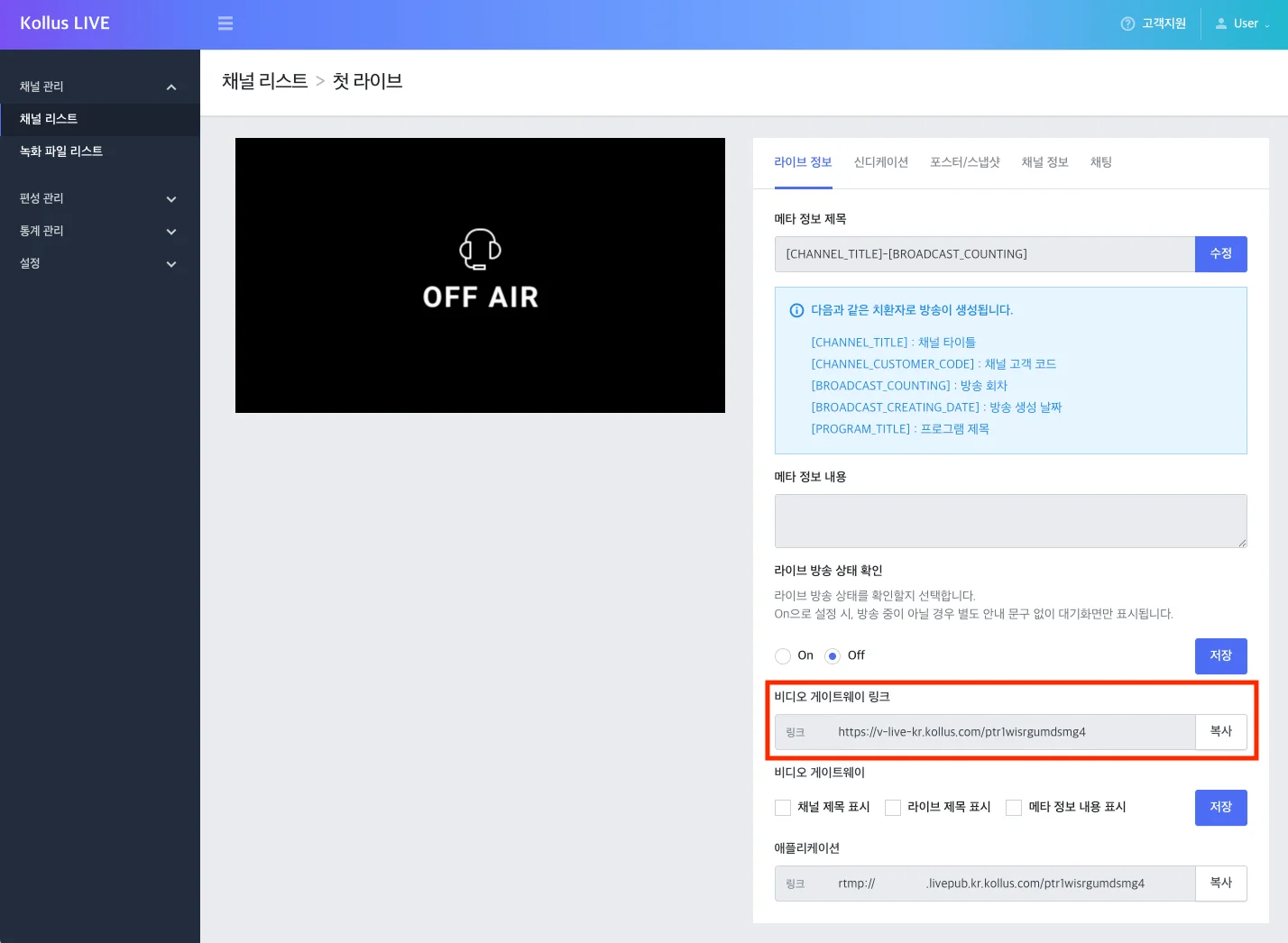
Live View URL
The address to embed in a web page or share with users.
- Video Gateway Link: A URL that can be viewed immediately without any additional development. When operating a public channel, copy this link and distribute it directly to users.
iframecode: Used when you want to embed the player inside your own website. Enter the Video Gateway Link in the{URL}part below.
<iframe
    width="#"
    height="#"
    src="{URL}">
</iframe>
Step 4: Live streaming
Use an encoder solution to transmit the actual video to the Kollus server. Choose the guide that fits your environment.
Step 5: Broadcast monitoring and ending
Once streaming begins, you can check the broadcast status in real time from the Kollus Live console.
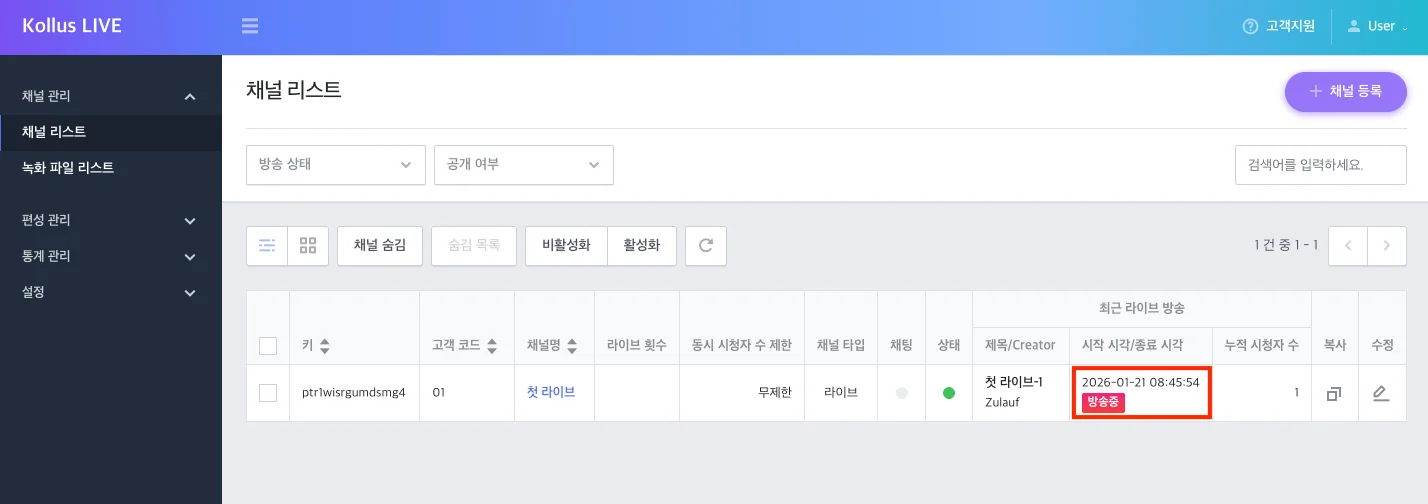
- Check broadcast status: Verify that the 'On Air' tag is displayed in the channel list.
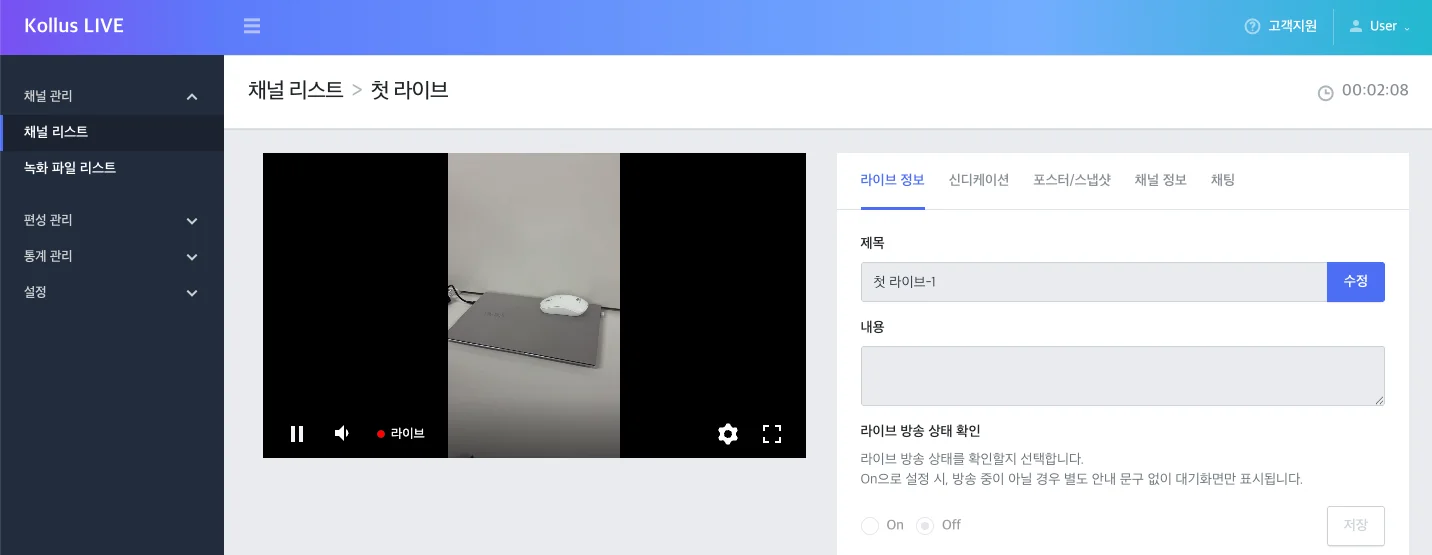
- Screen monitoring: Click the channel name to go to the details page, where the actual streaming screen is displayed in the player.
- End broadcast: Press the end broadcast button in the encoder program to stop the broadcast.