Live Chatting
This document is a machine-translated draft and is currently undergoing review. Some content may be inaccurate or differ from the original Korean version. For the most precise information, refer to the Korean documentation.
Live Chatting is a key interactive feature that enables two-way communication between hosts and users, enhancing viewer immersion during broadcasts. Kollus Live provides a stable, large-scale chat infrastructure, and administrators can precisely control the chat environment to suit their service's needs through the Kollus Live console.
The live chatting feature is disabled by default. To activate this feature, contact your Account Manager.
Configure chatting settings
The live chatting feature is only supported in the Kollus HTML5 Player environment.
- Navigate to Kollus Live console > [Channel] > [Channel list] > [Edit] on the right side of the target channel > [Chatting] tab at the bottom.
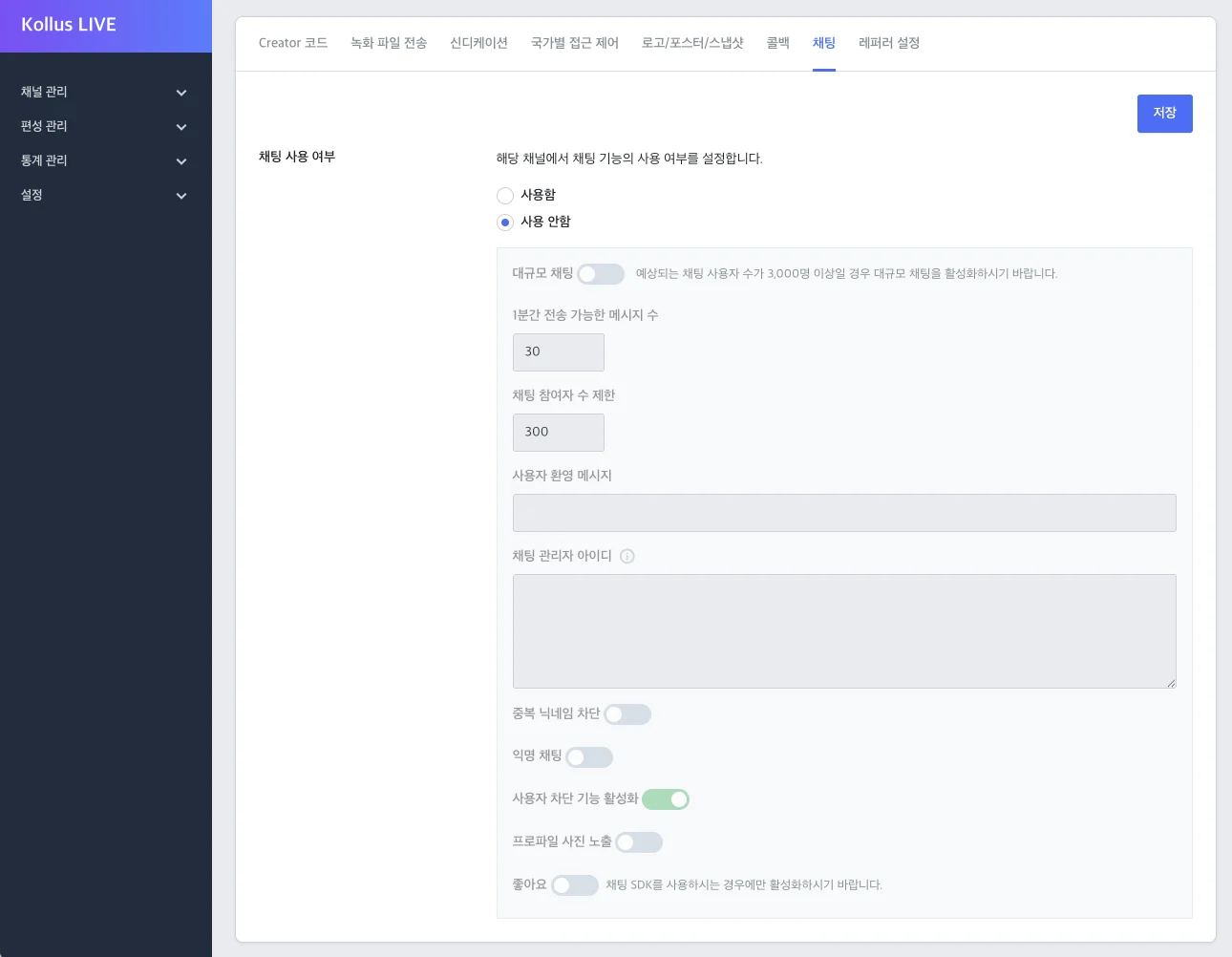
- Change [Chatting enabled] to [On].
- Configure the operational policy by referring to the items below.
Item Description Large scale chat Activate this when the number of concurrent users is expected to exceed 3,000. Number of messages that can be sent in 1 minute Limits the maximum number of messages a single chat participant can send in 1 minute to prevent indiscriminate spamming. Chatting participants limit Sets the maximum number of users who can simultaneously enter the chat room for that channel. User welcome message An automatic greeting message displayed when a user first enters the chat window. (e.g., "Welcome to the ○○○ channel!") Chatting administrator ID Enter the user ID to be granted chat administration privileges. (Must match the client_user_idused during authentication.)Block duplicate nicknames When enabled, restricts users from using the same nickname as another user currently in the chat room. Anonymous chatting Allows non-logged-in users to participate in chat using an alias. Enable user blocking Provides the chat administrator with the ability to block inappropriate users in real time. Show profile picture Sets whether to display the profile image of the message sender. Like Activates the 'like' reaction feature within the chat window. (This option only applies to customers who have implemented their own UI using a dedicated chat SDK.) - After completing the settings, click [Save] in the upper right corner.
Configure the View URL
For live streams that include the chatting feature, it is essential to generate a View URL based on JWT(JSON Web Token) to identify users and grant permissions. This process is used to enhance security and provide an optimized chat environment (such as nicknames) for individual users.
Step 1: Generate a JWT
Before a development environment is set up, use the Debugger at jwt.io to manually generate a token for testing.
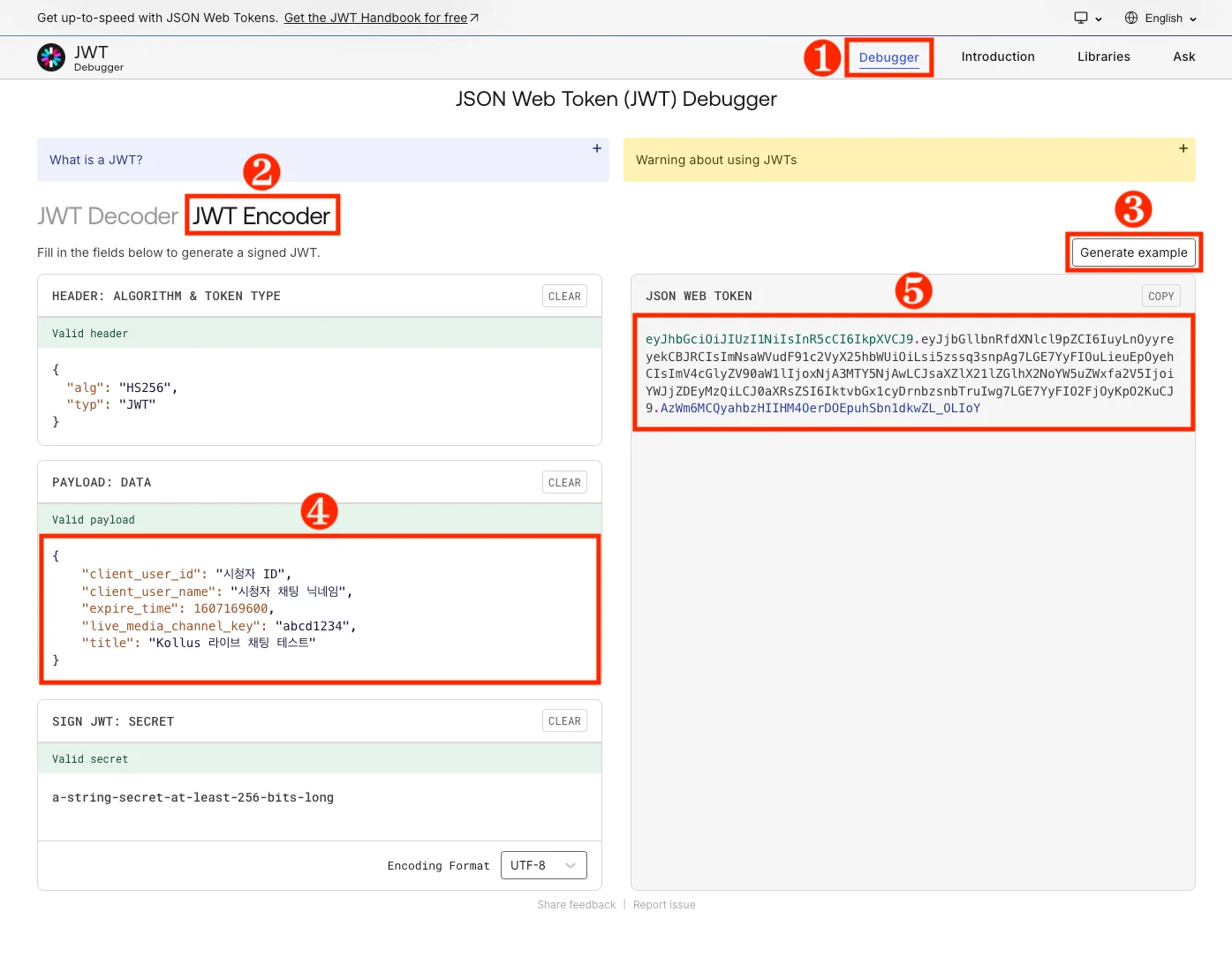
- Go to jwt.io and navigate to the [Debugger] tab at the top.
- Select [JWT Encoder].
- To configure the encryption algorithm, select [Generate example] > [HS256].
- Enter the Payload in the PAYLOAD: DATA area on the left.
{
    "client_user_id": "{END_USER_ID}",
    "client_user_name": "Nickname",
    "expire_time": 1893455999,
    "live_media_channel_key": "{CHANNEL_KEY}",
    "title": "Kollus Live Chatting Test"
}
Payload example
Option Type Description client_user_idstringA unique ID that identifies the user. client_user_namestringThe user's nickname to be displayed in the chat window. expire_timeintegerThe validity period of the token (JWT). Access will be blocked upon expiration. - Maximum value: 1893455999 (2029-12-31)
live_media_channel_keystringThe unique identifier of the channel. - Where to find: Kollus Live console > [Channel] > [Channel list] > [Edit] on the right side of the target channel > [Key]
titlestringThe broadcast title to be displayed at the top of the player. Learn MoreFor detailed JWT specifications, refer to the documentation below.
- Copy the generated string from the JSON WEB TOKEN area on the right.
Step 2: Complete the final View URL
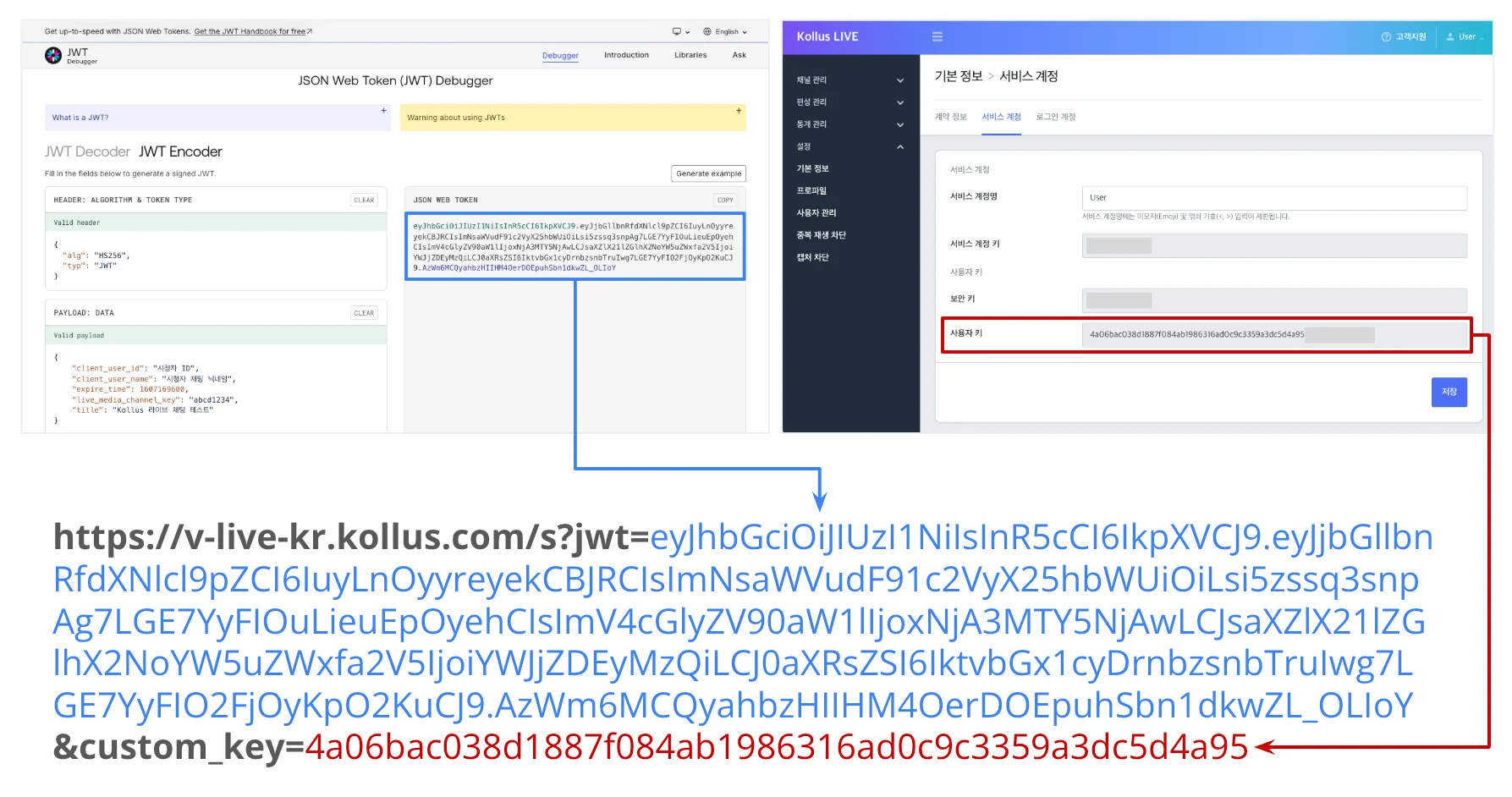
- Copy the key from Kollus Live console > [Settings] > [Basic information] > [Service account] tab > [Custom key].
- Connect the JWT generated in Step 1 with the copied custom key to complete the URL.
https://v-live-kr.kollus.com/s?jwt={JWT}&custom_key={CUSTOM_KEY}
Chat UI layout
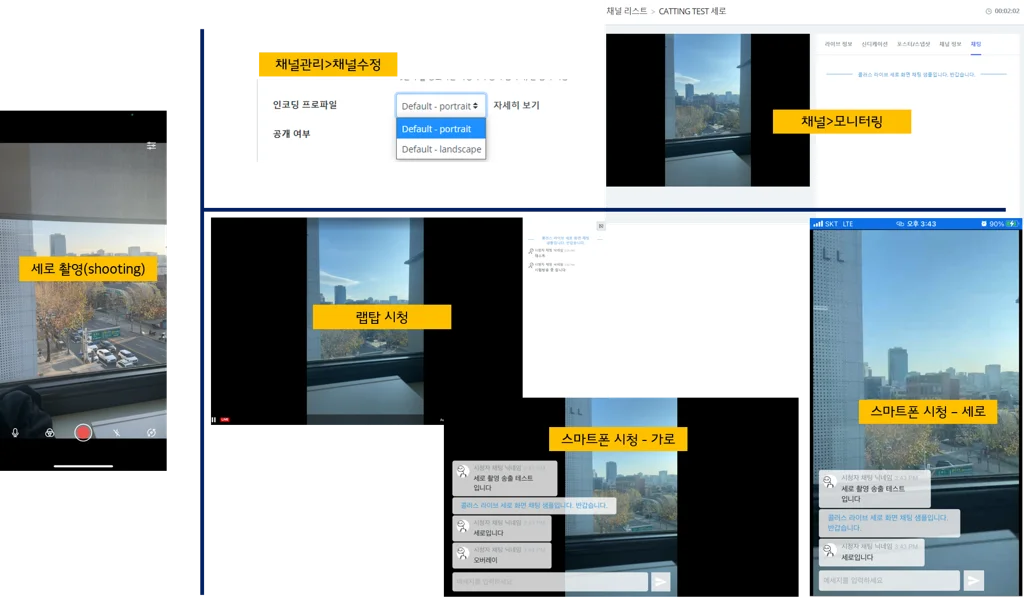
A total of 4 UI types are implemented depending on the combination of filming orientation and encoding profile. Choose the combination that fits your service's nature (commerce, seminar, etc.).
Portrait - portrait
- Feature: The most commonly used format in live commerce (TikTok, Instagram, etc.).
- Layout: The video fills the entire screen, with chat overlaid transparently on top as the default overlay method.
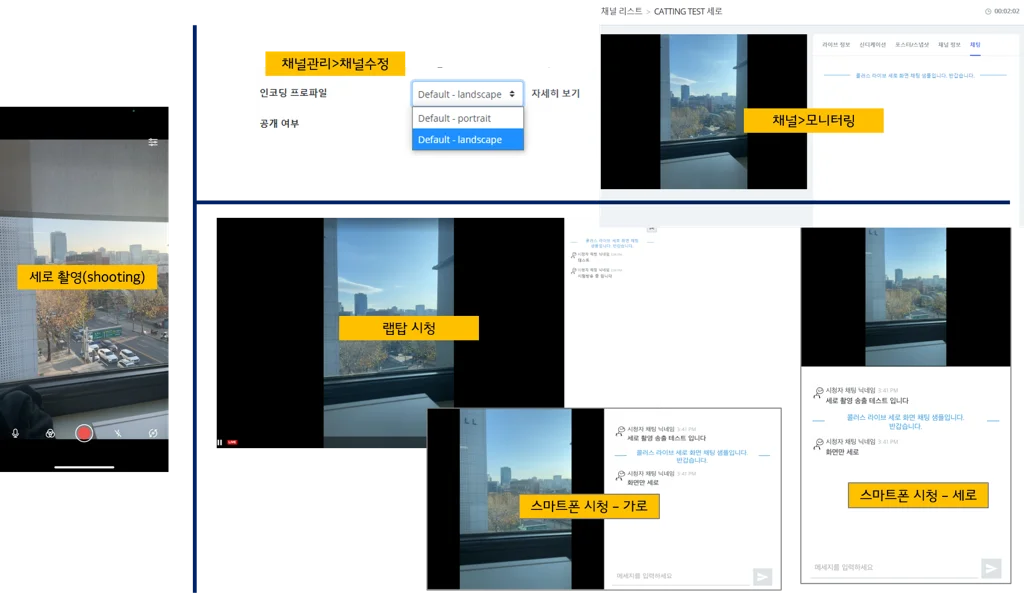
Portrait - landscape
- Feature: A format that places a portrait video within a landscape player.
- Layout: Margins appear on the left and right of the video, and the chat window is displayed as a separate area to the right or below the video.
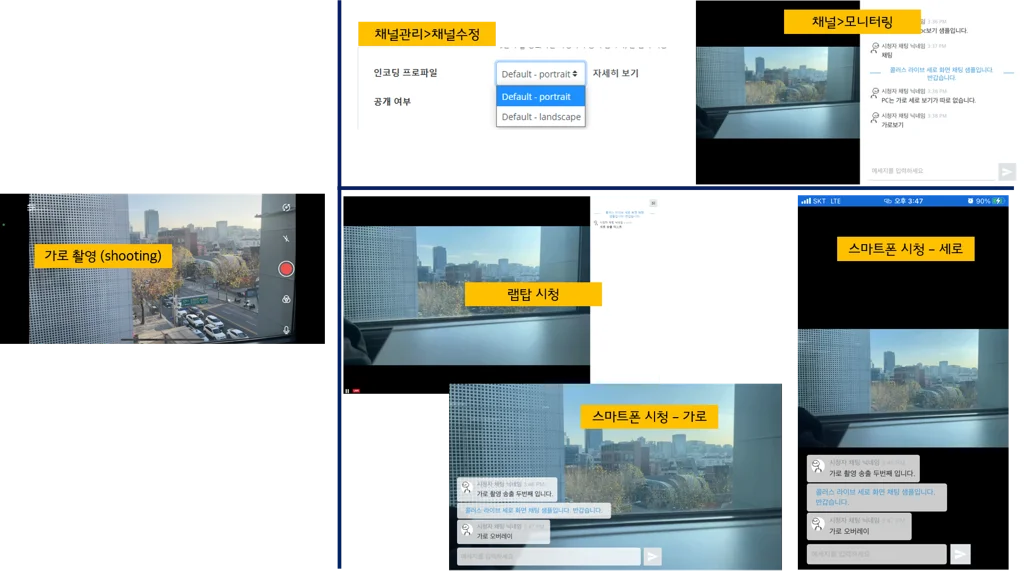
Landscape - portrait
- Feature: A format that streams a landscape-filmed video using a portrait profile.
- Layout: Margins appear above and below the video when viewed on mobile, and chat is handled as an overlay.
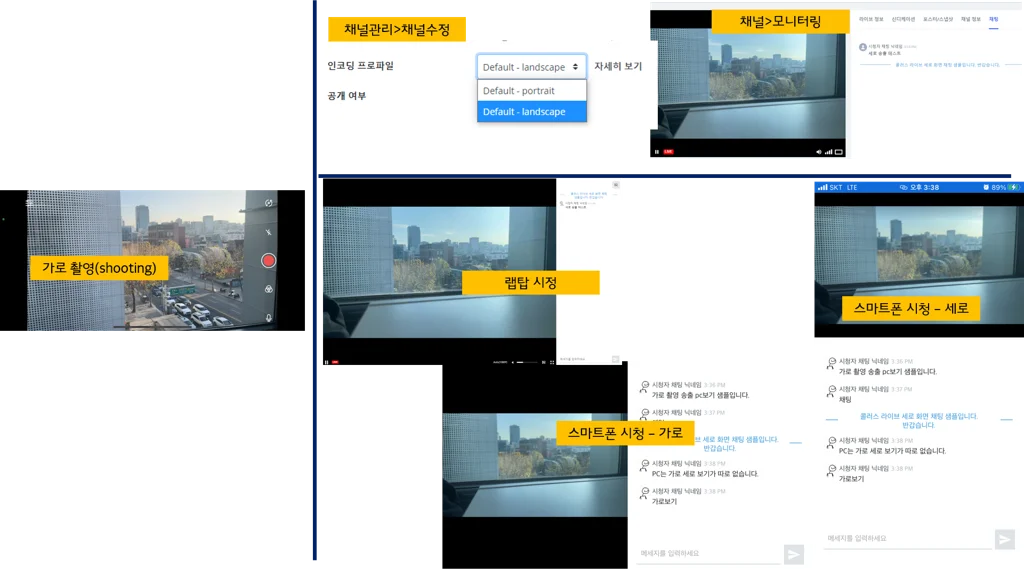
Landscape - landscape
- Feature: Suitable for professional webinars or YouTube-style broadcasts.
- Layout: When viewed in laptop or mobile landscape mode, the chat window is placed to the right of the video, providing high readability.
Summary of chat display by device
A table summarizing the chat window position based on viewing environment and encoding settings.
| Filming orientation | Encoding profile | PC | Mobile (landscape) | Mobile (portrait) |
|---|---|---|---|---|
| Portrait | Portrait | Right overlay | Overlay | Overlay |
| Portrait | Landscape | Right area | Right area | Bottom area |
| Landscape | Portrait | Right area | Overlay | Overlay (bottom) |
| Landscape | Landscape | Right area | Right area | Bottom area |
Operational and configuration tips
-
Lock filming orientation: Once live streaming has started, changing the direction of the mobile device will not change the encoding profile. To change the screen orientation, you must stop the broadcast, reset the orientation, and restart.
-
Overlay feature: The overlay method is a mobile-specific UI that is only applied when users are viewing on a mobile device. In a PC environment, a separate chat area is usually created to the right of the video for readability.
-
Force landscape overlay: If you want the chat to appear overlaid on the video (overlay) during mobile viewing even with a landscape-landscape combination, add the
&landscape_overlayparameter to the end of the View URL (JWT).
https://v-live-kr.kollus.com/s?jwt={JWT}&custom_key={CUSTOM_KEY}&landscape_overlay
Real-time chat monitoring and User management
For a comfortable communication environment, you can utilize automatic spam prevention and manual administrator management features.
Automatic spam prevention (spam limit)
If the 'number of messages that can be sent in 1 minute' set in the Kollus Live console is exceeded, additional messages from that user will be automatically blocked from being displayed to others. This is useful for responding to advertisements and spam using macros.
- Settings path: Kollus Live console > [Channel] > [Channel list] > [Edit] on the right side of the target channel > [Chatting] tab at the bottom
Manual administrator blocking
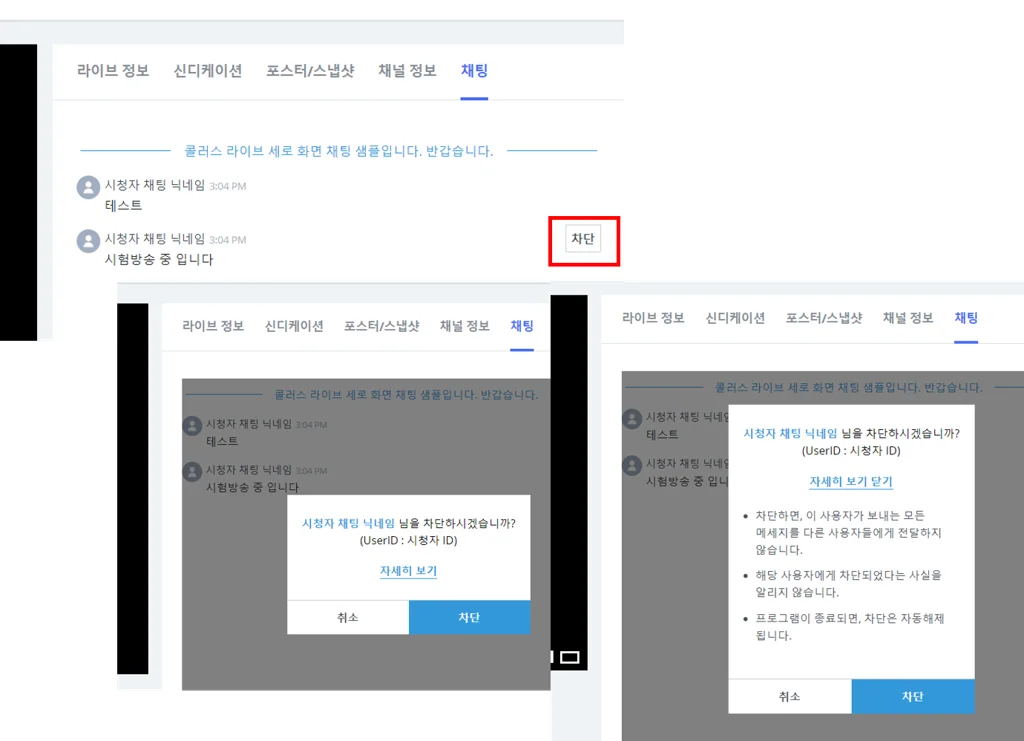
Administrators can monitor the flow of conversations in real time on the monitoring page and block specific users.
- Monitoring page path: Kollus Live console > [Channel] > [Channel list] > Select target channel > [Chatting] tab
- How to block: Hover over the message of the user you want to block, and a [Block] button will appear. Click the button to immediately hide all future messages from that user.
Prevent mutual blocking
Disables the ability for chat participants to arbitrarily block each other. Only administrators can block specific users.
- How to configure: Add the
&disable_blockparameter to the end of the View URL.
https://v-live-kr.kollus.com/s?jwt={JWT}&custom_key={CUSTOM_KEY}&disable_block
Guest mode
For non-logged-in users or environments where aliases are needed, this feature allows users to set their own nickname and participate.
- How to configure: Add the
&anonymous_chatparameter to the end of the View URL.
https://v-live-kr.kollus.com/s?jwt={JWT}&custom_key={CUSTOM_KEY}&anonymous_chat