Live Channel Settings
This document is a machine-translated draft and is currently undergoing review. Some content may be inaccurate or differ from the original Korean version. For the most precise information, refer to the Korean documentation.
In the Kollus Live service, a channel is the most fundamental unit for operating and managing live streams. It converts source video in real time through transcoding and delivers it to viewers in an optimized format, while providing an environment where multiple Creators can operate broadcasts.
Create a new channel
When a channel is created, an RTMP address for live streaming and a URL for viewing the broadcast are issued.
Only service accounts with the super administrator role can create channels.
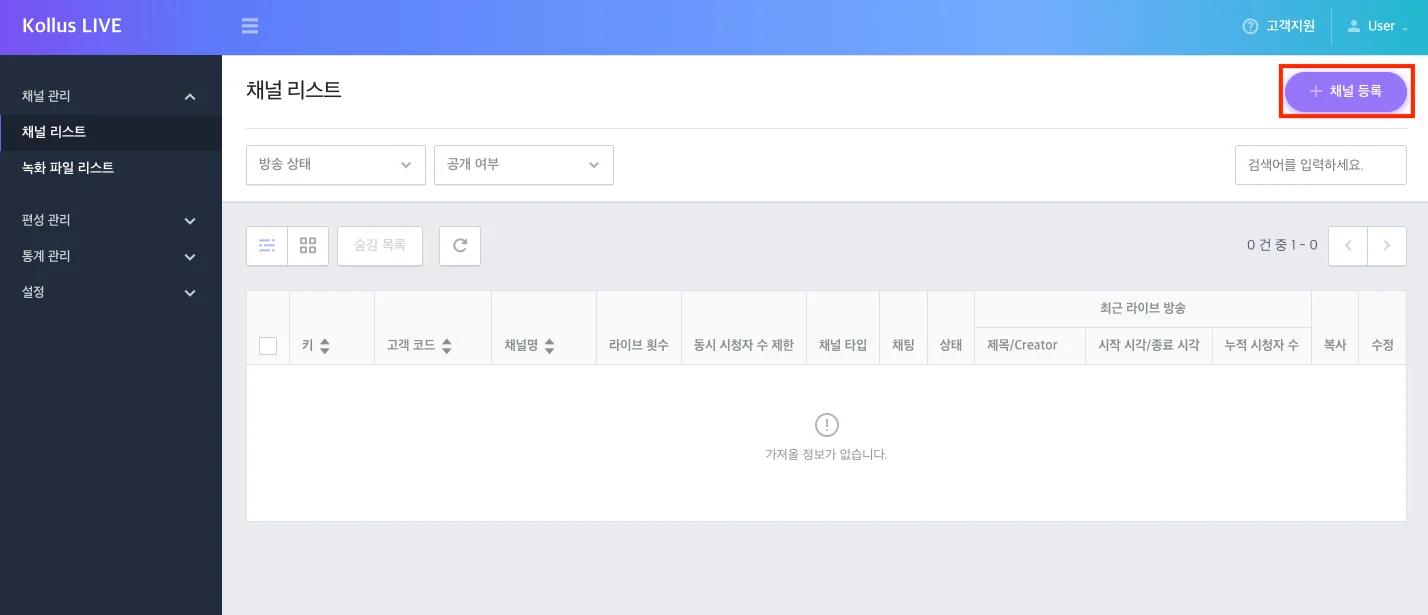
- Click Kollus Live console > [Channel] > [Channel list] > [Register channel] in the upper right corner of the screen.
- Configure each setting. (Refer to the Channel Detail Settings section)
- Configure additional features using the bottom tab menu. (Refer to the Bottom Tab Settings section)
- Click [Save] when finished.
Channel detail settings
Basic settings
| Item | Description |
|---|---|
| Key | A unique identifier for the channel. This is a required value for generating the View URL and cannot be modified. |
| Channel name | The channel name displayed in the service. Used to identify the channel in channel lists and analytics pages. |
| Customer code | An identification code entered by the customer for internal management purposes. |
| Concurrent viewers limit | Sets the maximum number of concurrent viewers who can access the channel. |
| Type | Select the live type.
|
| Encoding profile | Sets the orientation (landscape/portrait) of the broadcast screen.
|
| Visibility | Sets whether the channel is public or private.
|
Naming rules
| Item | Description |
|---|---|
| Metadata title | The title format displayed during a live stream. Example: If set to [CHANNEL_TITLE]-[BROADCAST_COUNTING] and the 3rd broadcast is conducted on the 'First Live' channel → displayed as 'First Live-3'
|
| Recording naming pattern | The naming format for generated recording files.
|
Operation policy
| Item | Description |
|---|---|
| Live broadcast policy | When a broadcast is interrupted due to a temporary network failure, if streaming resumes within the configured time, it is treated as the same broadcast session, maintaining continuity of metadata and recording files. |
| Recording file saving option | The rules for saving broadcast video to the server. Depending on the settings, files can be automatically split by size or time, or split manually. |
| Timeshift | Provides viewers with the ability to pause or rewind to a previous point during a live stream. |
Security policy
| Item | Description |
|---|---|
| AES-128 | Whether to apply stream encryption |
| Kollus secure player | Whether to use the Kollus secure player (prevents screen recording/capture) |
| Concurrent Playback Management | Limits the number of devices that can simultaneously view with the same account |
| Block external display output | Restricts external display output such as HDMI and projectors |
Bottom tab settings
You can configure additional features and security policies required for broadcast operations through each tab at the bottom of the channel detail settings.
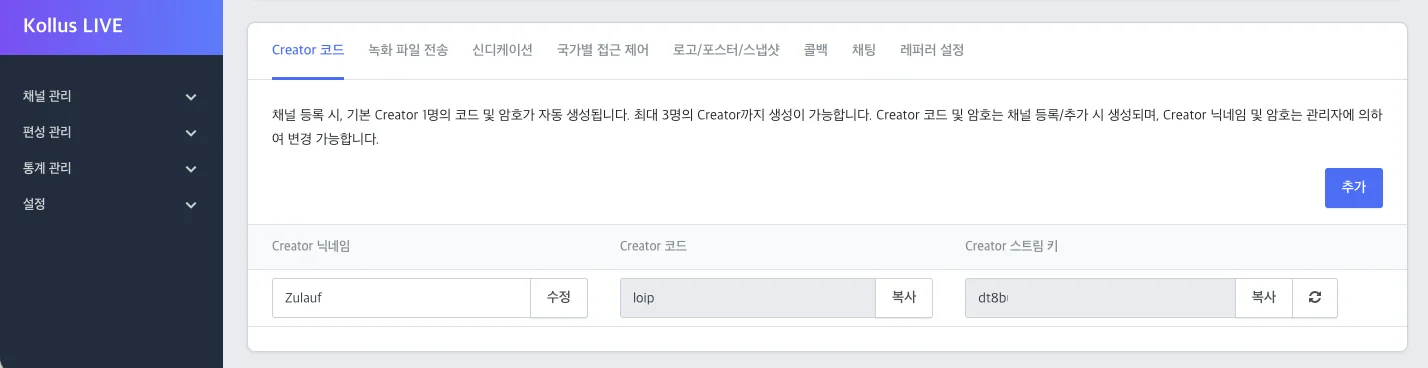
Creator code
Kollus Live improves operational stability by separating the roles of the administrator who oversees the channel and the Creator who actually conducts the broadcast.
- Permission scope: Creators can only stream and monitor the status of their assigned channel, and cannot access overall service settings.
- Creator account creation: One account is automatically created by default, and up to 3 accounts can be issued per channel using the [Add] button.
- Guide: Creator Account Creation
recording file transfer
Configures automatic transfer of recording files generated after a live stream ends to external storage. (Up to 3 entries can be registered)
- Supported protocols: FTP, SFTP, Amazon S3, Kollus(Kollus VOD)
Syndication
A feature that simultaneously relays a live stream to external platforms such as YouTube. (Up to 3 entries can be registered)
| Item | Description |
|---|---|
| Title | An arbitrary name for identifying the syndication. |
| Link | The stream reception URL of the external platform. The link must start with rtmp://. |
| Stream key | The broadcast identification key provided by the external platform. |
| Visibility | Select whether to simultaneously stream to the platform in real time. |
Country access settings
Allows or blocks live viewing from specific countries based on IP.
Logo/poster/snapshot
Manages visual elements displayed in the player as a standby screen and snapshot settings for monitoring.
- Logo: Upload a logo image to be always displayed in the upper left corner of the player.
- Poster: A standby image displayed as the player background before the live starts or after it ends.
- Snapshot: Captures the broadcast screen at 5-second intervals during the broadcast. The generated snapshots are used for the standby screen and similar purposes, and traffic charges may apply depending on the request volume.
Callback
Sends real-time notifications to external systems when major events occur.
| Callback type | Transmission timing and key content | Developer guide |
|---|---|---|
| Live callback | Broadcast start, stop, and end status notifications | Platform callback |
| Recording file transfer callback | Delivers recording file transfer results | Platform callback |
| LMS callback | Transmits viewer learning and viewing history data | LMS callback |
| Playback callback | Delivers viewer and player information | Playback callback |
Chatting
Configures whether to enable the chatting feature within the channel and sets detailed policies.
| Item | Description |
|---|---|
| Large scale chat | Activate when more than 3,000 concurrent users are expected. |
| Number of messages that can be sent in 1 minute | Limits the maximum number of messages a single chatting participant can send in 1 minute to prevent spam. |
| Chatting participants limit | Sets the maximum number of users who can simultaneously enter the chatroom for the channel. |
| User welcome message | An automatic greeting displayed when a viewer first enters the chatroom. (e.g., "Welcome to the ○○○ channel!") |
| Chatting administrator ID | Enter the ID (client_user_id) to grant chatting management permissions. |
| Block duplicate nicknames | When enabled, restricts users from using the same nickname as another user currently connected to the chatroom. |
| Anonymous chatting | Allows non-logged-in viewers to participate in chat using an alias. |
| User blocking feature | Provides chatting administrators with the ability to block inappropriate users in real time. |
| Profile photo display | Sets whether to display the profile image of the message sender. |
| Like | Activates the 'like' reaction feature in the chatroom. (This option applies only to customers who have directly implemented a UI using a dedicated chat SDK.) |
Referrer settings
Prevents unauthorized embedding by allowing or blocking broadcast playback only from specific domains (websites).
- Input rules: Use commas (
,) when registering multiple domains; wildcards (#) are supported.- Example:
https://www.catenoid.net, https://#.example.com
- Example:
- Policy types
- Disabled: Allow playback from all domains
- Allow playback only from specific domains: Allow playback only from specified domains
- Block playback only from specific domains: Block access only from specified domains
Check broadcast URL
Once channel creation is complete, you need to check the URL that can be used to view the actual broadcast or post it on a website.
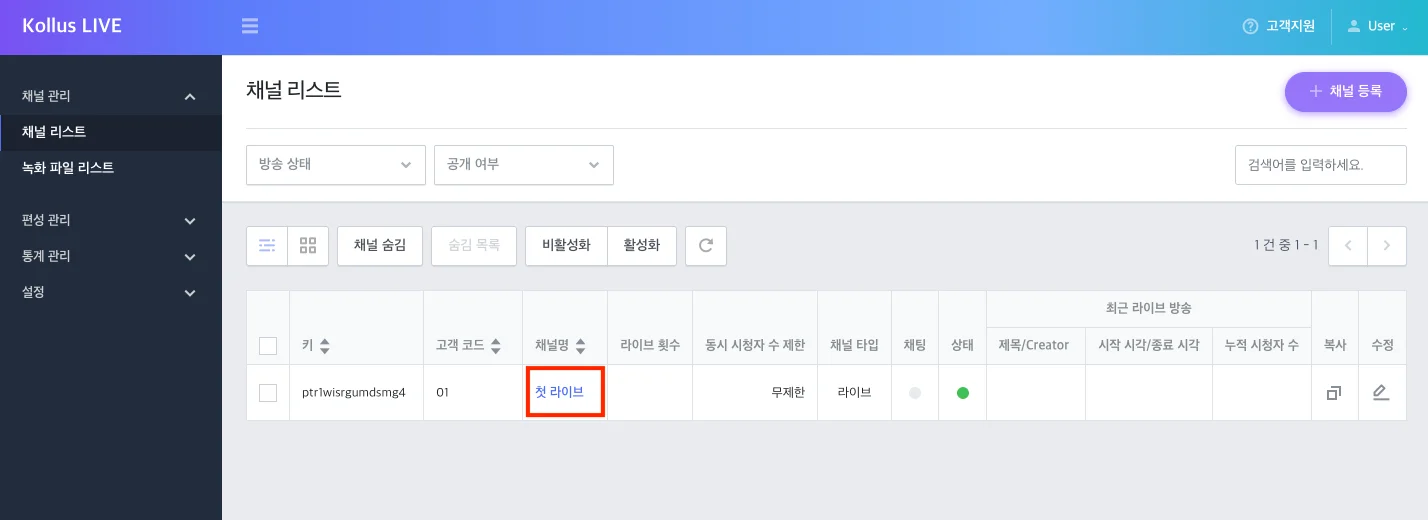
Click the target channel name in [Channel] > [Channel list] to navigate to the details page.
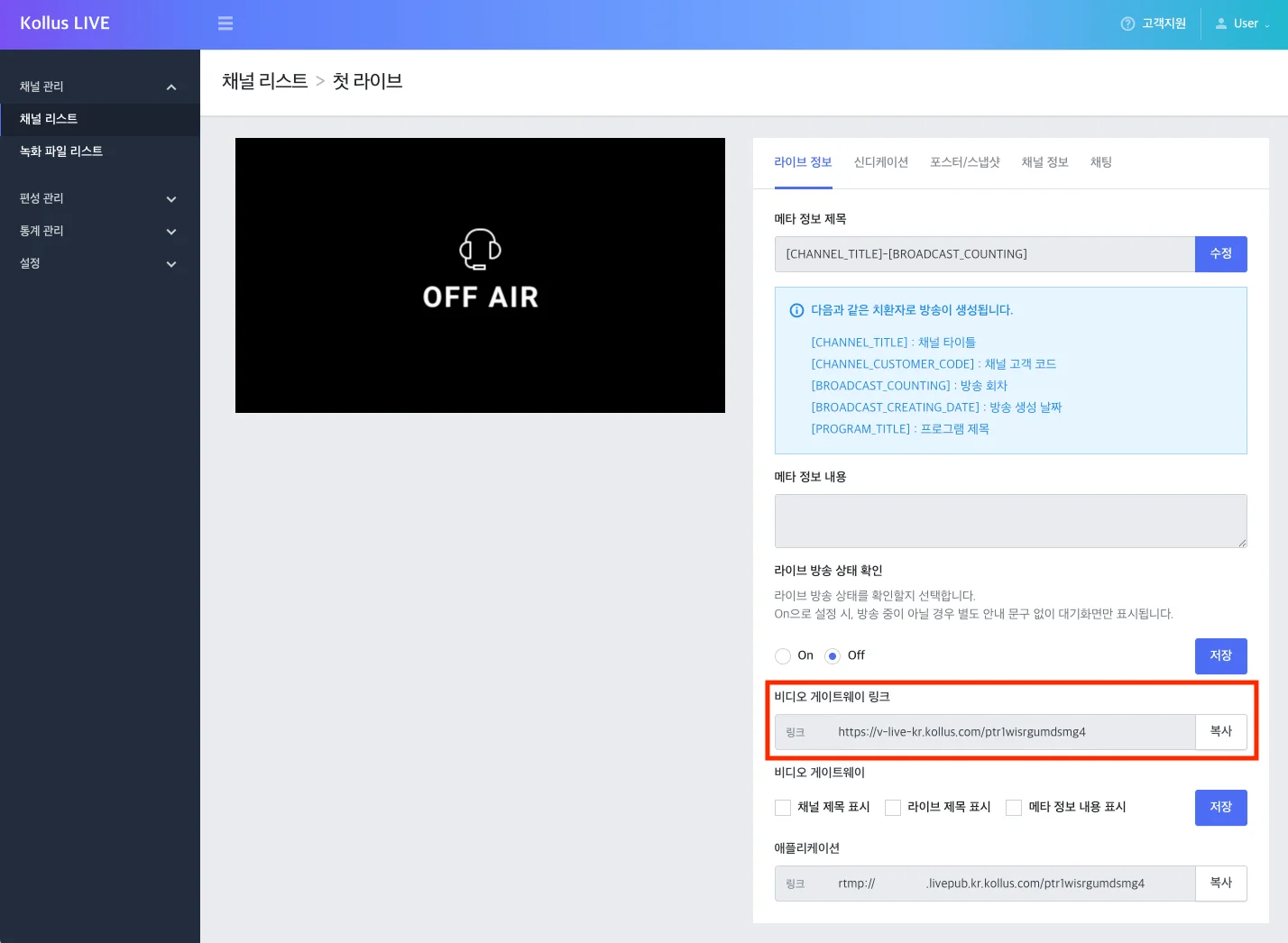
public channel
A public channel allows viewing with just a URL without any complex authentication process.
- Video Gateway Link: The default playback page address provided by Kollus. You can copy this link and share it directly with viewers or post it on social media without any separate web development.
iframecode: Used when you want to directly embed the player within your own website or blog. Enter the Video Gateway Link in the{URL}part of the code below.<iframe
width="#"
height="#"
src="{URL}">
</iframe>
private channel
If the channel's visibility is set to private, a public URL for external distribution is not provided for security reasons.
- Authentication-based access: For private channels, a JWT(JSON Web Token)-based URL must be generated to allow only authorized users to view the broadcast.
- Learn More: Generate Secure Live View URL (JWT)
- Use cases: Used when the broadcast must be exposed only to specific members, such as paid lectures or internal broadcasts.
View channel details
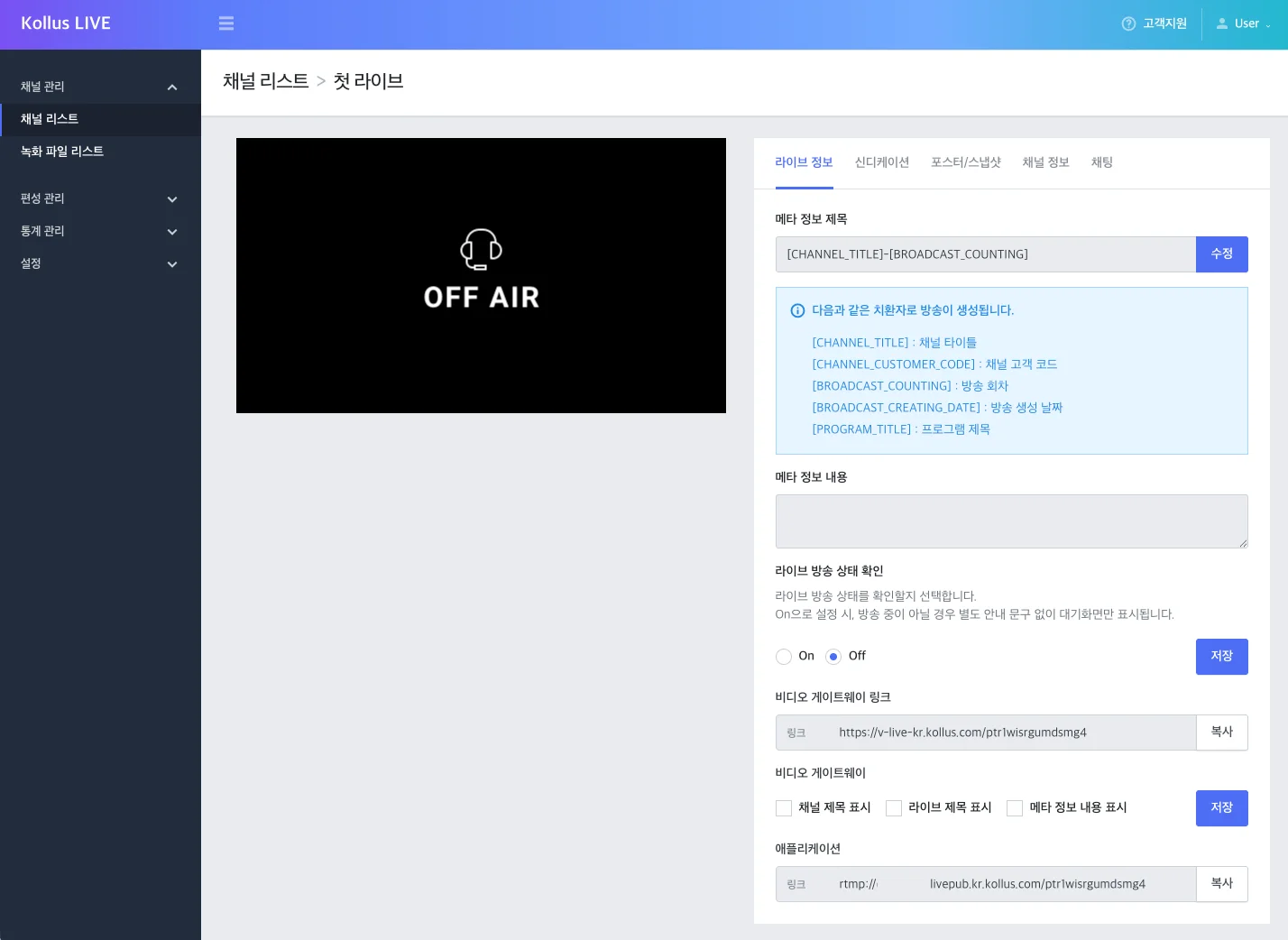
On the details page of a created channel, you can check the current live streaming information or modify metadata.
Click the target channel name in [Channel] > [Channel list] to navigate to the details page.
Live information
- Metadata title: The title format displayed during a live stream.
- You can configure the format using placeholders before the broadcast starts.
- When the broadcast starts, the actual title is generated according to the configured rules, and you can also modify the title of an ongoing broadcast in real time.
- Video Gateway Link: A URL that can be viewed immediately without any development. When operating a public channel, copy this link and distribute it directly to viewers.
- Application link: The broadcast streaming address and connection information used when connecting an external encoder (OBS, vMix, etc.).
Broadcast list
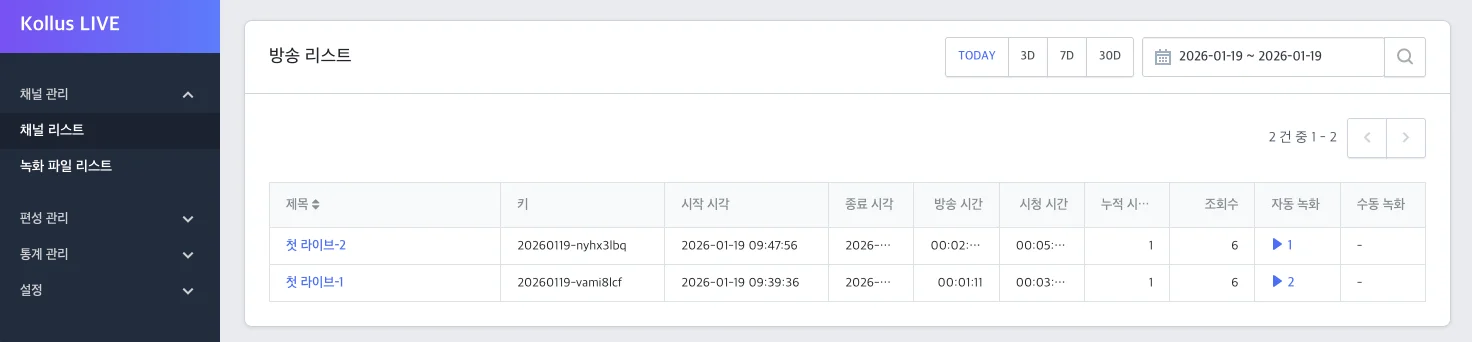
At the bottom of the details page, you can view the broadcast history for the channel and manage related data.
- View broadcast analytics: Click on a title to navigate to the detailed analytics screen showing viewer count, traffic, and more for that episode.
- Download broadcast recording file: [Auto recording] item > [Play (▶)] > download icon on the right
Copy channel
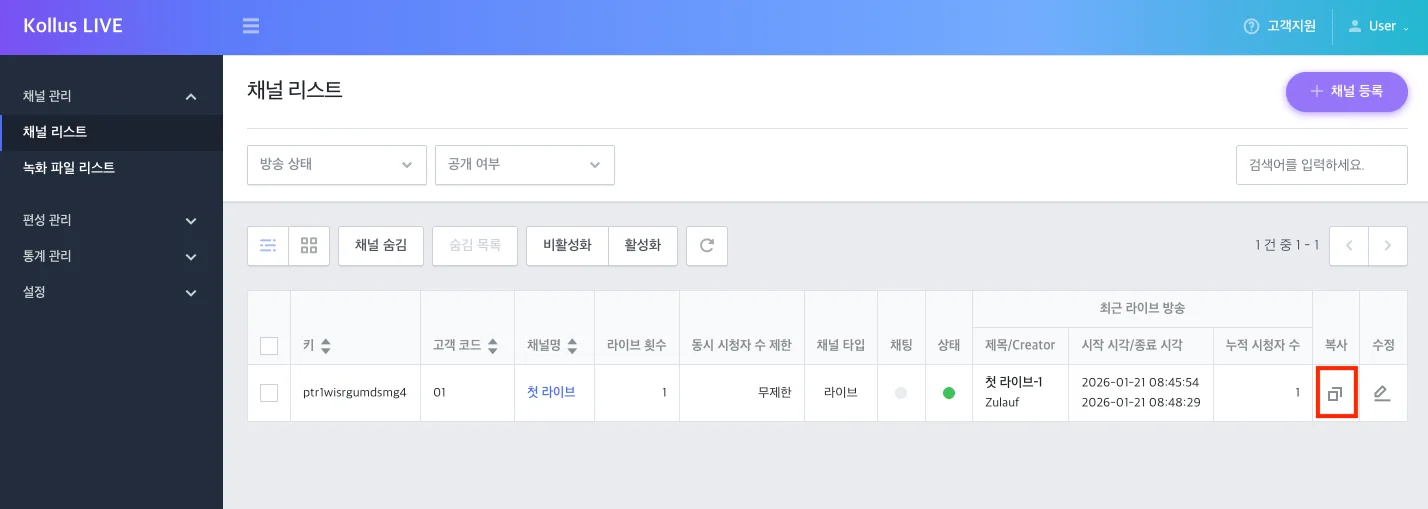
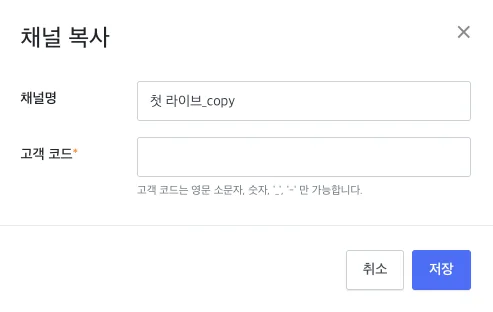
You can quickly create a new channel by duplicating the settings of an existing channel. This reduces repetitive configuration processes and improves operational efficiency.
- Path: [Channel] > [Channel list] > Copy icon to the right of the target channel
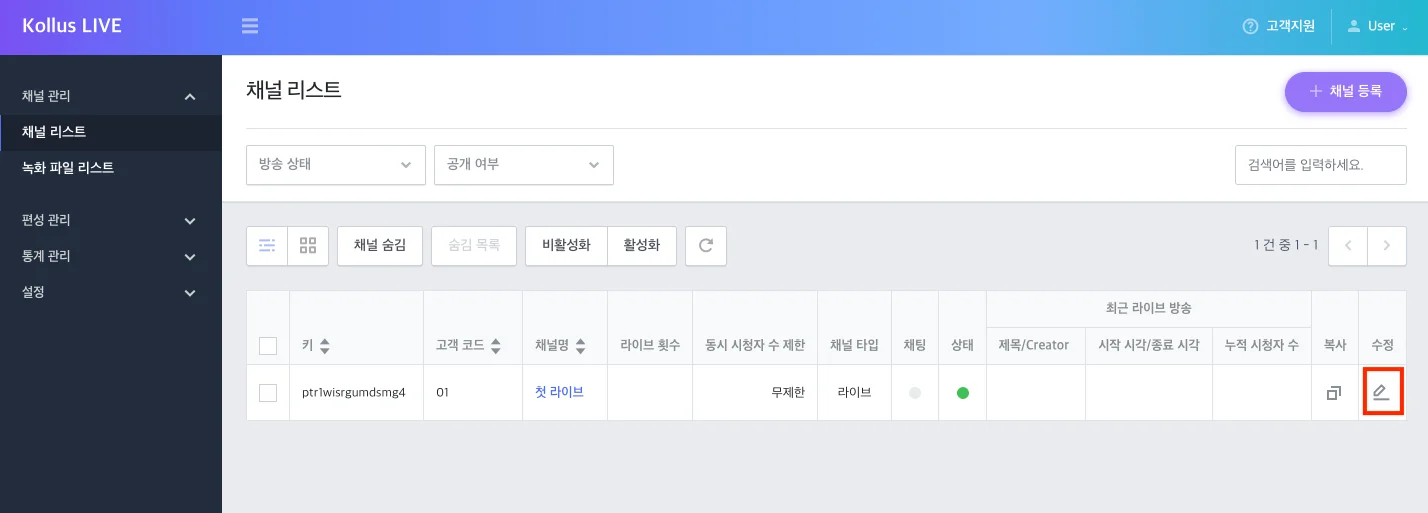
Edit channel
You can change the detailed settings of a channel that is in operation.
- Path: [Channel] > [Channel list] > [Edit] to the right of the target channel
- Note: Unique identifiers such as the key cannot be modified. Refer to the Channel Detail Settings and Bottom Tab Settings sections for detailed setting items.
Channel operation management (hide/delete/restore)
You can manage resources by removing channels from the list or permanently deleting them. Since hiding a channel is directly linked to actual service interruption, proceed with caution.
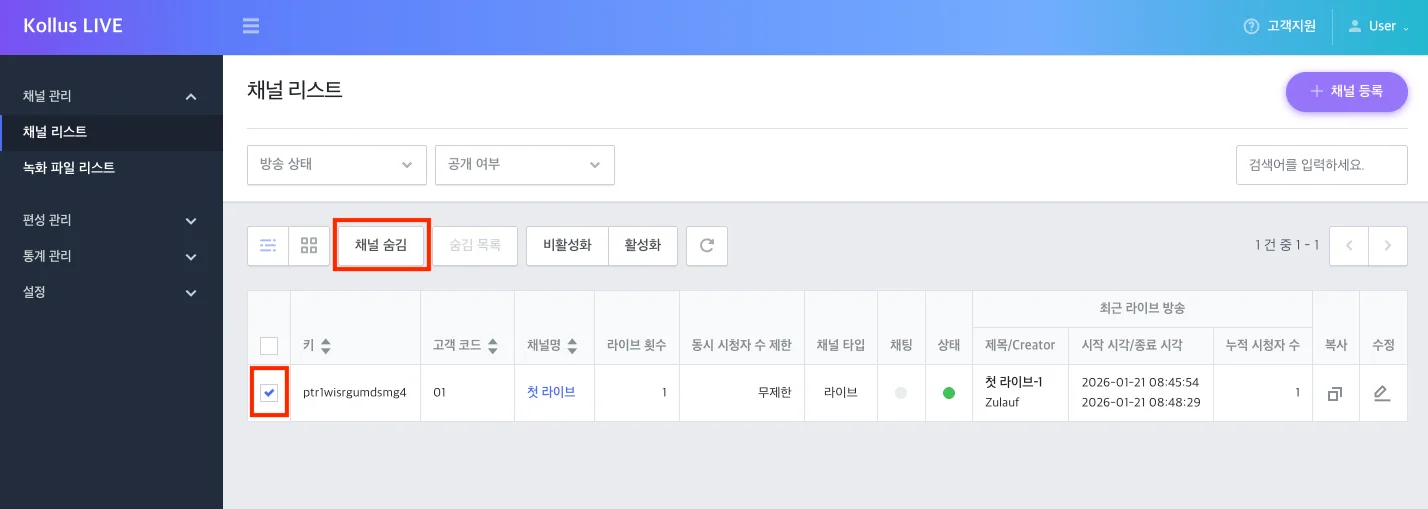
Hide channel
When a channel is hidden, it becomes invisible in the list, and all live streams through that channel are immediately stopped.
When a channel is hidden, any live stream currently in progress is forcibly terminated, and no new live streams can be conducted until the channel is unhidden (restored).
- Select the checkbox to the left of the target channel in [Channel] > [Channel list].
- Click [Hide channel].
Delete and restore channel
You can permanently delete a hidden channel or restore it to a state where broadcasting is possible again.
To permanently delete a channel, the channel must first be hidden.
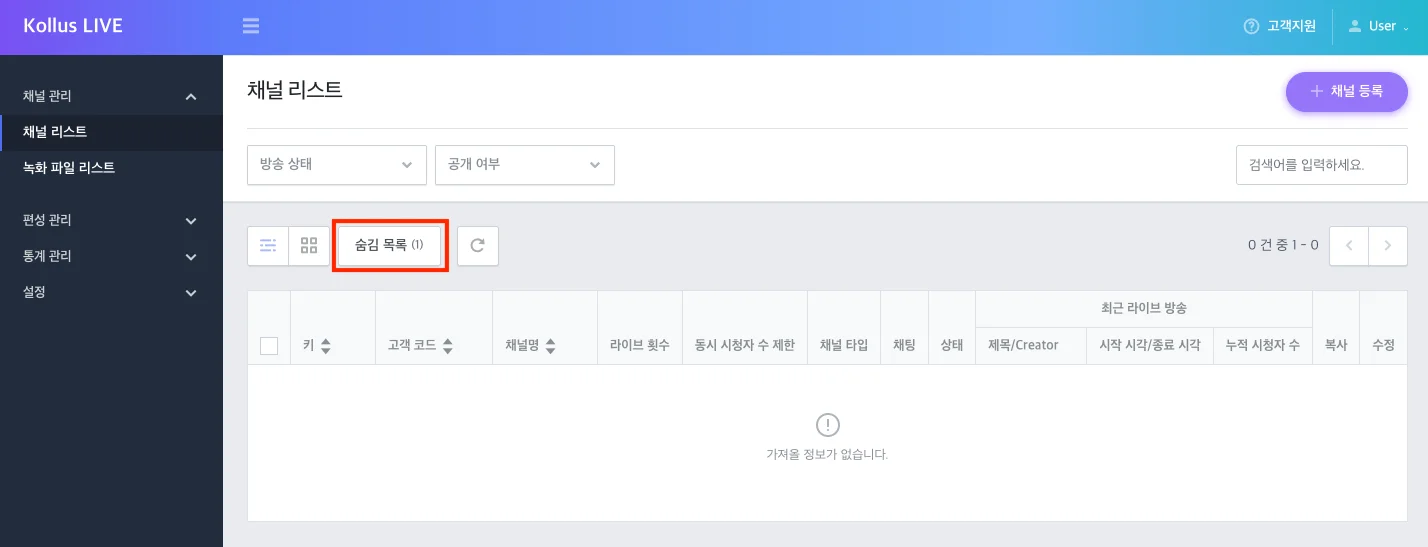
- Click [Hidden] in [Channel] > [Channel list].
- Select the checkbox to the left of the target channel.
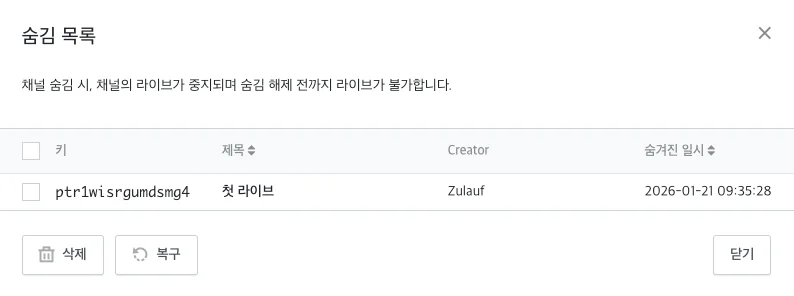
- Click [Delete] or [Restore] at the bottom.