Recording File Management
This document is a machine-translated draft and is currently undergoing review. Some content may be inaccurate or differ from the original Korean version. For the most precise information, refer to the Korean documentation.
Kollus Live automatically records all live streams at the encoding stage, and customers can configure recording units or manually record specific segments as needed.
Recording policy
Auto recording and manual recording can be activated simultaneously. In this case, the auto recording file and the manual recording file are each saved separately.
Auto recording
The system automatically starts recording simultaneously with the live streaming. The following split and merge options are provided for efficient file management.
- maximum save: Even during a broadcast, when the file size reaches 4GB, the current file is automatically saved and a new recording file is created.
- interval save: Recording files are split and saved in units of the configured time (10–120 minutes).
- Single file creation (broadcast resume policy): When a broadcast is temporarily interrupted due to unexpected network failures, if the broadcast resumes within the configured [Live broadcast policy] time (e.g., 5 minutes), the recording continues as a single file rather than being split into separate files.
Manual recording
When broadcasting using the Kollus dedicated mobile encoder app, the operator can manually start and stop recording at any desired time.
- How it works: When a broadcast starts, the recording button becomes active on the app screen. Even if not manually stopped, the recording ends when the live stream ends.
- Delay: When the recording button is clicked, a delay of up to approximately 5 seconds may occur before the actual recording starts or stops.
- Using external encoders: When using external encoders such as OBS or vMix, using the recording function built into that software saves the video to the local environment. This operates independently from the manual recording settings in the Kollus Live console.
Recording settings
The recording policy and file naming rules can be configured on the channel edit screen.
Recording policy settings
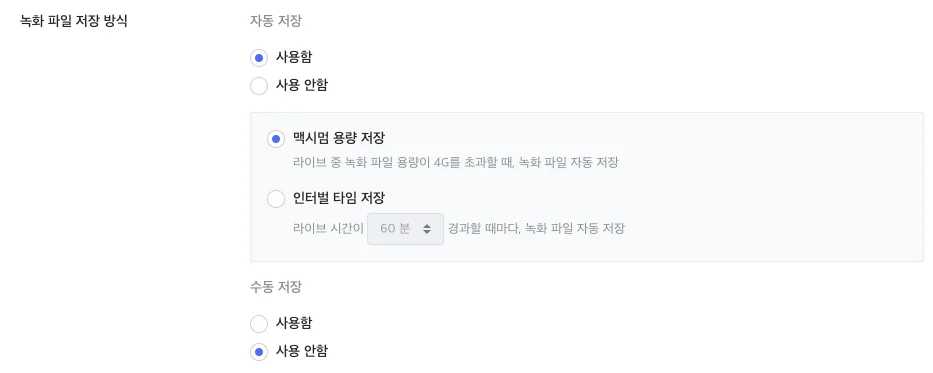
Select whether to use automatic or manual recording.
- Settings path: [Channel] > [Channel list] > [Edit] on the right side of the target channel > [Recording file saving option]
- Options
- maximum save: Even during a broadcast, when the file size reaches 4GB, the current file is automatically saved and a new recording file is created.
- interval save: Recording files are split and saved in units of the configured time (10–120 minutes).
Recording file naming rule settings
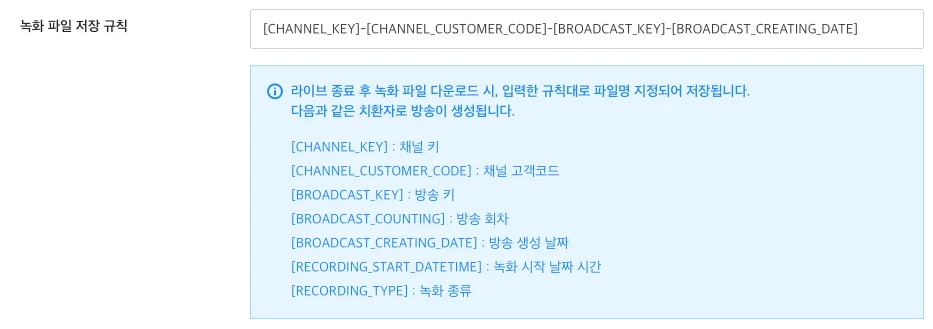
Define the naming format for recording files.
- Settings path: [Channel] > [Channel list] > [Edit] on the right side of the target channel > [Recording naming pattern]
Recording file management
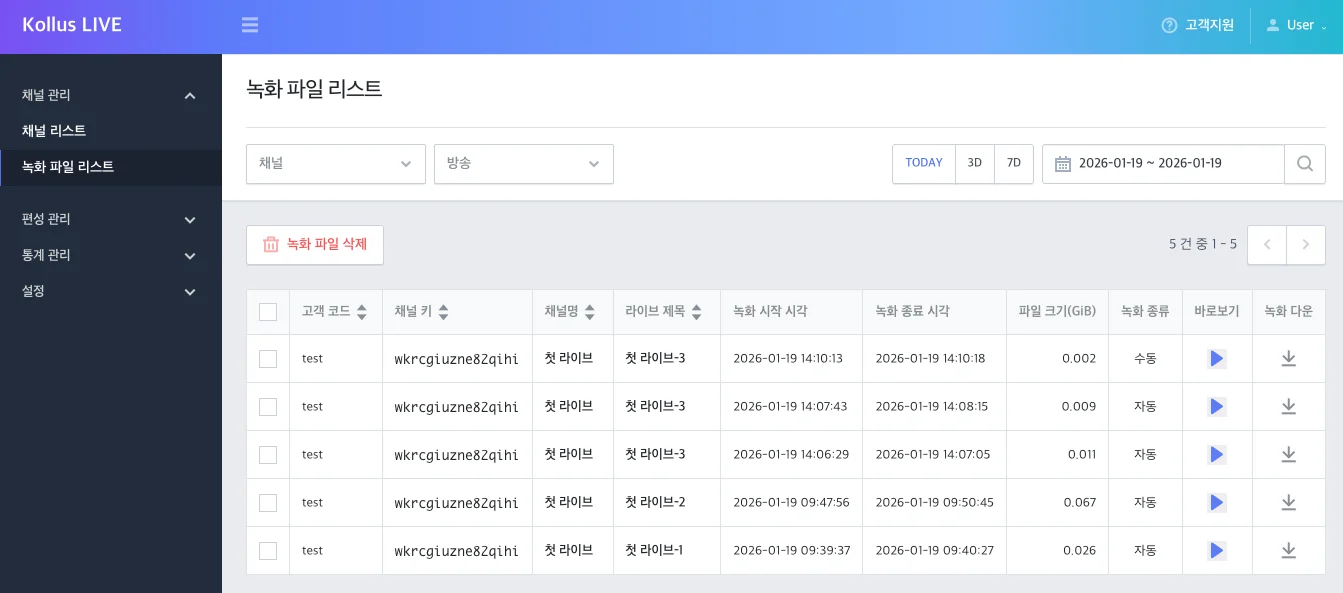
Generated recording files can be managed centrally in the Kollus Live console > [Channel] > [Recording list] menu.
Retention policy and notes
- Retention period: Recording files are retained for up to 7 days from the broadcast date, after which they are automatically and permanently deleted by the system.
- Backup recommended: For important broadcast content, be sure to download it to local storage or complete the transfer settings to external storage before deletion (within 7 days).
Key features
- View recorded video: Click [Play (▶)] on the right side of the list to immediately review the recorded content.
- Download recording file: Click the download icon on the right side of the list to save the recording file to your local environment.
- Individual/bulk deletion: Select the checkbox on the left side of the file to delete, then click [Delete recording file].
External transfer settings for recording files
Recording files are automatically deleted after being retained for up to 7 days from the broadcast date. Therefore, to permanently store the original recorded video or immediately utilize it as a VOD service, it is recommended to configure automatic transfer to external storage.
- Transfer limit: Up to 3 transfer destinations can be registered per channel.
- Supported protocols: FTP, SFTP, Amazon S3, Kollus (Kollus VOD service integration)
- Auto transfer timing: After the live stream is completely finished and the recording file creation is finalized within the system, transfer begins immediately. Transfer completion may take time depending on the network environment or file size.
Transfer destination registration procedure (Kollus VOD)
If a customer who is not currently using the Kollus VOD service wishes to use the VOD integration feature for live recording files, contact the Account Manager.
By configuring automatic transfer of live recording files to the Kollus VOD service, you can manage and distribute content directly from the Kollus VOD console after the broadcast ends, without a separate upload process.
- Click Kollus Live console > [Channel] > [Channel list] > [Edit] on the right side of the target channel.
- In the [Recording file transfer] tab at the bottom, click [Add] on the right side.
- Select [Kollus] as the file transfer destination.
- Refer to the table below to find and enter the required information from the Kollus VOD console.
Item Where to find in Kollus VOD console (or descriptions)) Title Enter an arbitrary name for identifying the transfer destination. Host [Settings] > [FTP] > [FTP address] Username [Workspace settings] > [Service information] > [Service account key] Password [Settings] > [FTP] > [FTP password] Category key [Library] > [More options (⋮)] in the left category list > [Copy category key] Use encryption Set whether to apply encryption when transferring files. Enabled Set whether to activate file transfer. If disabled, transfer will not start even after the broadcast ends. 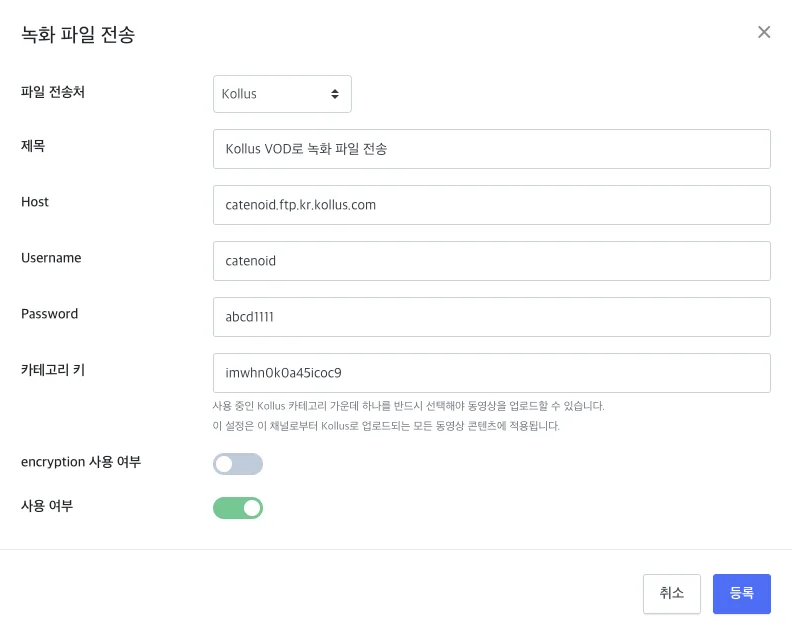
- After completing the input, click [Register].
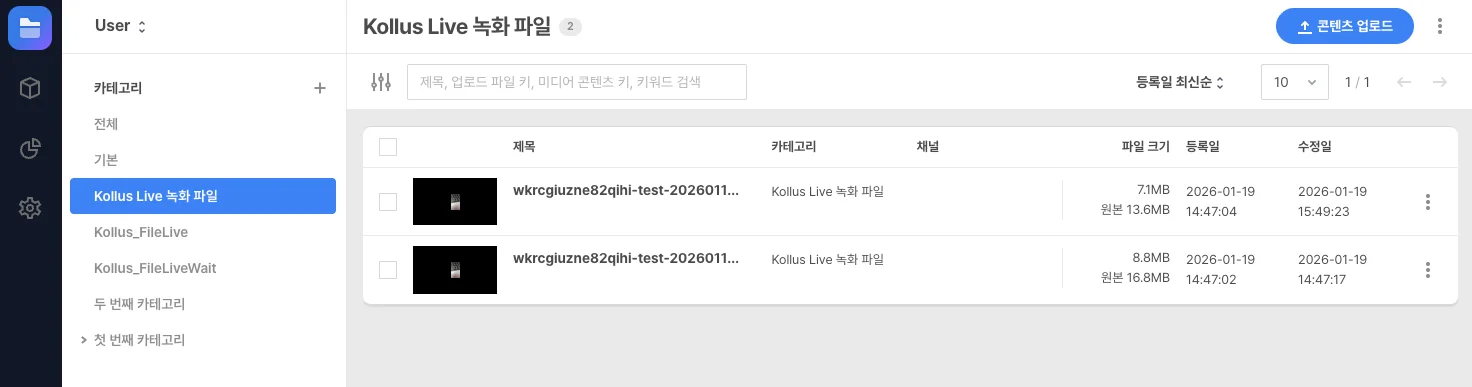
- After the live stream ends, verify that the recording file appears in the designated category in Kollus VOD console > [Library].
It may take some time for the file to appear in the Kollus VOD console depending on the network environment or file size.