Sign-in Account
Account structure
Kollus VOD service operates two account types for operational efficiency and security.
- Sign-in account: The primary account used to access the Kollus VOD console.
- Service account: An operational unit account that manages actual service resources such as content upload, API integration, and security settings.
Create a Sign-in account
You can create a sign-in account directly in the Kollus VOD console. Email verification is required to activate the account.
- Go to Kollus VOD console.
- Click [Create sign-in account] at the bottom.
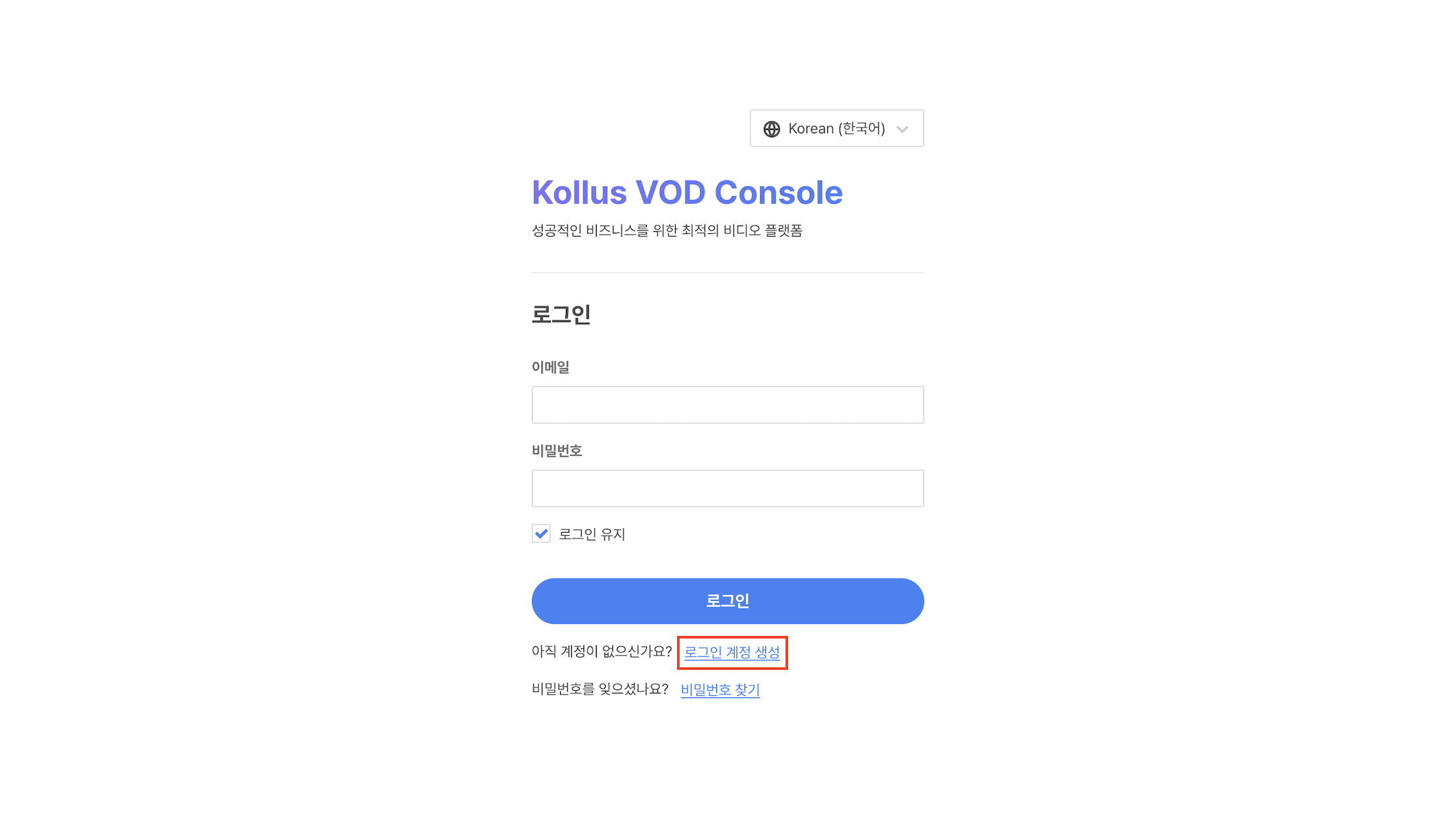
- Enter your registration information and click [Create account].
- Email address: Enter a valid email to use as your login ID.
- Password: Set a password that meets the security policy (8–64 characters).
- Country and timezone: Select your region.
- Required terms agreement: Agree to the required terms of service and privacy policy.
- Check the verification email sent to your email address and complete email verification.
Manage Sign-in account
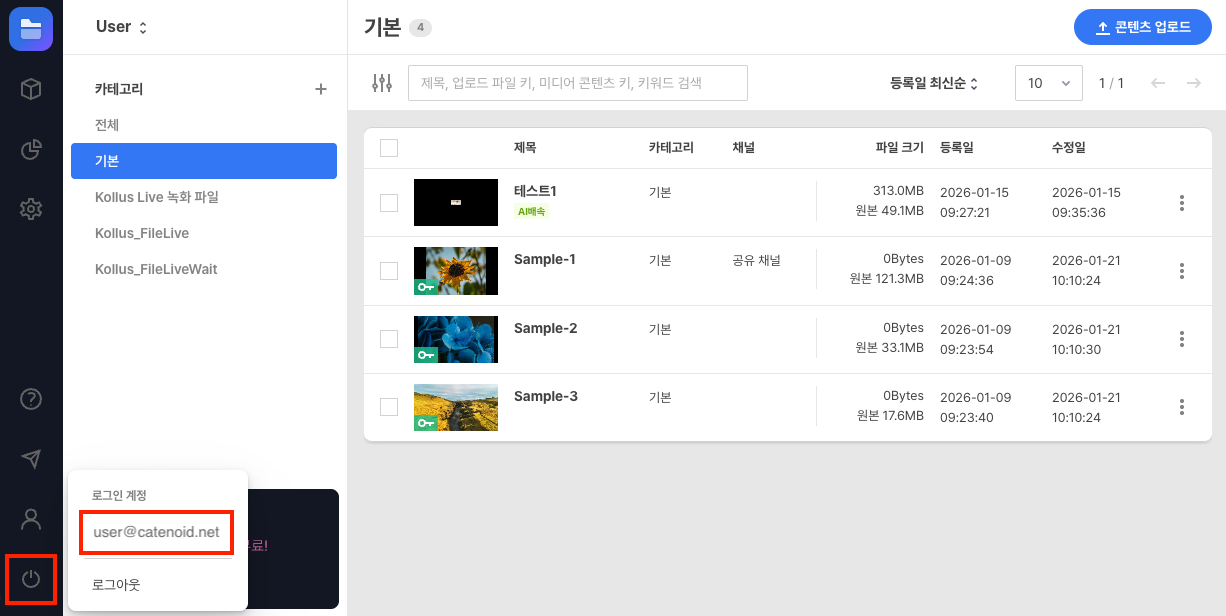
After signing in to the Kollus VOD console, click [Sign-in account (power icon)] > email address at the bottom left to navigate to the Sign-in account menu.
Edit Basic information
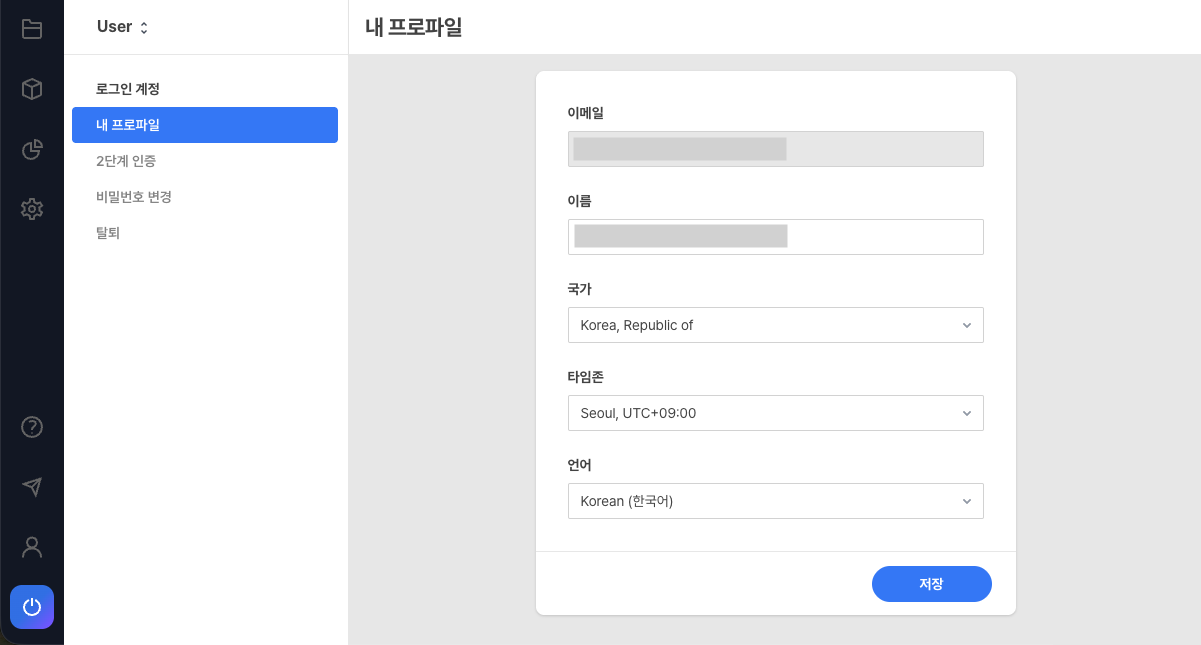
You can manage user information in the [Sign-in account] > [My profile] menu.
| Item | Description |
|---|---|
| Identification information used as the login ID (cannot be changed) | |
| Name | User name (emojis, <, > cannot be entered) |
| Country | User's country information (unrelated to service node) |
| Timezone | Reference for time display in the console (content registration date, etc.) |
| Language | Display language for the console UI and system messages |
Two-step verification settings (OTP)
We recommend setting up two-step verification using Google OTP to enhance account security.
- Install the app: Install the Google OTP app on your smartphone.
- Activate the feature: In the Kollus VOD console, go to [Sign-in account] > [Two-step verification] menu and enable the [Activate two-step verification] toggle.
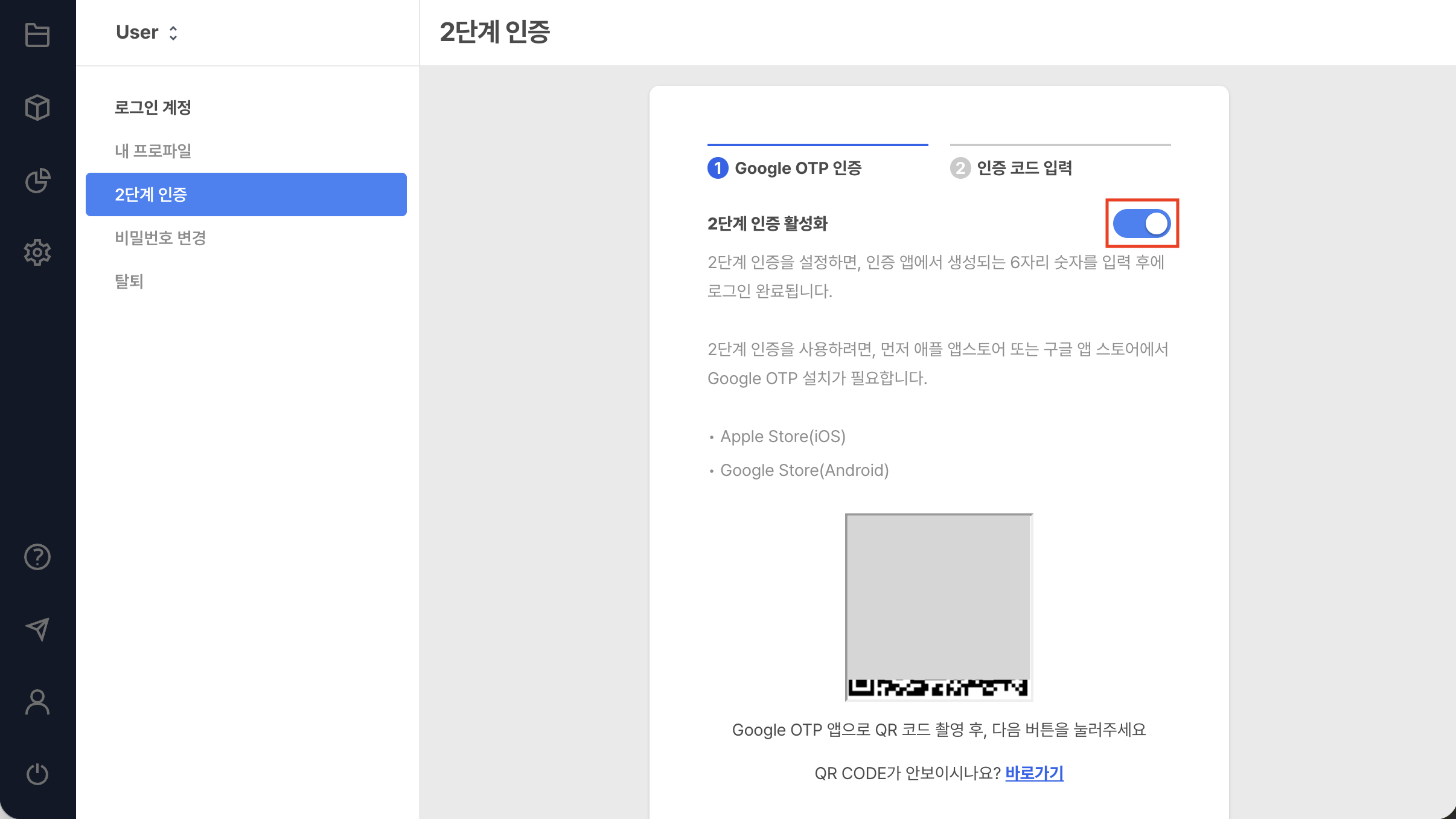
- Scan QR code: Scan the QR code on the Kollus VOD console screen using the app, then click [Next].
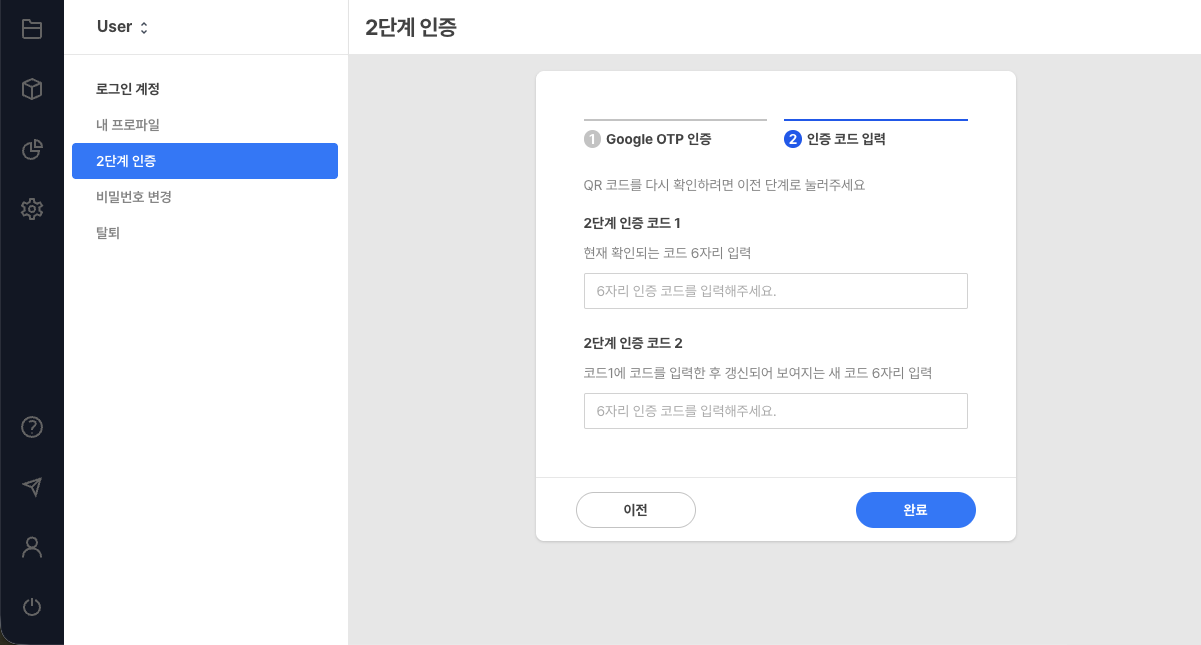
- Enter code: Enter the 6-digit code generated in the app into input fields 1 and 2 on the screen in sequence to complete the connection.
Change password
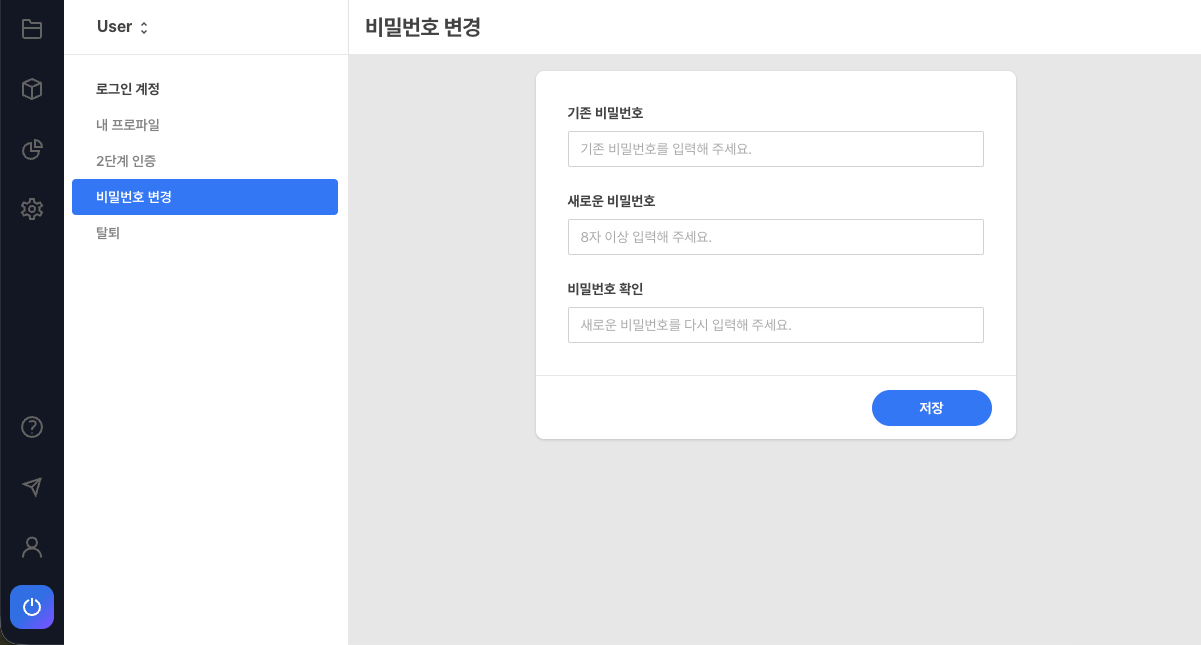
Change your password regularly for security. You can change it directly in the [Sign-in account] > [Change password] menu.
Password policy
- Duplication restriction: You cannot change to a password that is the same as the one currently in use.
- Character count: Must be set to 8 or more and 64 or fewer characters.
- Combination rules: Can be set using a combination of letters, numbers, and special characters.
Logout
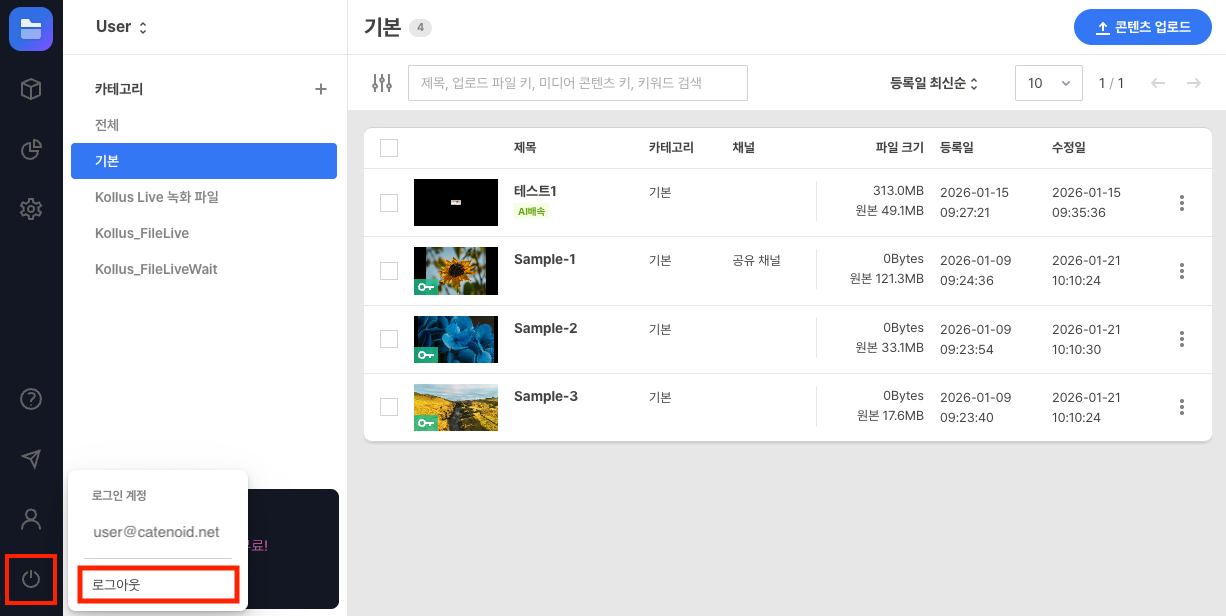
Click [Sign-in account (power icon)] > [Logout] at the bottom left to log out.
Withdraw
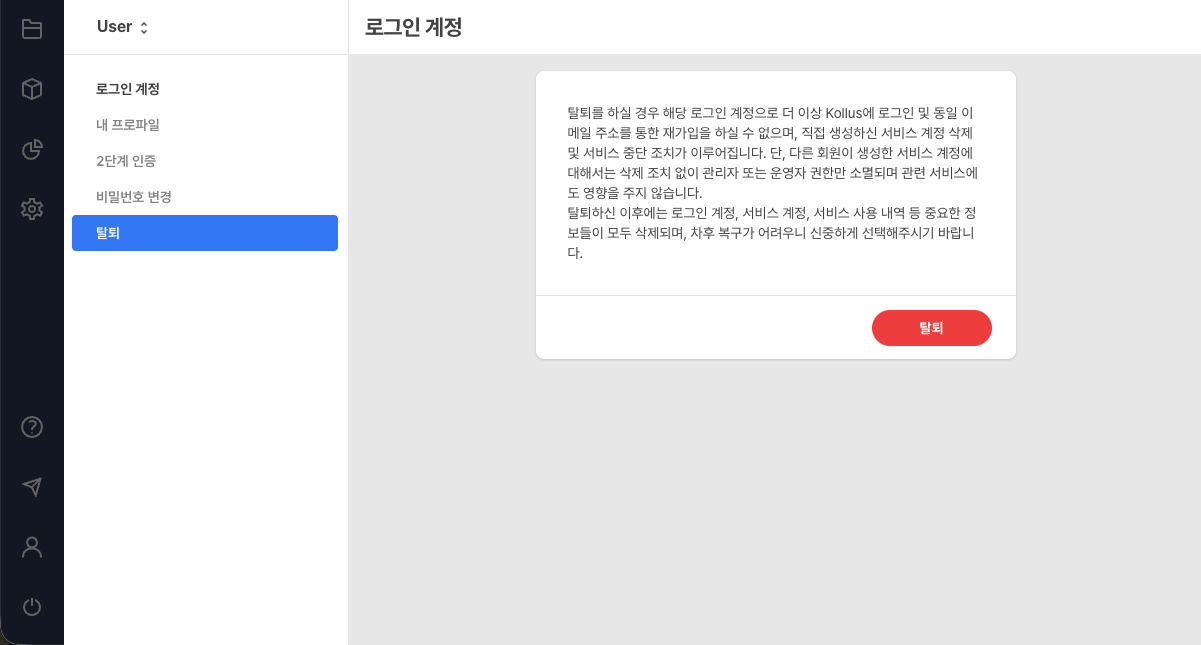
You can permanently delete your account information in the [Sign-in account] > [Withdraw] menu.
⚠️ Caution
- Re-registration restriction: You cannot re-register with the email address used at the time of withdrawal.
- Permanent data deletion: All service account data and uploaded content data owned (created) by you will be immediately deleted and cannot be recovered.
- Permission revocation: If you have been invited to a service account created by another user, that service account will be retained, but your access permissions will be immediately revoked.