Service Account
This document is a machine-translated draft and is currently undergoing review. Some content may be inaccurate or differ from the original Korean version. For the most precise information, refer to the Korean documentation.
Account structure
Kollus VOD operates two types of account systems for operational efficiency and security.
- Sign-in account: The basic account used to access the Kollus VOD console.
- Service account: The business operation unit account that manages actual service resources such as content uploads, API integration, and security settings.
What is a Service account?
A service account is the business operation unit that manages and controls all media resources(content, channels, settings, etc.) in Kollus VOD. After creating a sign-in account, you must obtain a service account through one of the following two methods before you can use the actual service.
- Create directly: An administrator directly registers a service account for a new business purpose.
- User invitation: You are invited to someone else's already-created service account and granted collaborative management permissions.
Key features
- Role-Based Access Control(RBAC): Permissions can be assigned to individual users in detail according to their scope of work.
- Multi-management structure: A single sign-in account can create or be invited to multiple service accounts for collaboration.
- Unique identification information: Provides unique key values used for FTP paths, API authentication, callback settings, and more.
Service account management
After signing in to the Kollus VOD console, click [Service account (person icon)] at the bottom left to navigate to the Service account menu.
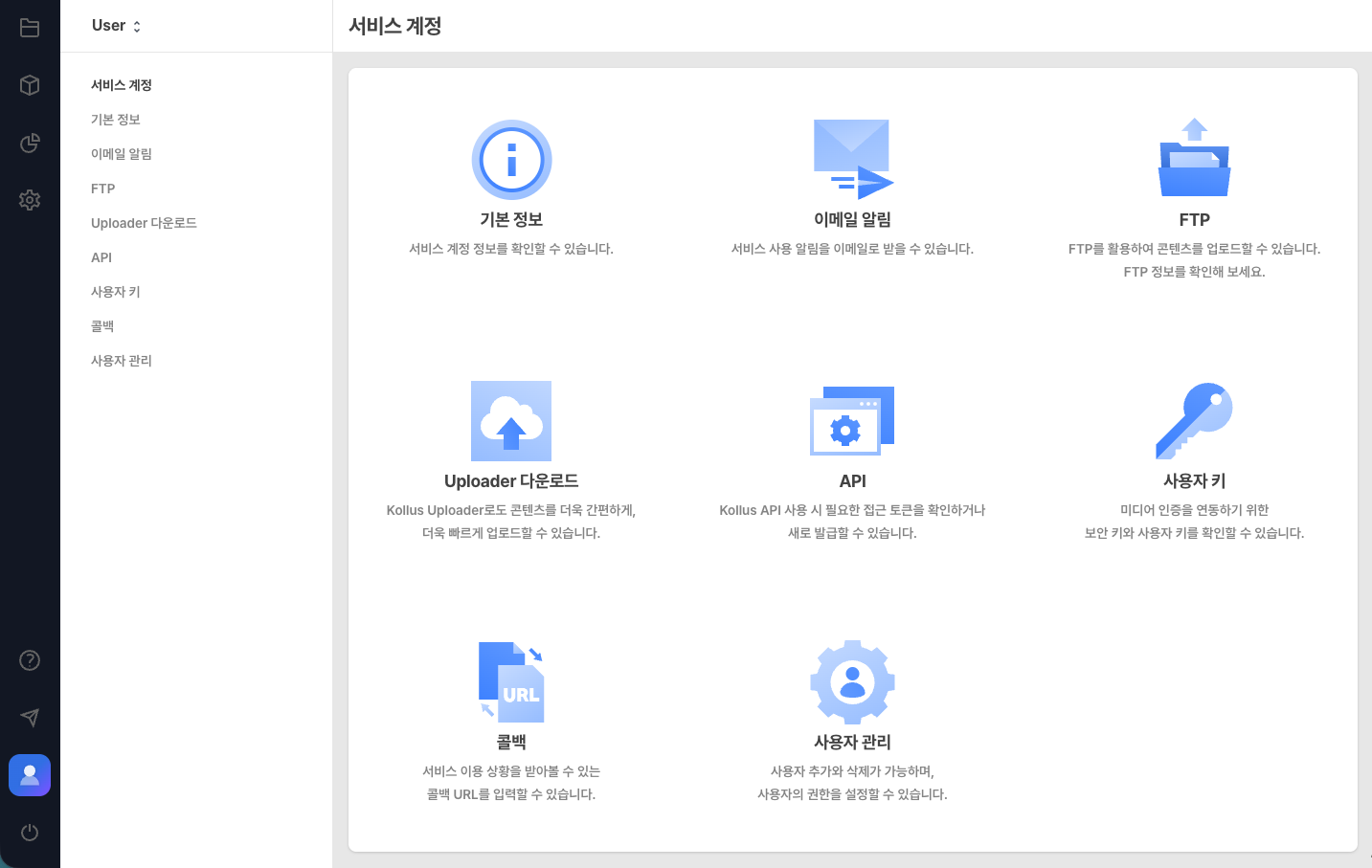
Edit Basic information
In the [Service account] > [Basic information] menu, you can view basic information and edit the name of the service account.
| Item | Description |
|---|---|
| Service account | User name (emojis, <, > cannot be entered) |
| Service account key | A unique identifier used for FTP addresses, upload paths, etc. (cannot be changed)
|
| Service tier | The currently contracted service plan |
| Main node location | The region where the service is provided |
Email notification settings
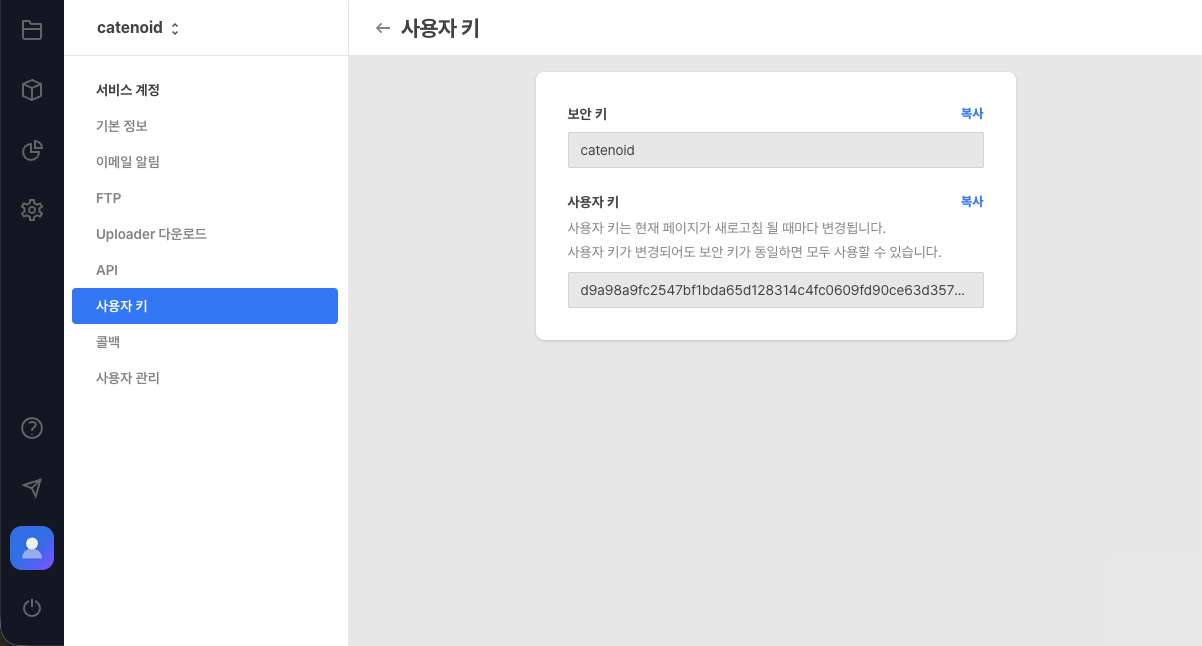
You can receive real-time notifications when major events occur. Enable the required items in [Service account] > [Email notification].
Key notification items
- Content processing: Notifications upon completion of upload, transcoding, and AI services (subtitle, summary and chapter, playback speed)
- Resource overuse: Notifications when traffic, data transfer, storage, and AI service usage exceed 80% or 100% of the configured threshold
Resource overuse notifications may be delayed by up to 36 hours due to the nature of data aggregation.
Ftp connection information
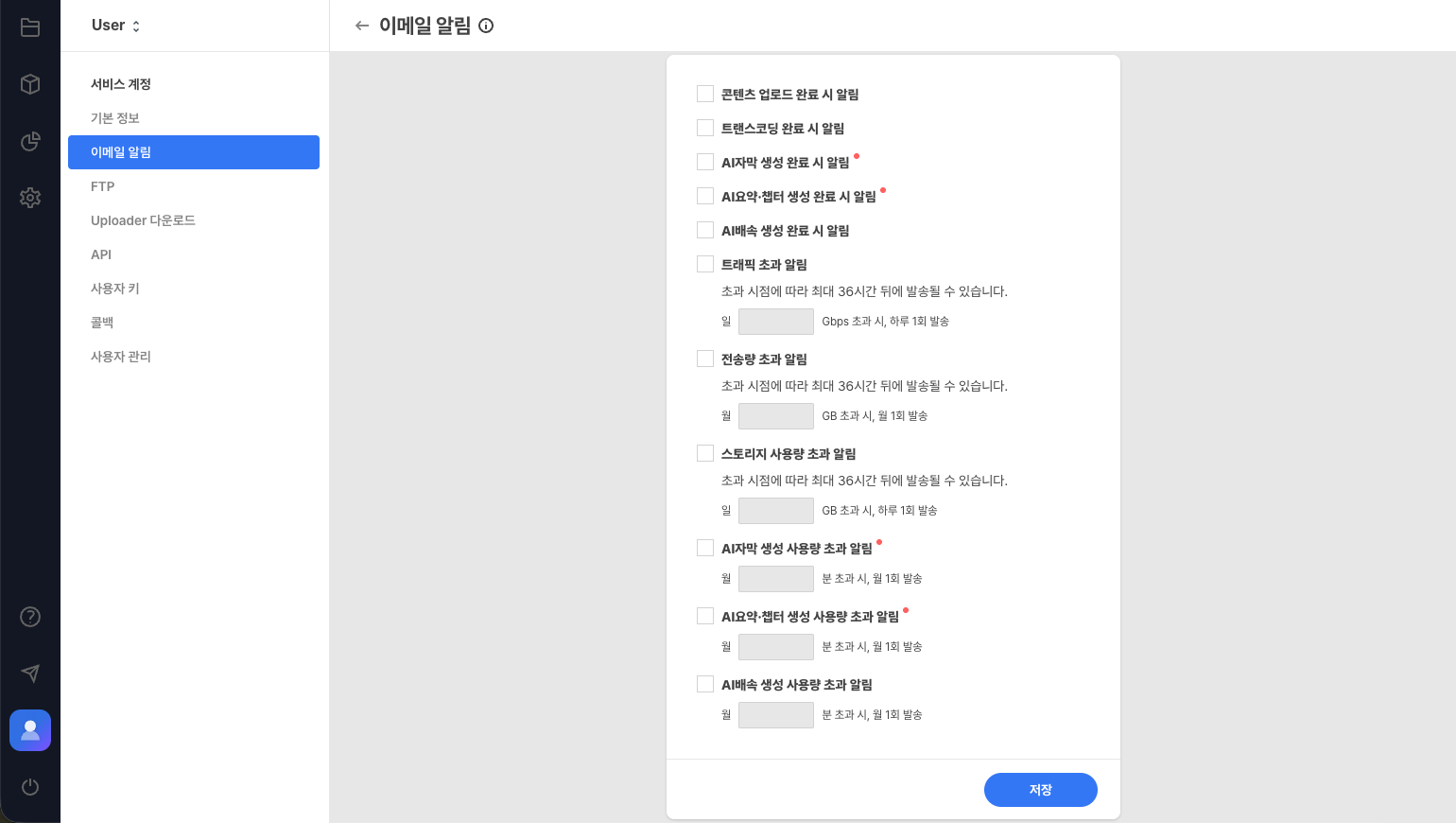
FTP(File Transfer Protocol) connection information is provided for stable uploading of large volumes of content.
- Where to find: [Service account] > [FTP]
- Key features: View FTP connection address, set FTP connection password, designate default category
- Learn More: FTP Upload
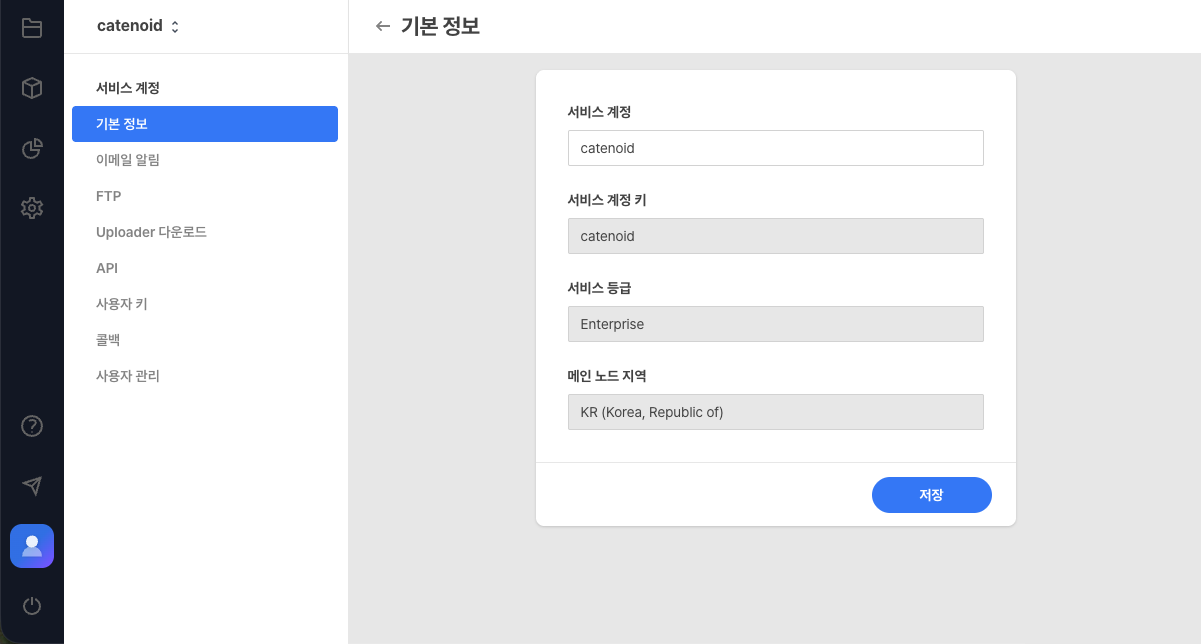
API authentication information
Manages authentication tokens(Access Tokens) required for integration with external systems(CMS, LMS, etc.).
- Where to find: [Service account] > [API]
- Key information: API domain, API access token
- Caution: Issuing a new token immediately invalidates the existing token. Therefore, you must update the authentication information for all systems currently using the existing token.
- Learn More: CMS Integration
Security information
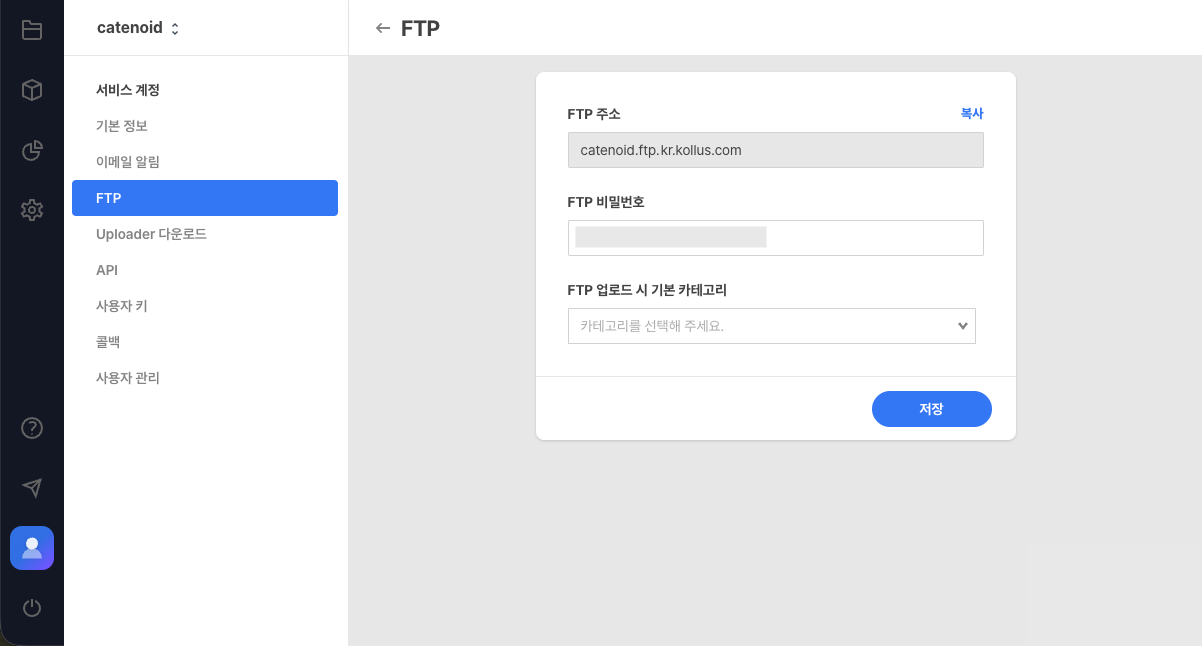
Manages the security information essential for generating JWTs used to verify content playback permissions.
- Where to find: [Service account] > [Custom key]
- Key information
- Security key: A secret key used for signing content playback permission authentication(JWT).
- Custom key: An encrypted value of the security key, used in conjunction with the security key when making authentication requests.
- Notes
- If you need to change the security key, contact Technical Support(tech_support@catenoid.net).
- The custom key value may be updated when the browser is refreshed; you must copy and apply the latest value at the time of use.
Callback settings
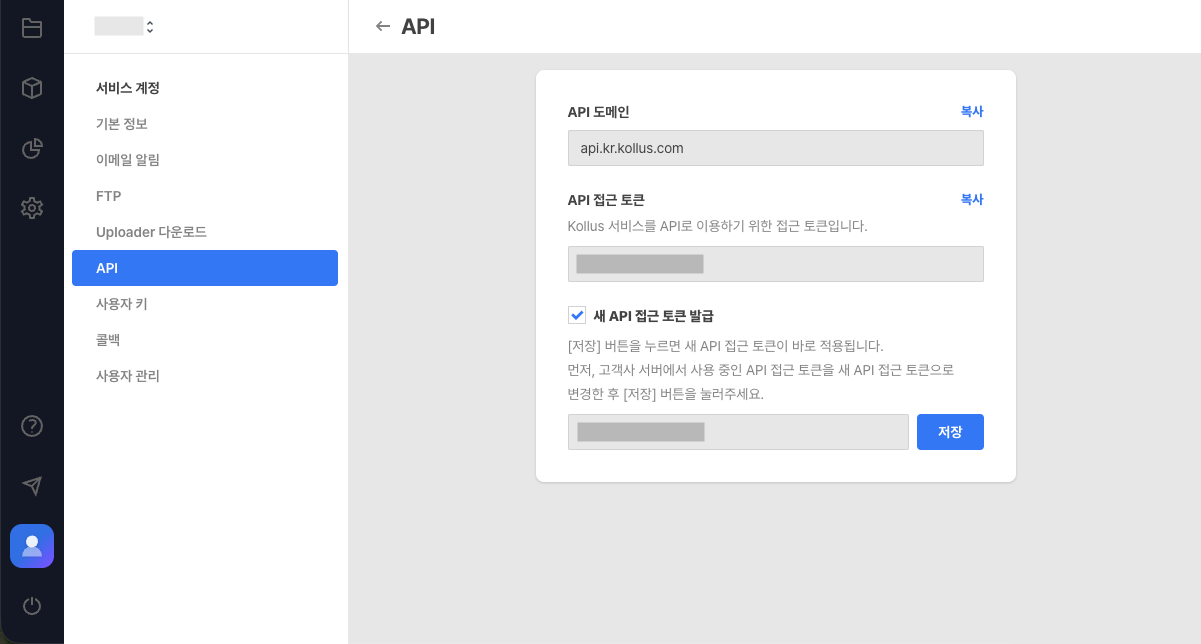
This feature sends task completion events to the customer's server in real time. This allows you to monitor task status and reflect it in your service immediately without manual checks.
The callback receiving server must be a stable environment capable of handling large volumes of traffic.
- Where to find: [Service account] > [Callback]
- Configuration items
- Upload callback URL: Triggered when content upload is complete; includes the upload file key.
- Transcoding callback URL: Triggered when transcoding is complete; includes encoding profile key information.
- Content update callback URL: Sends information when changes(additions, deletions, etc.) occur to content within a channel.
- Learn More: Callback Integration
User and permission management
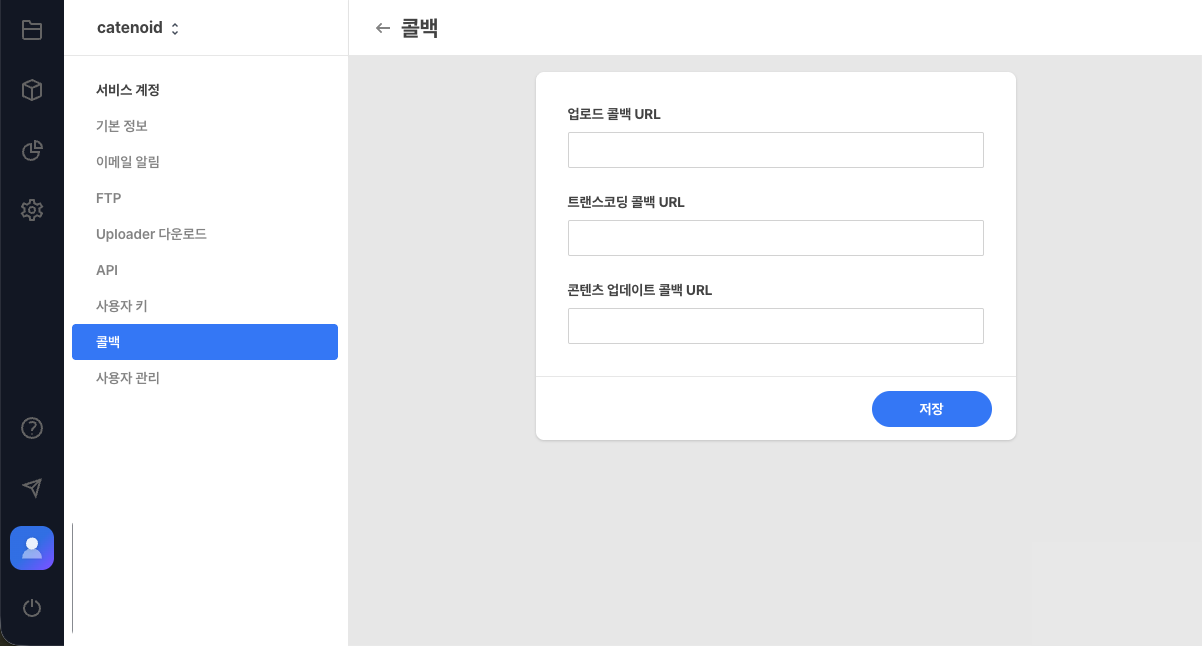
Within the same service account, you can enhance management security by assigning user roles according to the scope of work.
- Where to find: [Service account] > [User management]
user role system
- Super administrator: Can configure all features of the service account and manage users.
- Administrator: Can configure key menus such as Library and Channel. (Some menus are read-only)
- Operator: Can upload content and perform basic management, but data deletion permissions are restricted.
- Library: Cannot modify categories, delete content, or download content lists and original files
- Channel: Cannot modify channel information, delete content, download content lists and original files, or configure callbacks and referrer settings
- Service account: Cannot access any menus
Permissions by user role
| Menu | Feature | Operator | Administrator | Super administrator |
|---|---|---|---|---|
| Library | Content upload | ◯ | ◯ | ◯ |
| View/edit content | ◯ | ◯ | ◯ | |
| Delete content | ✕ | ◯ | ◯ | |
| Delete original file/transcoded file | ✕ | ◯ | ◯ | |
| Add/edit/delete category | △ (cannot be changed) | ◯ | ◯ | |
| Move category | ◯ | ◯ | ◯ | |
| Copy category key | ◯ | ◯ | ◯ | |
| Download content list | ✕ | ◯ | ◯ | |
| Download original file | ✕ | ✕ | ◯ | |
| Channel | View/edit content | ◯ | ◯ | ◯ |
| Delete content | ✕ | ◯ | ◯ | |
| Replace with another content | ◯ | ◯ | ◯ | |
| Delete original file/transcoded file | ✕ | ◯ | ◯ | |
| Move category | ◯ | ◯ | ◯ | |
| Add/edit/deactivate/delete channel | ✕ | ◯ | ◯ | |
| Copy channel key | ◯ | ◯ | ◯ | |
| Callback settings | ✕ | ◯ | ◯ | |
| Referrer settings | ✕ | ◯ | ◯ | |
| Country access settings | ✕ | ◯ | ◯ | |
| Block external display output | ✕ | ◯ | ◯ | |
| Player settings | ✕ | ◯ | ◯ | |
| Analysis | View analysis/statistics/insight | ✕ | ◯ | ◯ |
| View Kollus Analytics | ✕ | ◯ | ◯ | |
| Service Guide | ◯ | ◯ | ◯ | |
| Customer Feedback | ◯ | ◯ | ◯ | |
| Settings | Encoding profile | △ (read-only) | ◯ | ◯ |
| Concurrent playback prevention | △ (read-only) | △ (read-only) | ◯ | |
| Screen capture prevention | △ (read-only) | △ (read-only) | ◯ | |
| Original file backup | △ (read-only) | △ (read-only) | ◯ | |
| Poster | ✕ | ✕ | ◯ | |
| Player | △ (read-only) | ◯ | ◯ | |
| Service account | Basic information | ✕ | ◯ | ◯ |
| Email notification | ✕ | ◯ | ◯ | |
| FTP | ✕ | ◯ | ◯ | |
| Uploader download | ✕ | ◯ | ◯ | |
| API | ✕ | ◯ | ◯ | |
| Custom key | ✕ | ◯ | ◯ | |
| Callback | ✕ | ✕ | ◯ | |
| User management | ✕ | ◯ | ◯ | |
| Sign-in account | My profile | ◯ | ◯ | ◯ |
| Two-step verification | ◯ | ◯ | ◯ | |
| Change password | ◯ | ◯ | ◯ | |
| Withdraw | ◯ | ◯ | ◯ | |
�phrase0�s
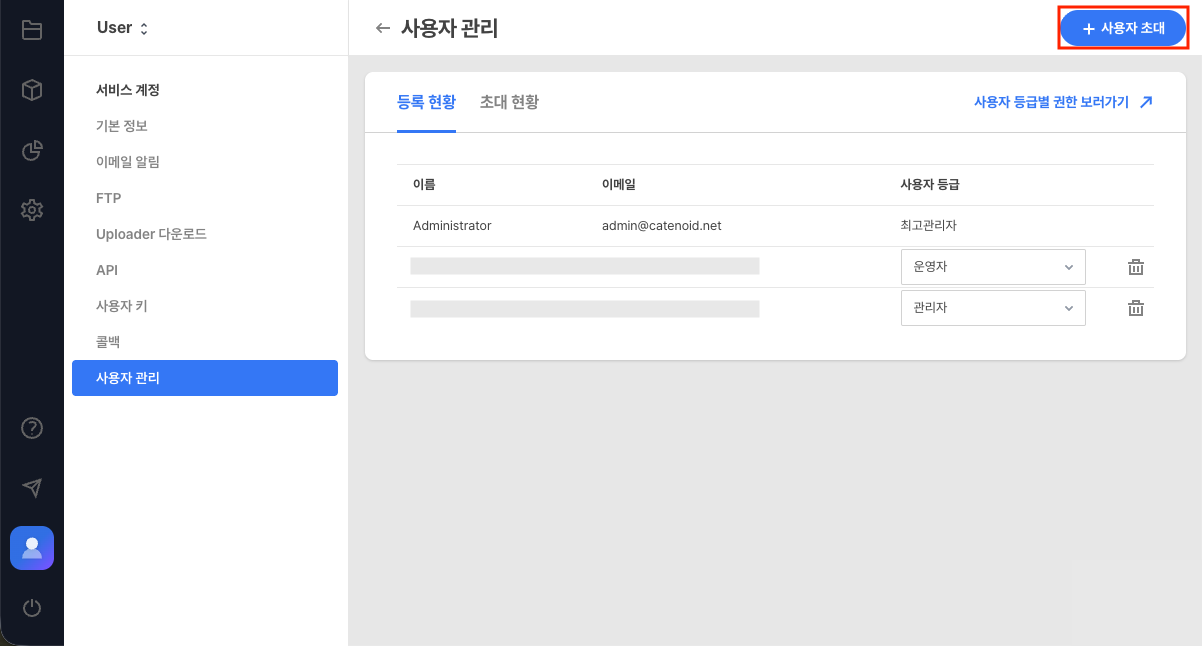
You can invite new users to grant them access to the Kollus VOD console.
- Click [Invite user] in the upper right of the [User management] menu.
- Enter the invitee's information and click [Send invitation email].
Item Description Name Enter the invitee's name. Email Enter the invitee's account(email address). - Existing user: Registered immediately upon acceptance
- New user: Registered after completing the sign-up process via the invitation email
User role Select the permission level to assign to the invitee.