Multi-DRM Service Flow
This document is a machine-translated draft and is currently undergoing review. Some content may be inaccurate or differ from the original Korean version. For the most precise information, refer to the Korean documentation.
This guide describes the entire process for distributing and playing content with Multi-DRM applied. Refer to the service flow below when securely distributing content by applying global standard security specifications across various playback environments.
For detailed information on Multi-DRM, refer to the documents below.
Key process summary
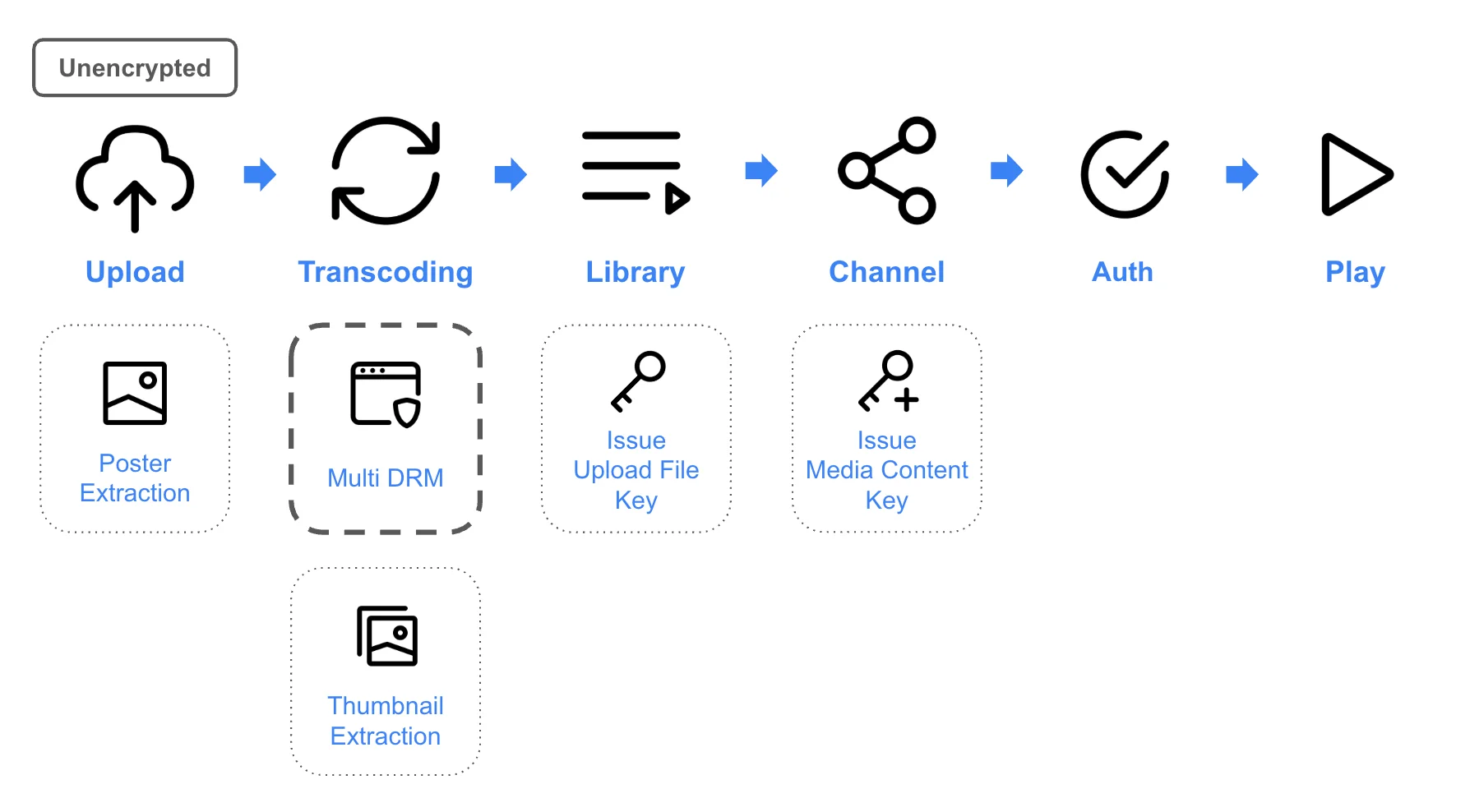
- Content upload: The customer administrator sends the content file to the Kollus upload server. (When applying Multi-DRM, do not select the [Encryption] option.)
- Poster extraction: After the upload is complete, the system extracts a poster (representative image) to be displayed on the player's initial screen.
- Transcoding: An encoding process converts the content to the optimal resolution and bitrate for the playback environment. The customer administrator can check the progress in [Library] on the Kollus VOD console.
- Content encryption (Multi-DRM): Encrypts the transcoded media data using global standard DRM (Widevine, FairPlay, PlayReady) specifications. This is an essential step to prevent unauthorized copying and leaking of content, and the content is safely played after license authentication.
- Thumbnail extraction: The system extracts thumbnail images to be used for preview on the progress bar of the player.
- Upload file key issuance: When transcoding is complete, the system issues an upload file key to identify the content.
- Channel registration and media content key issuance: When the customer administrator registers content to a specific channel, the system issues a media content key, which is an identification key for distribution.
- Playback URL generation and verification: The customer administrator combines the media content key and security token to generate a Playback URL (S-link). The generated URL is used to perform a final verification that the content plays correctly.
Tutorial
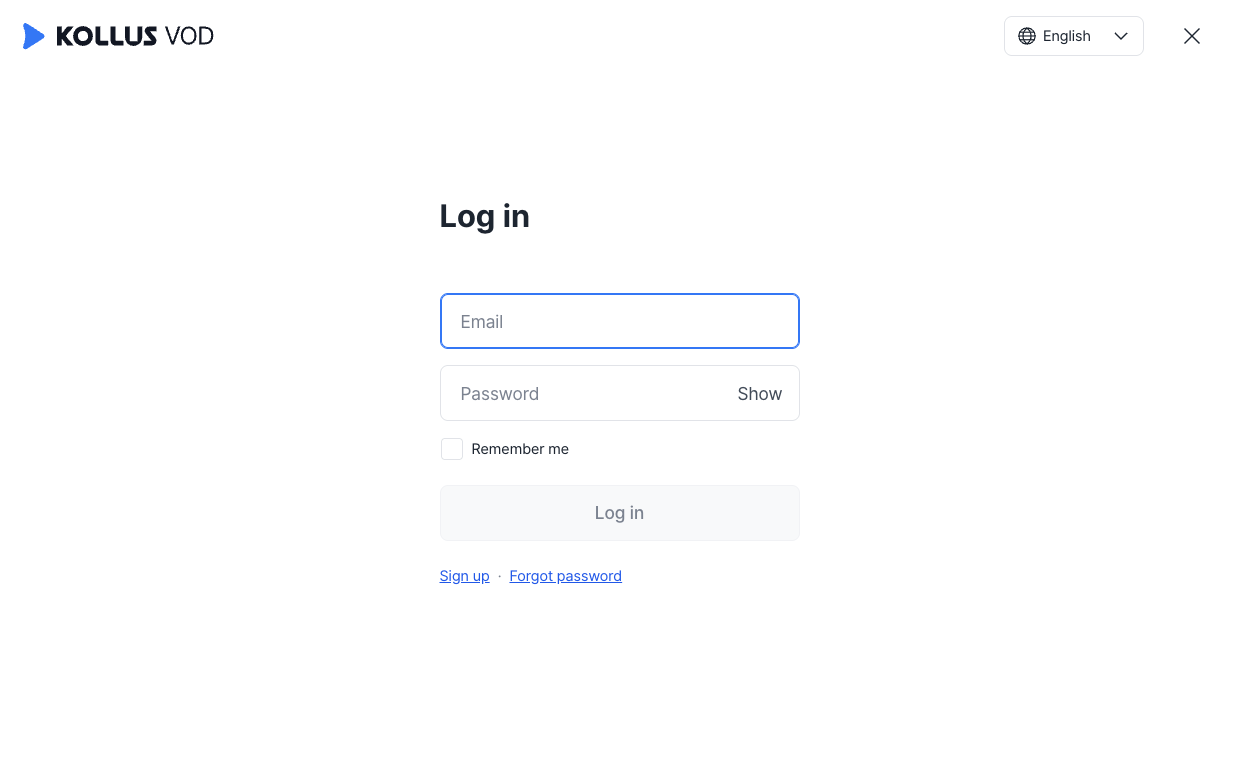
Step 1: Sign in to Kollus VOD console
Go to Kollus VOD console and sign in.
Step 2: Upload content
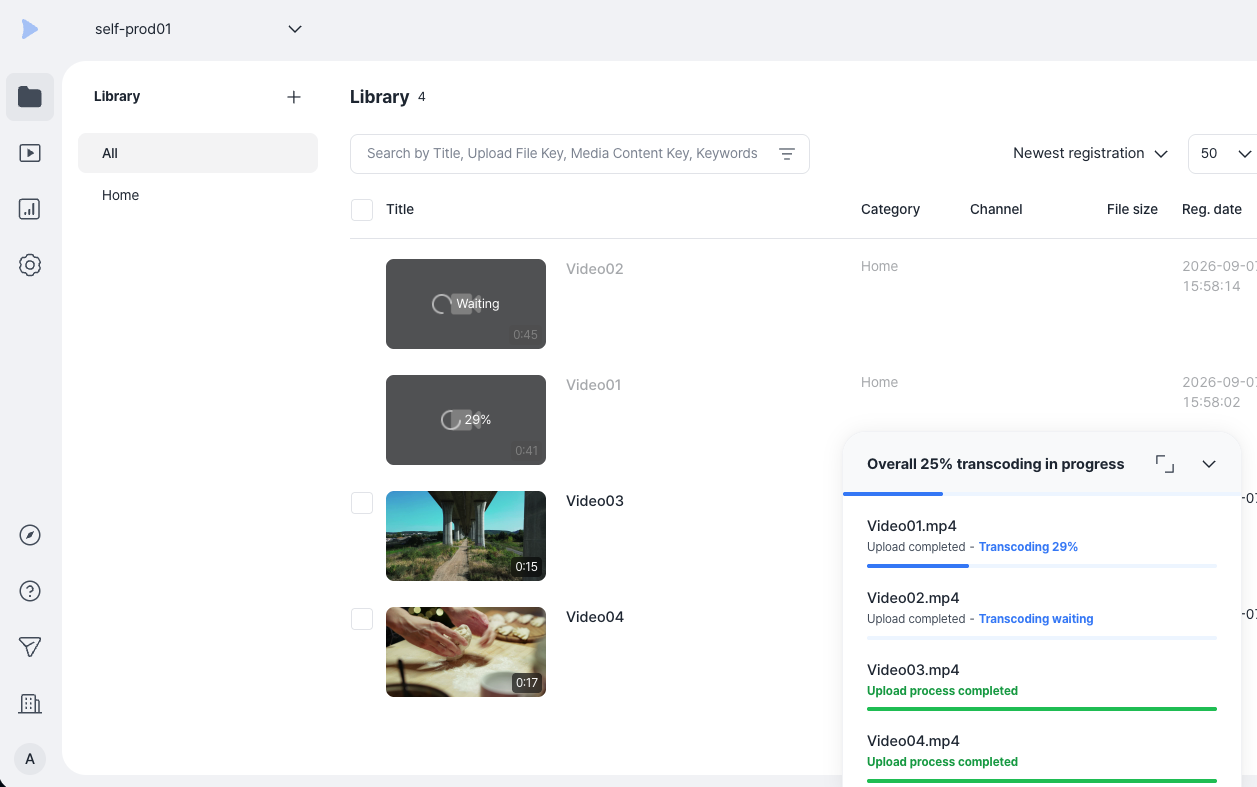
In the [Library] menu that appears after signing in, you can manage content files and organize them by category.
- Click [Content upload] in the upper right corner of the screen.
- Drag and drop files into the upload area, or click [Select file] to select a file.
- Emoji restriction: Files cannot be uploaded if the file name contains emojis.
- Supported file extensions: Only the following extensions can be uploaded. Files with unsupported extensions may be excluded from the upload list or fail to upload.
- Video:
.3gp,.asf,.avi,.dv,.flv,.webm,.m4v,.mov,.mp4,.mpeg,.mpg,.wmv,.3g2,.3gpp,.f4v,.m2v,.ogm,.ogv,.wm - Audio:
.aac,.flac,.m4a,.mp3,.ogg,.wav,.amr,.wma
- Video:
- Maximum upload count: You can select up to 20 files at a time. To upload 21 or more files, use Kollus Uploader.
- When the upload is complete, the system automatically starts Transcoding.
- Transcoding: An essential process that converts the original video to the optimal resolution and bitrate for various viewing environments.
- Progress: Can be checked by the percentage (%) shown above the content poster.
Step 3: Create a distribution channel
To provide transcoded content to users, you need to create a distribution channel. A channel is the basic unit of content distribution, and independent security and playback policy settings can be configured for each channel.
- Select [Channel] from the left menu.
- Click [Add channel] in the channel list on the left or in the upper right corner.
- Configure each item and click [Save]. (Since this guide is for testing Multi-DRM content playback, select [Use as shared channel].)
Channel setting Description Use as shared channel A share link and embed code for external distribution are provided. Use as encrypted content-only channel Only encrypted content with Kollus DRM applied can be registered. (Learn more: Content Encryption (DRM))
Step 4: Register content
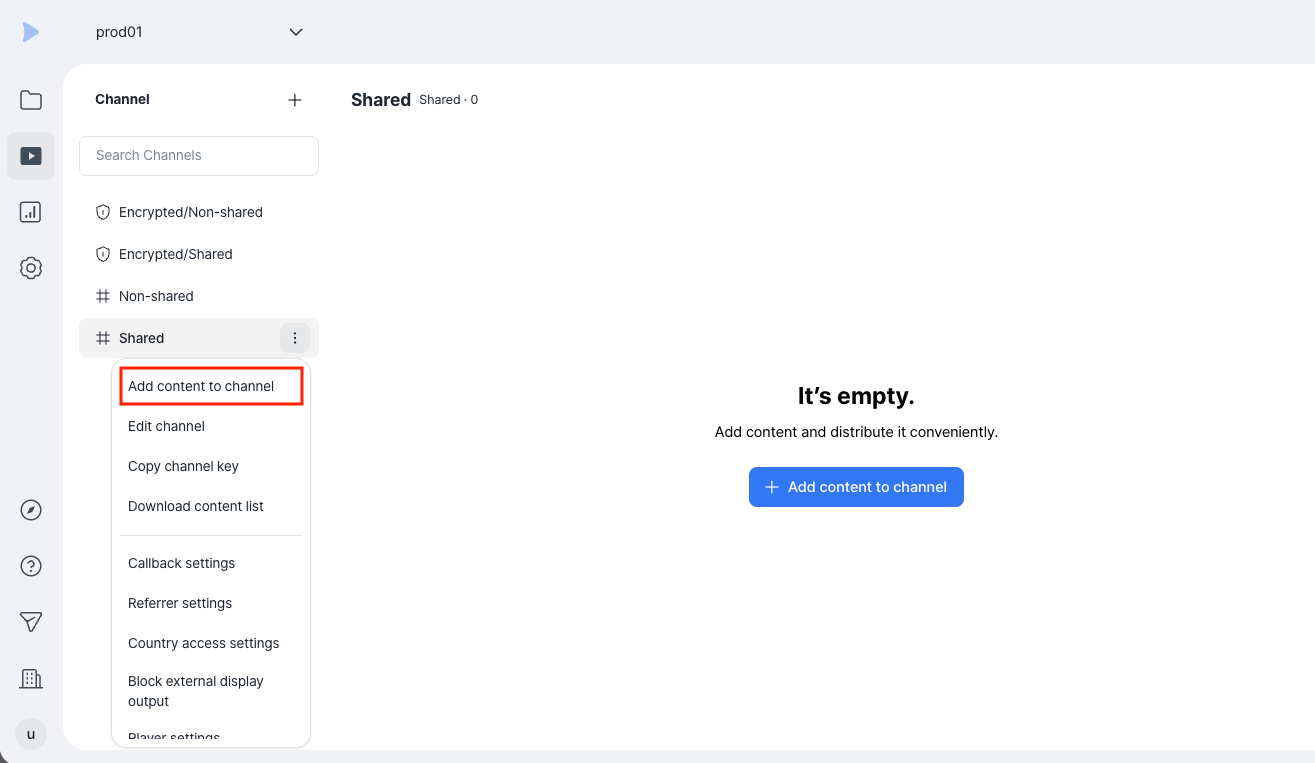
Register content to the channel you created.
- In the channel list, click [More (⋮)] to the right of the target channel > [Add content to channel].
- Select the content to register and click [Add].
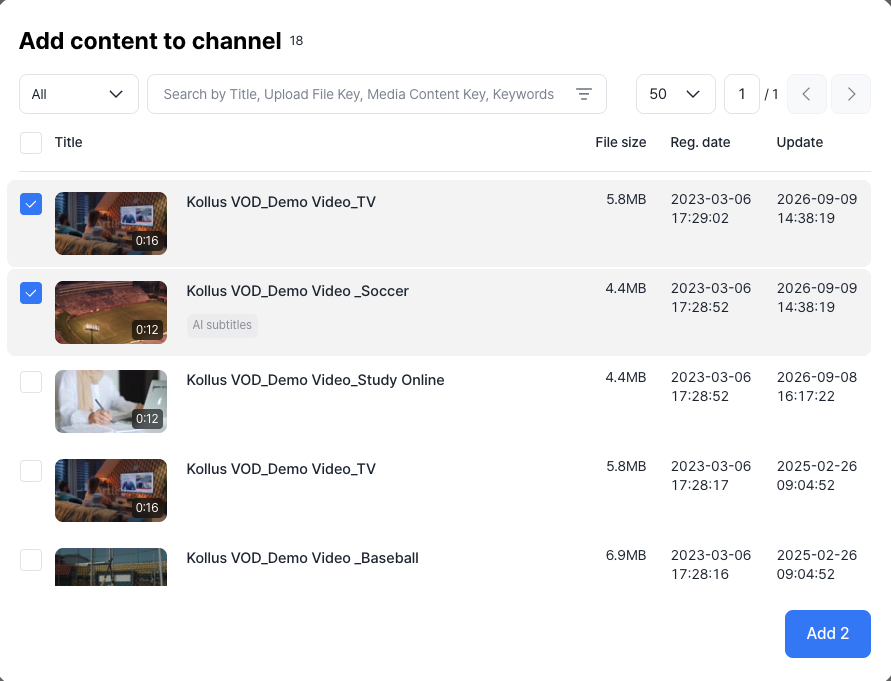
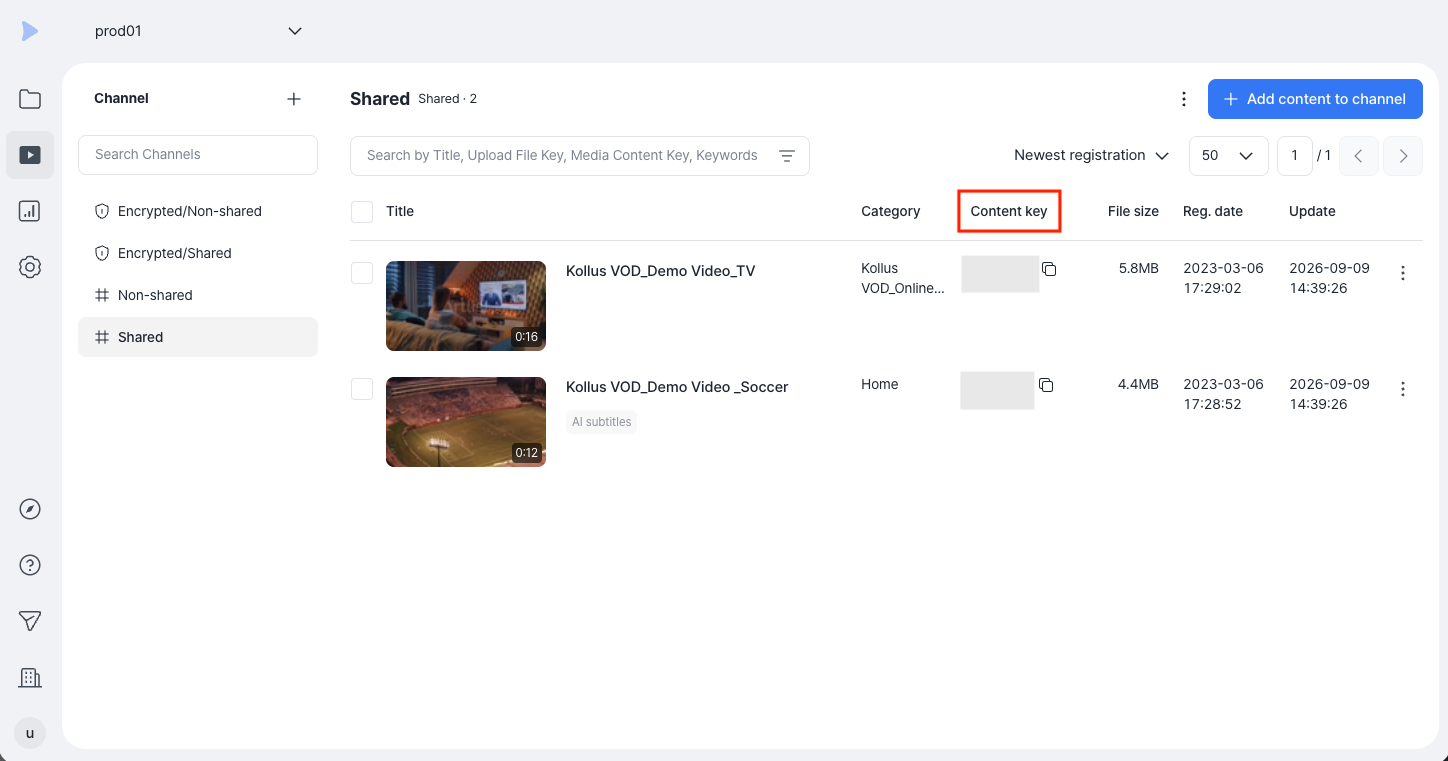
- When registration is complete, a unique media content key is issued for each piece of content. This key is used as a distribution identifier per channel.
Step 5: Generate a JWT
For Multi-DRM content, JWT (JSON Web Token) authentication that includes license request information is required to enhance security. Kollus VOD integrates with DoveRunner, a global DRM solution, to manage Widevine (Android/Chrome), FairPlay (iOS/Safari), and PlayReady (Windows/Edge) DRM under a single JWT authentication specification.
The JWT Payload can define various security and convenience features such as watermarks, subtitle settings, and playback controls. The required Payload configuration for playing Multi-DRM content is as follows.
{
  "cuid": "{END_USER_ID}",
  "expt": 1703980800,
  "mc": [{
    "mckey": "{MEDIA_CONTENT_KEY}",
    "drm_policy": {
      "kind": "inka",
      "streaming_type": "dash",
      "data": {
        "license_url": "https://license.pallycon.com/ri/licenseManager.do",
        "certificate_url": "https://license.pallycon.com/ri/fpsKeyManager.do?siteId={YOUR_SITE_ID}",
        "custom_header": {
          "key": "pallycon-customdata-v2",
          "value": "{BASE64_ENCODED_TOKEN}"
        }
      }
    }
  }]
}
| Option | Type | Description |
|---|---|---|
cuid | string | User ID
|
expt | integer | JWT expiration date and time (Unix timestamp)
|
mc | array | Array containing information about the content to play |
mckey | string | Media content key |
drm_policy | object | Multi-DRM policy data |
kind | string | DRM solution type. Enter fixed value "inka" (formerly INKA Entworks) |
streaming_type | string | Streaming protocol type
|
data | object | Data required for license authentication and issuance |
license_url | string | (Required when using Widevine or PlayReady) License server address |
certificate_url | string | (Required when using FairPlay) FairPlay certificate address. Enter the ID issued from the DoveRunner console in the siteId parameter. |
custom_header | object | Custom header to pass when requesting a license |
custom_header.key | string | Header key name (fixed as "pallycon-customdata-v2") |
custom_header.value | string | DoveRunner license token value (Base64 encoding required) |
Refer to the documents below for identification information required to invoke the player.
- Key information: Authentication & Keys
- JWT(JSON Web Token) specifications: Multi-DRM JWT Specifications
Step 6: Configure the secure playback URL
Configure the Playback URL using the secure URL (S-link) specification so that only authenticated users can call the player. (Learn more: Invoke Player)
Playback URL format
https://v.kr.kollus.com/s?jwt={JWT}&custom_key={CUSTOM_KEY}
| Parameter | Description |
|---|---|
jwt | Authentication and security settings token (JWT generated in Step 5) |
custom_key | Custom key
|
Step 7: Play content and verify features
Content with Multi-DRM (Digital Rights Management) applied can only be played in a secure player environment. (Learn more: Kollus Player Types)
Basic player features
The Kollus Player provides the following standard features for a smooth viewing experience. Check the full list of features on the Kollus Player Features page.
- Playback speed control: Supports 0.5–2x playback speed
- Navigation: 10-second interval seeking and loop section
- Convenience features: PIP (Picture-in-Picture) mode support