Kollus Live Encoder (Mobile App)
This document is a machine-translated draft and is currently undergoing review. Some content may be inaccurate or differ from the original Korean version. For the most precise information, refer to the Korean documentation.
Kollus Live provides the Kollus Live Encoder, a dedicated mobile app that lets you easily start live streaming from a mobile device.
Instead of registering an RTMP URL as with typical encoder software, this app lets you quickly start a live stream by entering your Creator code and Creator stream key as an ID/password pair.
Step 1: Install and sign in
A channel must be created before you can sign in to the Kollus Live Encoder app. Without a channel, Creator credentials will not be generated. Refer to the document below for instructions on creating a channel.
- Install the app: Install the Kollus Live Encoder app from Google Play (Android) or the App Store (iOS).
- Launch the app: When the app launches, you must approve any popups requesting access to the camera and microphone.
- Enter broadcast information (sign in): Enter your Creator code and Creator stream key.
- This information can be found at Kollus Live console > [Channel] > [Channel list] > [Edit] on the right side of the target channel > [Creator code] tab at the bottom.
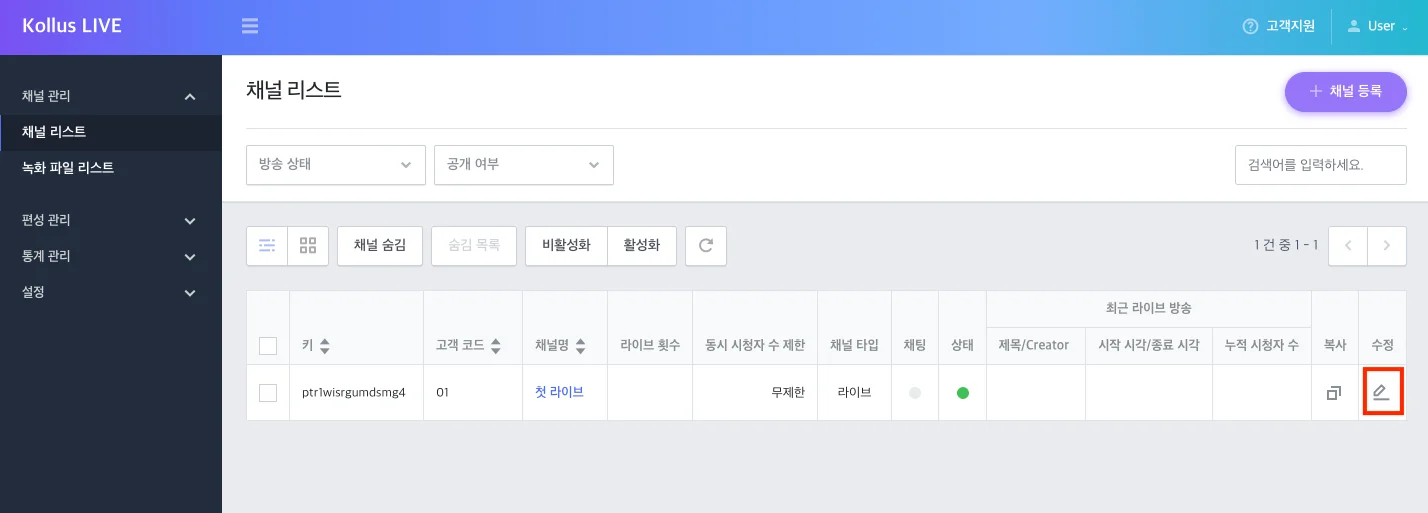
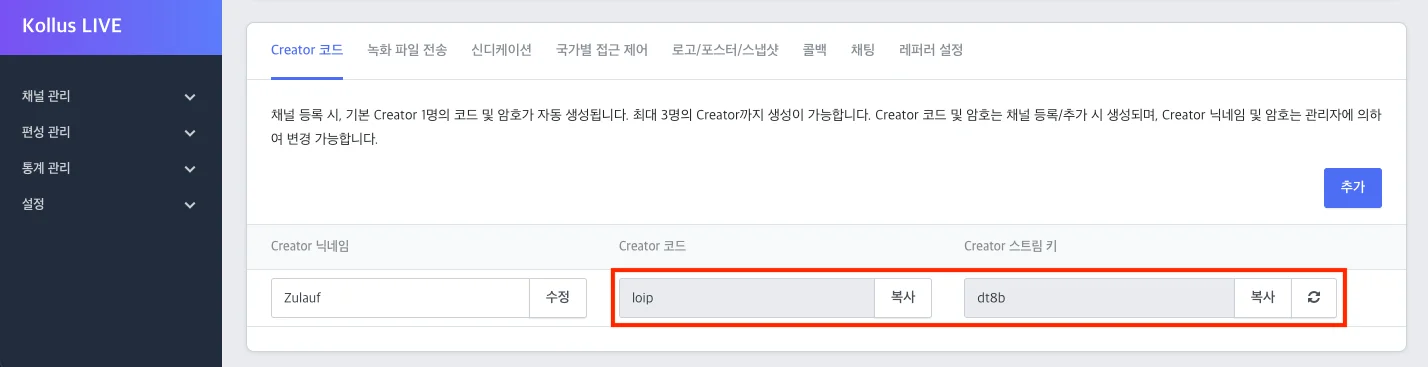
- This information can be found at Kollus Live console > [Channel] > [Channel list] > [Edit] on the right side of the target channel > [Creator code] tab at the bottom.
Step 2: Configure live streaming settings
Before starting a live stream, select the encoding options that match your network environment and broadcast purpose from the [Settings] menu in the upper right corner.
The Kollus Live Encoder supports two modes: [Video+Audio] and [Audio].
When [Audio] mode is selected, the Snapshot area is automatically hidden.
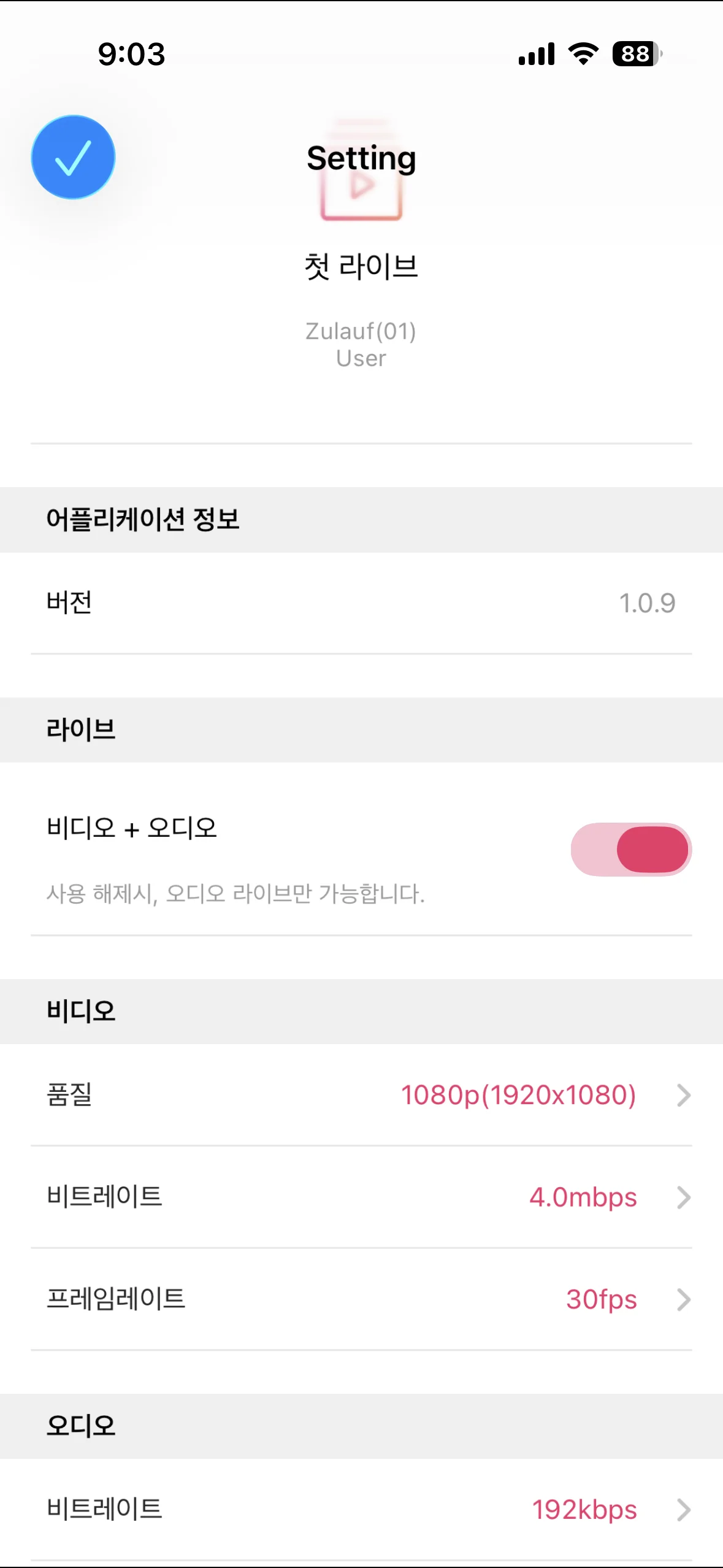
Detailed options
Video
| Item | Supported range |
|---|---|
| Quality | 1080p(1920×1080) / 720p(1280×720) / 540p(960×540) / 480p(640×480) / 288p(352×288) / 144p(192×144) |
| Bitrate | 0.5 / 1.0 / 1.5 / 2.0 / 2.5 / 3.0 / 3.5 / 4.0 (Mbps) |
| Frame rate | 10 / 20 / 24 / 29.9 / 30 (fps) |
Audio
| Item | Supported range |
|---|---|
| Bitrate | 64 / 96 / 128 / 160 / 192 (Kbps) |
Step 3: Start and stop live streaming
- Check the shooting orientation before going live: Before starting, determine the device orientation based on the configured encoding profile. If the orientation does not match, the viewing screen may appear rotated or cropped.
- Landscape: When the encoding profile is [Default - landscape]
- Portrait: When the encoding profile is [Default - portrait]
- Where to find: Kollus Live console > [Channel] > [Channel list] > [Edit] on the right side of the target channel > [Encoding profile]
Cannot change shooting orientationOnce a live stream has started, rotating the device will not change the shooting orientation. To change the orientation, you must stop the live stream and restart it, so be sure to check before you begin.
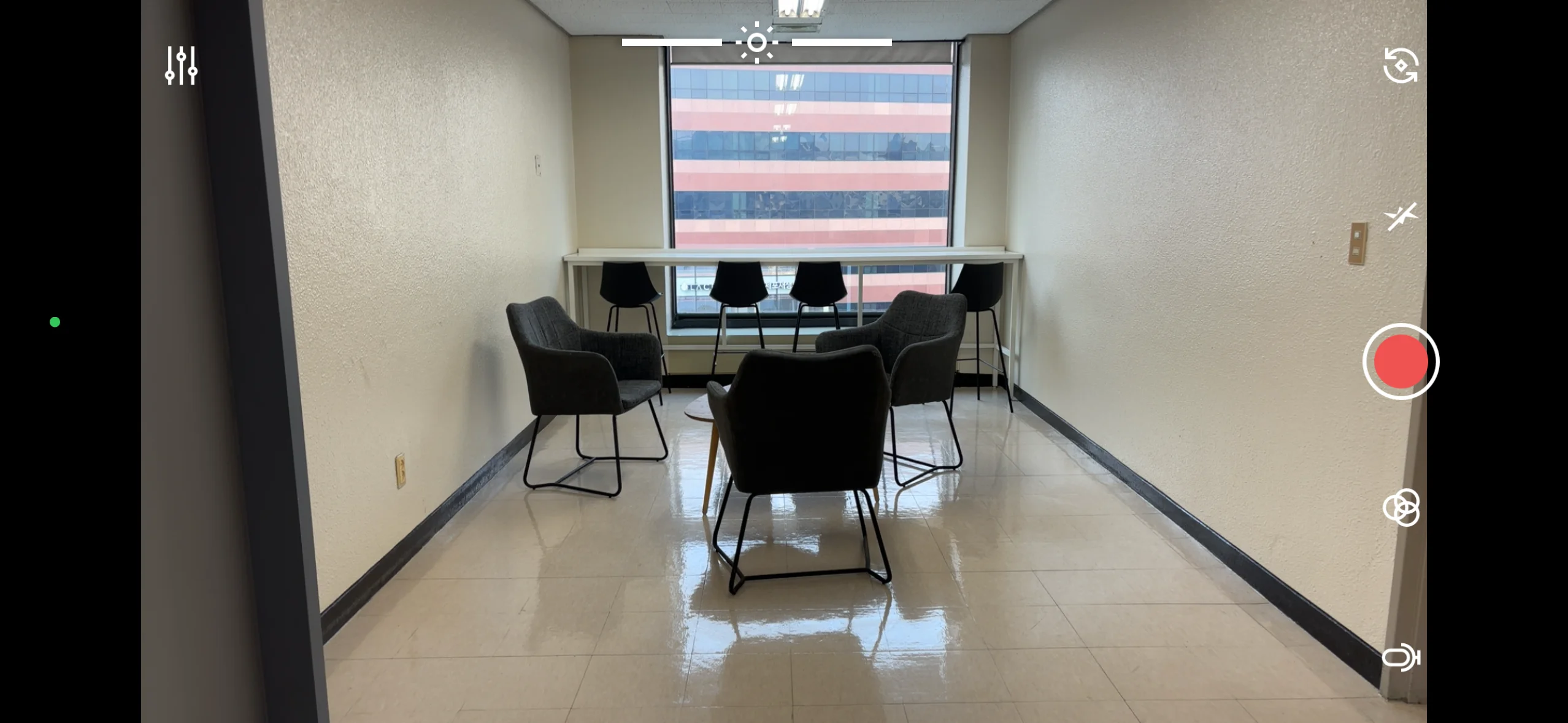
Landscape
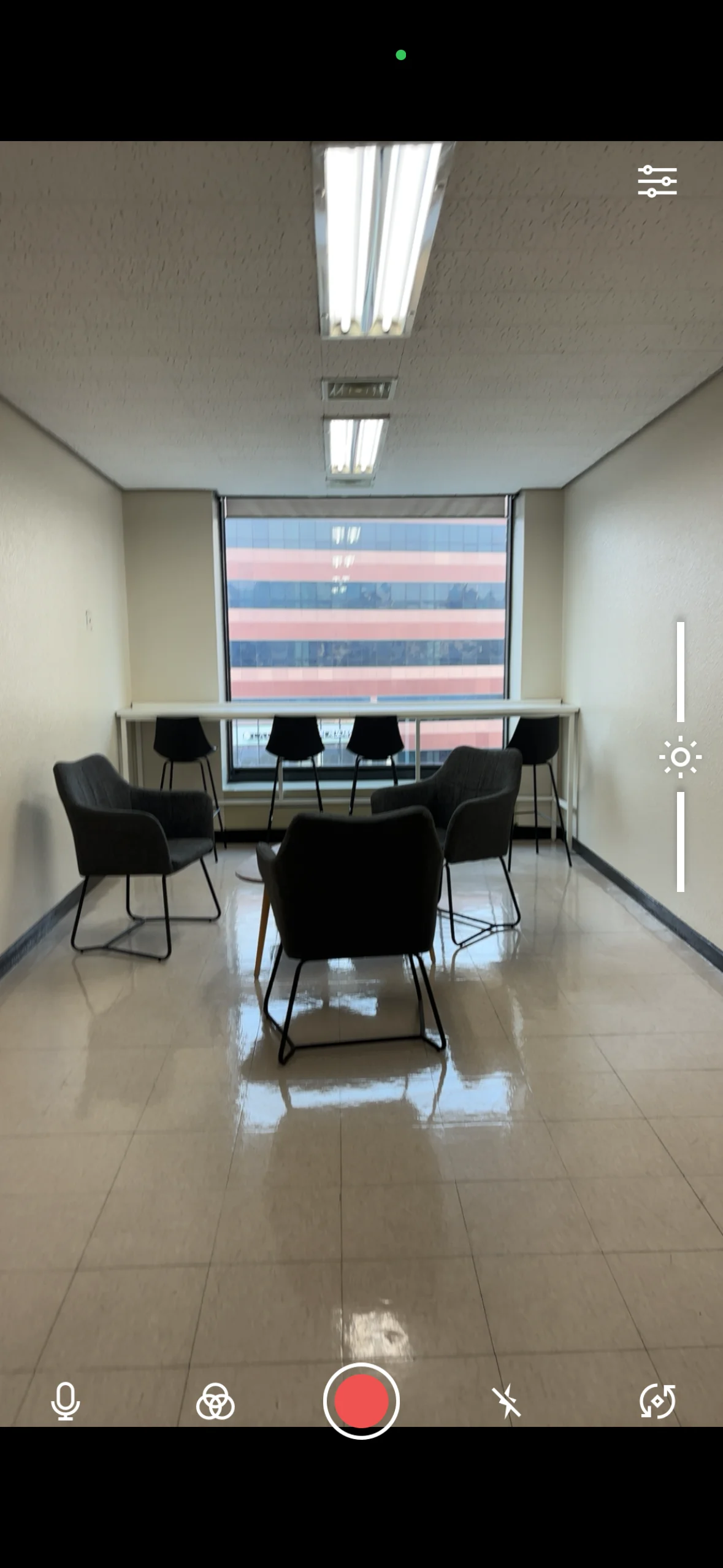
Portrait
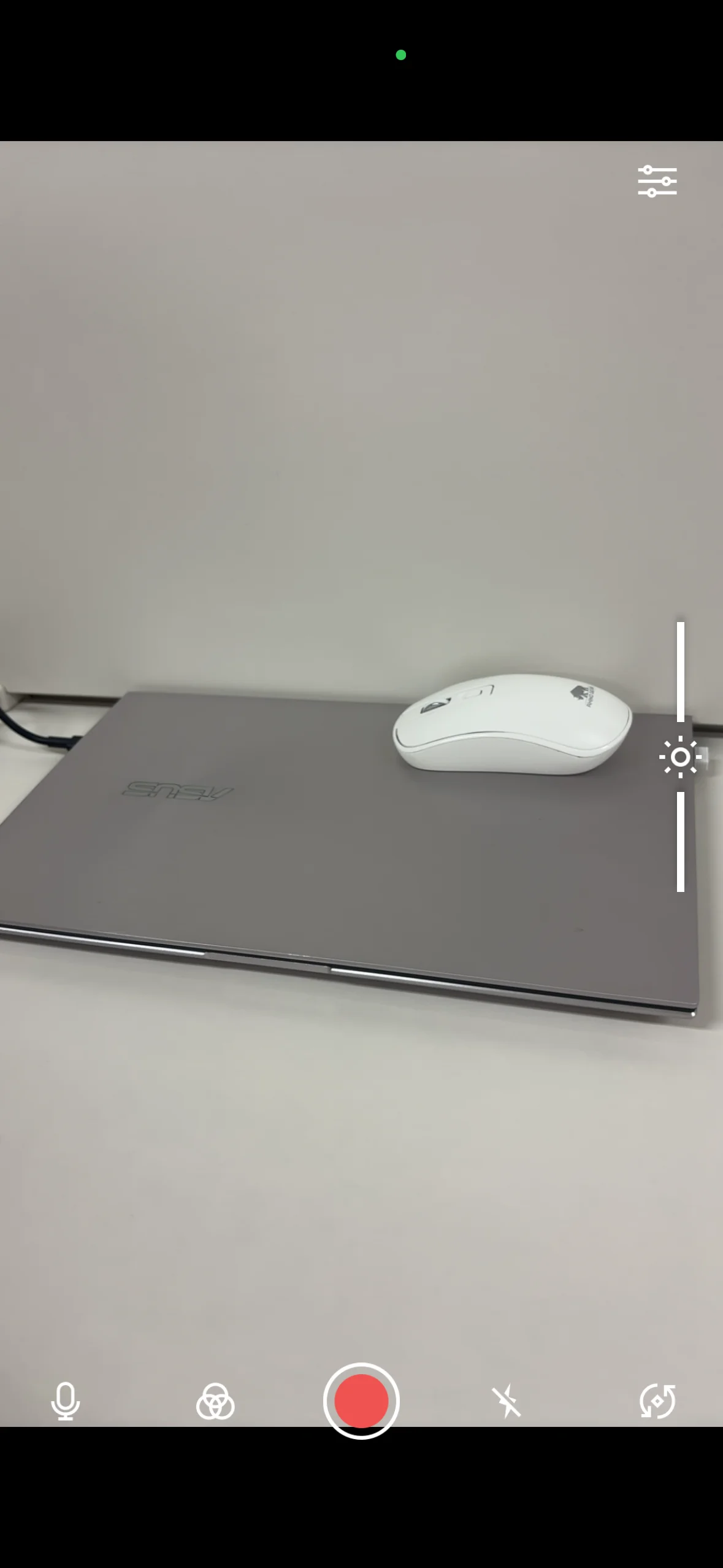
- Start streaming: Press the start broadcast button (the red circular button in the center of the screen) to begin live streaming.
- Broadcast control features: You can control various features by tapping the icons on the screen during a live stream.
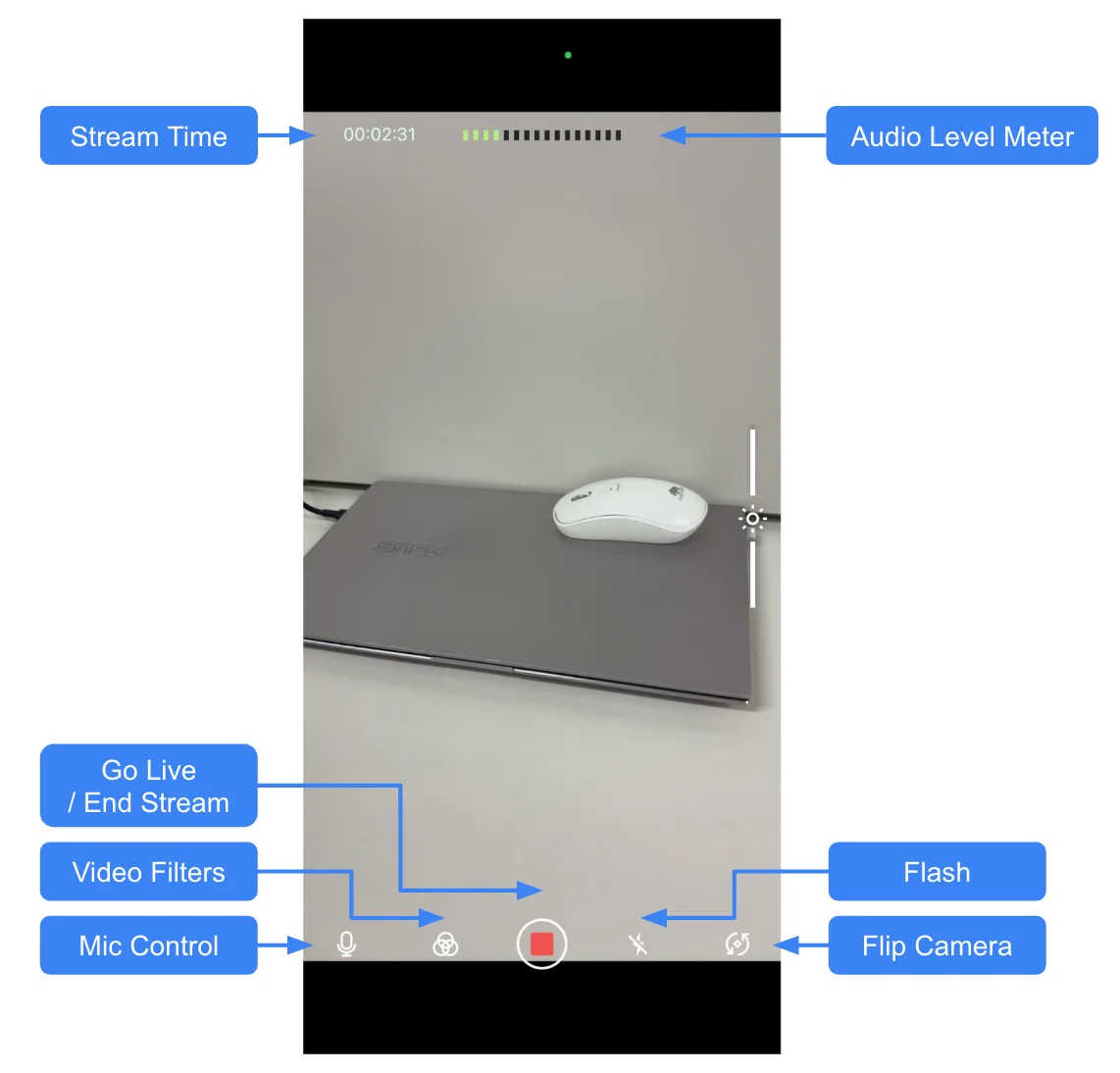
- Microphone control: Turn audio input On/Off.
- Audio level meter: Check in real time via a bar graph whether audio is being input correctly.
- Camera switch: Instantly switch between the front (selfie) and rear cameras.
- Flash: Turn the flash on or off when using the rear camera in dark environments.
- Video filter: Supports a total of 5 filters so you can set the mood of your broadcast in real time.
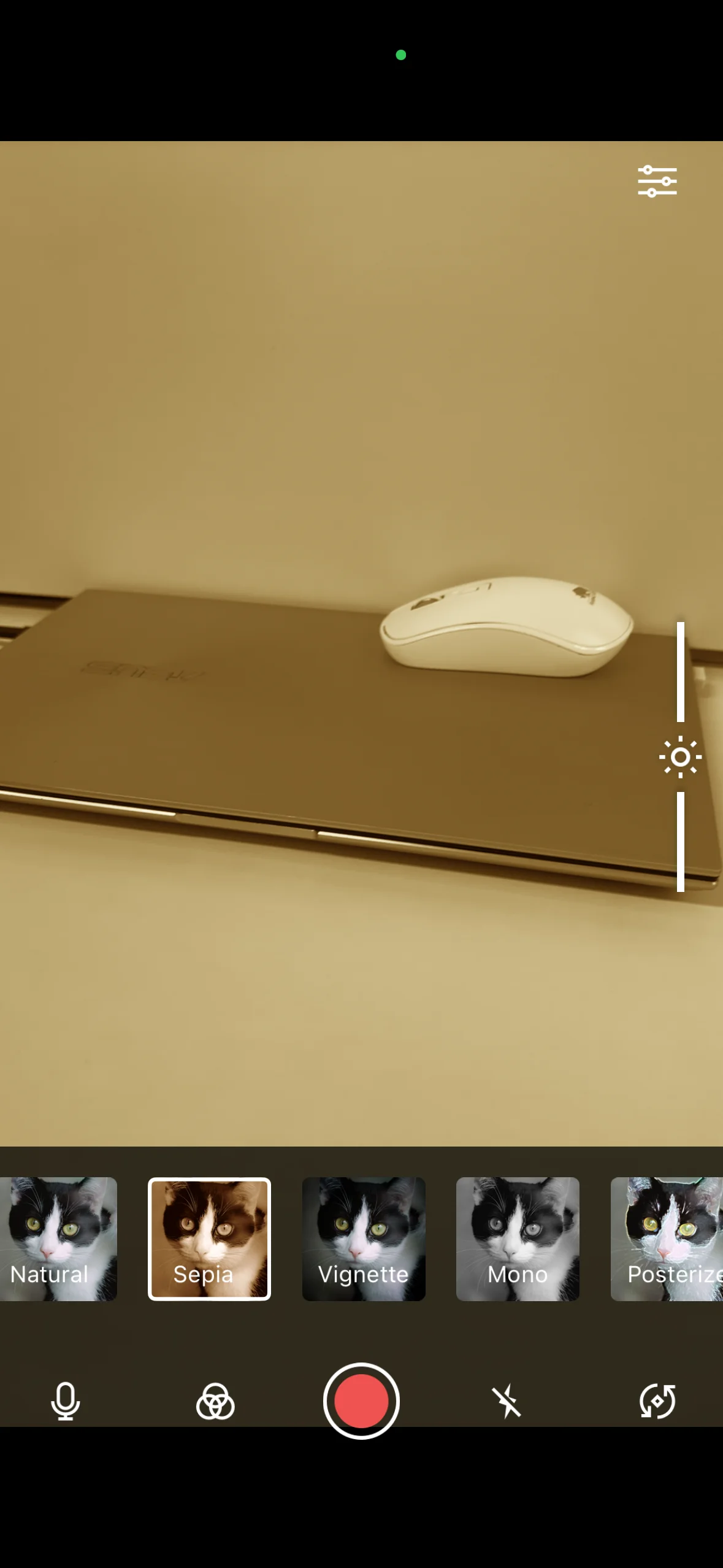
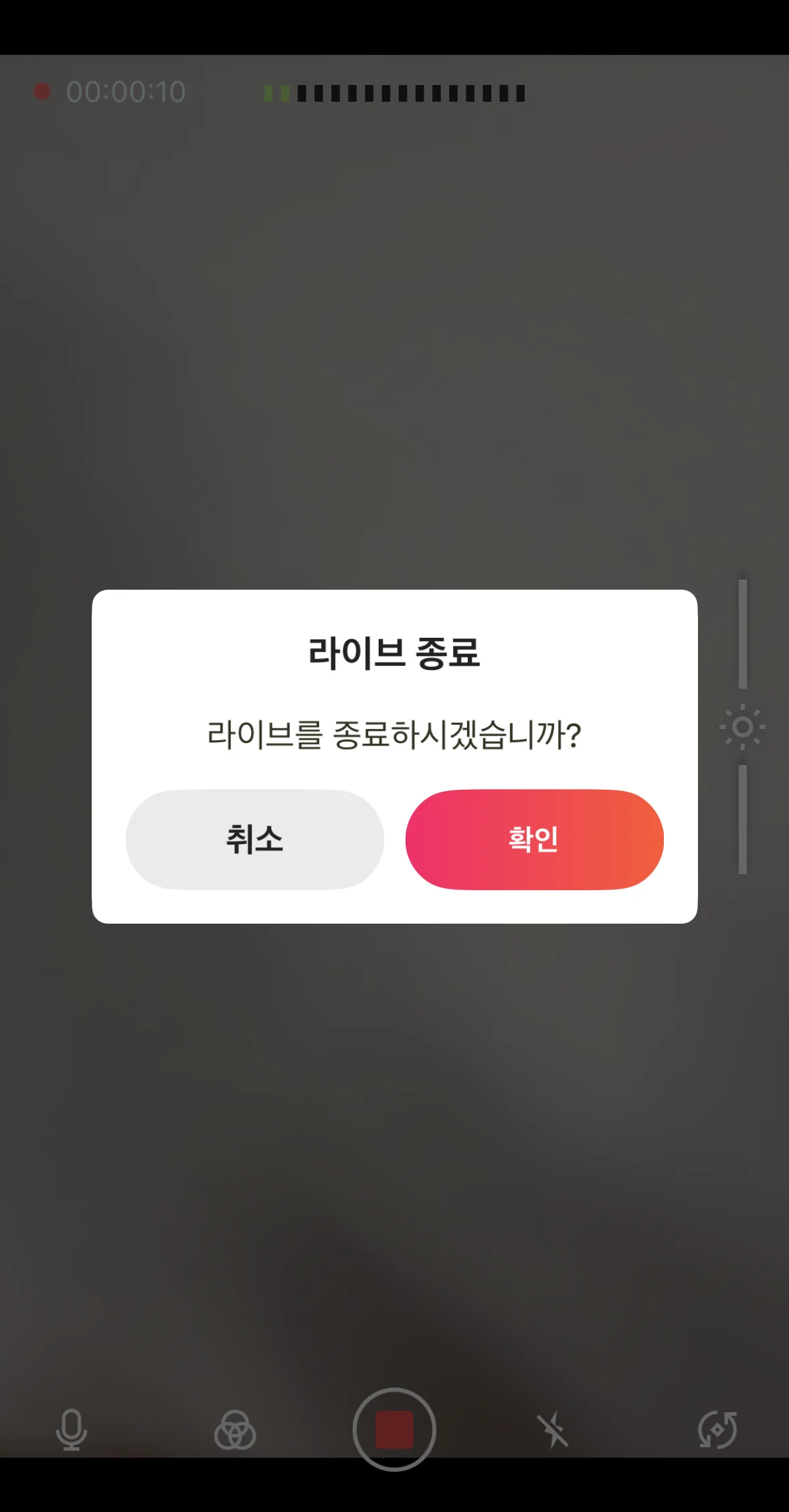
- Stop broadcasting: Press the stop broadcast button (the red square button in the center of the screen) to end the live stream.
⚠️ Precautions
Please check the following to ensure stable streaming.
- Battery management: Keep your battery level above 30%. If the battery is low, it is recommended to stream while connected to a power cable.
- Disable power saving mode: If power saving mode is enabled on your mobile device, streaming performance may be degraded, so be sure to disable it.
- Prevent streaming interruptions: Incoming phone calls may interrupt your stream. It is safer to enable airplane mode and connect via Wi-Fi, or to use a separate device (such as a tablet).
- Close background apps: To free up resources, close all other apps before running only the encoder app.