Syndication (Simultaneous Streaming to External Platforms)
This document is a machine-translated draft and is currently undergoing review. Some content may be inaccurate or differ from the original Korean version. For the most precise information, refer to the Korean documentation.
Syndication is a feature that simultaneously relays live streams from Kollus Live to external social media platforms such as YouTube, Facebook, and Instagram. You can efficiently expand the reach of your content without consuming additional encoder equipment or network bandwidth.
Key features
- Simultaneous streaming support: Supports connections to up to 3 external platforms per live channel.
- Standard protocol support: Compatible with most external platforms that support RTMP/RTMPS protocols.
- Independent control: You can individually configure streaming for each external platform.
⚠️ Caution
- Security notice: If the stream key is exposed externally, others may broadcast unauthorized content using that account, so handle it with care.
- Information updates: Depending on the social media platform's policy, the server URL and stream key may change with each broadcast. Always check and update the latest information before starting a broadcast.
- Broadcast scheduling: Some platforms may require a stream time reservation option, so refer to the platform's guide.
- Integration verification: Once streaming starts from the encoder, monitor whether the broadcast signal is successfully reaching not only the Kollus channel but also the external platforms you have added.
Syndication settings path
The settings menu for external platform integration is located on the channel details page or the channel edit page.
- Method 1 (details page): Kollus Live console > [Channel] > [Channel list] > Click the target channel name > [Syndication] tab
- Method 2 (edit page): Kollus Live console > [Channel] > [Channel list] > Click [Edit] on the right side of the target channel > [Syndication] tab at the bottom
External platform integration procedure (facebook example)
A step-by-step guide for simultaneously streaming a live stream from the Kollus dedicated mobile encoder to Facebook.
Accurately map the RTMP URL and stream key for receiving Facebook's broadcast signal to the Kollus Live console.
Step 1: Check facebook streaming information
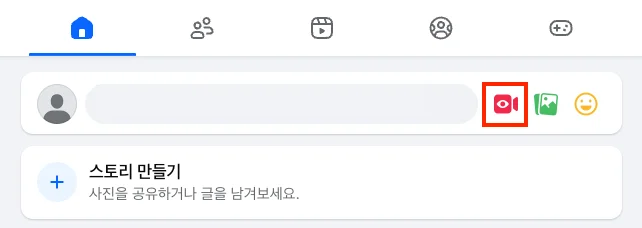
- After signing in to Facebook, click the live stream icon in the post creation area.
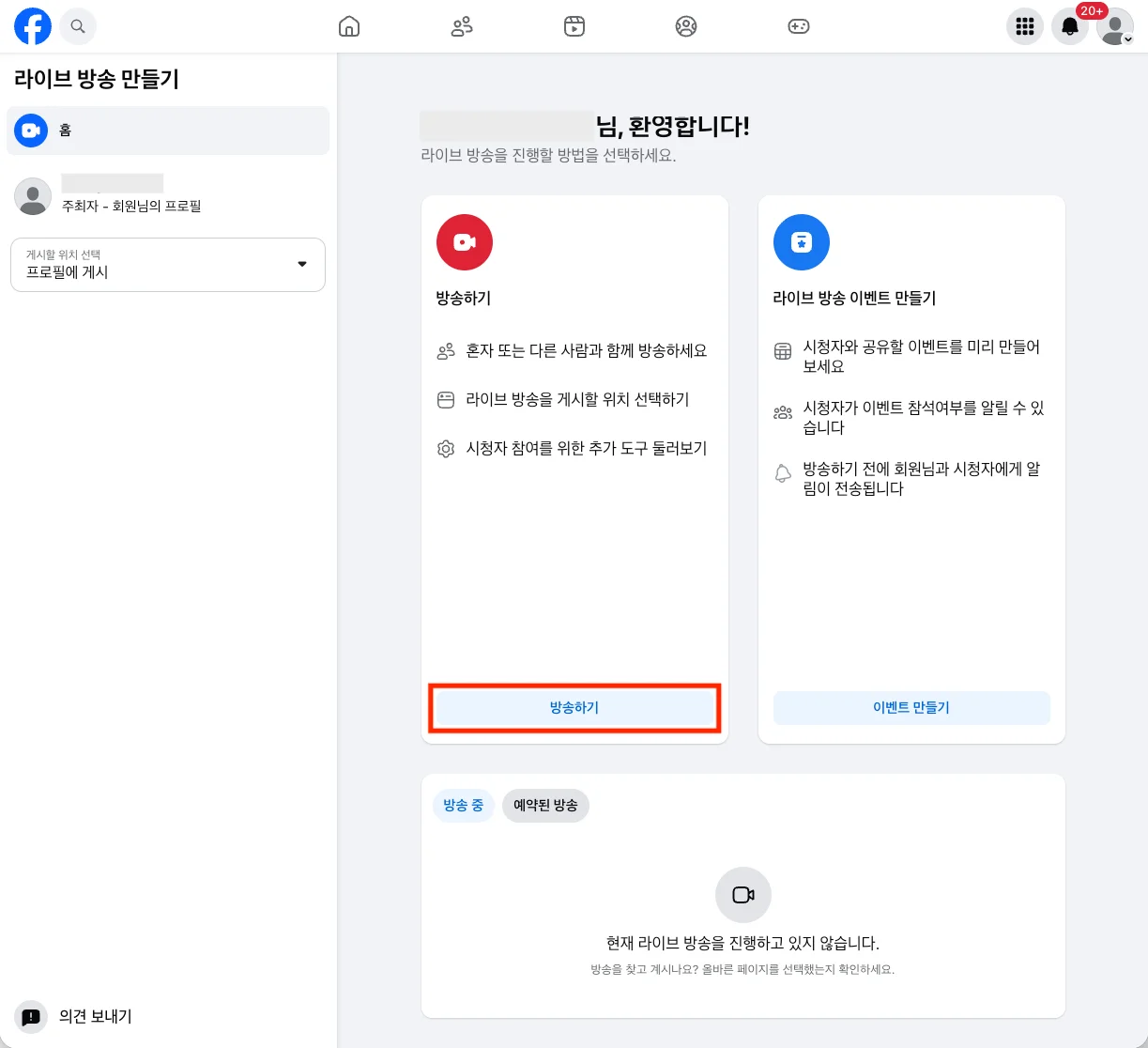
- On the Go Live page, click [Go Live].
- Under [Select video source], select [Streaming software].
Check the [Stream key] and [Server URL] information generated on the screen.
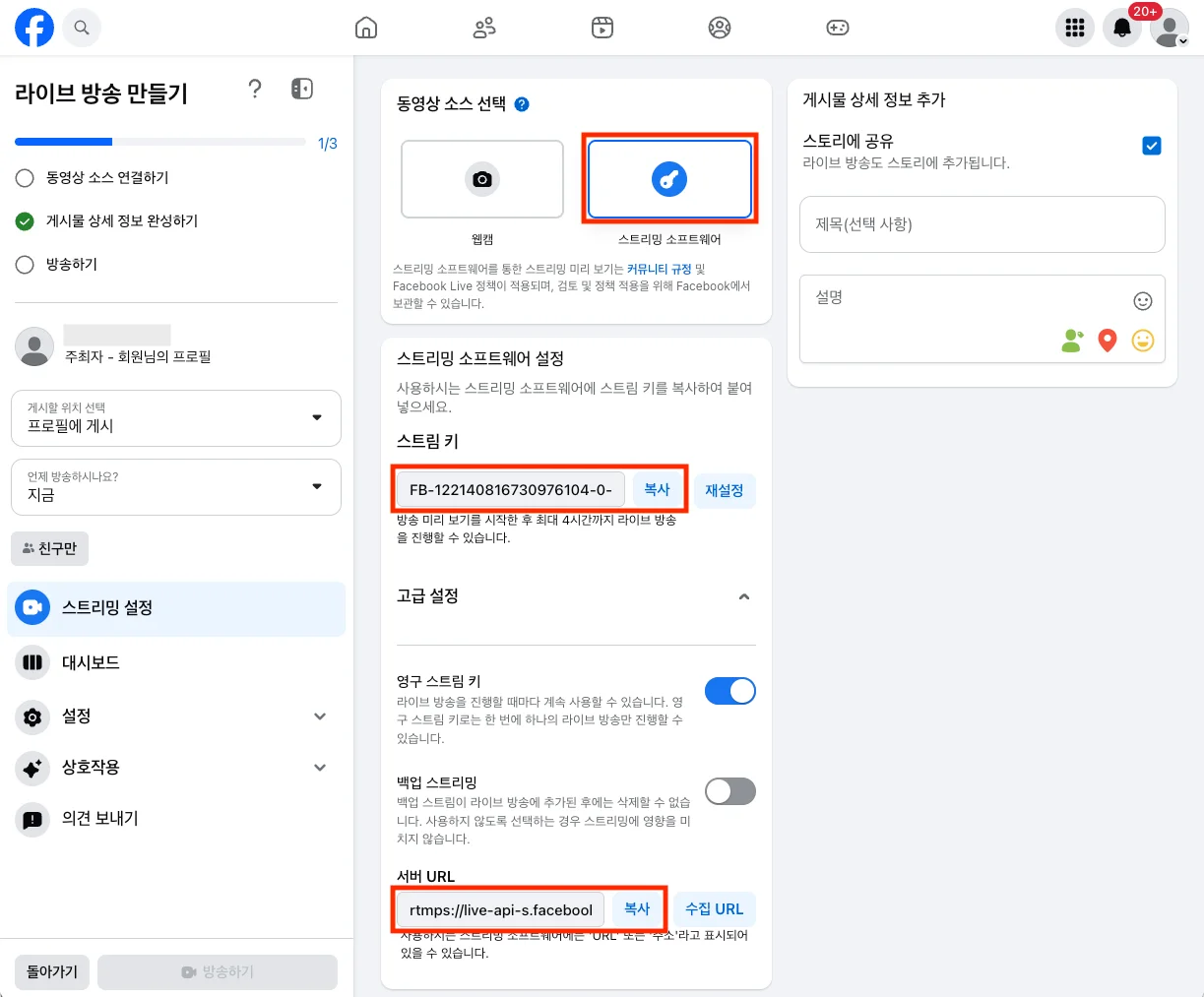
Step 2: Register in Kollus Live console
- Navigate to Kollus Live console > [Channel] > [Channel list] > Click the target channel name > [Syndication] tab, then click [Add].
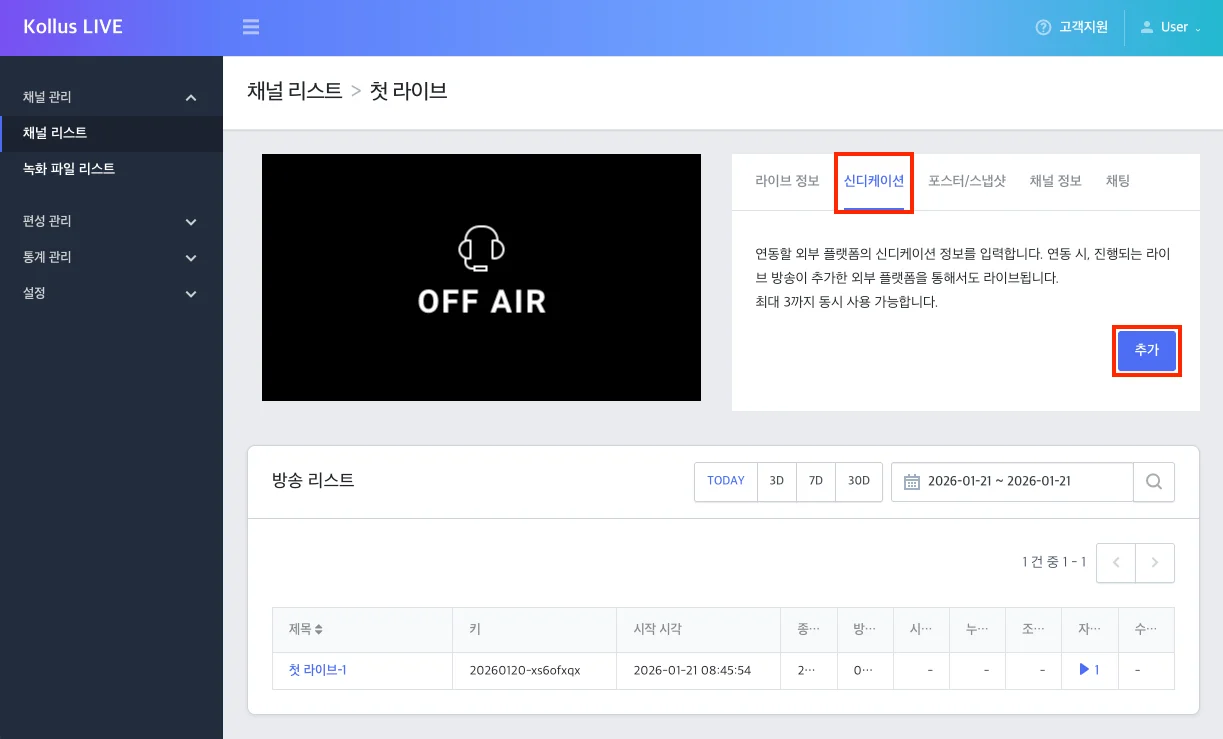
- Enter the information confirmed from Facebook according to the table below. [Enabled] must be activated for actual streaming to proceed.
Kollus Live setting item Facebook information Description Link Server URL The stream receiving URL of the external platform. Stream key Stream key The broadcast identification key provided by the external platform. 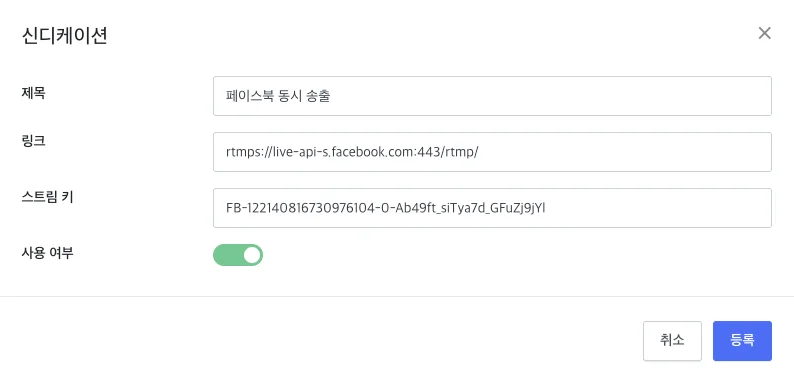
- After completing the entry, click [Register] to add the platform information to the list.
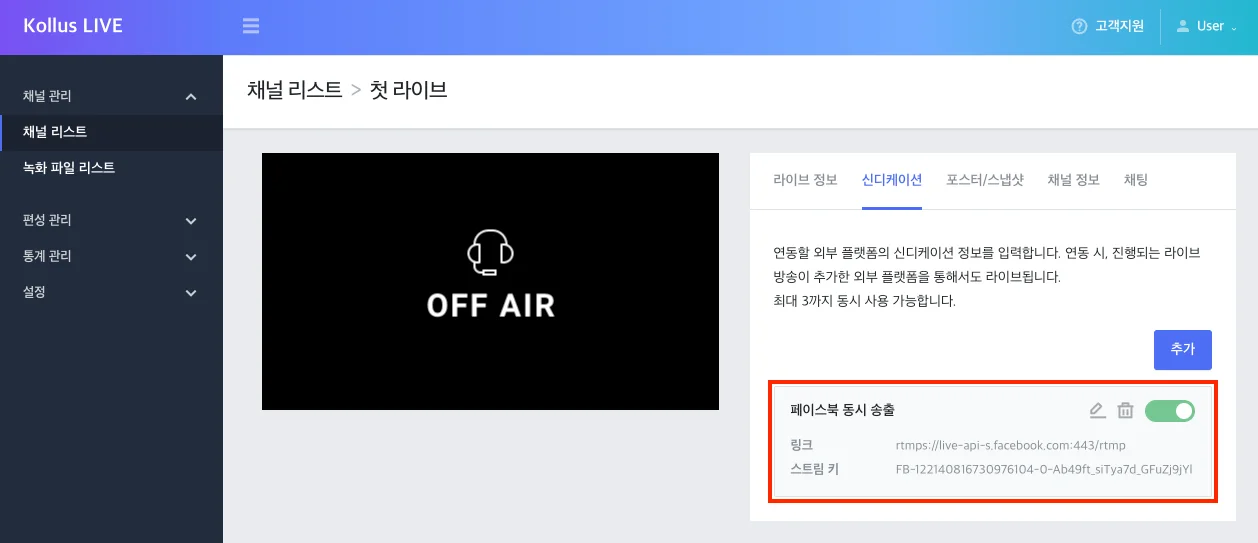
Step 3: Start broadcast and confirm streaming
- Launch the Kollus Live Encoder (Mobile App) to start live streaming.
- Return to the Facebook live stream page. When the signal from the encoder is detected, a preview will appear on the screen.
You must click [Go Live] in the lower left to actually post the broadcast to your Facebook timeline.
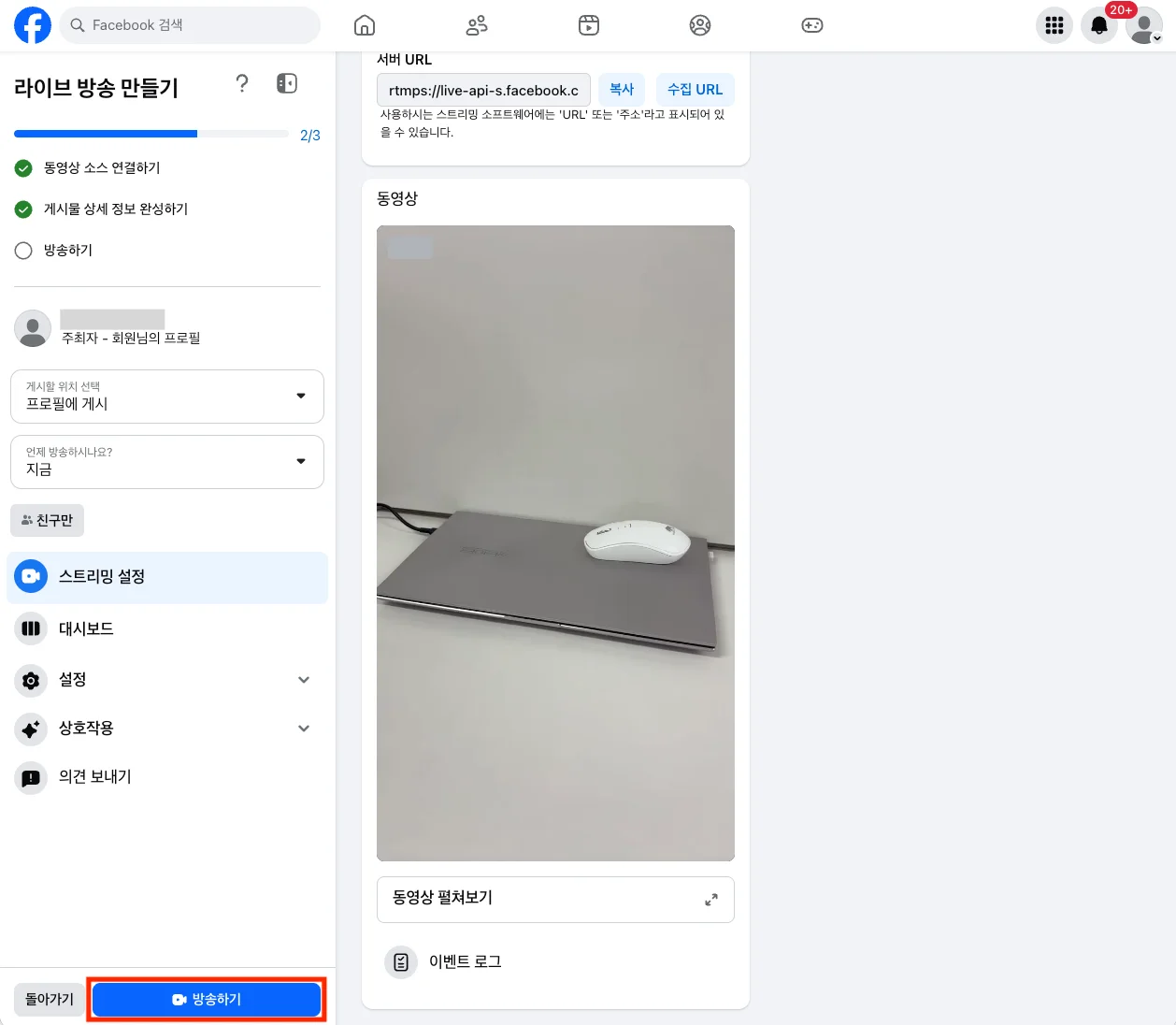
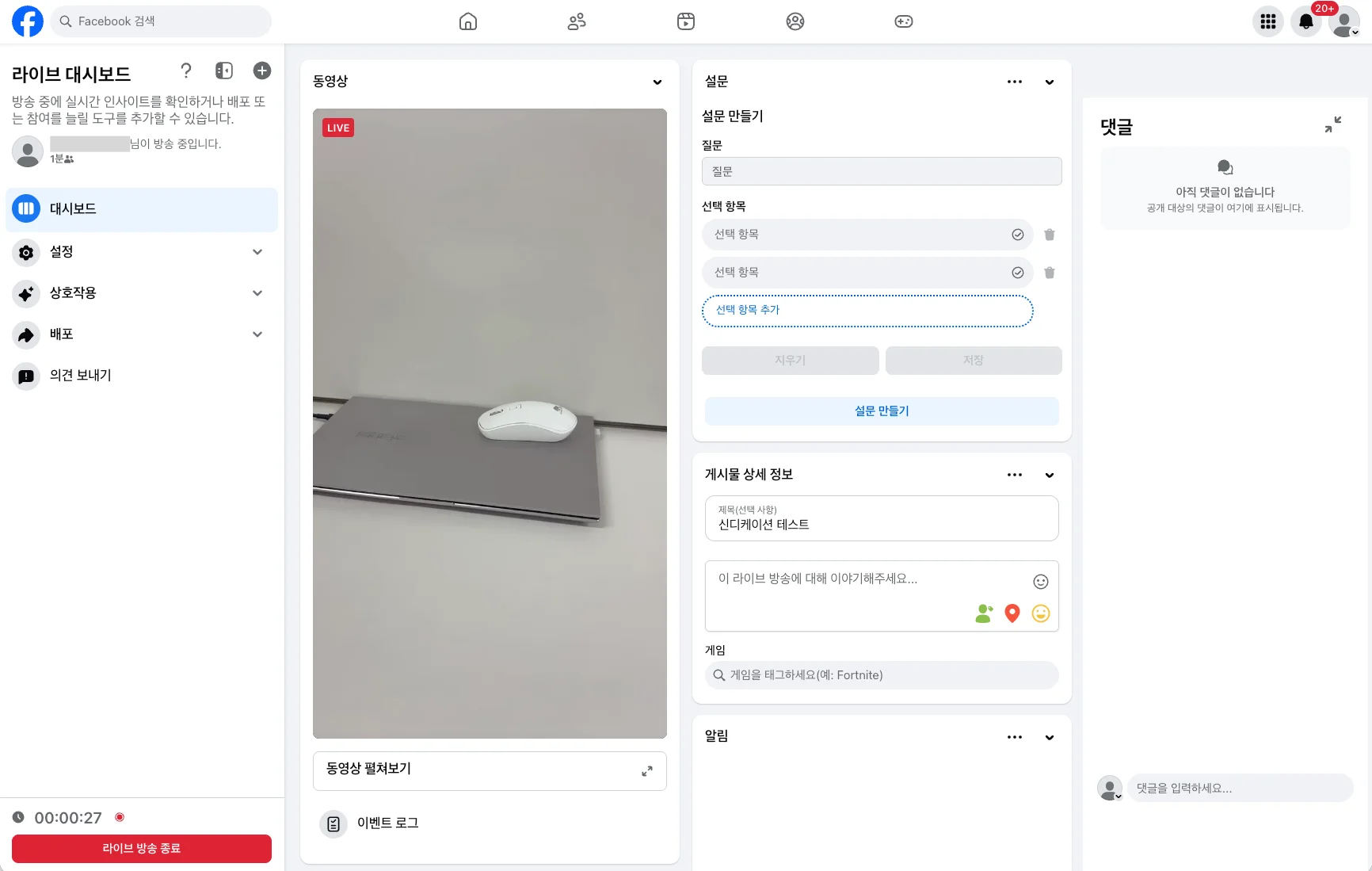
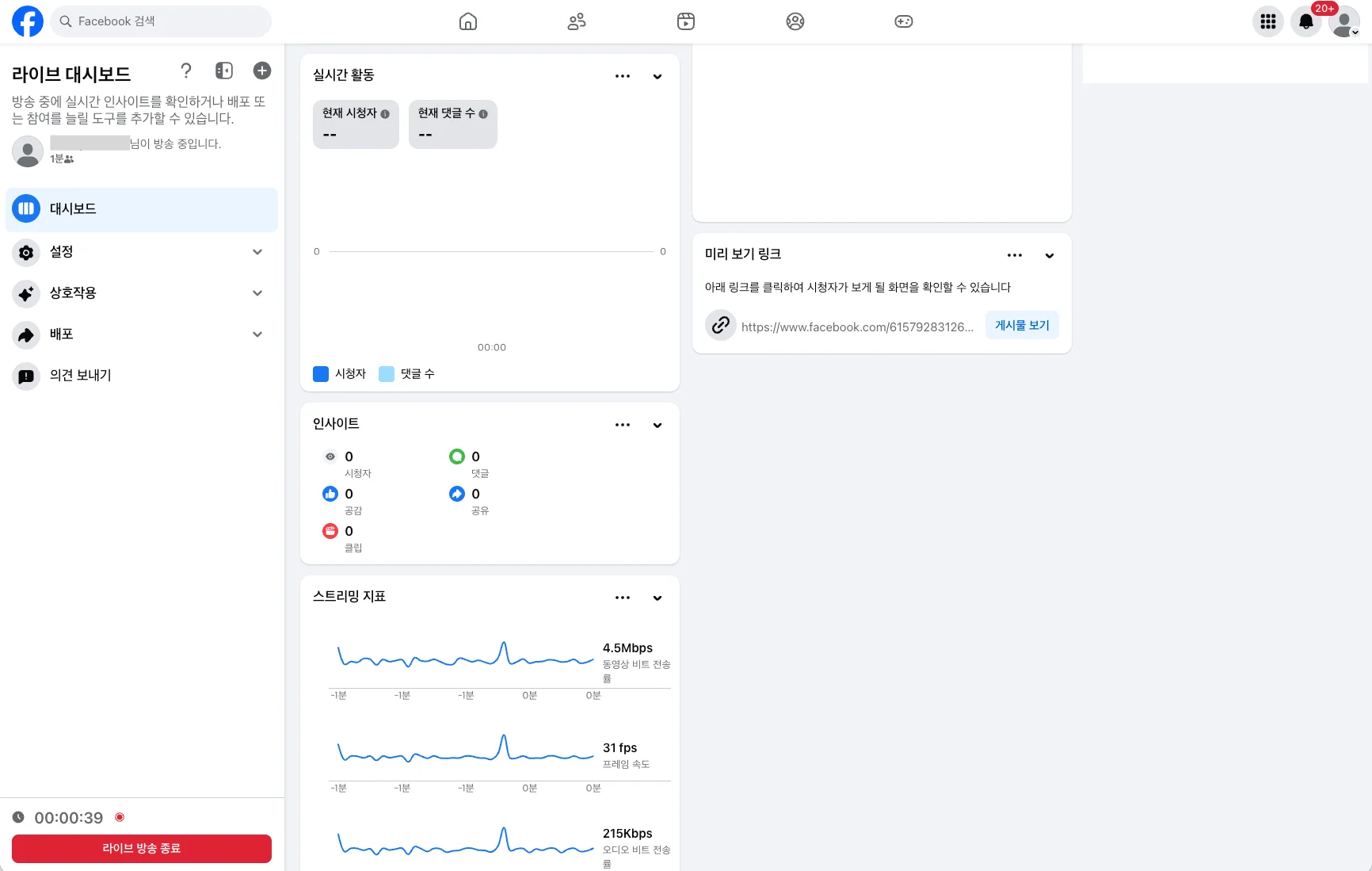
- During streaming, you can monitor real-time comments, edit broadcast information, and view viewing statistics on the Facebook dashboard.