Statistics
This document is a machine-translated draft and is currently undergoing review. Some content may be inaccurate or differ from the original Korean version. For the most precise information, refer to the Korean documentation.
- PlanStarterBasicEnterprise
- Reference time zone: All data is based on UTC (GMT +0:00).
- Search range: Data from within the last year is available, with a maximum search period of 3 months per query.
- Update timing: Data is not reflected in real time and may be delayed by up to 36 hours.
- Data download: You can extract data by clicking [Download CSV] at the top right of each menu screen.
Traffic
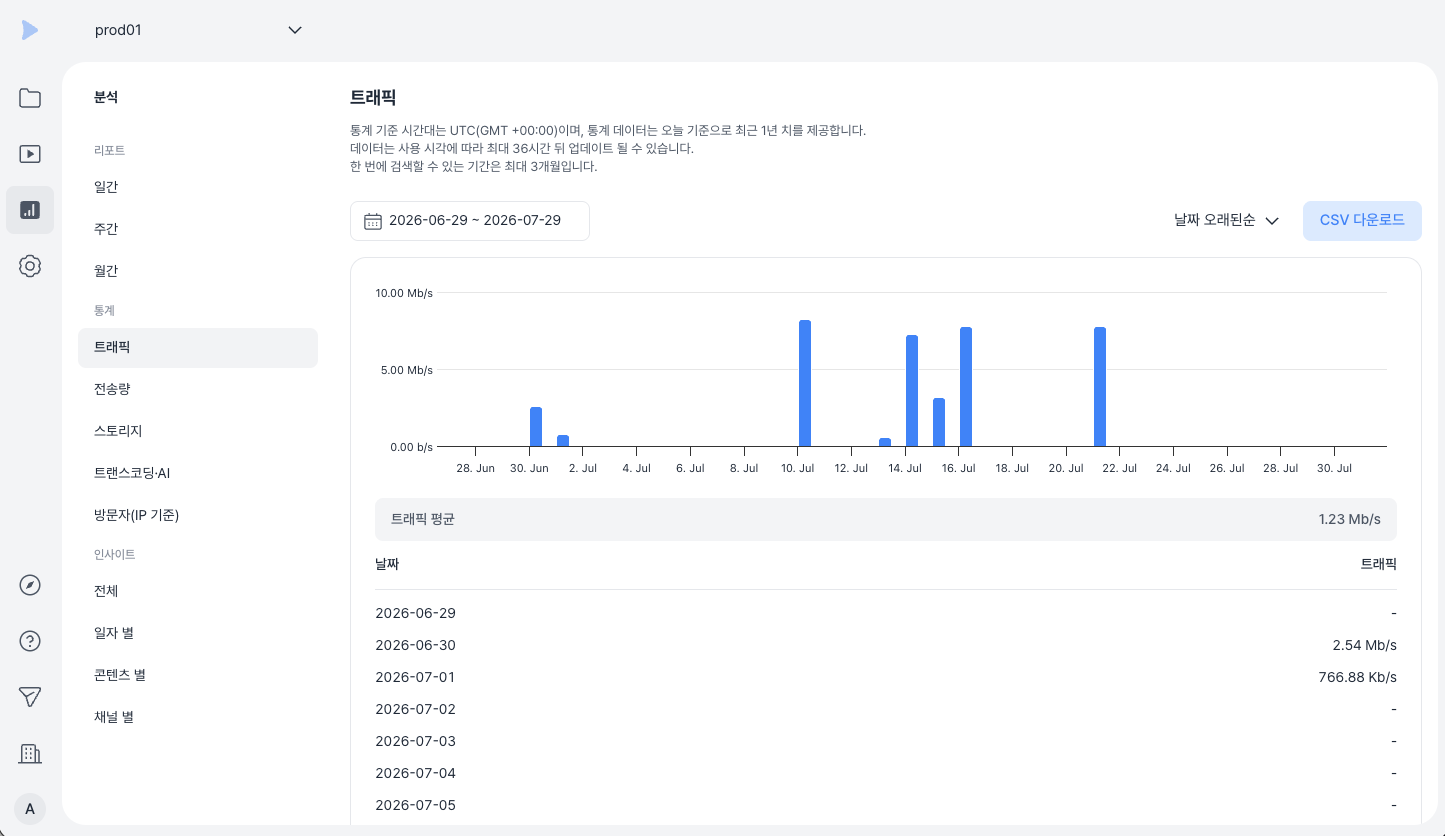
Analyzes network load metrics. Based on 5-minute average measurements, it provides a graph of the daily peak bandwidth (per second), allowing you to check network stability during peak hours.
- Where to find: Kollus VOD console > [Statistics] > [Traffic]
Data transfer
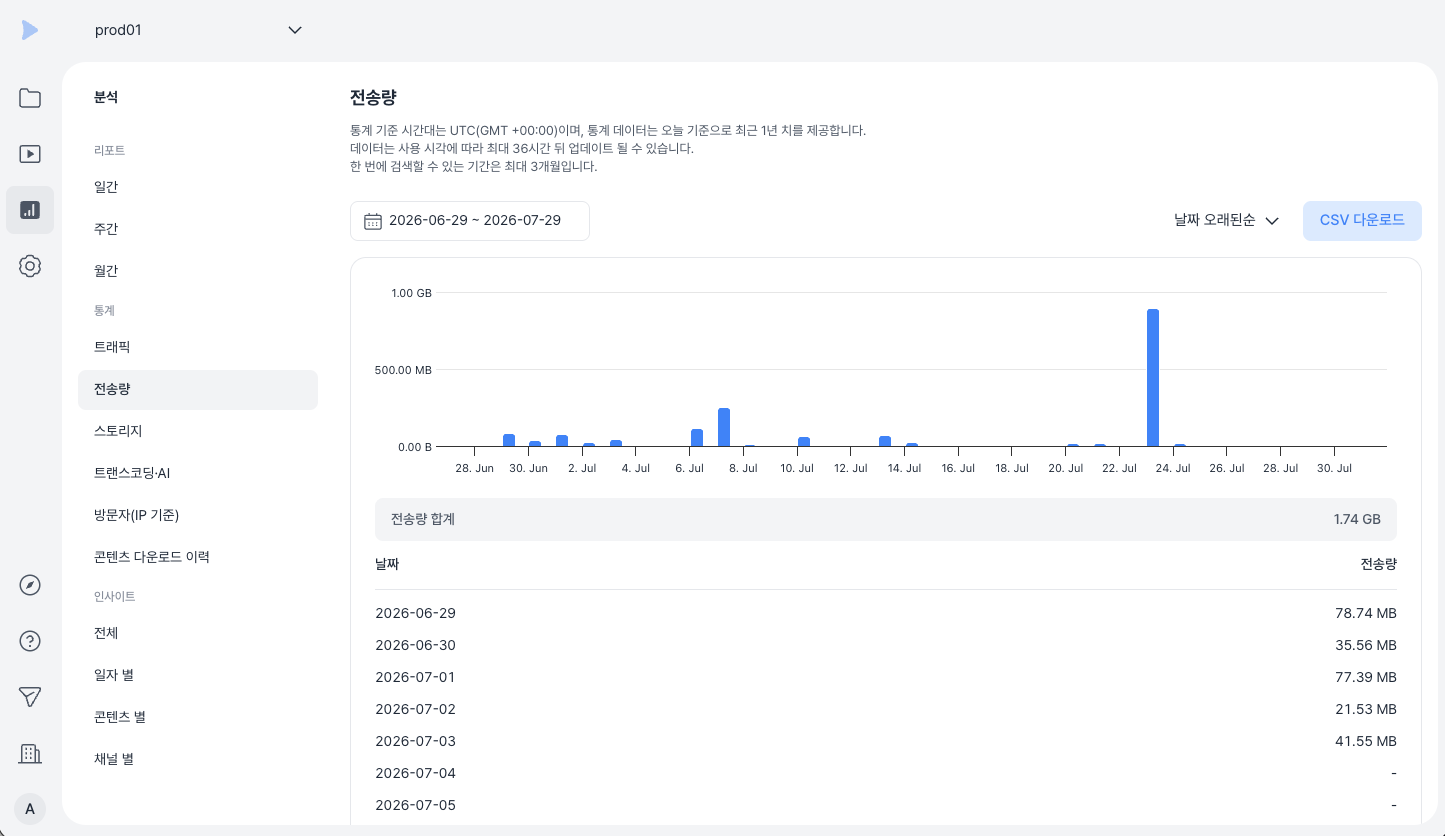
The total amount of data actually transferred to users during content playback and download. This includes not only video files but also supplementary files such as subtitles and posters.
- Where to find: Kollus VOD console > [Statistics] > [Data transfer]
- Calculation example: If 10 users complete playback/download of a 100 MB video = a total of 1,000 MB (1 GB) is recorded
Storage usage
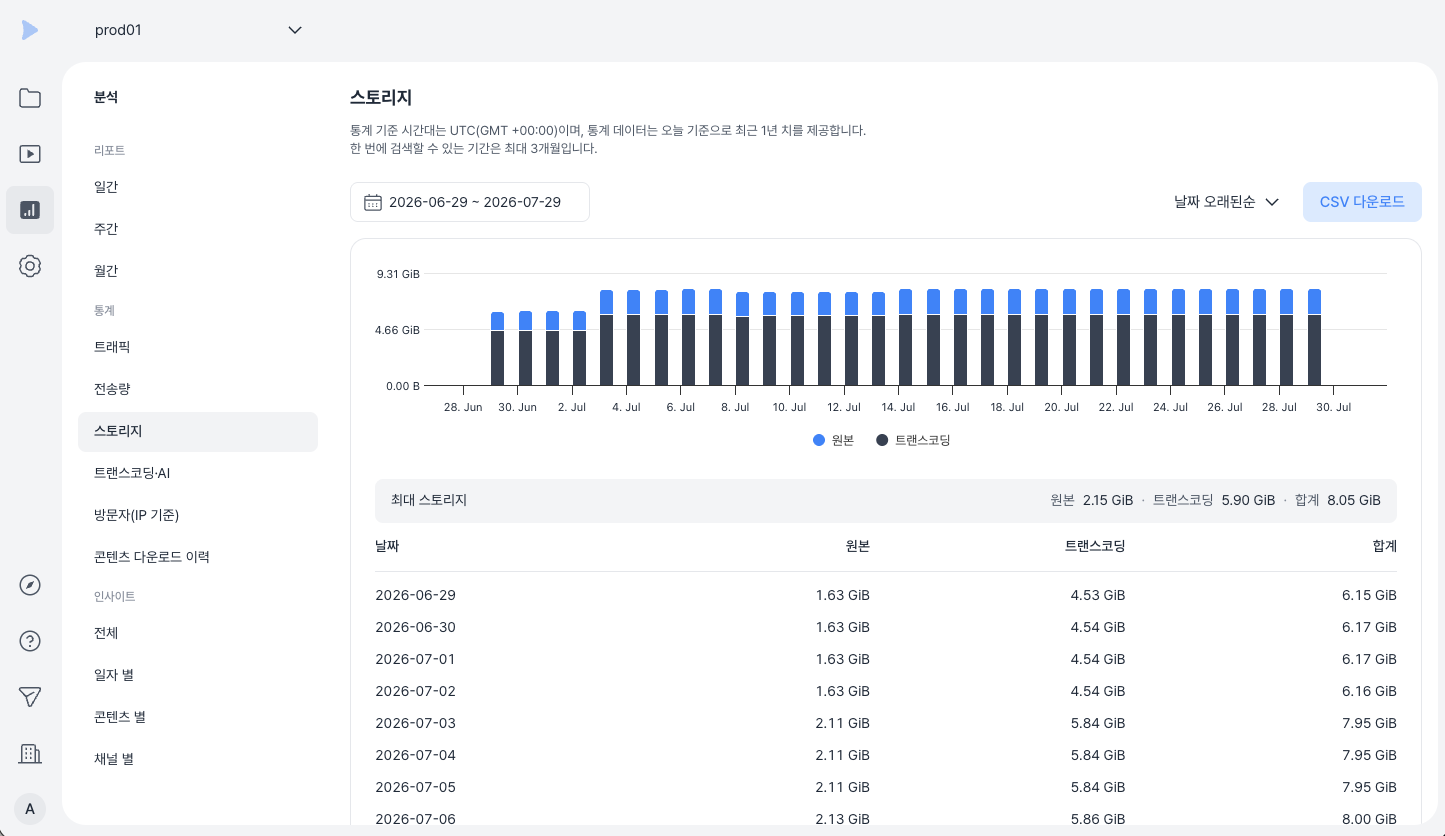
The total file capacity (original + transcoded files) currently stored in the workspace. Original file size is included only when the original file storage feature is enabled.
- Where to find: Kollus VOD console > [Statistics] > [Storage]
Transcoding and AI processing volume
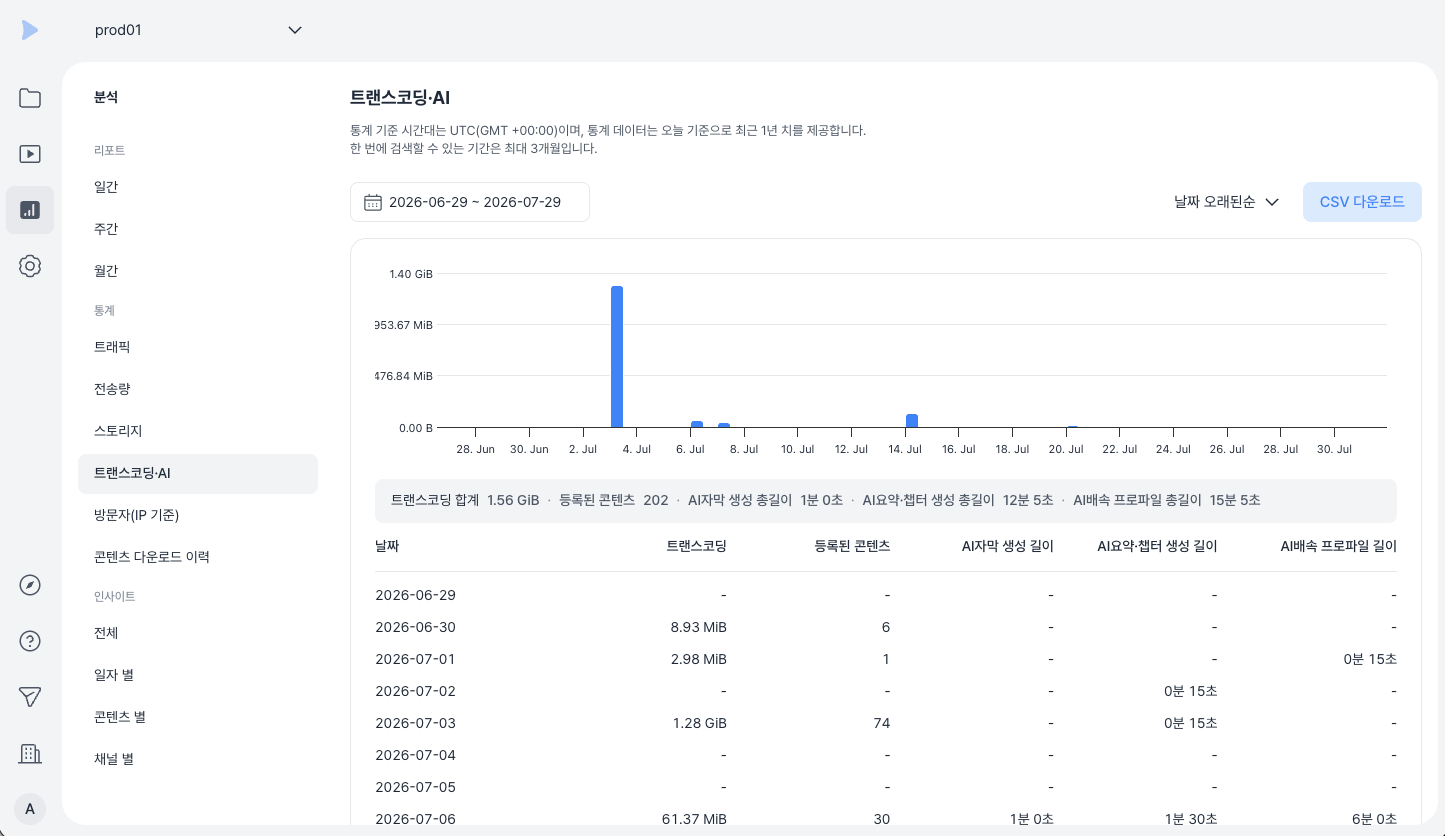
Aggregates transcoding capacity and count, as well as the duration of content used to generate AI Subtitle/AI Summary/AI Speed. This helps you understand infrastructure resource usage and work efficiency.
- Where to find: Kollus VOD console > [Statistics] > [Transcoding and AI]
Number of visitors
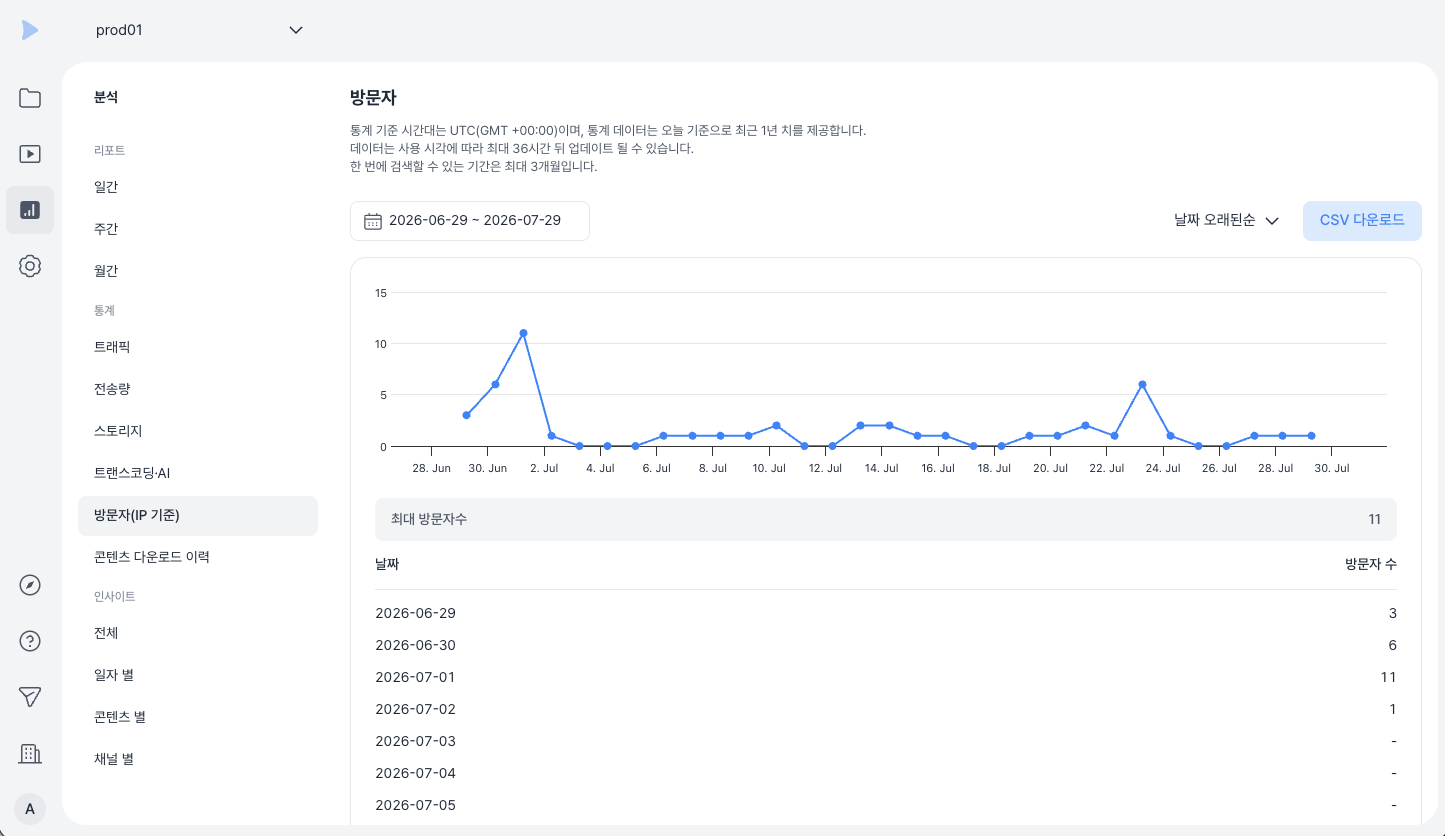
The number of unique visitors based on IP address. Even when multiple devices connect within the same network (NAT) environment, they are counted as a single visitor, allowing you to identify the actual number of users.
- Where to find: Kollus VOD console > [Statistics] > [Visitors(by IP)]
Content download history
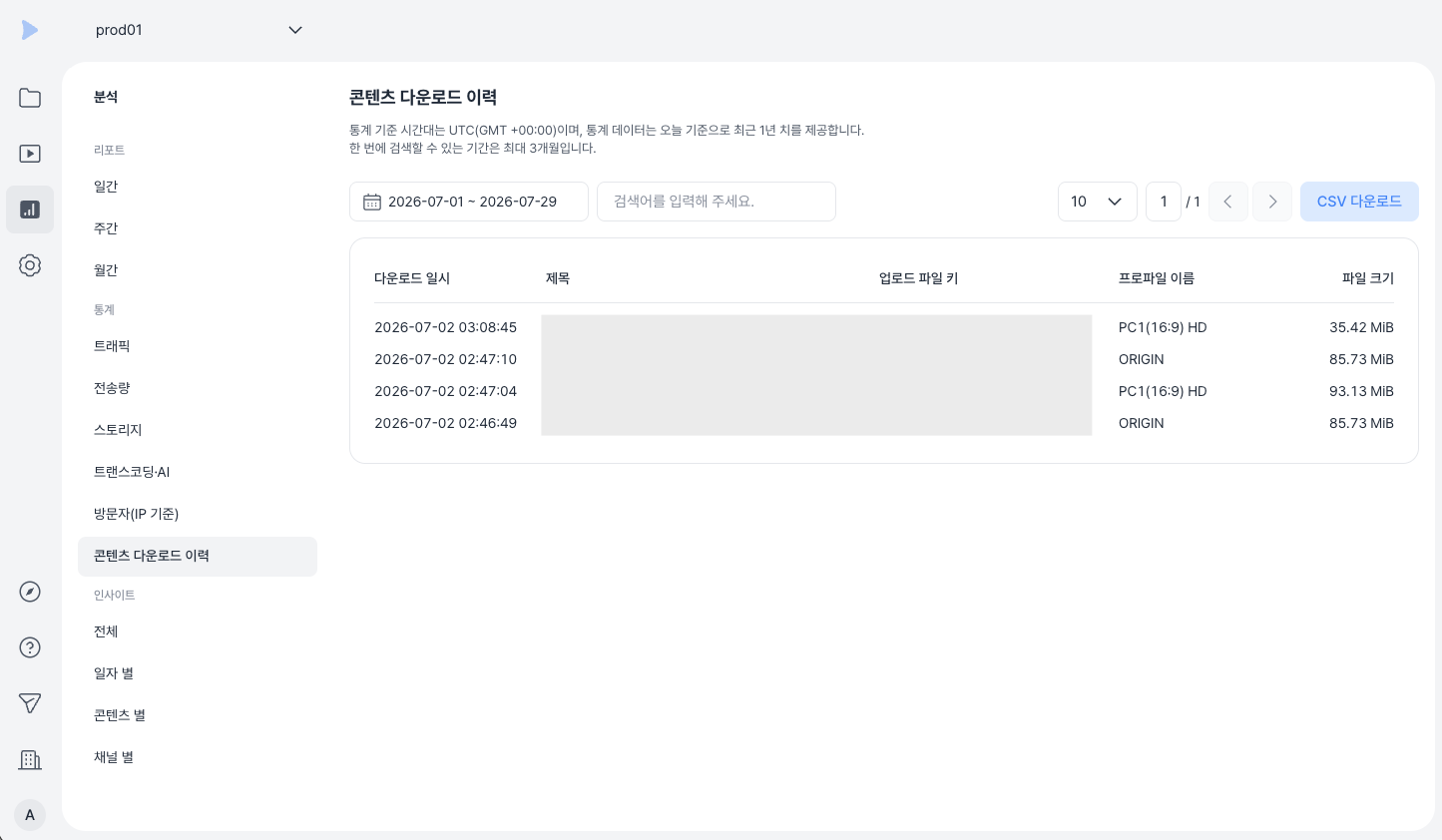
A detailed log generated when the original file or transcoded file download feature is enabled. You can check the download date and time, content title, upload file key, file size, and applied profile information.
- Where to find: Kollus VOD console > [Statistics] > [Content download history]