Force Player Assignment
This document is a machine-translated draft and is currently undergoing review. Some content may be inaccurate or differ from the original Korean version. For the most precise information, refer to the Korean documentation.
- PlanEnterprise
Controls all content within a specific channel to play only in a pre-assigned player environment. This setting allows you to force the Kollus secure player to run even for standard(unencrypted) content, preventing content leakage such as through capture prevention.
This setting is applied at the channel level and is applied collectively to all content within the channel.
Force player assignment has a direct impact on service availability and security level. Before changing this setting, please contact Technical Support (tech_support@kollus.com) or your Account Manager.
Player assignment options
- Auto detect: Automatically selects the optimal player based on content encryption status and the user's access environment (operating system, browser).
- HTML5 Player for PC: Prioritizes running the HTML5-based web player regardless of encryption status. When playing on macOS, App Player for macOS may run depending on the viewer's environment.
- App Player for Mobile: Requires installation and execution of the Kollus Player app for mobile access. (Playback is not available on PC.)
How to assign a player
- In the Kollus VOD console, click [Channel] > [More (⋮)] to the right of the target channel > [Player settings].
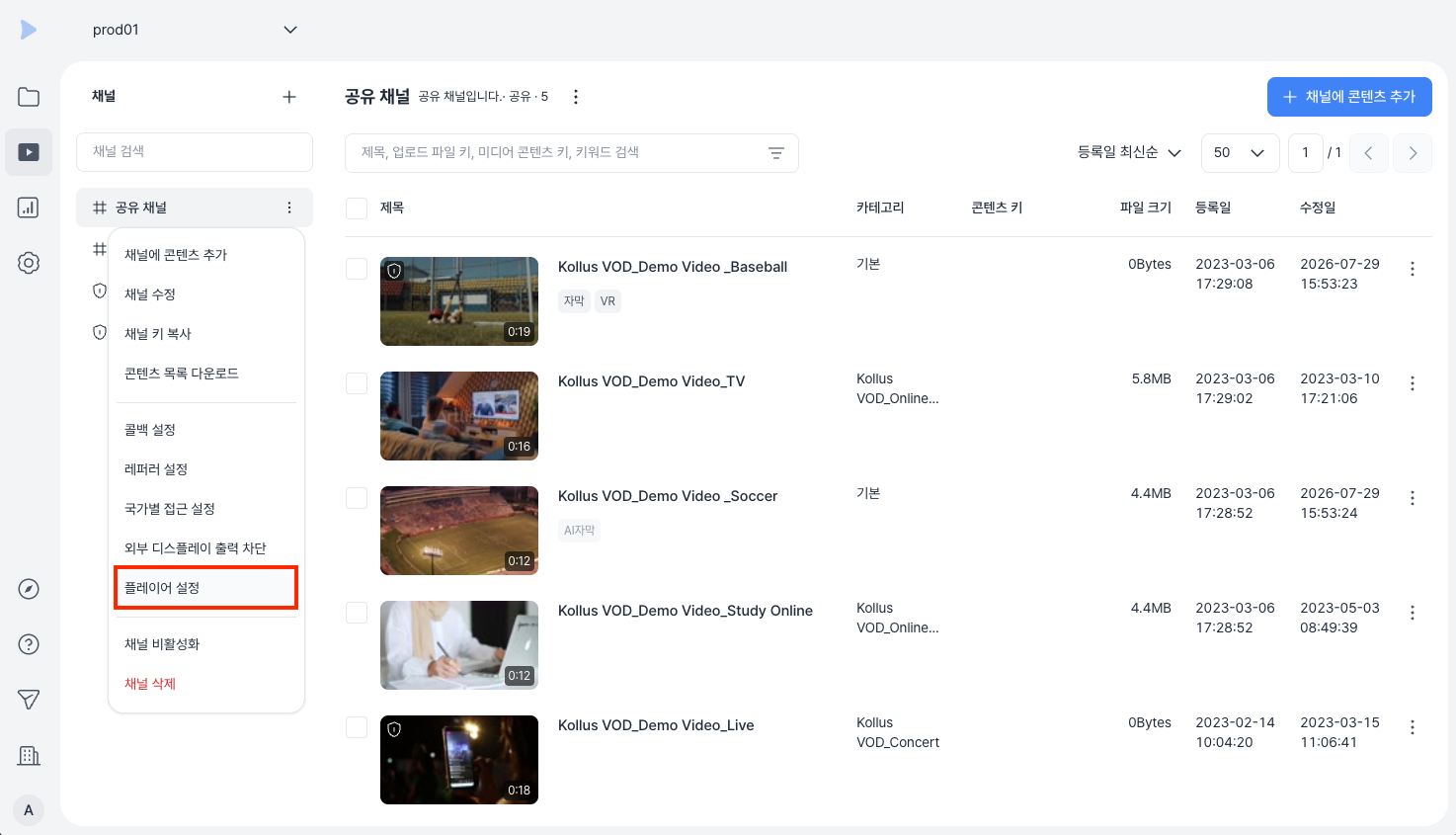
- Select the desired option under [Force player assignment], then click [Save].