Auto-play Next Episode
Notice
This document is a machine-translated draft and is currently undergoing review. Some content may be inaccurate or differ from the original Korean version. For the most precise information, refer to the Korean documentation.
- PlanEnterprise
Next episode playback is a convenience feature that displays the [Next Episode] button before the current video ends when watching a series, allowing viewers to continue their viewing flow seamlessly.
- Maintain viewing continuity: You can switch to the next episode immediately without a separate search.
- Auto-play support: Depending on the player settings, this provides an environment where the next episode automatically plays without needing to click the button.
⚠️ Cases where the feature is not supported
- Video composition: Videos that include an intro or outro disrupt the continuous playback flow, so their use is not recommended.
- Security environment: If the next episode is encrypted content while using Kollus HTML5 Player for All, continuous playback is not possible. In this case, a secure player such as Kollus HTML5 Player for PC is called instead, and the UI, including the player skin, may differ.
- Service type: Live streaming is not supported because its end time and sequence are not fixed.
- Offline playback: Downloaded content cannot integrate with server callbacks, so this feature is only available in a streaming environment.
Next episode playback settings (Customer)
Operational policy
The customer must define the video content's exposure timing and whether the series has concluded, as follows.
- Apply per channel: The feature can be applied in bulk to all content within a specific channel.
- Control exposure timing: Configure when the [Next Episode] button will be displayed. The button remains visible from the configured time until the video ends.
- Handle series conclusion: For the last episode, you must control the JWT(JSON Web Token) Payload so that the button is not displayed. The system determines whether there is a next episode based on the information in the JWT.
How to configure next episode settings
To ensure the next episode feature operates correctly, you must complete the following two procedures.
- Register callback URL: Configure the callback address in the Kollus VOD console to retrieve information about the next video.
- Learn more: Callback Integration - next episode callback
- Configure JWT Payload: Include the
"next_episode": trueparameter in the player call token(JWT). If it is the last episode, set this value tofalseto disable the feature.- Learn more: Basic options
Enable auto-play feature (User)
User usage scenario
The behavior varies depending on whether the user has enabled auto-play, as follows.
| Category | Auto-play disabled | Auto-play enabled |
|---|---|---|
| Behavior | The user must click the button to switch when it appears | Switches immediately without any action when the video ends |
| Ending point | If the button is not clicked, playback stops after the video ends | Continues playing through to the last video in the series, then ends |
| Recommended for | Movies, standalone lectures | Short clips, consecutive lectures |
How to enable
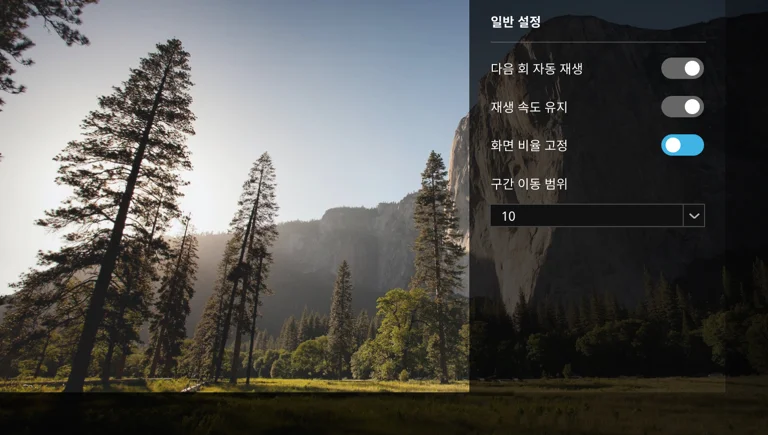
- Player settings: [Settings (gear icon)] > [Auto-play next episode]
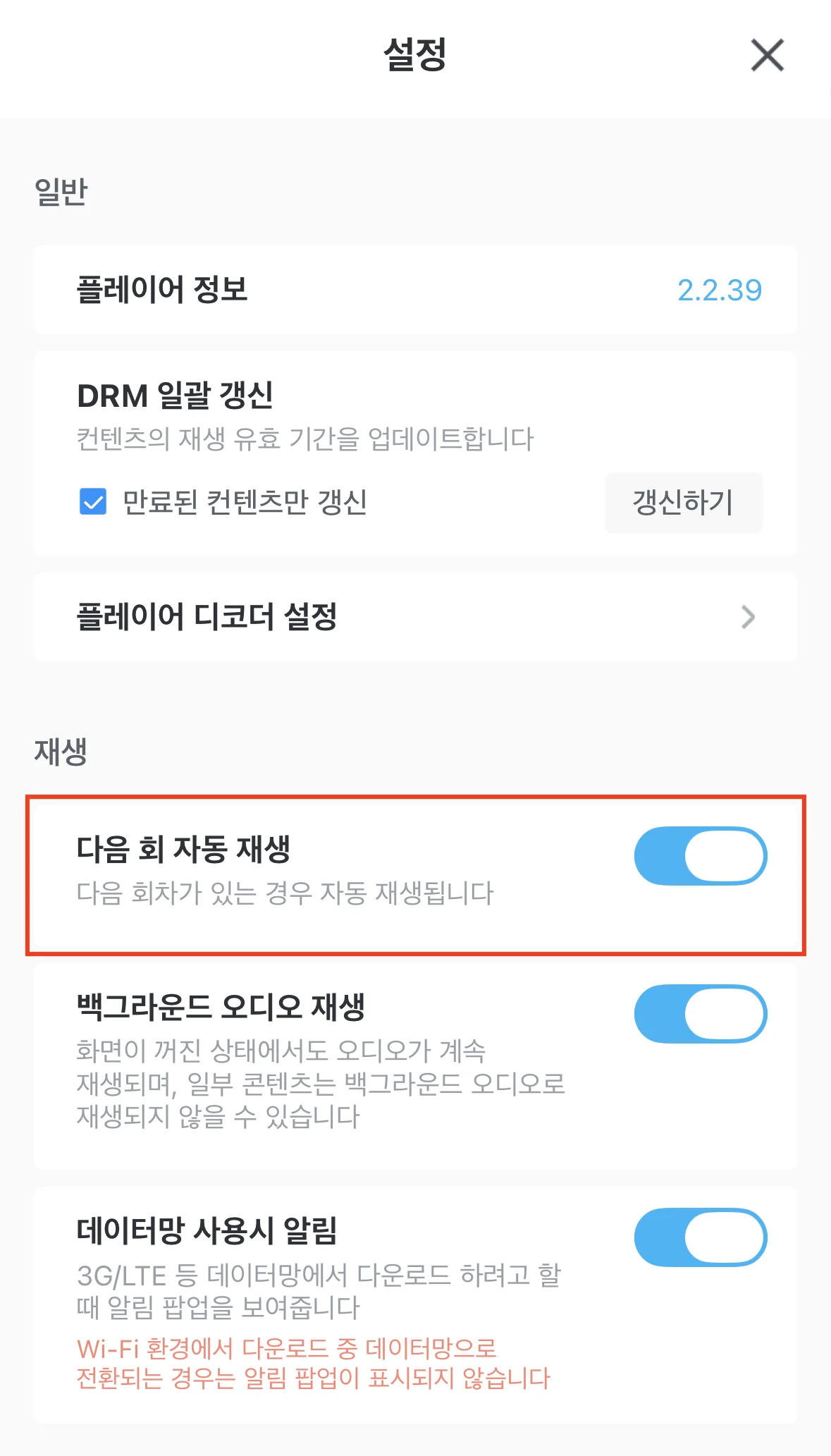
- Kollus Player app settings: [Settings (gear icon)] > [Auto-play next episode]
[Next Episode] button behavior by situation
- Mobile lock screen: Even if the mobile device is locked, the button appears on screen once the display time is reached, allowing immediate switching.
- When loop section is set: To protect the viewing flow, the button is not displayed while the loop section is set.
- Subtitle layout interference: If subtitles are long or sub subtitles are used, they may overlap with the button, so the display timing must be set carefully.

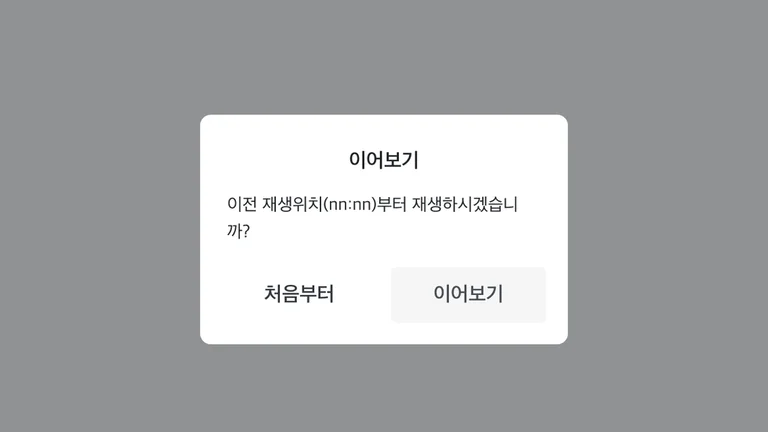
- Resume playback popup: If the video moved to for the next episode has viewing history, the resume playback popup is displayed first.
- [Restart]: Plays from the start of the video (00:00).
- [Resume]: Resumes playback from the last viewed point.