UI & Shortcuts
Notice
This document is a machine-translated draft and is currently undergoing review. Some content may be inaccurate or differ from the original Korean version. For the most precise information, refer to the Korean documentation.
- PlanEnterprise
Player UI configuration
PC environment
Web Player
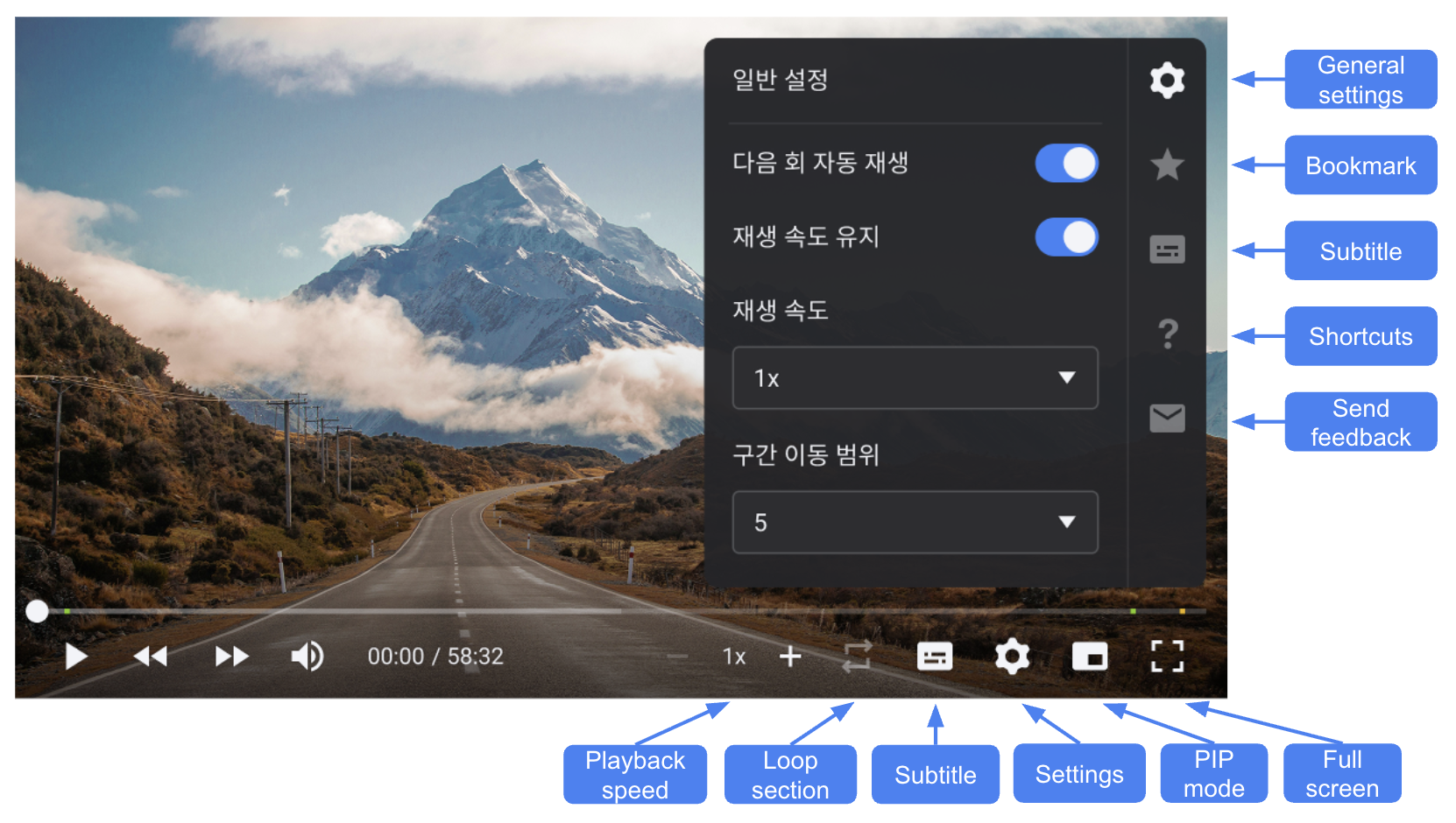
- Playback speed: Adjustable from 0.5x up to a maximum of 2x
- Loop section: Specify the start and end points of a specific section to repeat playback of that section
- Subtitle: Enable/disable subtitles
- Settings
- General settings: Enable/disable auto-play next episode, adjust playback speed, set seek interval type
- Bookmark: View, edit, and delete bookmarks (See also: Bookmark settings)
- All bookmarks: All bookmarks
- Official bookmarks: Bookmarks set by the customer (operator)
- My bookmarks: Bookmarks for individual users
- Subtitle: Enable/disable subtitles, select subtitle, set subtitle size
- Shortcuts: View the list of available shortcuts
- Send feedback: Link to the Kollus Player satisfaction survey page
- PIP mode: Displays a small window at the bottom of the screen to support multitasking
- Full screen: Switch to full screen mode
HTML5 Player for PC
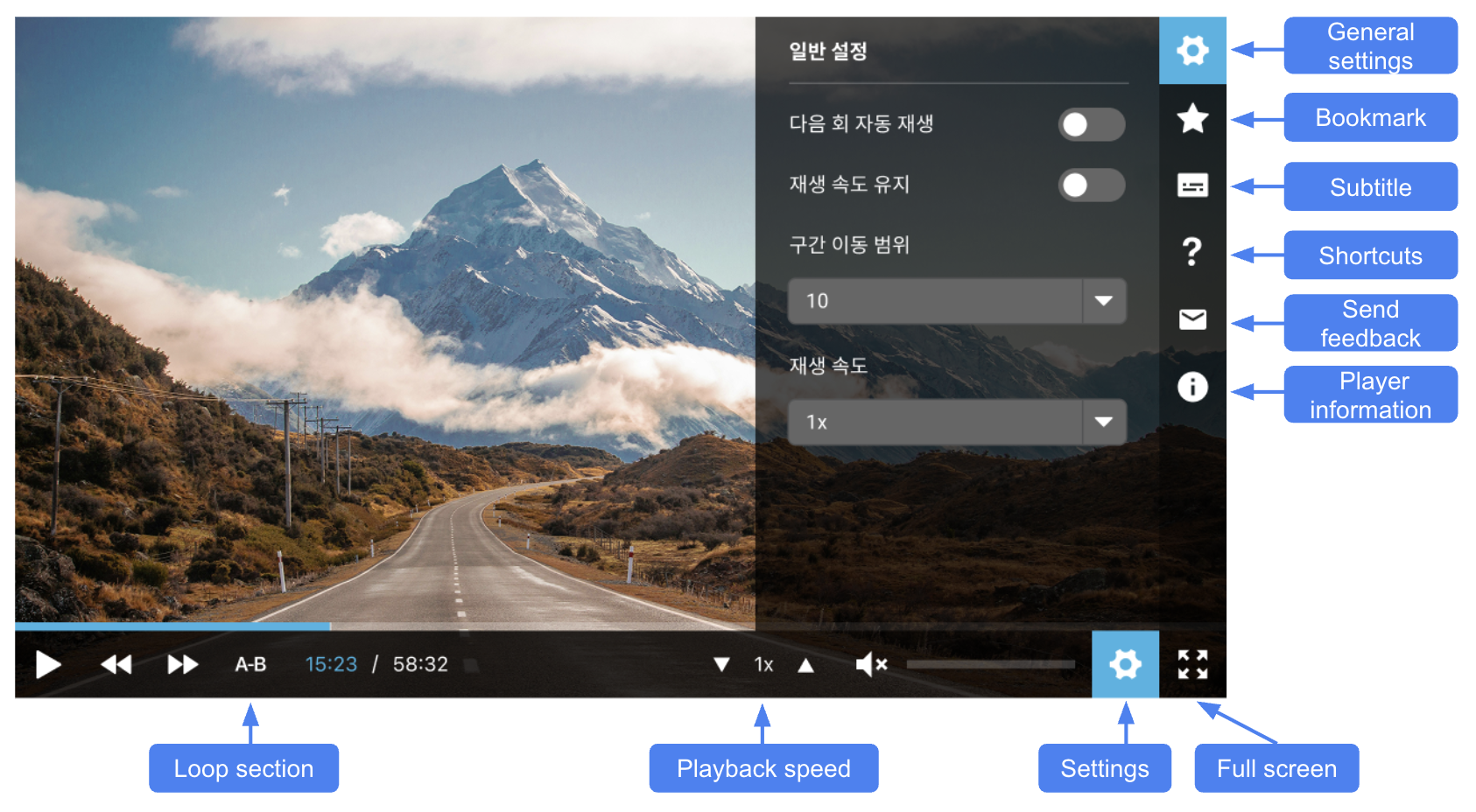
- Loop section: Specify the start and end points of a specific section to repeat playback of that section
- Playback speed: Adjustable from 0.5x up to a maximum of 2x
- Settings
- General settings: Enable/disable auto-play next episode, adjust playback speed, set seek interval type
- Bookmark: View, edit, and delete bookmarks (See also: Bookmark settings)
- Subtitle: Enable/disable subtitles, select subtitle, set subtitle size
- Shortcuts: View the list of available shortcuts
- Send feedback: Link to the Kollus Player satisfaction survey page
- Player information: Check technical information such as agent information and player ID
- Full screen: Switch to full screen mode
HTML5 Player for All - PC
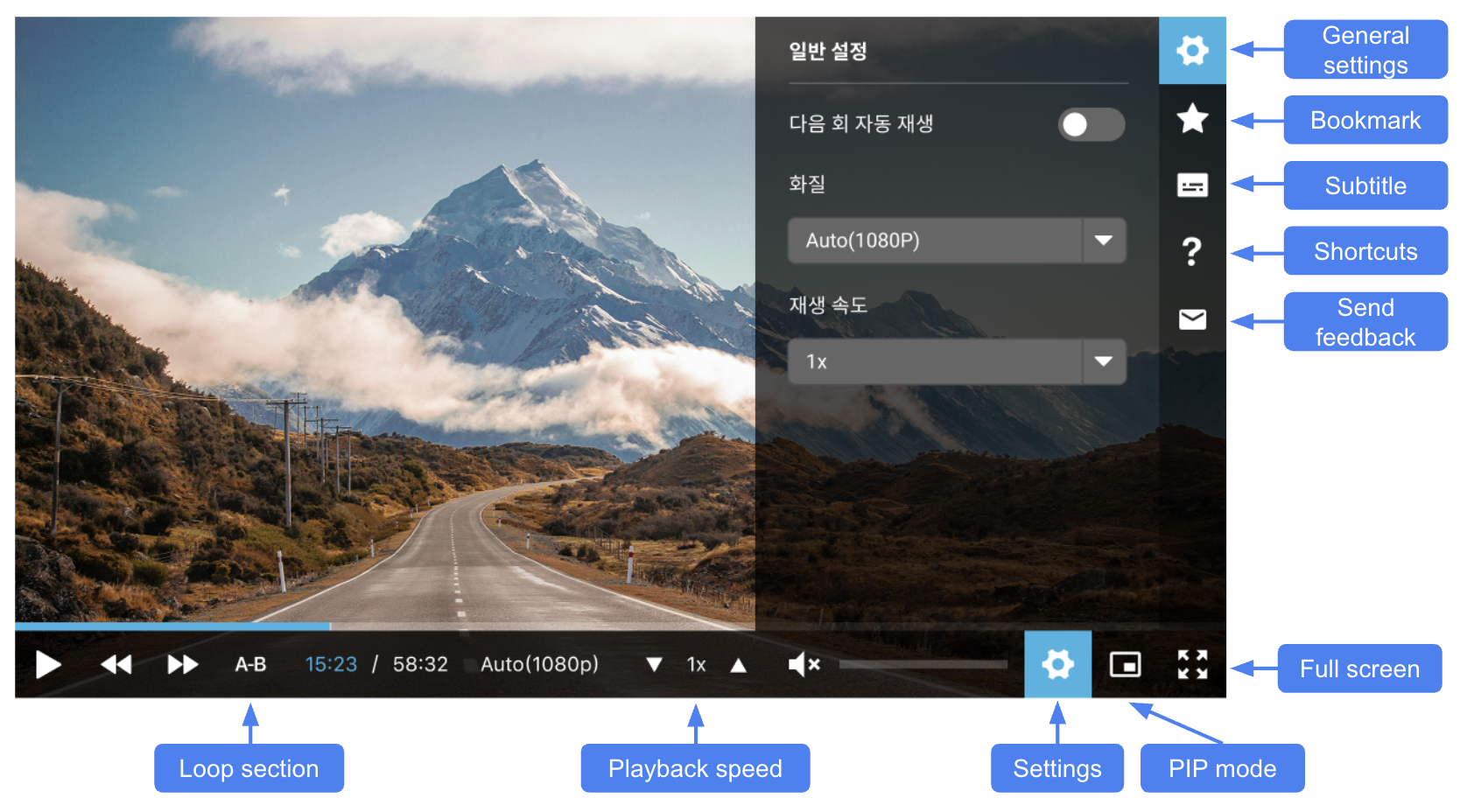
- Loop section: Specify the start and end points of a specific section to repeat playback of that section
- Playback speed: Adjustable from 0.5x up to a maximum of 2x
- Settings
- General settings: Enable/disable auto-play next episode, video quality settings, adjust playback speed
- Bookmark: View, edit, and delete bookmarks (See also: Bookmark settings)
- Subtitle: Enable/disable subtitles, select subtitle, set subtitle size
- Shortcuts: View the list of available shortcuts
- Send feedback: Link to the Kollus Player satisfaction survey page
- PIP mode: Displays a small window at the bottom of the screen to support multitasking
- Full screen: Switch to full screen mode
App Player for Windows
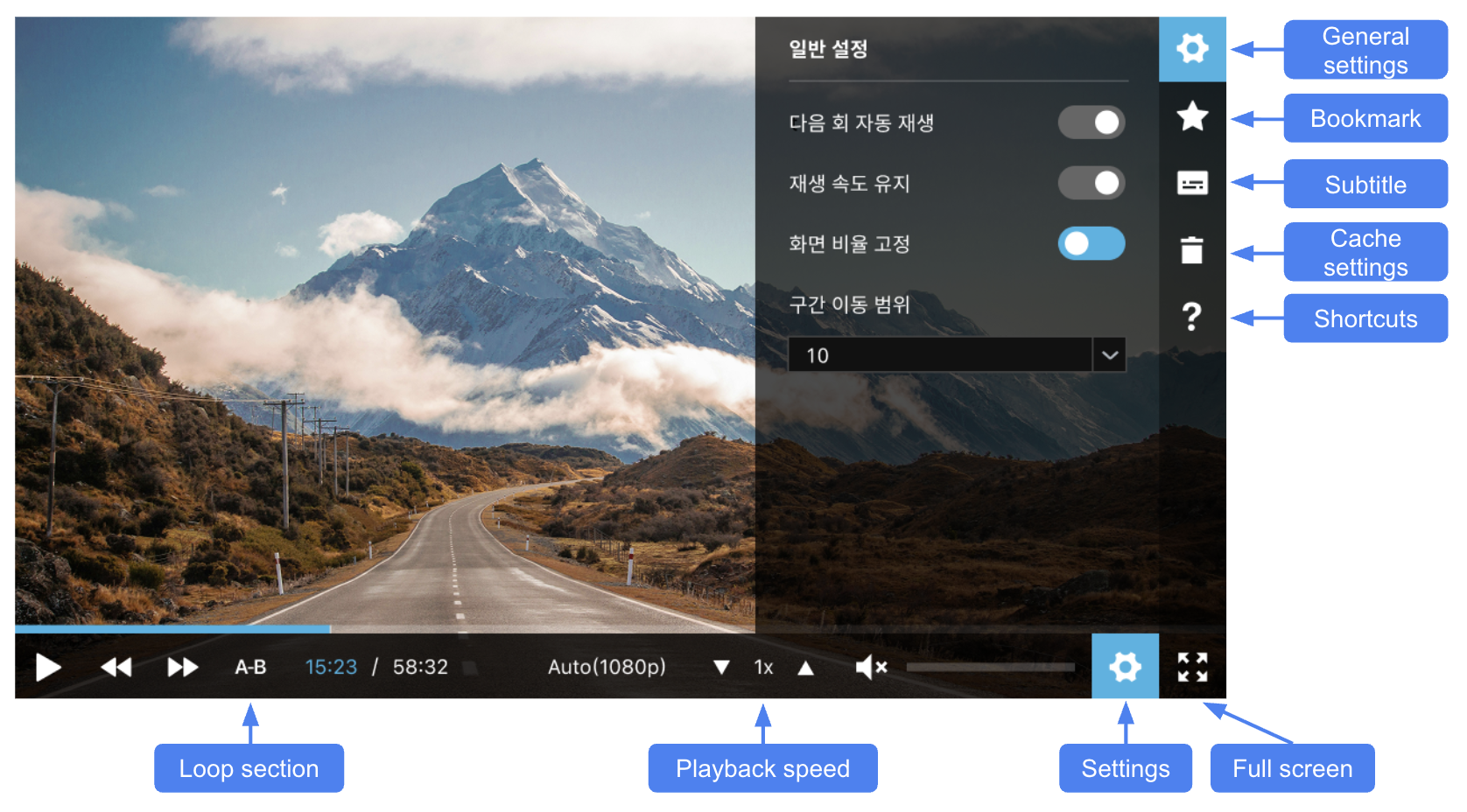
- Loop section: Specify the start and end points of a specific section to repeat playback of that section
- Playback speed: Adjustable from 0.5x up to a maximum of 2x
- Settings
- General settings: Enable/disable auto-play next episode, video quality settings, adjust playback speed
- Bookmark: View, edit, and delete bookmarks (See also: Bookmark settings)
- Subtitle: Enable/disable subtitles, select subtitle, set subtitle size
- Cache settings: Limit storage capacity for downloads
- Shortcuts: View the list of available shortcuts
- Full screen: Switch to full screen mode
App Player for macOS
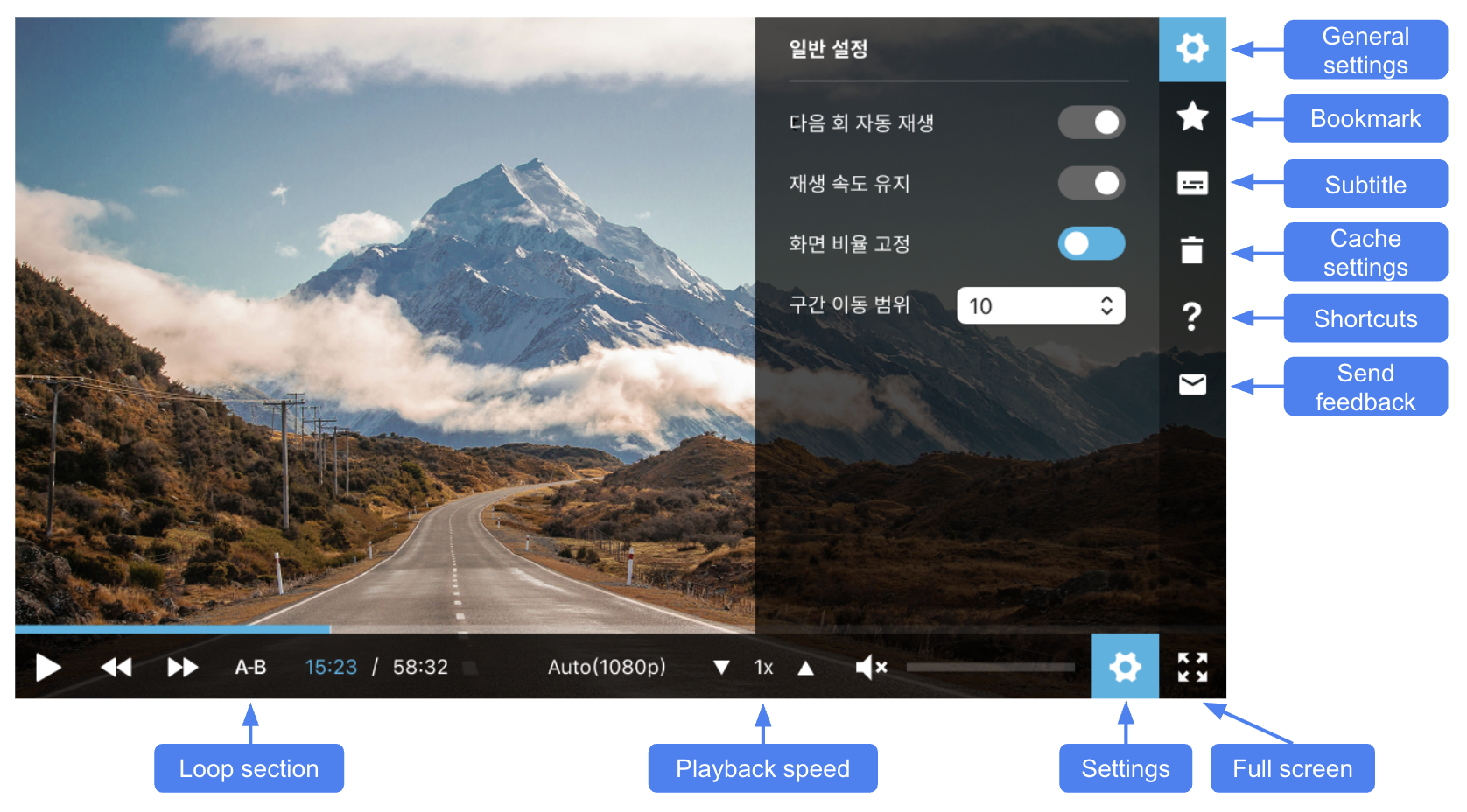
- Loop section: Specify the start and end points of a specific section to repeat playback of that section
- Playback speed: Adjustable from 0.5x up to a maximum of 2x
- Settings
- General settings: Enable/disable auto-play next episode, video quality settings, adjust playback speed
- Bookmark: View, edit, and delete bookmarks (See also: Bookmark settings)
- Subtitle: Enable/disable subtitles, select subtitle, set subtitle size
- Cache settings: Limit storage capacity for downloads
- Shortcuts: View the list of available shortcuts
- Send feedback: Link to the Kollus Player satisfaction survey page
- Full screen: Switch to full screen mode
Mobile environment
HTML5 Player for All - Mobile
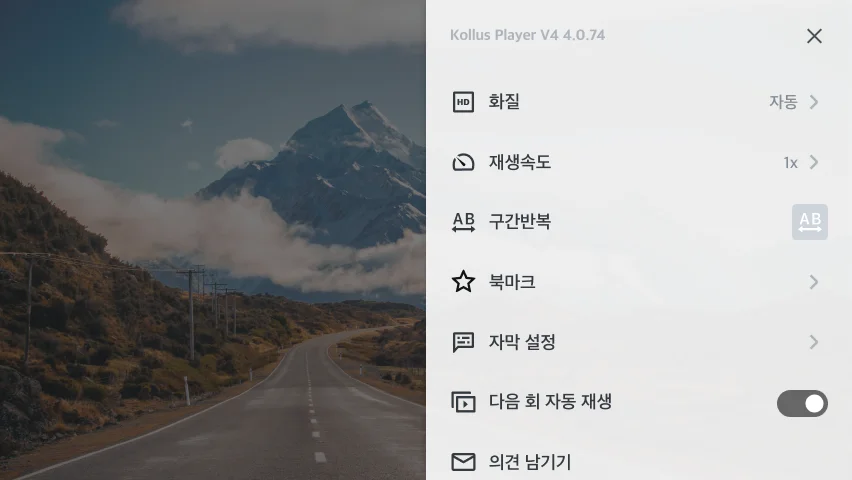
- Quality: Video quality settings
- Playback speed: Adjustable from 0.5x up to a maximum of 2x
- Loop section: Specify the start and end points of a specific section to repeat playback of that section
- Bookmark: View, edit, and delete bookmarks (See also: Bookmark settings)
- Subtitle settings: Enable/disable subtitles, select subtitle, set subtitle size
- Auto-play next episode: Enable/disable auto-play next episode
- Send feedback: Link to the Kollus Player feedback survey page
App Player for Android
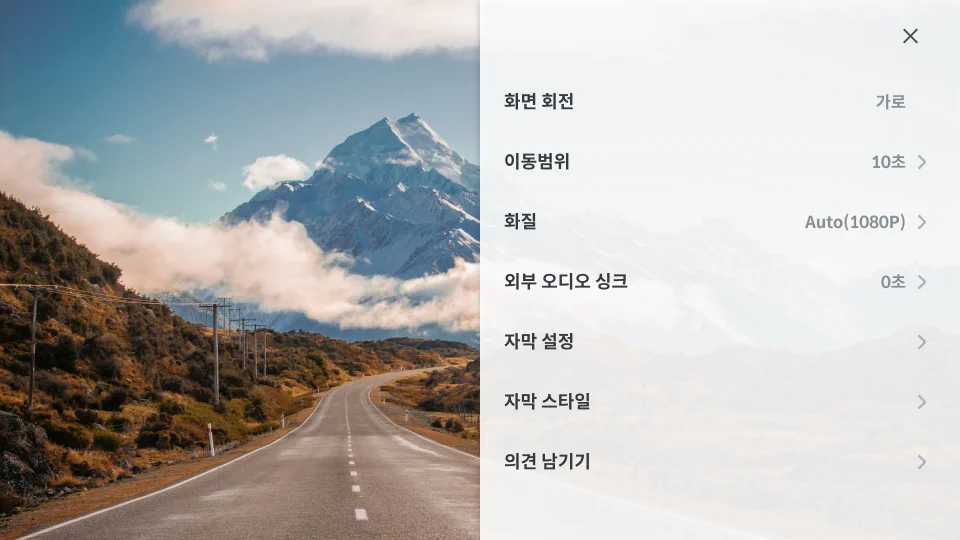
- Screen rotation: Switch between landscape/portrait orientation
- Seek interval: Set the seek interval between 5–300 seconds
- Quality: Video quality settings
- External audio sync: Adjust audio sync when connecting earphones or speakers
- Subtitle settings: Enable/disable subtitles, select subtitle, set subtitle size
- Subtitle style: Set background display, text size, and color
- Send feedback: Link to the Kollus Player feedback survey page
App Player for iOS
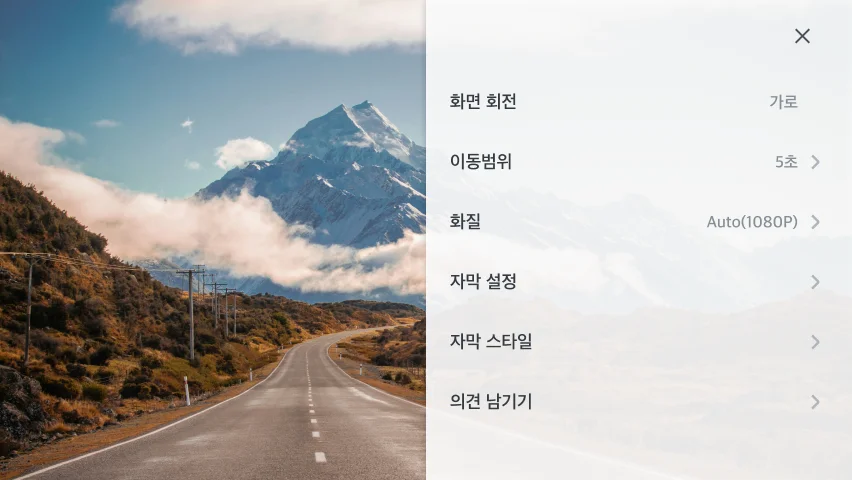
- Screen rotation: Switch between landscape/portrait orientation
- Seek interval: Set the seek interval between 5–300 seconds
- Quality: Video quality settings
- Subtitle settings: Enable/disable subtitles, select subtitle, set subtitle size
- Subtitle style: Set background display, text size, and color
- Send feedback: Link to the Kollus Player feedback survey page
Player control shortcuts
In a PC environment, you can operate the player quickly and conveniently using the keyboard.
| Shortcut | Description | Mobile support |
|---|---|---|
Enter | Full screen / default screen | ✕ |
Space | Play / pause | ◯ |
| → / ← | Move forward / move backward | ◯ |
| ↑ / ↓ | Volume up / down | ◯ |
M | Mute / unmute | ◯ |
X / C | Playback speed slower / faster | ◯ |
Z | Default speed | ◯ |
+ / - | Main subtitle larger / smaller | ✕ |
Shift + / Shift - | Sub subtitle larger / smaller | ✕ |
[ / ] | Loop section start / end | ◯ |
P | Cancel loop section | ◯ |