OBS Integration Settings
This document is a machine-translated draft and is currently undergoing review. Some content may be inaccurate or differ from the original Korean version. For the most precise information, refer to the Korean documentation.
This document explains how to configure OBS (Open Broadcaster Software) to integrate with the Kollus Live service.
If you encounter issues during external encoder integration or need assistance with video quality settings, contact your Support(tech_support@kollus.com) or Account Manager.
Basic live streaming settings
Step 1: Check live streaming information
In the Kollus Live console, check the streaming address and stream key required for live streaming.
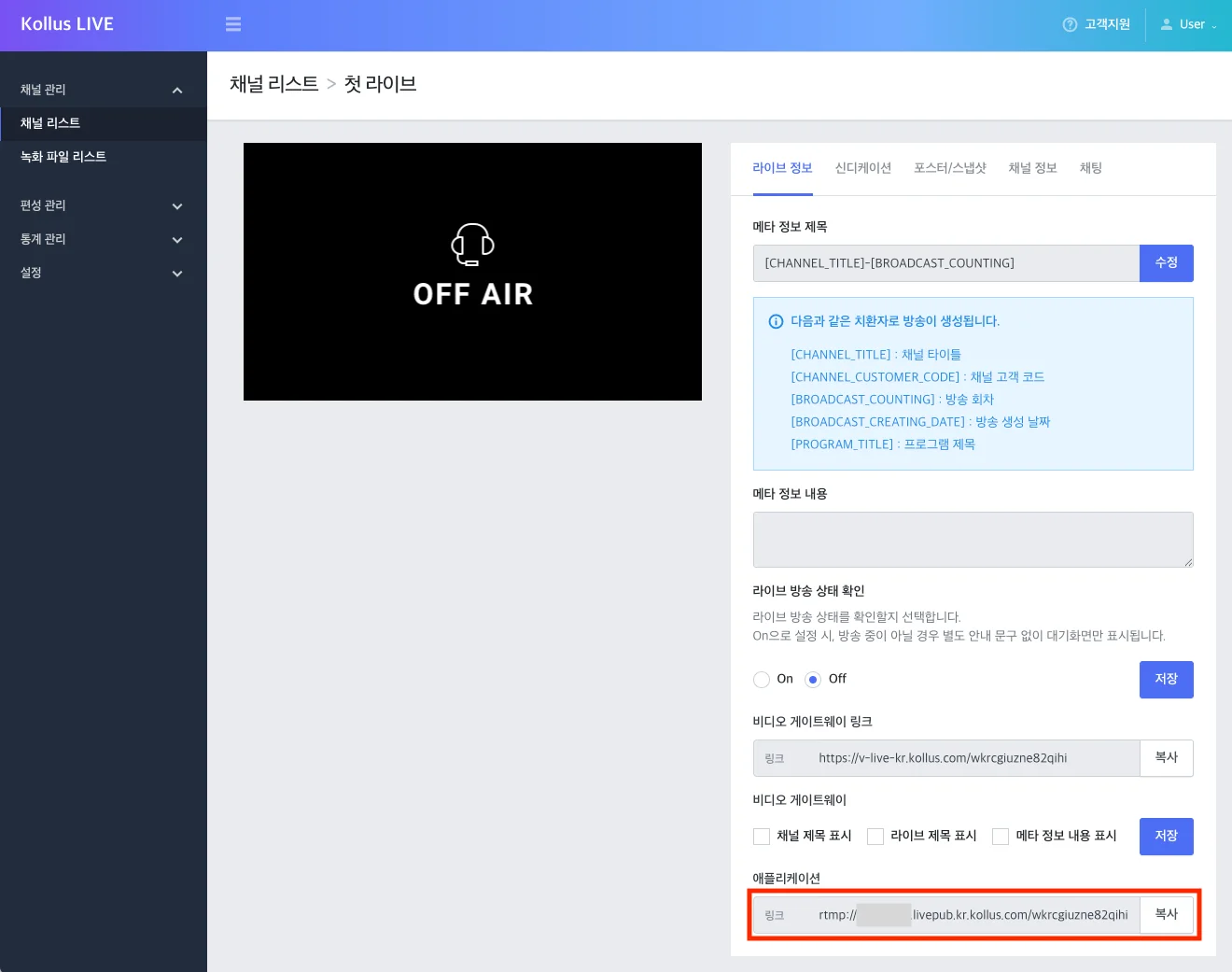
- Streaming address: Kollus Live console > [Channel] > [Channel list] > Select channel > [Application link]
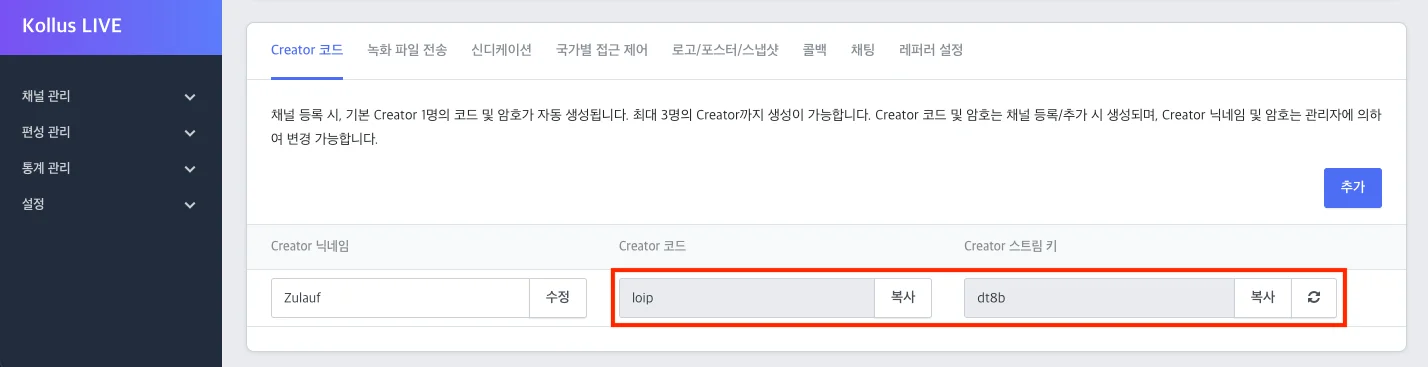
- Stream key: Kollus Live console > [Channel] > [Channel list] > [Edit] on the right of the target channel > [Creator code] tab at the bottom > [Creator stream key]
Step 2: Configure obs settings
Enter the information above in the OBS settings window.
- Settings path: [Settings] > [Stream] > [Destination] > Select [Service] as [Custom]
- Enter streaming information
OBS Setting Kollus Live Console Information Server Application link Stream Key Creator stream key 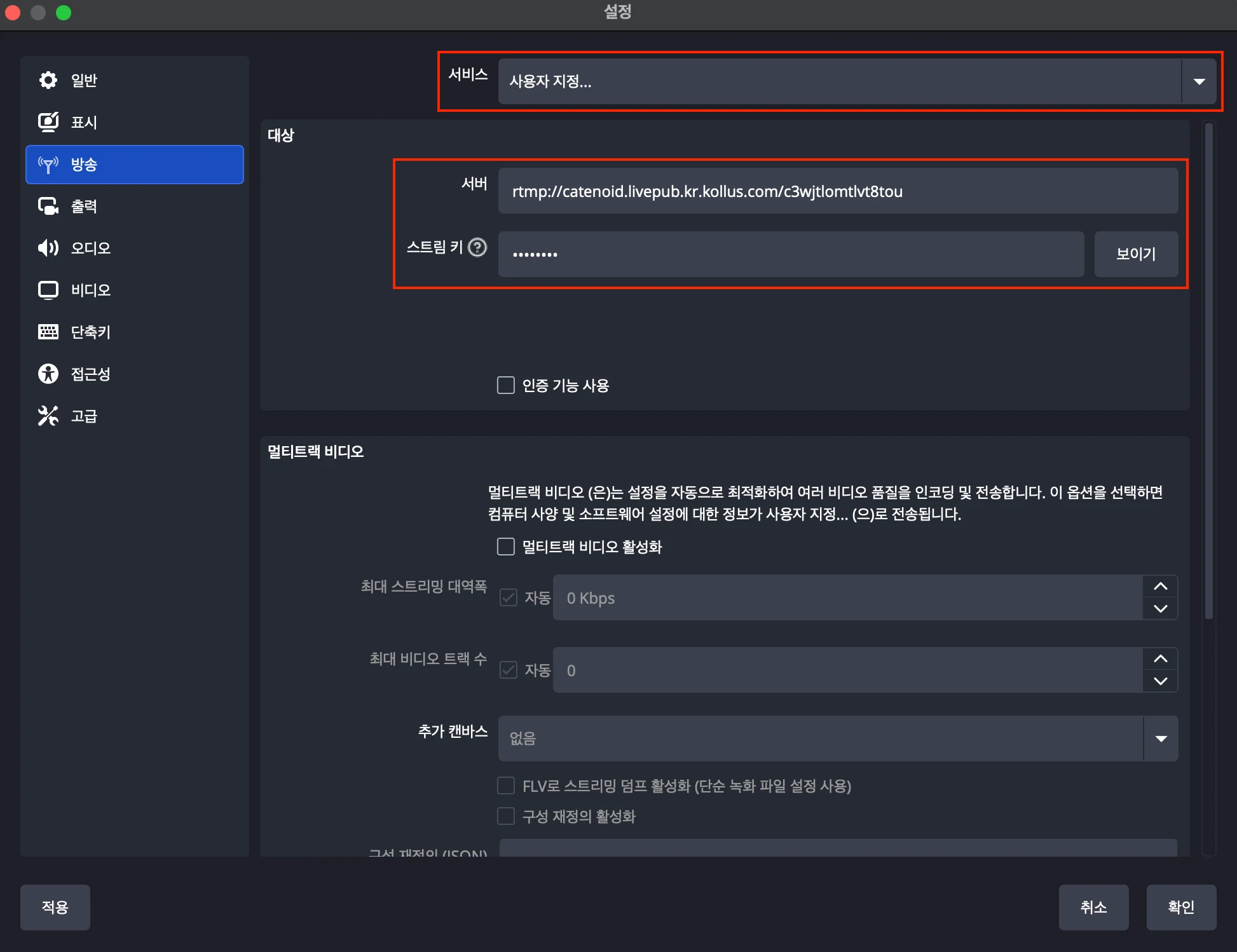
Pixelation prevention settings
Pixelation may occur when streaming content that includes presentation materials such as annotations or PPT slides, or when streaming video with lighting changes or fast movement. To maintain stable video quality, please change the settings in OBS as described below.
Keyframe interval settings
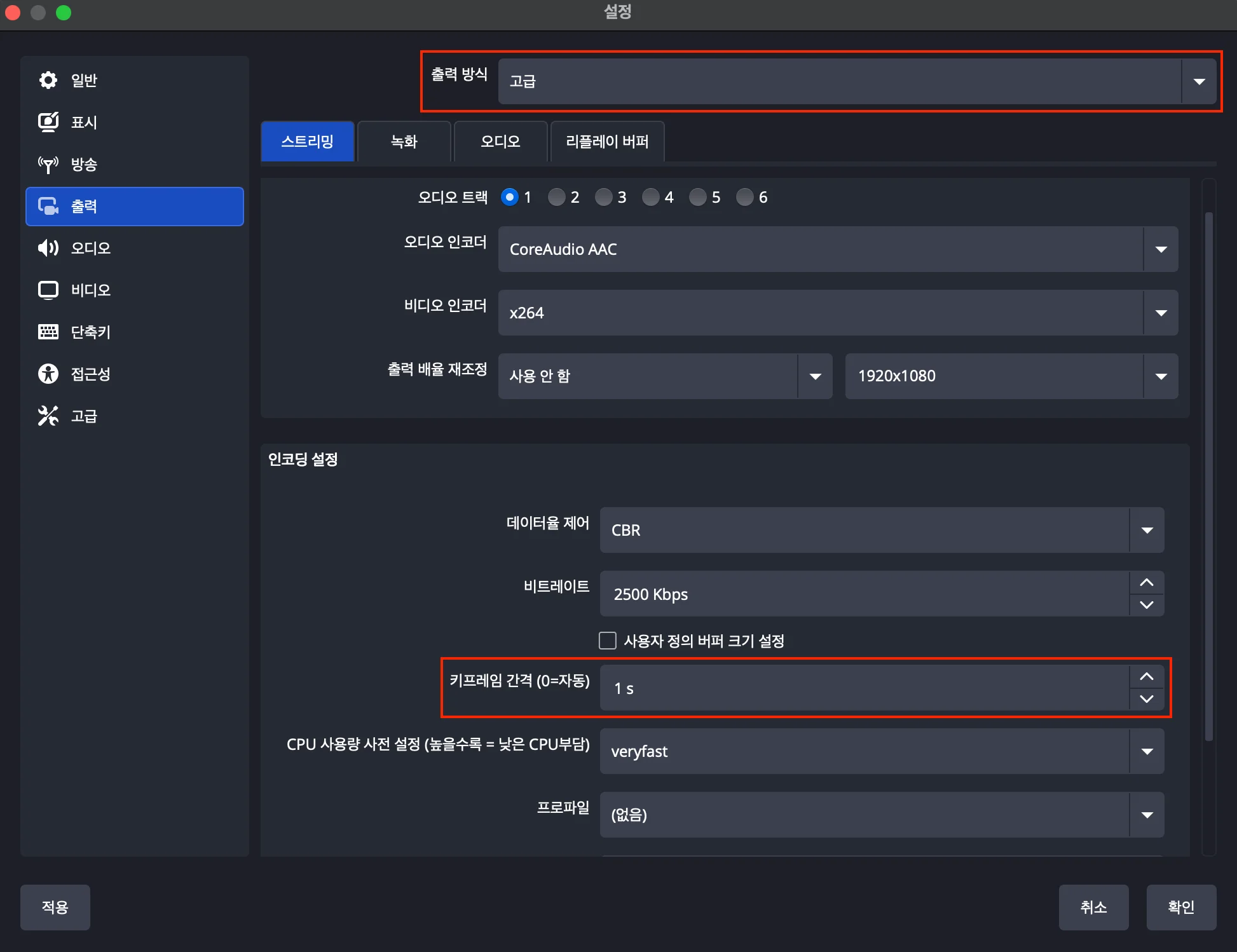
A long keyframe interval can slow down video quality recovery during scene transitions. Therefore, the following settings are recommended.
- Settings path: [Settings] > [Output] > Select [Output Mode] as [Advanced] > [Streaming] tab > [Encoding settings] > [Keyframe Interval]
- Value: 1s
Common FPS values setting
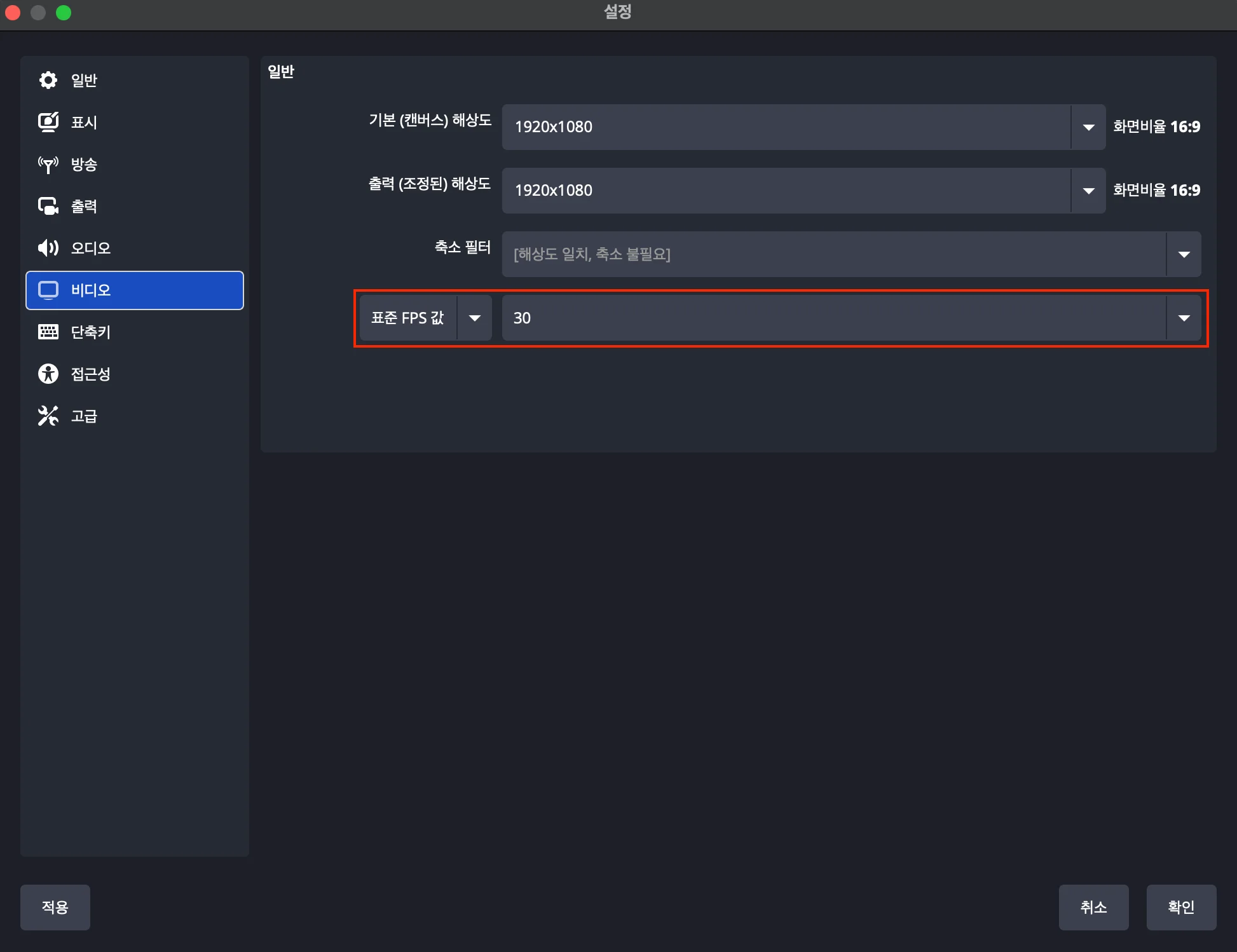
If the frame rate is too high, pixelation may occur due to insufficient bandwidth. 30 FPS is appropriate for general lectures or broadcasts.
- Settings path: [Settings] > [Video] > [Common FPS Values]
- Value: 30
Service bitrate settings
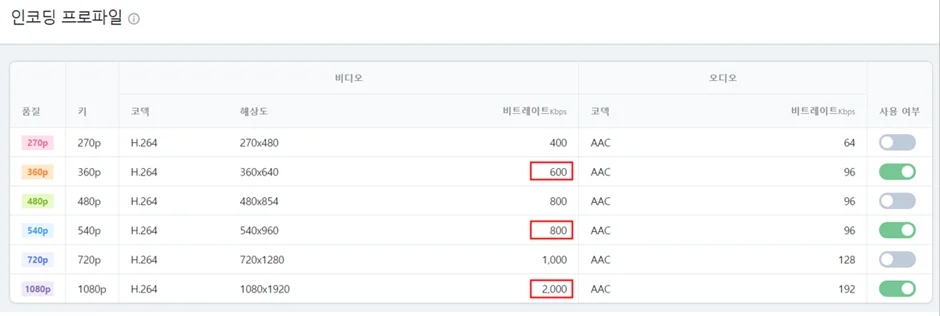
To prevent video quality degradation in the final service, the original streaming bitrate must be kept higher than the Kollus encoding settings. It is recommended to set the OBS streaming bitrate higher than the maximum bitrate of the Kollus encoding profile.
Step 1: Check the bitrate
In the Kollus Live console > [Settings] > [Profiles], check the maximum bitrate value of the profile in use.
Step 2: Configure obs bitrate settings
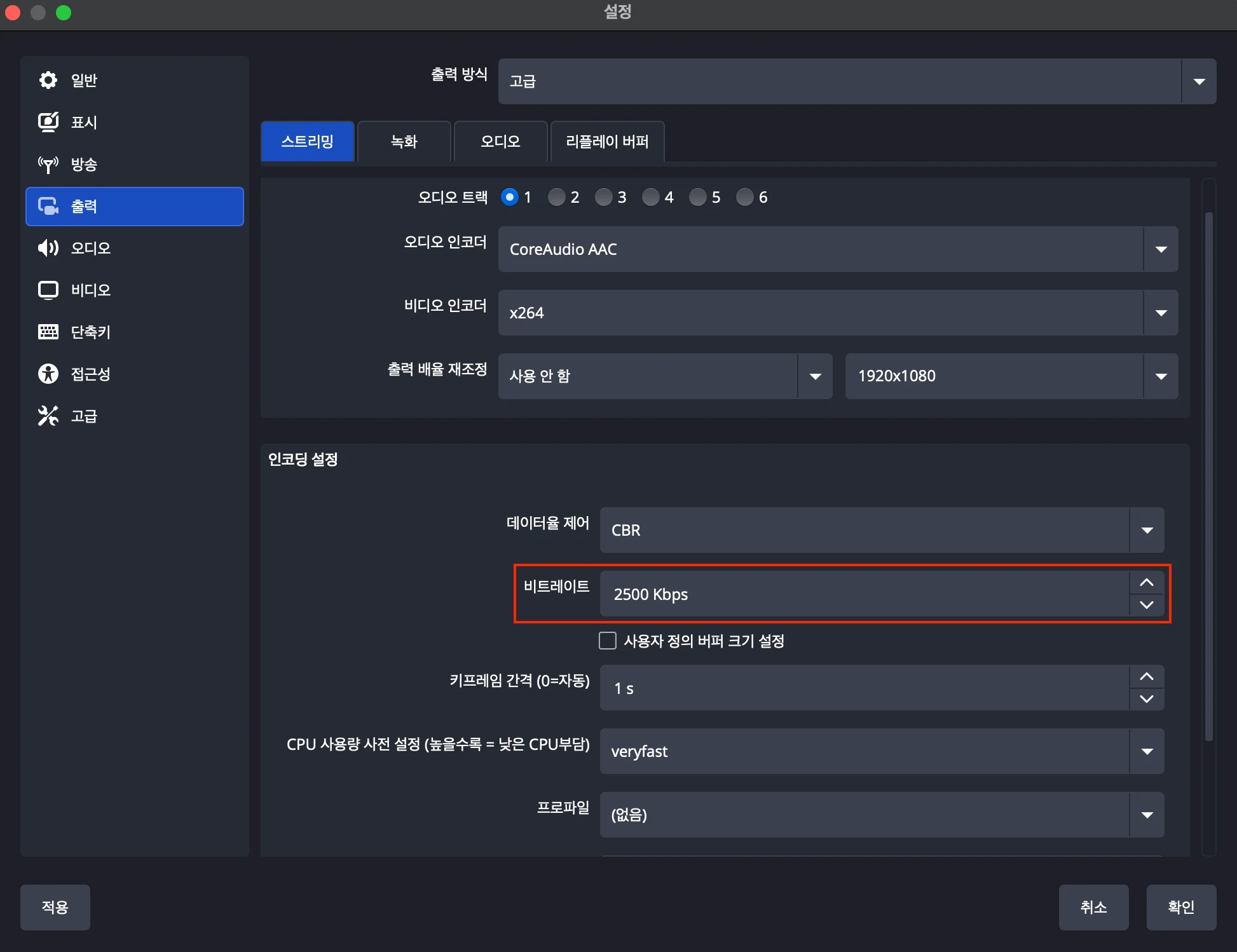
- Settings path: [Settings] > [Output] > Select [Output Mode] as [Advanced] > [Streaming] tab > [Encoding settings] > [Bitrate]
- Value: Enter a value higher than the maximum bitrate of the Kollus encoding profile confirmed in Step 1.