Screen Recording/Capture Prevention
This document is a machine-translated draft and is currently undergoing review. Some content may be inaccurate or differ from the original Korean version. For the most precise information, refer to the Korean documentation.
- PlanEnterprise
The recording/capture prevention feature is disabled by default. To enable this feature, refer to the Recording/capture prevention policy section and contact Technical Support (tech_support@kollus.com) or your Account Manager.
The recording/capture prevention feature is a core security solution of Kollus VOD designed to prevent unauthorized copying and external leakage of high-value video content. When a user launches a commercial recording program, a browser capture tool, or a built-in operating system recording feature, the system detects it in real time and applies technical countermeasures.
Detected incidents are logged in the database, and depending on the configured policy, strong security controls such as revoking content access rights or blacking out the recorded screen are applied.
Recording/capture prevention policy
Kollus VOD offers a total of 7 policies tailored to your business security level.
| Policy | Description |
|---|---|
| Do not handle playback interruption and warnings | The recording/capture prevention feature is not performed. |
| Stop playback and warn | Immediately stops playback and displays a warning message when a recording/capture attempt is detected. |
| Stop playback, warn, and restrict content access | Stops playback upon detecting recording/capture and simultaneously blocks the corresponding user's content access immediately. |
| Apply pattern | Blacks out the recording/capture output. |
| Stop playback, warn, and apply pattern | Displays a warning message to the user while simultaneously blacking out the recording/capture output. |
| Apply pattern and block process | Blacks out the recording/capture output and forcibly terminates the process of the detected recording program at the system level. |
| Process blocking | Forcibly terminates the process of the detected recording program at the system level. |
Support scope by operating system
| Operating system | Application method |
|---|---|
| Windows | Supports all security options, including playback interruption, user blocking, blacking out recording/capture output, and forced process termination, depending on the policy configuration |
| macOS | Immediately stops playback and displays a warning message |
| Android | Blacks out the recording/capture output |
| iOS | Immediately stops playback and displays a warning message |
⚠️ Prerequisites
- Support scope by operating system: The prevention technology and its scope vary depending on the viewer's device environment. For details, see the Support scope by operating system section.
- Secure player required: This feature only works in Kollus HTML5 Player for PC and Kollus App Player environments equipped with the security module. (See also: Kollus Player types)
Screen capture prevention management
You can access the management page from the Kollus VOD console by navigating to [Settings] > [Screen capture prevention] and clicking [Go to Screen Capture Prevention Management].
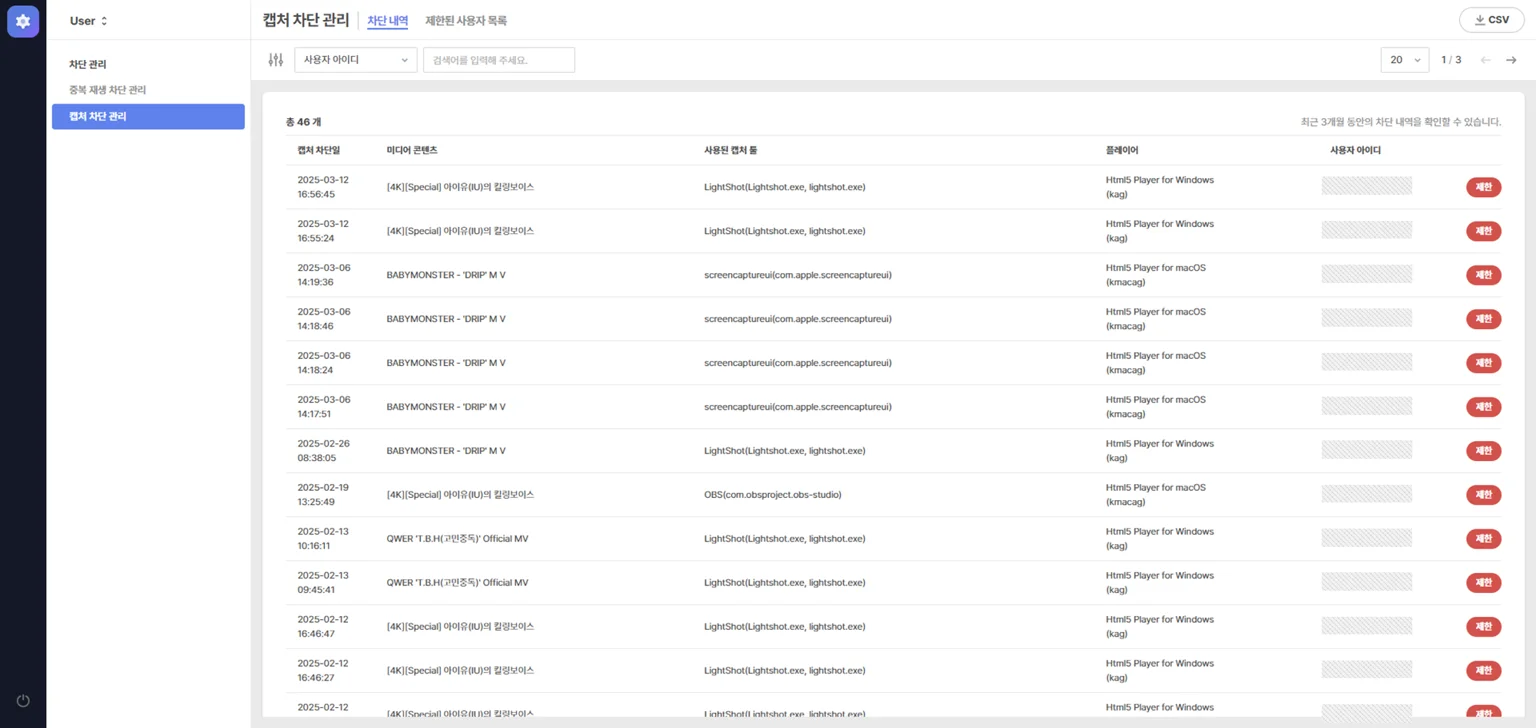
View and download blocking history
In the [Prevention log] tab, you can view screen capture blocking history from the past 3 months and download it as a CSV file.
Restrict content access
In the [Prevention log] tab, click [Limit] to immediately revoke access to all content.
Manage restricted users
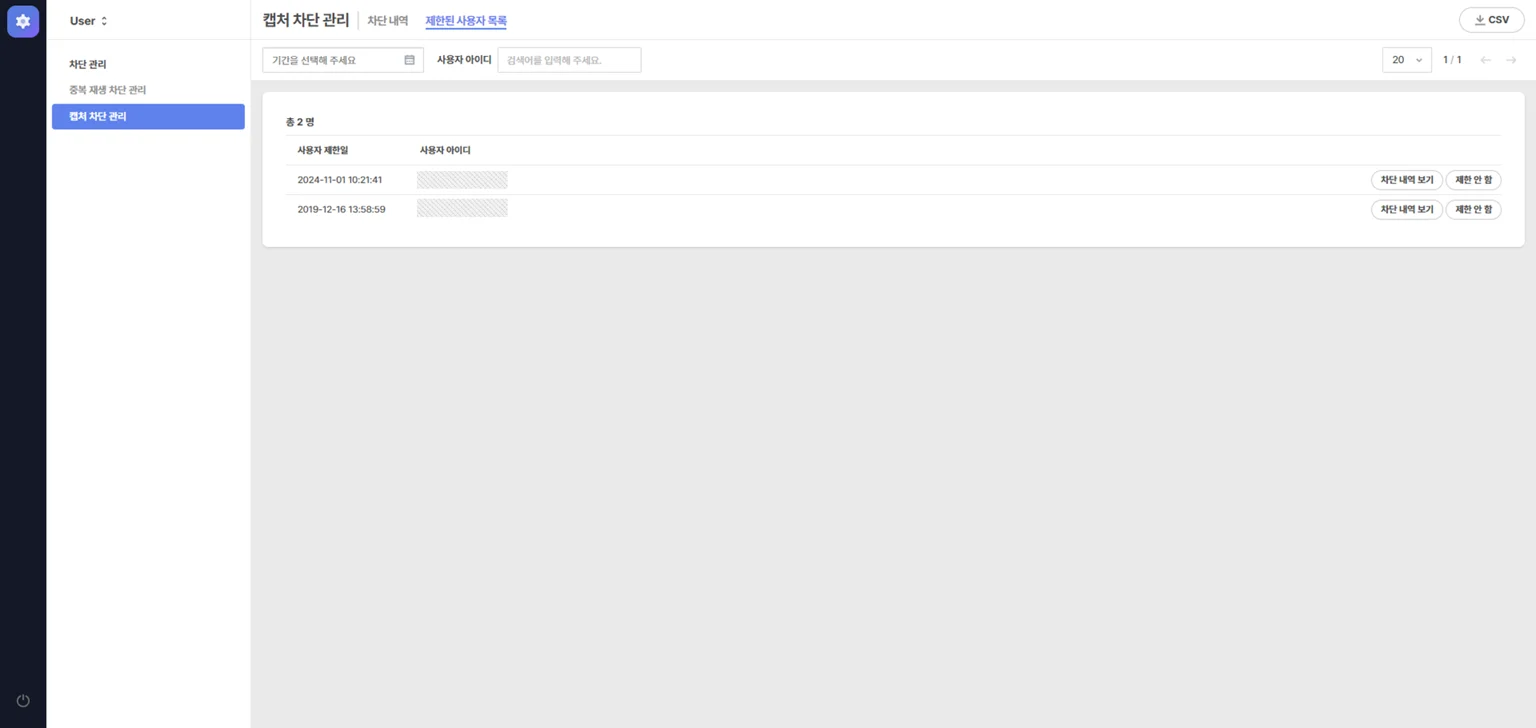
In the restricted users list tab, you can manage information about users whose content access has been blocked.
- Review history: Click [View blocking history] to check the blocking history for the corresponding user.
- Restore access rights: Click [No limit] to restore the corresponding user's content access rights.