Concurrent Playback Prevention
This document is a machine-translated draft and is currently undergoing review. Some content may be inaccurate or differ from the original Korean version. For the most precise information, refer to the Korean documentation.
- PlanEnterprise
Concurrent Playback Prevention is disabled by default. To activate this feature, refer to Concurrent Playback Prevention - Concurrent playback prevention policy and contact Technical Support (tech_support@kollus.com) or your Account Manager.
Concurrent playback prevention is a security feature that blocks unauthorized account sharing and protects copyright by preventing simultaneous viewing on multiple devices with a single account.
Kollus VOD maps the customer's user ID (client_user_id) to the player ID (a unique device identifier) to verify the playback environment in real time, and provides features in the console to forcibly terminate suspicious sessions and reset registered devices.
The key operating mechanism is as follows.
- Device whitelist: Allows playback only on pre-authenticated devices.
- Session concurrency control: Limits the number of playback sessions that can be active at the same time.
Concurrent playback prevention policy
Kollus VOD offers four powerful security options tailored to your business model. Policy changes take effect in real time as soon as they are saved in the Kollus VOD console.
| Policy | Description |
|---|---|
| Do not use | Concurrent playback is allowed on multiple devices without restriction. |
| One device at a time | Without any device registration process, playback is allowed only on the last device that attempted playback. |
| Concurrent playback on registered devices | Concurrent playback is freely allowed as long as the device is registered. |
| One registered device at a time | Playback is allowed on only one device among the registered devices. |
⚠️ Prerequisites
- Device quantity policy: The number of devices that can play concurrently per account can be set up to 10 devices. If differentiated limits are needed depending on the operating environment (PC, mobile, etc.), separate consultation is available.
- Player compatibility (see: Kollus Player types)
- Kollus Web Player
- Kollus HTML5 Player for PC
- Kollus App Player
Set the number of allowed devices
In the Kollus VOD console, set the number of devices allowed per account from [Settings] > [Duplicate IDs] > [Registered device limit].
- Range: You can specify from a minimum of 1 device to a maximum of 10 devices per user ID.
- Integrated device management: PC, mobile, tablet, etc. are not distinguished and are managed collectively as a total count.
- Differentiated policy: If you want to specify individual limits by device type, such as '1 PC + 2 mobile devices', please contact Technical Support (tech_support@kollus.com) or your Account Manager.
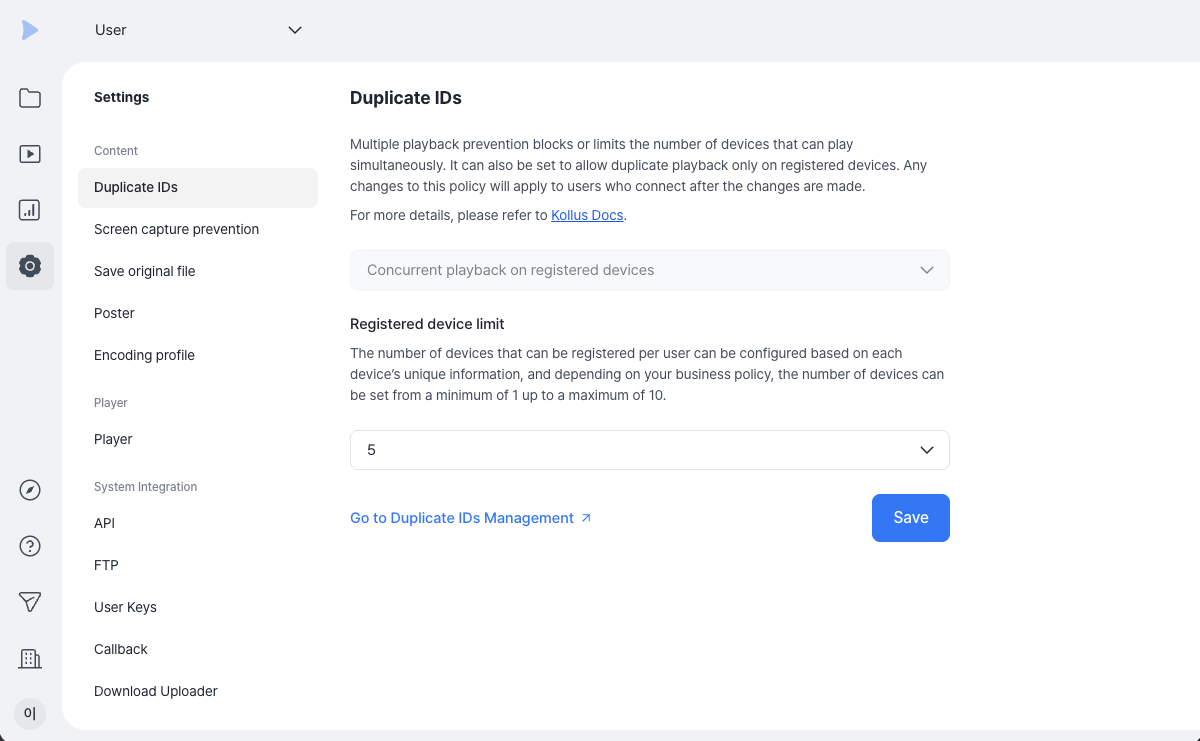
Manage concurrent playback
In the Kollus VOD console, click [Go to Concurrent Playback Management] from the [Settings] > [Duplicate IDs] menu to access the management page.
View and download prevention history
In the [Prevention log] tab, you can view the concurrent playback prevention history for the last 3 months and download it as a CSV file.
Register allowed devices
From the [Prevention log] tab, click [Register allowed devices] to immediately lift the block and add the device to the allowed list.
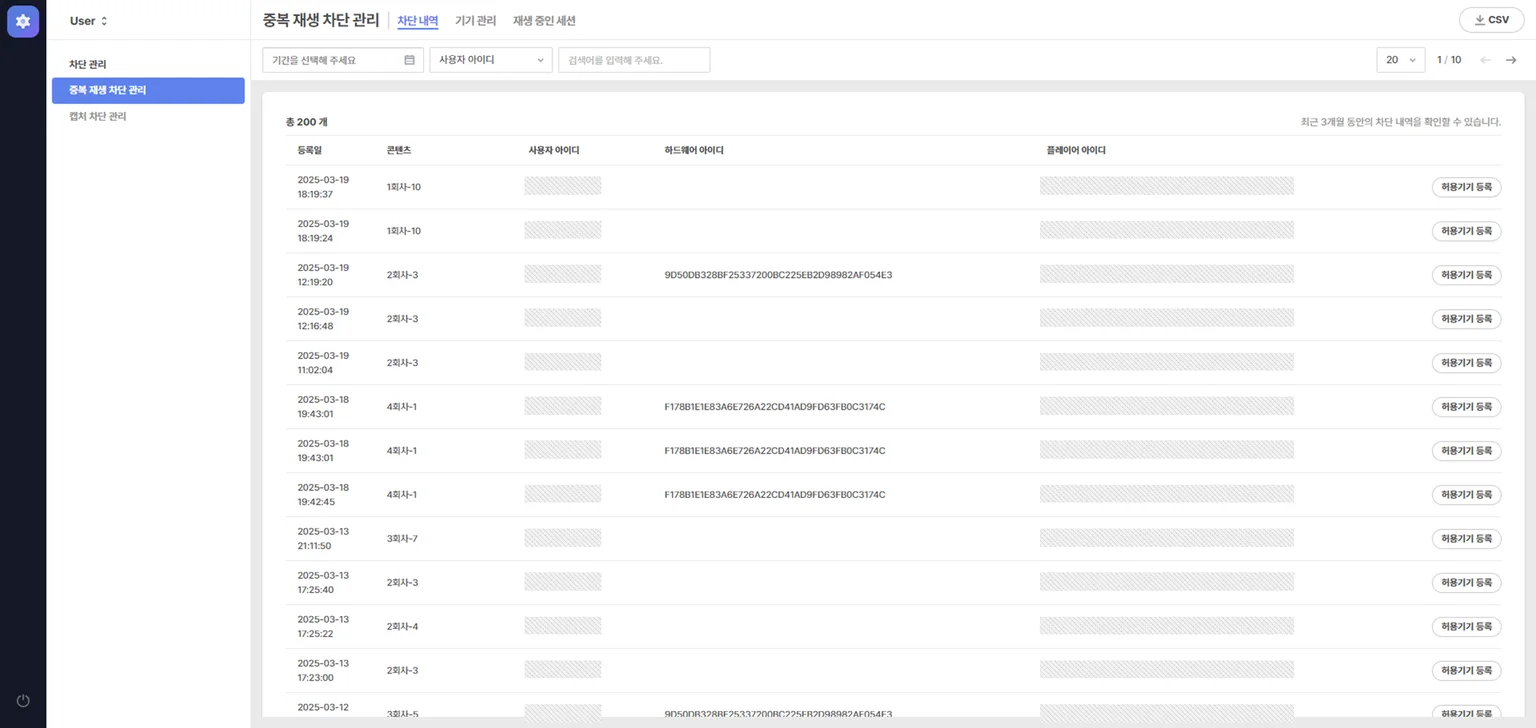
Manage allowed devices
If a user changes or loses a device, the customer administrator can delete the existing device information and free up space to register a new device by clicking [Unregister] or [Unbind all] in the [Device management] tab.
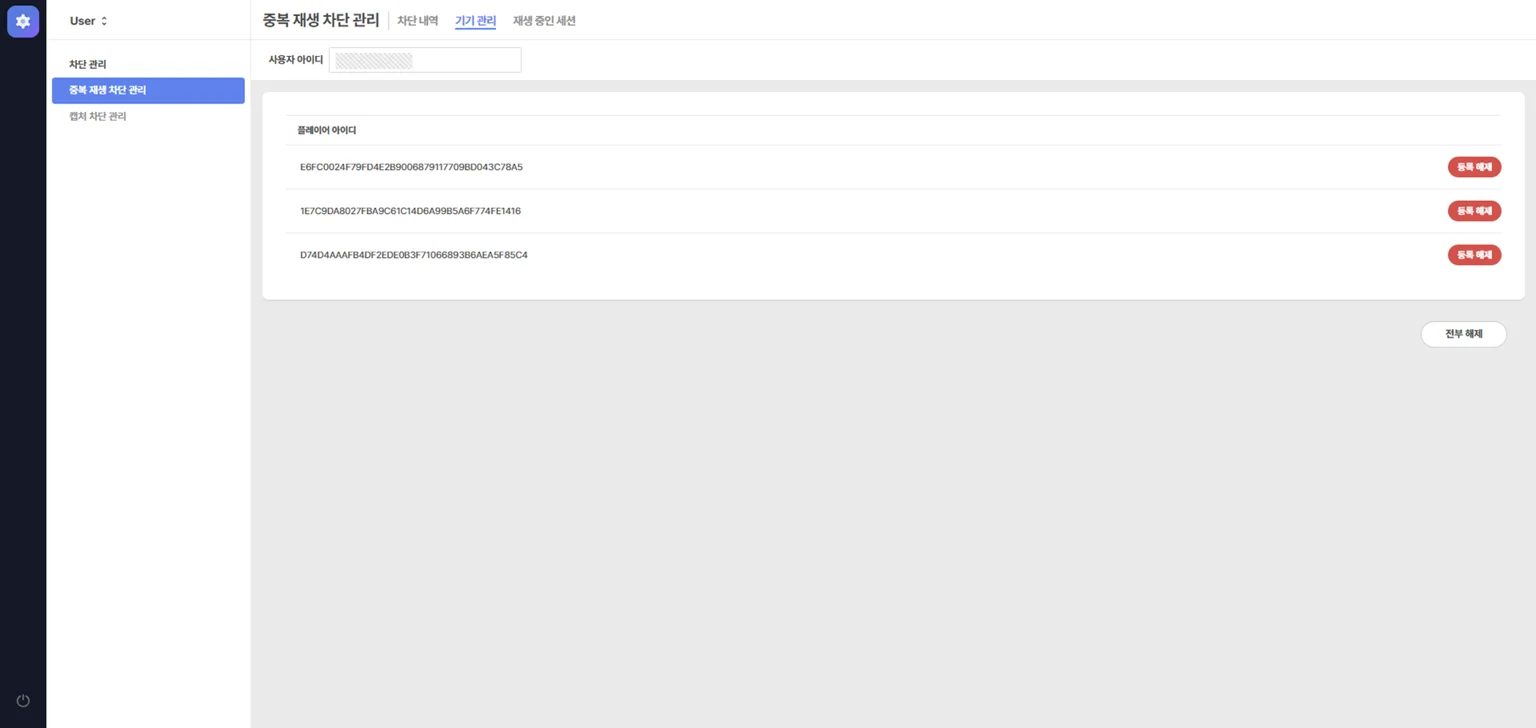
Force-terminate sessions in real time
In the active sessions tab, you can monitor information for all sessions currently playing. If a specific account is suspected of playing simultaneously in multiple locations, you can click [End session] to immediately stop the video being played and invalidate access permissions.
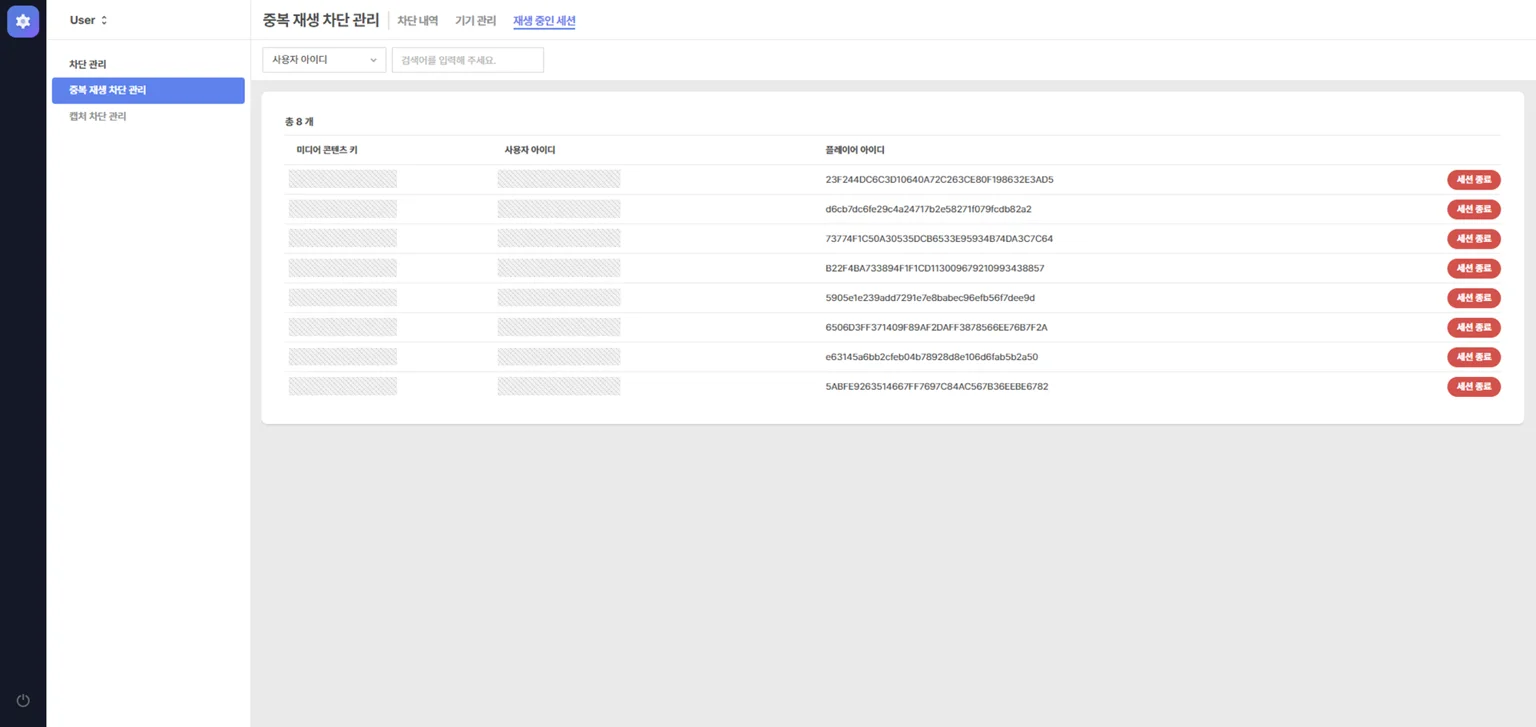
How to check the player ID
When receiving device information from users for manual management, guide them to check the unique ID through the path below.
| Operating system | Player ID location |
|---|---|
| Windows | System tray (bottom right) > right-click the KollusAgent icon > [Info] |
| macOS |
|
| iOS | [Settings] > [Device info] in the Kollus Player app |
| Android | [Settings] > [Device info] in the Kollus Player app |