-1002
This document is a machine-translated draft and is currently undergoing review. Some content may be inaccurate or differ from the original Korean version. For the most precise information, refer to the Korean documentation.
- Error code: -1002
- Summary: Screen sharing/capture/recording program detection and conflict
Symptoms
- The video does not play and a message saying "A screen recording or capture program has been detected" is displayed.
- The symptom may persist even when using a different browser, and may also occur during mobile mirroring.
Causes
- Built-in OS recording features: Occurs when built-in recording processes such as Game Bar (DVR) on Windows 10/11 or QuickTime on macOS are running.
- Video conferencing programs: Occurs when programs with screen sharing functionality such as Zoom, Google Meet, or Teams are running.
- Remote control and capture programs: Occurs when apps with capture functionality such as Chrome Remote Desktop, Steam, PicPick, or AhnCamCorder are running.
- Browser extensions: Occurs when script manipulation plugins (such as Tampermonkey) conflict with the security module.
- Residual processes: Occurs when related processes remain in the system tray or background even after the program window has been closed.
Solutions
Windows environment
After making any configuration changes, you must restart by going to [Start] > [Power] > [Restart]. Simply powering off and on via [Shut down] may retain previous processes due to the Fast Startup feature.
Disable game bar
Refer to the Disable Game Bar document to disable the Game Bar feature.
Terminate processes
Force-terminate screen sharing/capture/recording-related processes running in the background using Task Manager.
- Press [Ctrl]+[Shift]+[Esc] on your keyboard to open Task Manager.
- In the [Processes] tab, find and select the items below, then click [End task].
bcastdvr.exe(Broadcast DVR server)gamebar.exe(Game Bar)steam.exe(Steam)- Other screen sharing/capture/recording processes
Manage programs
The following screen sharing/capture/recording programs must be fully closed from the system tray or uninstalled via Control Panel.
- Video conferencing programs such as Zoom, Google Meet, and Teams
- Remote control programs such as AnyDesk and TeamViewer
- Screen capture programs such as PicPick and SCAPTURE
- [Uninstall and reboot required] Antools (AhnCamCorder/AhnCamera)
- Steam Deck
- Other screen sharing/capture/recording programs
How to close a program
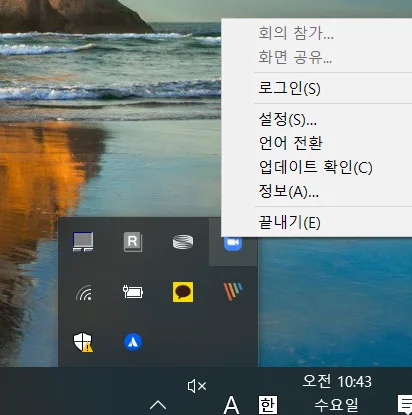
Right-click the program icon in the system tray at the bottom right of the screen, then click [Exit] or [Quit].
How to uninstall a program
- Type 'Control Panel' in the Start menu search bar and open it.
- Navigate to [Programs] > [Uninstall a program].
- Right-click the program you want to uninstall, then click [Uninstall].
Modify registry settings (advanced)
Create a GameDVR entry (key) at the path below and save it with the default value. This is only recommended if you have experience modifying registry settings.
- Path:
HKEY_LOCAL_MACHINE\SOFTWARE\Policies\Microsoft\Windows
macOS environment
On macOS, you must close the built-in apps QuickTime and the screenshot process.
- Quit QuickTime Player: Click [QuickTime Player] > [Quit QuickTime Player] in the menu bar at the top.
- Terminate the screenshot process: Since there is no dedicated quit button, find the process in [Apps] > [Activity Monitor] and force quit it.
- Close other screen sharing/capture/recording apps: Apple Support - How to force quit apps on Mac
Browser extensions
If a screen sharing/capture/recording extension installed in a browser such as Chrome is running, playback will be blocked by the security policy. Check for browser extension conflicts.
�phrase0�s
The real-time protection feature of an antivirus program may falsely identify Kollus Player's security module as a threat and block it from running. Refer to the document below to temporarily disable real-time protection and then try launching the player again.
- See Also: Conflicts with antivirus programs
Mobile environment
Mirroring or casting your smartphone screen to a TV or external monitor is blocked under the security policy as it is considered recording/duplication. Always watch content on the device's own screen only.